
Sync Shopify data with Mixtable
 All Mixtable apps
Updated October 6, 2026
All Mixtable apps
Updated October 6, 2026 On this page
Mixtable keeps your spreadsheet and your Shopify store in step. Changes made in Shopify come into Mixtable automatically, and your edits go to Shopify when you click Sync. Both directions meet in the sync control at the top right of the spreadsheet, next to Share.

The sync control at a glance
The sync control has a side for each direction, plus a ▾:
- From Shopify covers data coming in from your store. It shows Apply 3 updates when updates are waiting, Download latest on worksheets with data that Shopify doesn’t send on its own, and Downloading from Shopify… while data comes in. When nothing is waiting, it reads From Shopify with a check mark
- To Shopify covers your edits going out. It shows Sync 12 changes and Preview when you have edits, Syncing to Shopify… while Mixtable sends them, and a count such as 2 sync errors if Shopify didn’t accept something. When there’s nothing to send, it reads To Shopify with a check mark
- The ▾ at the end opens the sync card, which has more detail and the downloads
Clicking From Shopify or To Shopify while they show a check mark opens the sync card too.
Send your edits to Shopify
When you change a cell in a column linked to Shopify, Mixtable highlights it and keeps the change in your spreadsheet. Nothing reaches your Shopify store until you sync, so you can prepare a whole batch first. Edits in columns that aren’t linked to Shopify stay in Mixtable.
- Open the Shopify data worksheet with your edits. The sync control shows how many are waiting, for example Sync 12 changes
- Click Preview to review every pending change in the Preview changes window (see Preview Shopify changes before syncing)
- Click Sync 12 changes in the sync control, or in the Preview changes window
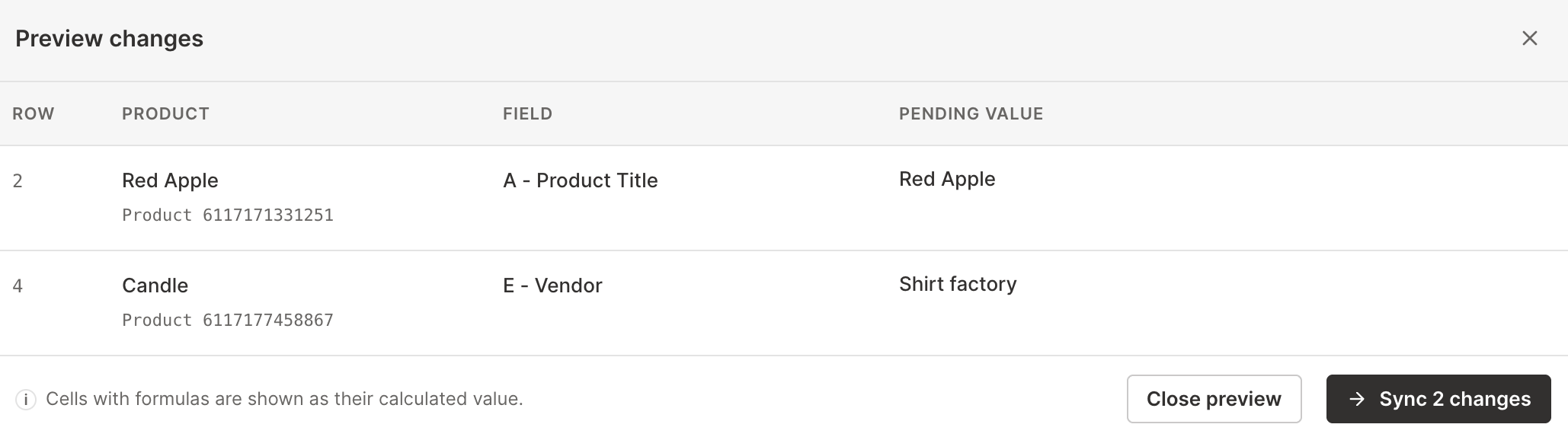
While Mixtable sends your changes, the sync control shows Syncing to Shopify…, and the worksheet may lock for a moment with the message “This worksheet is locked while your changes sync to Shopify.” It may take a few seconds for the changes to appear in your store. Once everything has synced, To Shopify shows a check mark again.
Mixtable records each change Shopify accepts in Cell history and Row history, under the name of whoever clicked Sync, so you can look back later at what a field held before, such as a variant’s earlier price. Learn more about Shopify change history.
If you make more edits while a sync runs, a number on the ▾ shows how many are waiting. Sync them once the current sync finishes.
Preview and Sync cover the open worksheet
The count, Preview, and Sync cover the worksheet you have open. If you edited several worksheets, open each one in turn and sync it.
What syncing needs
Syncing needs Mixtable Spreadsheet Editor installed in your Shopify store, with an active plan or its free seven-day trial. Development, trial, and non-profit Shopify stores can sync for free once the app is installed. If something is missing, the sync control says so in place of the sync button as soon as you have edits waiting:
- Install app to sync: Mixtable Spreadsheet Editor isn’t installed in this store. Click it to open the app in your Shopify admin and install it
- Upgrade to sync: the app is installed, but the store doesn’t have an active plan. Click it to choose one
The sync card says the same under To Shopify: “Needs the Spreadsheet Editor app” with an Install app button, or “Needs a Spreadsheet Editor plan” with an Upgrade button. During the free trial, a small card at the bottom right of the spreadsheet shows how many days are left.
Fix sync errors
If Shopify doesn’t accept some of your changes, the sync control shows a count such as 2 sync errors.
- Click 2 sync errors to open the Sync Errors window, which lists each row with Shopify’s message
- Click Go to row to jump to a row, then fix the value
- When you’ve fixed everything, sync again
The sync card lists the same errors under To Shopify, with a See errors button. If you have new edits waiting at the same time, the sync control shows Sync 2 changes, and a red number on the ▾ keeps the errors in view.
Updates from Shopify
Changes made in Shopify come into Mixtable automatically, so your worksheets stay up to date with your store. Cells that change are briefly outlined in green, so you can spot them.
If you have the spreadsheet open when changes arrive, Mixtable holds them so nothing shifts around while you’re working. The sync control shows how many are waiting, for example Apply 3 updates. Click it to bring them in right away, or close the spreadsheet and they’ll come in on their own.
The sync card shows the same updates under From Shopify, such as “3 updates from Shopify” with the note “Paused while you work. They’ll download automatically if you close the spreadsheet”, and an Apply now button that does the same as Apply 3 updates.

Download data that Shopify doesn’t send on its own
Shopify doesn’t tell Mixtable when some kinds of data change, so Mixtable downloads them when you ask. On a worksheet with this data, the sync control shows Download latest:
- Blogs, Blog posts, Pages, Payouts, Balance transactions, Media images, and Discounts, on worksheets of that type
- Translations, on worksheets with Translations columns
- Market & B2B prices, on worksheets with Market Prices or B2B Catalog Prices columns
- Inventory history, on worksheets with inventory metrics, until your store’s inventory history has finished downloading

To download the latest data:
- Click Download latest in the sync control at the top right of the spreadsheet. If it shows Apply 3 updates instead, click the ▾ next to it. The sync card opens
- Under Download latest from Shopify, click Download next to the data you want, for example Blog posts
A message confirms the request, and the sync control shows Downloading from Shopify… while the data comes in. Changed cells update as the data arrives.
If the selected column is a translation or market price column, its column chip, next to the cell address, also has a Download latest button that opens the sync card.
Markets, companies, and company locations don’t need a download. They update automatically when they change in Shopify.
The sync card
To open the sync card, click the ▾ at the right end of the sync control, or choose Shopify Sync > Sync with Shopify…. At the top, the card shows your store’s name and a status such as Up to date or Syncing…. Below that are up to three sections:
- To Shopify: your edits waiting to sync, for example “12 changes to sync” with Preview and Sync buttons, and any sync errors, with See errors. When there’s nothing to send, it says “Nothing to sync”
- From Shopify: updates waiting from your store, for example “3 updates from Shopify” with Apply now. When there aren’t any, it says “No updates waiting”
- Download latest from Shopify: a Download button for each kind of data on this worksheet that Shopify doesn’t send on its own. This section appears only on worksheets that have such data
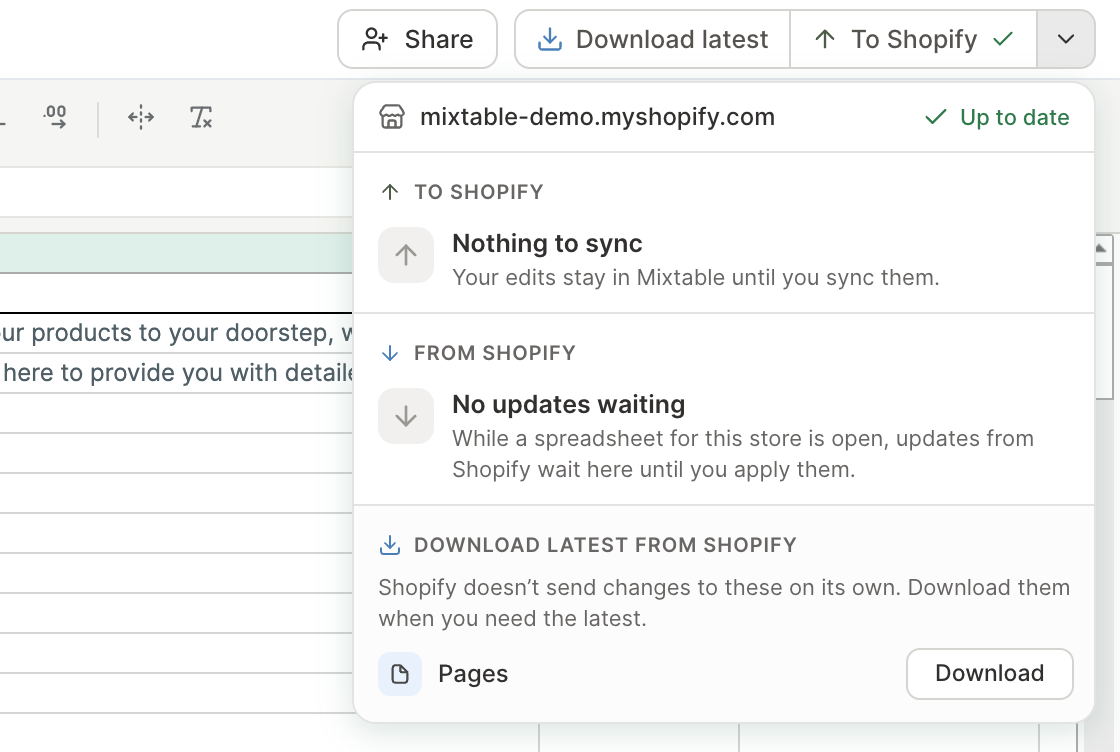
To close the card, click the ▾ again, click anywhere outside the card, or press Esc.
The ▾ also shows work that isn’t in one direction or the other: “Updating analytics…” while analytics numbers recalculate, and “Syncing…” while another store in the spreadsheet syncs.
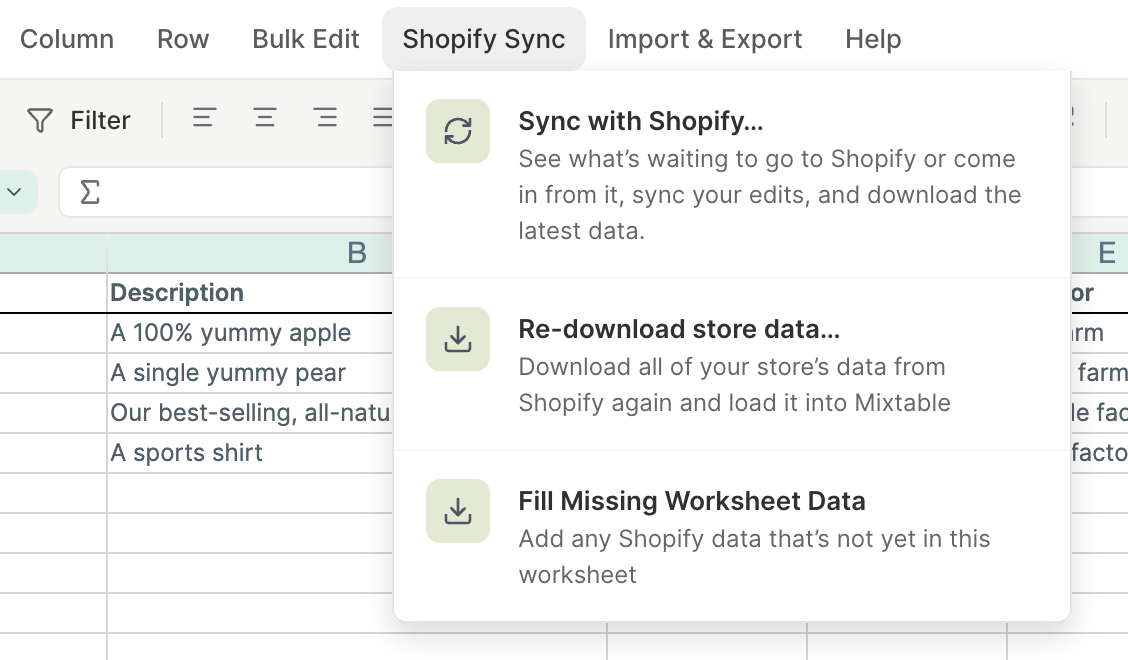
The Shopify Sync menu
The Shopify Sync menu in the menu bar has three entries:
- Sync with Shopify…: opens the sync card
- Re-download store data…: opens the Shopify Sync window, where you can download all of your store’s products, customers, orders, and other data from Shopify again. Mixtable stays in sync on its own, so you’ll rarely need this, but it can help after you add a new metafield, for example (see Re-download all Shopify product data to Mixtable)
- Fill Missing Worksheet Data: brings back Shopify data that’s missing from the worksheet, such as rows you deleted by accident (see Fill Missing Worksheet Data)
Which worksheets show what
- Shopify data worksheets show both sides of the sync control and the full sync card
- Reporting worksheets (Pivot Table and Time Series worksheets) calculate their numbers from your store data, so there’s nothing to sync to Shopify. The sync control shows downloads only: on a report with inventory metrics, Download latest leads to the Inventory history download until your store’s inventory history is complete. It also says “Updating analytics…” while the report’s numbers recalculate
- Basic worksheets have no Shopify data. The sync control shows only “Syncing with Shopify…”, while Shopify work runs somewhere in the spreadsheet
Troubleshooting
I don’t see a Sync button
Sync 12 changes appears after you edit a cell in a column linked to Shopify, on the Shopify data worksheet you have open. Edits in columns that aren’t linked to Shopify stay in Mixtable and don’t count. If the sync control shows Install app to sync or Upgrade to sync instead, follow that first.
Clicking Sync shows “You cannot commit changes and start a sync”
Someone shared this spreadsheet with you without permission to sync. Ask the spreadsheet’s owner to turn on Can initiate sync to Shopify for you (see Share Spreadsheet With Shopify Data).
Updates are waiting right after I synced
That’s normal. Shopify reports changes back to Mixtable, including the ones you just synced, so they show up as updates while the spreadsheet is open. Click Apply 3 updates, or let them come in when you close the spreadsheet.
“Couldn’t start the Shopify updates. Please try again.”
Mixtable couldn’t start bringing in the waiting updates. Click Apply 3 updates again.
Blog posts, translations, or prices look out of date
Shopify doesn’t send changes to these on its own. Click Download latest in the sync control and download them, as described above.
The worksheet is locked
An amber bar says why, for example “This worksheet is locked while your changes sync to Shopify.” You can still browse the data, and the bar goes away when the work is done (see When a worksheet is locked).
I don’t see the sync control
The sync control needs a wider window. On a narrow screen, such as a phone, Mixtable shows a simpler view of the spreadsheet without it. On a Basic worksheet, the control appears only while Shopify work is running.