
Undo unsynced edits with Revert to Shopify value
 Spreadsheet Editor Updated October 20, 2026
 On this page
When you edit Shopify data in Mixtable, every change waits in your spreadsheet until you sync it. If you change your mind about some of those edits, for example after pasting prices into the wrong column or running a find and replace that went too far, Revert to Shopify value puts the cells back the way they are in Shopify. Nothing is sent to your store, so it’s a safe way to clean up before you sync.
What counts as an unsynced edit
When you change a cell in a column linked to Shopify, the cell turns pale yellow. That means the change is saved in Mixtable but hasn’t gone to Shopify yet. The sync control at the top right of the spreadsheet counts these edits, for example Sync 12 changes.
Revert to Shopify value works on these pale yellow cells. It gives each one back the value Mixtable has from your Shopify store and clears its highlight, so it no longer counts as a change to sync.
Revert cells to their Shopify values
- Select the cells you want to put back. You can select a single cell, a range, a whole column, or several ranges at once. Cells without unsynced edits in your selection are left as they are
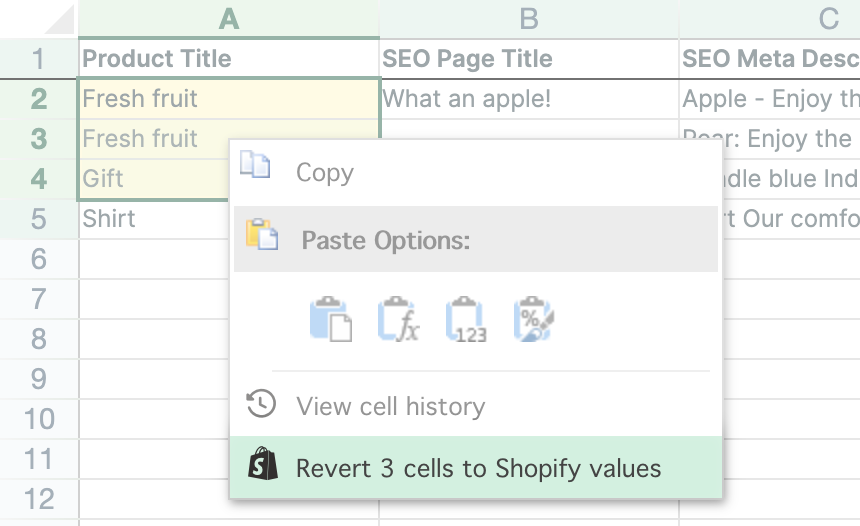
- Right-click one of the selected cells and choose Revert to Shopify value. You can also choose Shopify Sync > Revert to Shopify value from the menu bar
- Mixtable puts the cells back and confirms how many it reverted, for example “Reverted 3 cells to their Shopify values”
When your selection has more than one unsynced cell, the option shows how many it covers, for example Revert 3 cells to Shopify values. If you’re working with several people in the spreadsheet, their screens update too.
Things to know
- It only undoes edits you haven’t synced. Once a change has gone to Shopify, the Shopify value is your new value, so there’s nothing to revert. To go back to an earlier value after a sync, look it up in Cell history, type it into the cell, and sync again
- It uses the value from Shopify, not the value before your edit. Mixtable keeps your Shopify data up to date, so if someone changed the field in Shopify in the meantime, you get the newer value from Shopify
- Up to 1,000 cells at a time. If your selection has more than 1,000 unsynced cells, the option reads Revert more than 1,000 cells to Shopify values and asks you to select fewer. Revert in parts, for example a few hundred rows at a time
- Some cells have no Shopify value to go back to. New rows that you haven’t created in Shopify yet don’t exist in your store, so their cells stay as they are. Mixtable tells you how many cells it couldn’t revert
- It’s only on Shopify data worksheets. Basic worksheets and Reporting worksheets have nothing in Shopify to go back to
- You need to be able to edit the worksheet. The option is grayed out when your selection has no unsynced edits, while the worksheet is locked (for example, during a sync), or on a spreadsheet someone shared with you that you can only view
Check your changes before syncing
Every sync starts with a preview. Click Sync at the top right of the spreadsheet, and the Preview changes window lists each pending edit. If you spot one you don’t want, click Close preview, revert the cell, then sync again. See Preview Shopify changes before syncing for a full tour.