
Sorting Shopify Data in a Mixtable Spreadsheet
 All Mixtable apps
Updated October 6, 2026
All Mixtable apps
Updated October 6, 2026 Sorting your worksheet data in Mixtable is a straightforward process that allows you to arrange information in either ascending or descending order. Open your Shopify-linked spreadsheet and follow the process outlined below.
1. Open the Sort Worksheet window
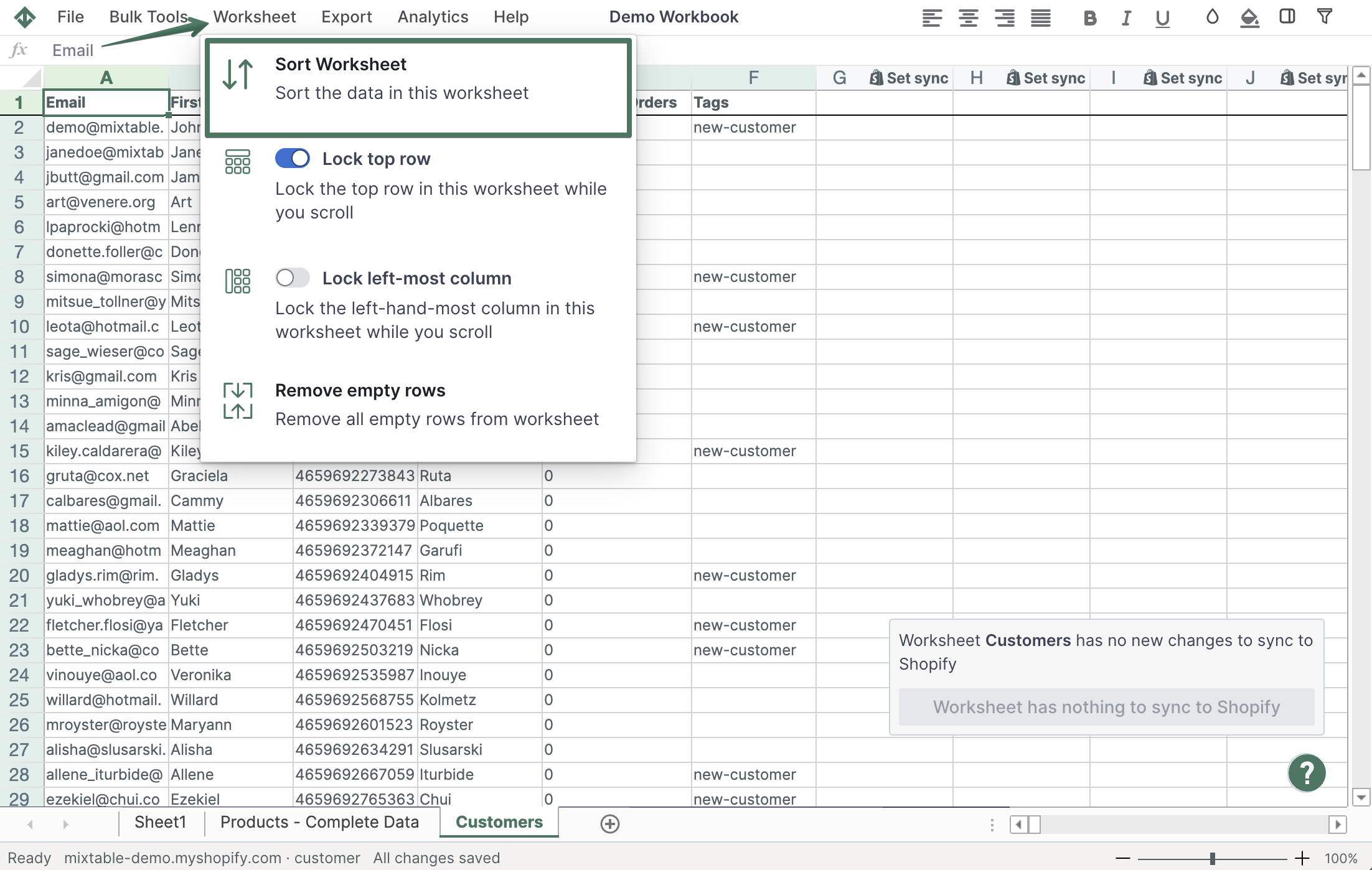
After creating the spreadsheet and adding the worksheet you need, open the worksheet you’ll be sorting. Then use any of these:
- Click the Sort button in the toolbar, right next to Find and Filter
- Choose Worksheet > Sort Worksheet from the menu bar
- To sort by a particular column, right-click the column’s letter and choose Sort worksheet by column C… (the letter matches your column). The Column menu in the menu bar has the same option. The window then opens with that column already chosen
In the Sort Worksheet window that appears, you’ll have the option to select the column you want to sort by and the direction of the sort.
2. Specify sorting criteria
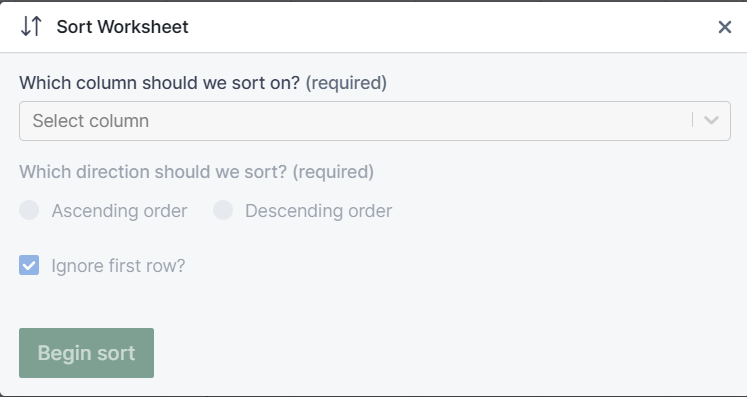
When the Sort Worksheet window opens, you’ll see the option to select the column to use in the sort and the direction of the sort.
Which column should we sort on? First, you need to select the column you will be sorting by clicking the drop-down menu. You will see a list here of all the columns in the worksheet that have data in them, along with the value of the first cell in the column if there is one. If you opened the window from a column letter, that column is already chosen.
Which direction should we sort? Once you select the column you want to sort, you need to choose if you want to sort it in ascending order or descending order.
- By selecting the Descending order option, Mixtable will sort the rows in the worksheet based on the values in the column, going from largest/highest to smallest
- By selecting the Ascending order option, Mixtable will sort the rows in the worksheet based on the values in the column, going from smallest to largest/highest
Ignore first row? This box is checked by default, so your header row stays at the top while the rows below it are sorted. Uncheck it only if your worksheet has no header row.
3. Finalize sorting
Click Begin sort. Mixtable rearranges the rows right away, and a “Please wait for the column to be sorted” message covers the worksheet while it works. You won’t be able to modify the data in the worksheet until the sort is done, and there’s no need to reload the spreadsheet afterward.
If the spreadsheet is busy with another update at that moment, Mixtable lets you know, so just try again in a moment.