


Bulk import customers to your Shopify store
Bulk import customers to your Shopify store
Mixtable’s Excel-like spreadsheet interface is the perfect way to import customers to your Shopify store. You can add customers individually or in bulk, and you can manually enter the customer information or paste it from Excel.
First, prepare your Shopify customers worksheet
To get things going, add a new worksheet that is set up to sync with your Shopify store’s customers.
The worksheet comes preloaded with columns for the most commonly needed customer fields. You are free to delete columns you don’t need (right-click on the column headers to see the delete option) or to map blank columns to sync the data you need.
To load new Shopify data, start by selecting an empty column, meaning any column with a non-green header. A green header means the column is already linked to Shopify data. Then click the  button in the column header to open the selection window and choose the data you want to pull in.
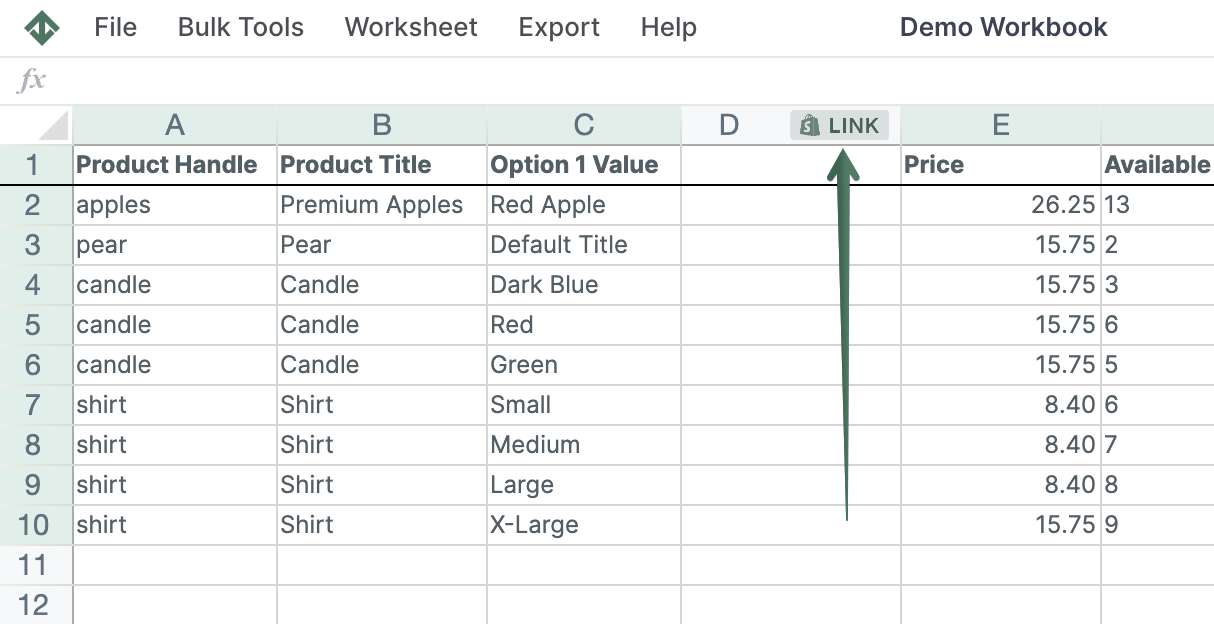
In the window that opens, you have a choice whether to map Shopify data fields, a Metafield, or a Mixtable Analytics field. Once you’ve selected the field you want to map to the column, click on Save and you’ll see any existing Shopify data start to populate in the column.
Second, add your customers’ data
Now that you’ve set up the columns you need, it’s time to add your data. You can either manually enter the information, or paste it from another spreadsheet application (e.g., Excel). All the cells that you modify will get a light, yellow background. This denotes that these cells’ contents have changed, but haven’t been “committed” yet. When you commit the cells, Mixtable will sync their contents to Shopify.
Third, start the sync
Once you are done entering all your customers’ data, and are good for the data to be synced to Shopify, click the Sync to Shopify button on the right side of the worksheet. This will “commit” the changes and trigger their sync to Shopify.
Import a CSV into your Shopify customers worksheet
If you already have customer data in a CSV file, you can import that CSV into your Mixtable customers worksheet, update only the columns you want, and then sync your updates to Shopify.
Here is the quick flow:
- Click Import & Export and select Import CSV file
- Upload your CSV file
- Match CSV rows to your worksheet using a key like Email
- Choose whether you want to update matching rows only, or update and add new rows
- Pick the customer columns you want to update (for example, name, tags, notes, addresses), review the preview, then run the import
For the full walkthrough, see Import CSV to update or add Shopify store data
When the import is done, click Sync to Shopify whenever you are ready to apply those updates to your Shopify store
You're ready!
Mixtable is an online spreadsheet designed to sync data with Shopify. It looks, feels, and behaves like Excel (including formulas), but runs in your browser. With Mixtable you can:
- Bulk add products to collections, edit metafields, add or remove tags;
- Change product prices, including international prices, and review price history;
- Manage customers with a spreadsheet CRM for Shopify;
- Use Excel features like sort ascending or descending, find-replace, filter, and more.
Best of all, you can sync changes back to Shopify with a single click. Find out more about the Mixtable suite of products here.
Manage Shopify data in a spreadsheet.
Use Mixtable to edit, sync, analyze, import, and export your Shopify store data without CSV juggling.