


Shopify Sales for the Last Year
Shopify Sales for the Last Year
Make data-driven decisions for your store with Mixtable Analytics. Learn how you can pull and analyze sales data for last year per products, variants, or collections.
How to add the last year’s sales data to your worksheet
If you have already created a Mixtable spreadsheet for your Shopify store, you can quickly add the sales data for the last year to a column in a worksheet.
Note: The worksheet needs to show product or collection information, e.g., Products (with variants), Products (without variants), or Collections. Here you can learn how to add a new worksheet to a Mixtable spreadsheet.
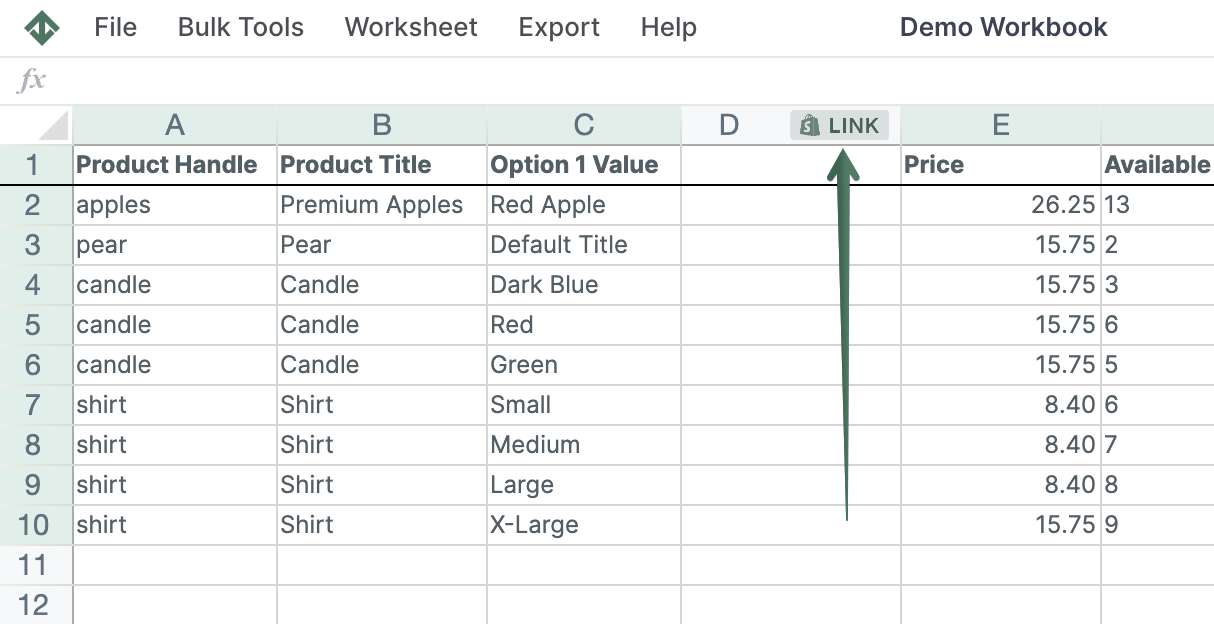
To load new Shopify data, start by selecting an empty column — any column with a non-green header (green headers mean the column is already linked to Shopify data). Then, click the  button in the column header to open the selection window to choose the data you want to pull in.
- From the Shopify Sync Settings window, choose Analytics
- Then, select the metric, Net sales or Gross sales.
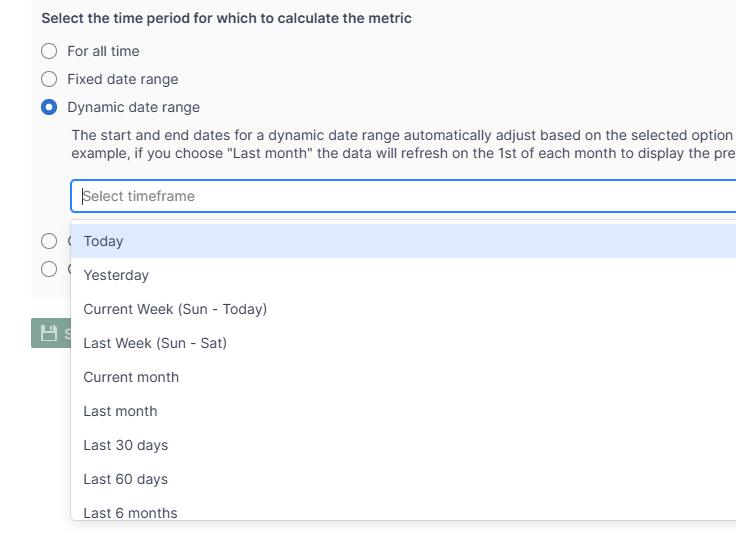
- From the section, Select the time period for which to calculate the metric, select Calendar year and then choose the year, e.g. 2024.
Optional - Last year's Net sales or Gross sales for a Customer Segment
Mixtable Analytics Spreadsheet allows you to filter the Net sales or Gross sales data based on the customer segments you have created in Shopify.
- From the Shopify Sync Settings window, choose Analytics
- Then, select the metric, Net sales or Gross sales.
- From the section, Select the time period for which to calculate the metric, and select Calendar year.
- Now, use the Filter orders based on Customer Segment defined in Shopify Admin section to select the customer segment to be used.
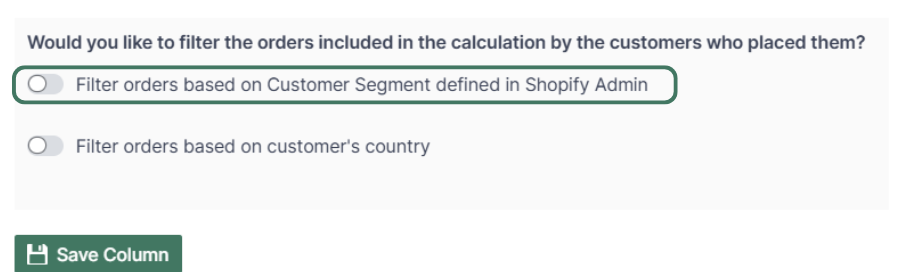
Note: The customer segments shown are the ones you have defined in your Shopify Admin. To add or change your segments please use the Shopify Admin, and Mixtable will reflect your changes automatically.
Optional - Last year of Net sales or Gross sales by Country
Another option for filtering the Net sales or Gross sales data is by the customer's country. Use this feature to calculate your international store's performance.
- From the Shopify Sync Settings window, choose Analytics
- Then, select the metric, Net sales or Gross sales.
- From the section, Select the time period for which to calculate the metric, and select Calendar year.
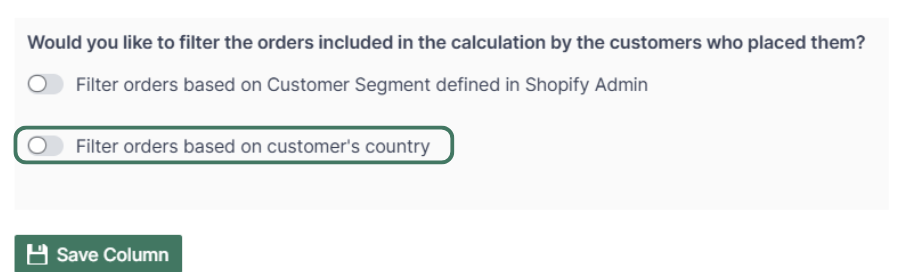
- Use the Filter orders based on customer's country to select the country for which to show the data.
You are ready!
Well done! Now that you have the yearly sales data in an online spreadsheet, you can use any Excel function to analyze the data, such as:
- Sort ascending or descending,
- Find-replace,
- Filter,
- Use Excel formulas, e.g., for price changes, etc.
Find out more about the Mixtable suite of products here.
Manage Shopify data in a spreadsheet.
Use Mixtable to edit, sync, analyze, import, and export your Shopify store data without CSV juggling.