


How to use the Mixtable sidebar to edit Shopify data
How to use the Mixtable sidebar to edit Shopify data
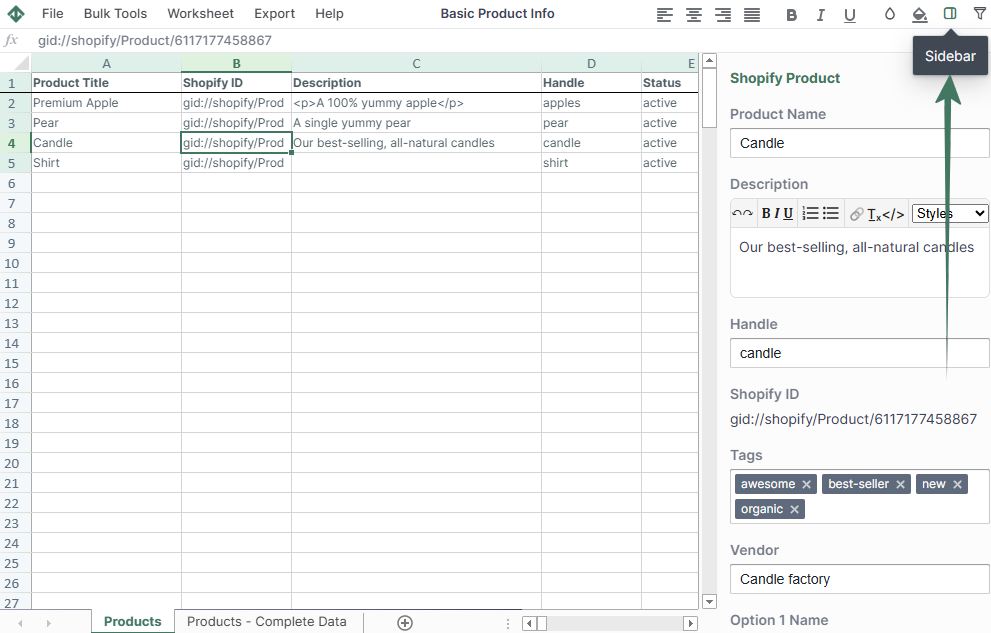
Mixtable’s spreadsheet sidebar is a great tool for viewing and editing Shopify data. The sidebar can be shown/hidden by clicking the Sidebar button (the side-panel icon) in the toolbar at the top of your screen.
Why use the sidebar?
- The Mixtable spreadsheet sidebar is useful when you want to see an entire Shopify object, including fields that are not currently mapped to columns in your worksheet. This helps you view data on an ad-hoc basis as needed.
- The sidebar also allows you to edit data within your Shopify objects.
How to show the sidebar?
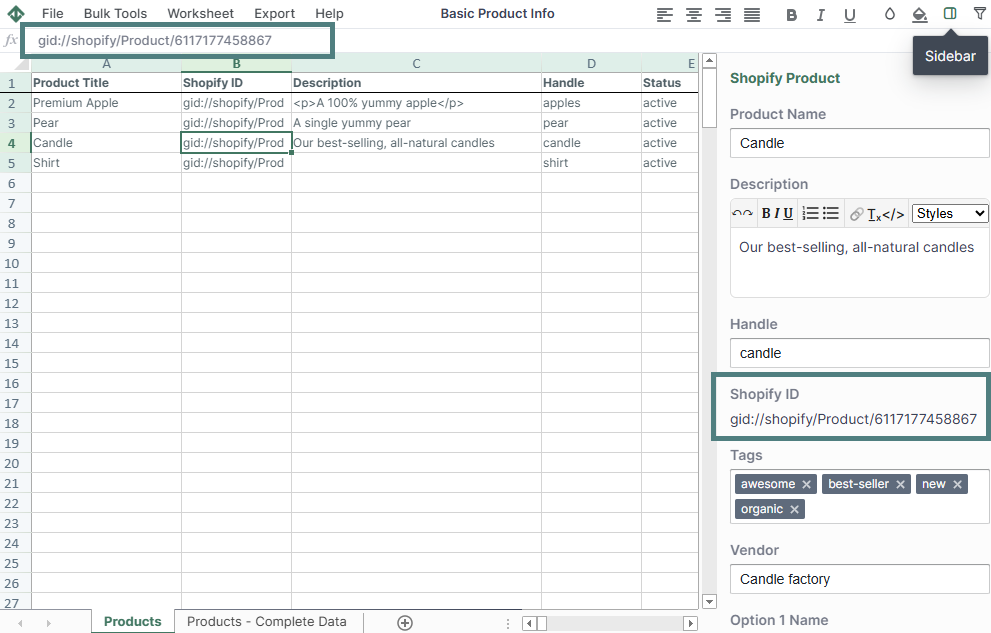
To view data in the Sidebar, first toggle it to show. Then, click on a cell in your worksheet. The sidebar will automatically detect the row the cell is in and load the data for the appropriate object.
What data can be edited via the sidebar?
For products, via the sidebar you can edit:
- Product name,
- Product description, incl. HTML via a WYSIWYG editor,
- Product handle,
- Tags,
- Vendor,
- Metafields,
- Images, and more.
You're ready!
Mixtable is an online spreadsheet designed to sync data with Shopify. It looks, feels, and behaves like Excel (including formulas), but runs in your browser. With Mixtable you can:
- Bulk add products to collections, edit metafields, add or remove tags;
- Change product prices, including international prices, and review price history;
- Manage customers with a spreadsheet CRM for Shopify;
- Use Excel features like sort ascending or descending, find-replace, filter, and more.
Best of all, you can sync changes back to Shopify with a single click. Find out more about the Mixtable suite of products here.
Manage Shopify data in a spreadsheet.
Use Mixtable to edit, sync, analyze, import, and export your Shopify store data without CSV juggling.