
Export Shopify orders
 Spreadsheet EditorExport: Excel & CSV Updated October 8, 2026
 On this page
 Export Shopify ordersVideo walkthrough
 Exported Shopify orders facilitate data analysis, backups, and store migrations. It also comes in handy if you need to send your accountant a breakdown of sales every month. The Mixtable spreadsheet app provides the easiest way to export your Shopify orders to Excel or CSV with the fields you need, including the custom attributes saved on an order and the line item properties saved on the individual items in it. Here’s how it works:
Load Shopify Orders in a spreadsheet
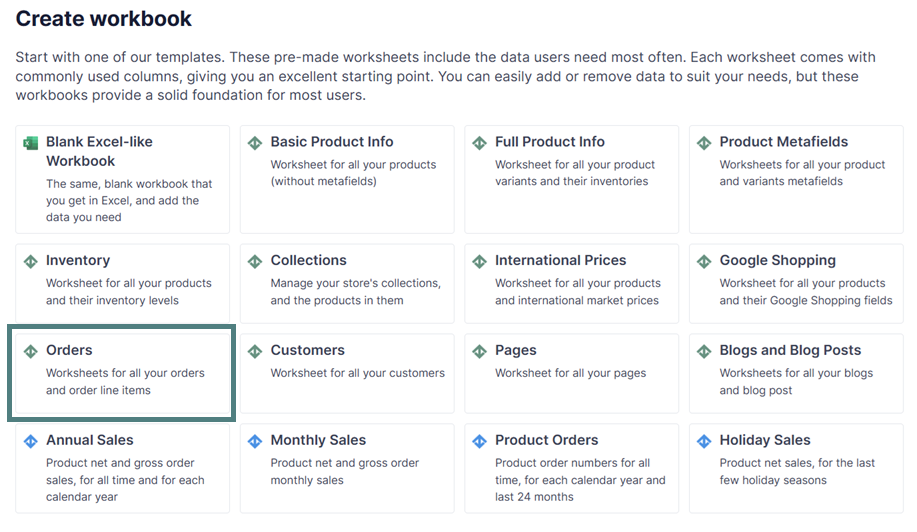
First, set up a worksheet that syncs data to your Shopify orders. The quickest way is the pre-built Orders and Order Items template:
Open your Mixtable dashboard and click Create spreadsheet at the top of the page. If you haven't created a spreadsheet yet, click Browse all templates below the starting-point cards instead. In the Create spreadsheet window, find Orders and Order Items under Orders & Customers, or type its name in the search box, and click it. Mixtable creates the spreadsheet and fills it with data from your Shopify store.
The template’s card in that window has a start-date dropdown set to Since 1 month ago. If your export needs older orders, choose an earlier date, or All orders, before you click the template.
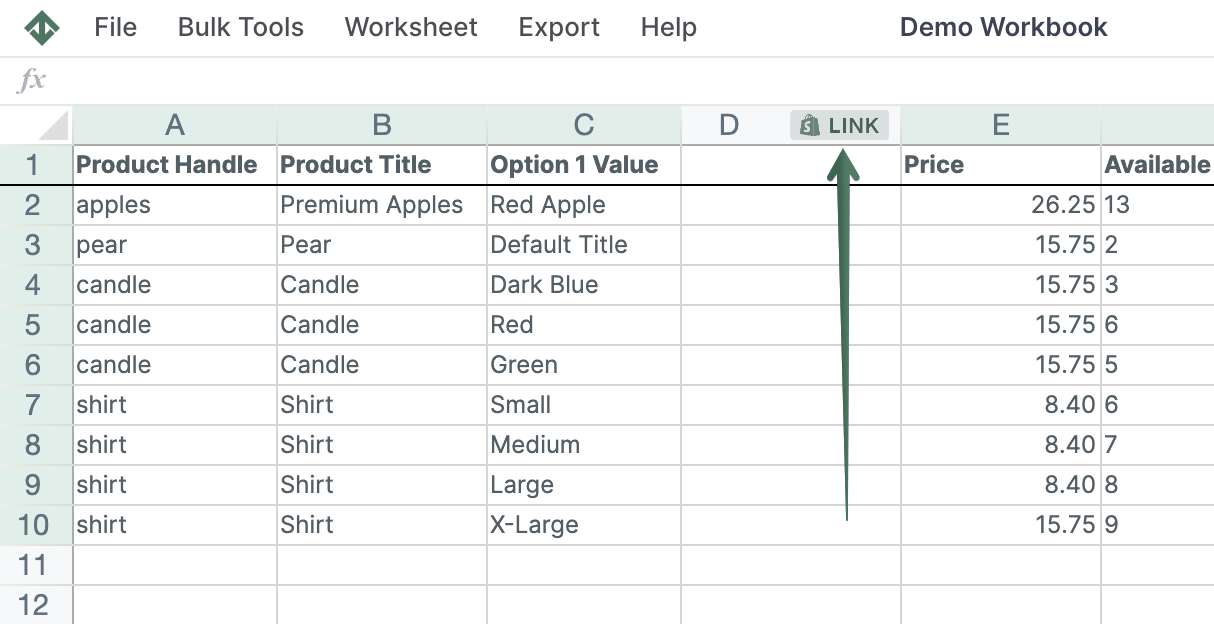
To load more Shopify data, click + Shopify data in the header row of an empty column, such as the one right after your last column. You can also choose Column > Add Shopify data… from the menu bar. The field picker opens and asks What should column E show?, with your column's letter in place of E. It lists everything the worksheet can show from Shopify, grouped into sections the way your Shopify admin groups them. Type in the search box at the top, or click a section on the left, to find the field you want.
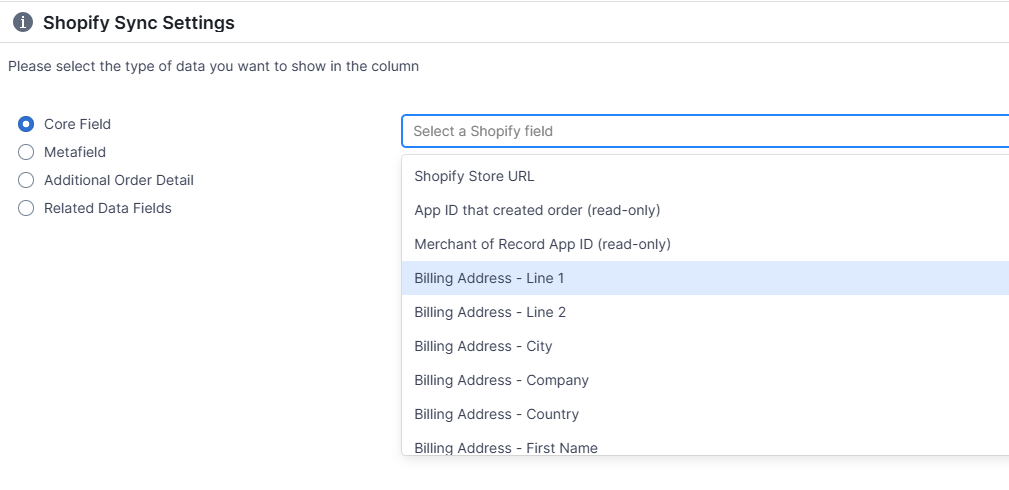
Click the field you want, such as Payment status in the Order section, or Additional order detail in the Additional details section for the custom attributes saved on an order (then choose one under Select a detail). Click Save Column. Mixtable fills the new column with that data for every order.
When the data sync is ready, which could take a few minutes if you have a lot of data, you can trigger the export.
Order fields you can include
When you export your Shopify order data with Mixtable spreadsheet apps, you can include extra data, such as:
- Order number
- Order ID
- Total (the order’s total amount)
- Fulfillment status (fulfilled; unfulfilled; partially fulfilled; scheduled; on hold)
- Payment status (paid, pending)
- Order status page
Note: Mixtable order worksheets stay up to date with Shopify automatically, so you can export the most recent order information at any time without re-downloading anything. If the sync control at the top right shows updates waiting from Shopify, for example Apply 3 updates, click it first so your export includes them.
Add related data for Metafields, Vendors, Product Types, etc. to your Shopify Orders (no line items) worksheet
Connecting order details with Metafields, Vendors, Product Types, etc. information used to mean VLOOKUP formulas. Not anymore! Mixtable now puts this data directly within your reach. Here's how to do it:
If you have already created a Mixtable spreadsheet with your Shopify Order information, you can quickly add related data to it.
Note: The worksheet needs to show order information, e.g., you can use the Orders and Order Items template spreadsheet, or the Orders (no line items) or Orders (with line items) worksheets.
Click + Shopify data in the header row of an empty column, or choose Column > Add Shopify data… from the menu bar.
- In the field picker, click Products in the order in the list of sections on the left. It holds the details of the products in each order, such as Product vendors, Product types, Variant SKUs, and Product metafields. Fulfillment details, such as Fulfillment count, are in the Fulfillment section
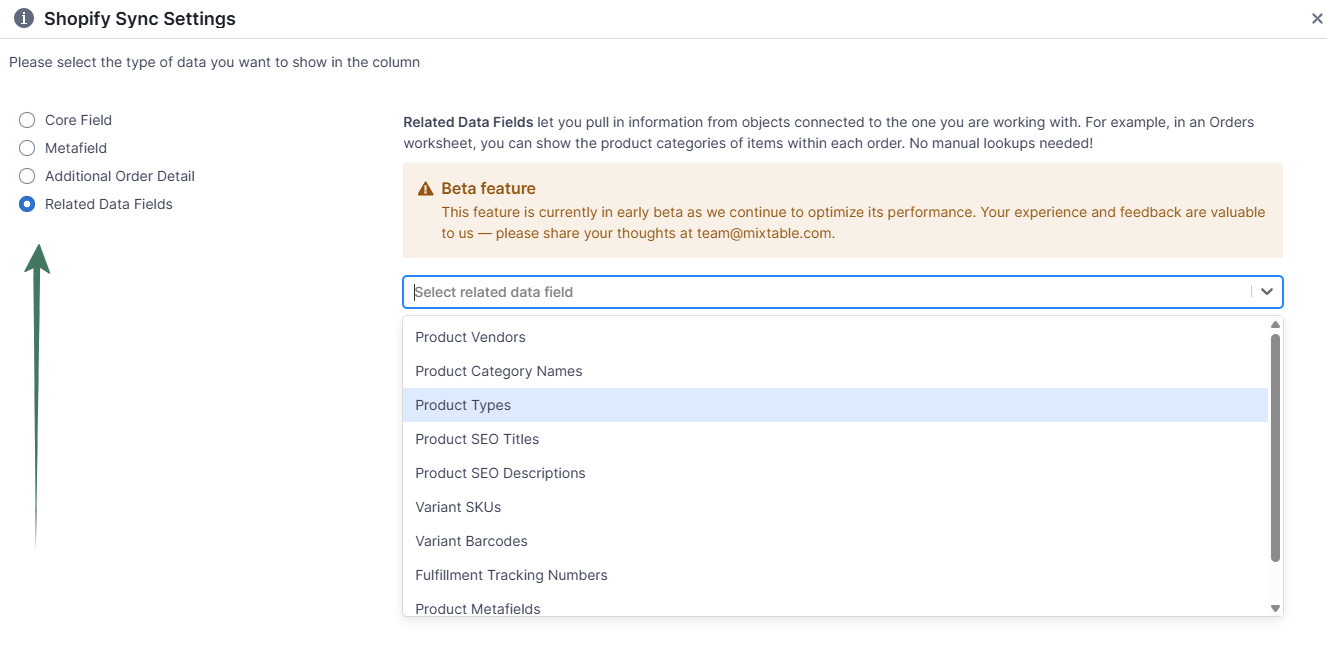
- Click the field you want. If the panel on the right asks how to combine the values, or which metafield to use, make your choice
- Click Save Column
- Allow some time for the data to appear in the column, and you are ready!
Find more about Related Data Fields functionality here.
Export order customizations and additional order details
Some stores collect extra information about the whole order during checkout. Shopify and other apps may call this information order custom attributes, note attributes, or additional order details. Examples include a gift message, a purchase order number, a requested delivery date, or a preferred pickup time.
Mixtable can place each additional order detail in its own spreadsheet column so it is included when you export your Shopify orders:
- Open an Orders (no line items) worksheet
- Click + Shopify data in the header row of an empty column, or choose Column > Add Shopify data… from the menu bar. The field picker opens
- Click Additional details in the list of sections on the left, then click Additional order detail. Mixtable reads your recent orders and lists the attribute names it finds under Select a detail
- Pick the attribute you want, then click Save Column
Mixtable names the column after the attribute and fills it with the value saved on each order. Repeat these steps for every additional order detail you want to export.
Export line item properties and product customizations
A line item property is extra information attached to one specific item in an order rather than to the order as a whole. Product option, personalization, and custom pricing apps all use line item properties. Common examples are engraving text, a monogram, a recipient name, a gift wrap choice, and the exact quantity or measurement a customer chose for that item.
To export Shopify line item properties to Excel or CSV:
- Open an Orders (with line items) worksheet. This worksheet gives you one row for each item sold, with the details of its parent order repeated on every row
- Click + Shopify data in the header row of an empty column, or choose Column > Add Shopify data… from the menu bar. The field picker opens
- Click Additional details in the list of sections on the left, then click Line item property. Mixtable reads your recent line items and lists the property names it finds under Select a detail
- Pick the property you want, then click Save Column
Mixtable names the column after the property and fills it with the value saved on each line item. Repeat these steps for every property you want to export.
If the attribute or property you need is not in the list
Mixtable reads both lists from your recent orders every time you click Additional order detail or Line item property, so a name appears as soon as one order carries it. If an order came in while the field picker was open, click Reload beside Select a detail to read your orders again.
Names that start with an underscore, such as _source, are normal. Apps use them for information they hide from the customer, and they export exactly like any other property.
Important: The app that collects the customization must save it to Shopify as an order attribute or line item property. Mixtable cannot export information that the app keeps only in its own private system. If you are unsure, open one of the orders in your Shopify admin: anything you can see on the order there is something Mixtable can export.
If you can see the information on the order in your Shopify admin but not in the Mixtable list, email Mixtable support so we can investigate.
Export Shopify Orders in a .xlsx or .csv file
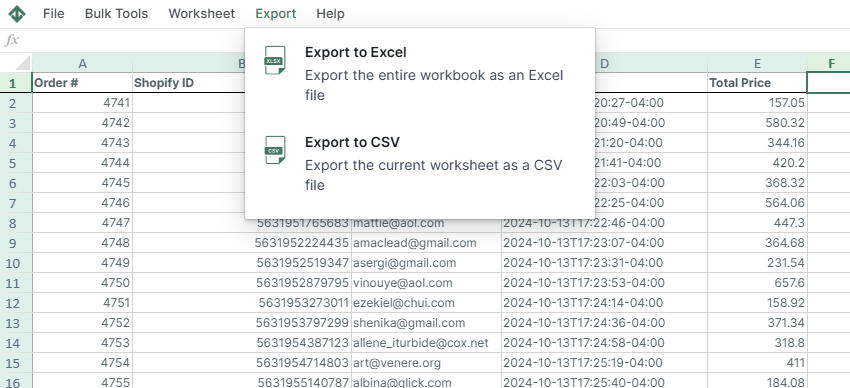
Once your order fields, additional order details, and line item properties are visible in the worksheet, click Import & Export in the menu bar. You have two choices:
- Export to Excel downloads the entire spreadsheet as an .xlsx file, with every worksheet included
- Export to CSV downloads only the worksheet you have open at that moment. To get your line item properties into a CSV, open the Orders (with line items) worksheet first, then export
Every column you mapped is included in the file, so your custom attributes and line item properties arrive alongside the standard order fields.
Tip: If you export orders mainly to total them up in Excel afterwards, Mixtable can do the totalling for you. Mixtable Analytics Spreadsheet builds reports such as store sales and orders by month, and those worksheets export to Excel or CSV exactly the same way.