


Publish and unpublish Shopify products by sales channel
Publish and unpublish Shopify products by sales channel
Mixtable makes it easy to control which sales channels your products are visible in. You can publish or unpublish products per-channel in bulk, using simple true/false values in a spreadsheet.
Changes you make in Mixtable remain pending until you click Sync to Shopify. Changes made directly in Shopify appear in Mixtable after that data is refreshed or synced from Shopify.
This works for:
- Shopify sales channels (for example: Online Store, Point of Sale)
- Third-party channels (for example: Facebook and Instagram, Google and YouTube)
- International market catalogs
- B2B catalogs and price lists
Before you start
- Make sure your Shopify store is connected to Mixtable
- Your products must be Active in Shopify to be available on sales channels. If you need to change product status in bulk, see bulk update Shopify product status
Create a Products spreadsheet
- Create a new spreadsheet
- Choose a product template, such as Basic Product Info, to load a Products worksheet
- Remove any columns you do not need, if you want a smaller worksheet
Add sales channel columns
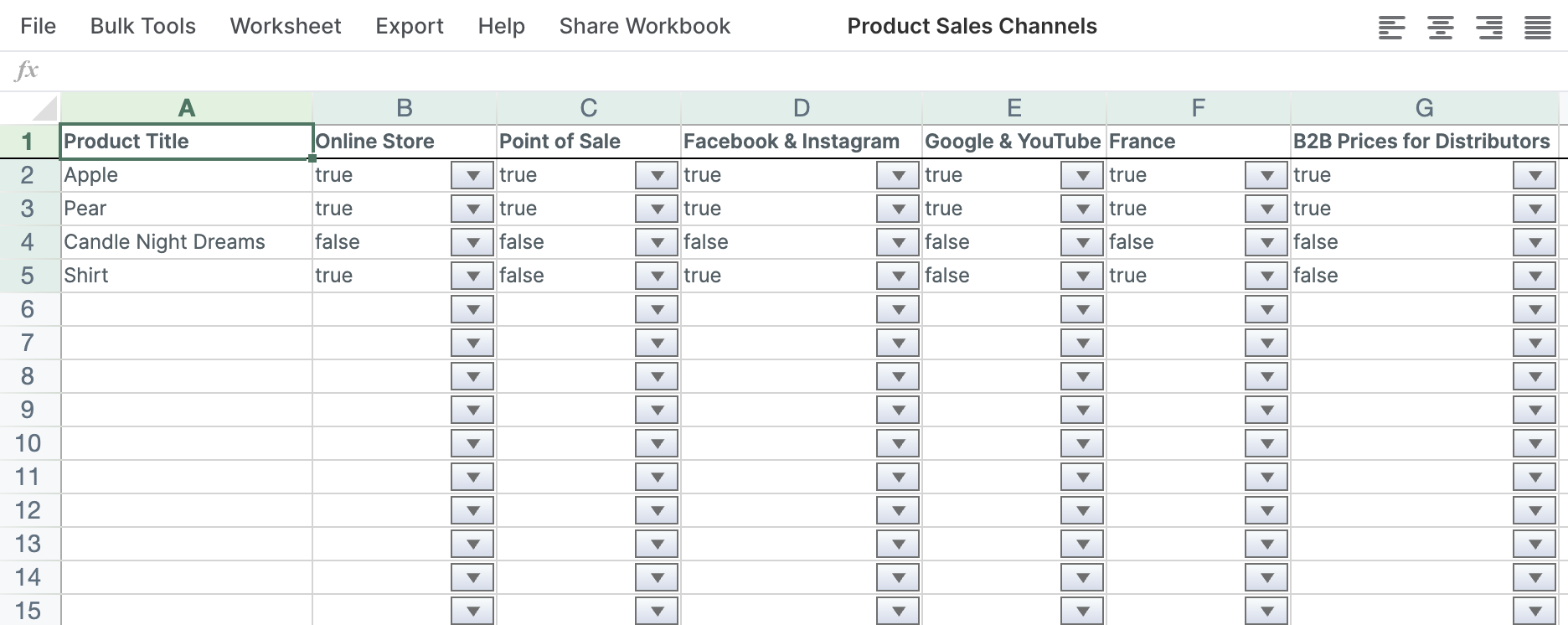
Each sales channel (or catalog) is mapped to its own column. Mixtable will then populate the column with true/false for each product, based on whether that product is published in that channel.
- Find an empty column in your Products worksheet
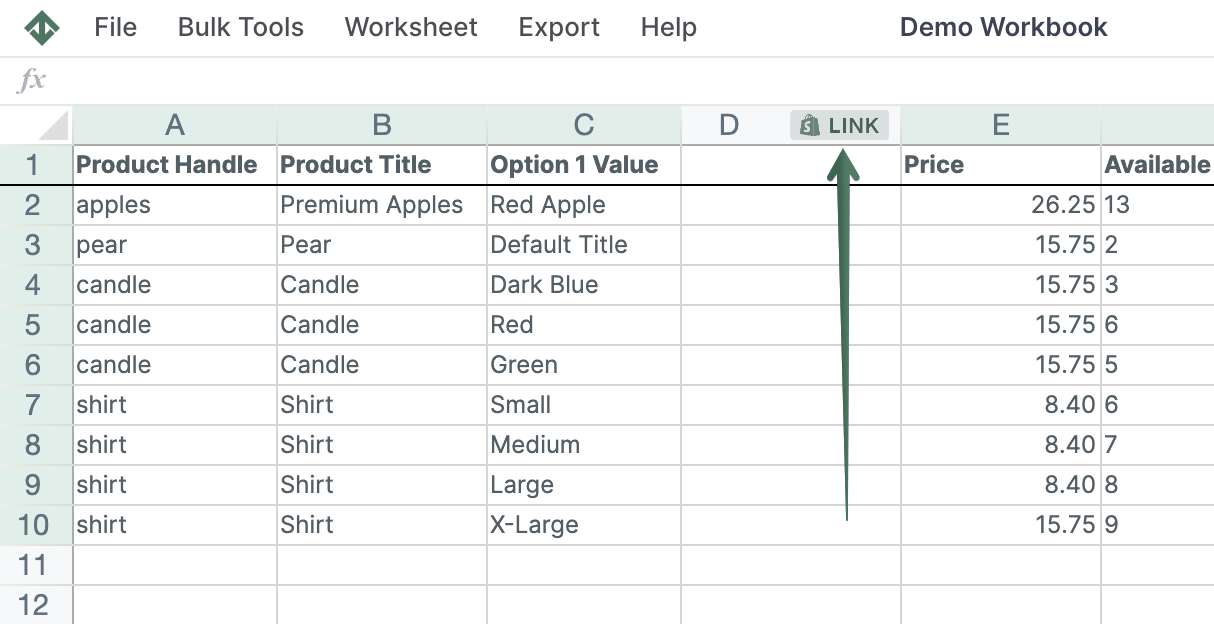
- To load new Shopify data, start by selecting an empty column, meaning any column with a non-green header. A green header means the column is already linked to Shopify data. Then click the
 button in the column header to open the selection window and choose the data you want to pull in.
- In the column picker, select Sales Channels
- Choose the channel or catalog you want to control, such as Online Store, then click Save Column
- Repeat for any other channels you want to manage
Publish or unpublish products (in bulk)
-
In a sales channel column, set:
trueto publish the product to that channelfalseto unpublish the product from that channel
-
Copy, paste, or fill down to apply the same value to more products or channel columns
-
Click Preview changes if you want to review the pending updates
-
Click Sync to Shopify to apply the changes
Mixtable sends the pending changes, and the product’s sales-channel availability updates in Shopify.
Product publishing and variant publishing
Product and variant publishing are separate controls:
- A Product sales channels column controls the parent product
- A Variant sales channels column controls one individual variant on each row of a Products (with variants) worksheet
An individual variant is available on a channel only when the parent product is Active, the parent product is published to that channel, and the variant is also published to that channel.
For step-by-step instructions, see publish and unpublish Shopify variants by sales channel.
Troubleshooting
- A channel is missing: Make sure the sales channel or app is available in Shopify, then click Reload Sales Channels in the channel selector
- A product will not publish: Confirm that the product status is Active
- A variant is set to true but is unavailable: Confirm that its parent product is Active and published to the same channel
You're ready!
Mixtable is an online spreadsheet designed to sync data with Shopify. It looks, feels, and behaves like Excel (including formulas), but runs in your browser. With Mixtable you can:
- Bulk add products to collections, edit metafields, add or remove tags;
- Change product prices, including international prices, and review price history;
- Manage customers with a spreadsheet CRM for Shopify;
- Use Excel features like sort ascending or descending, find-replace, filter, and more.
Best of all, you can sync changes back to Shopify with a single click. Find out more about the Mixtable suite of products here.
Manage Shopify data in a spreadsheet.
Use Mixtable to edit, sync, analyze, import, and export your Shopify store data without CSV juggling.