
View Shopify fulfillments and fulfilled items in a spreadsheet
 Spreadsheet EditorExport: Excel & CSV Updated October 6, 2026
 On this page
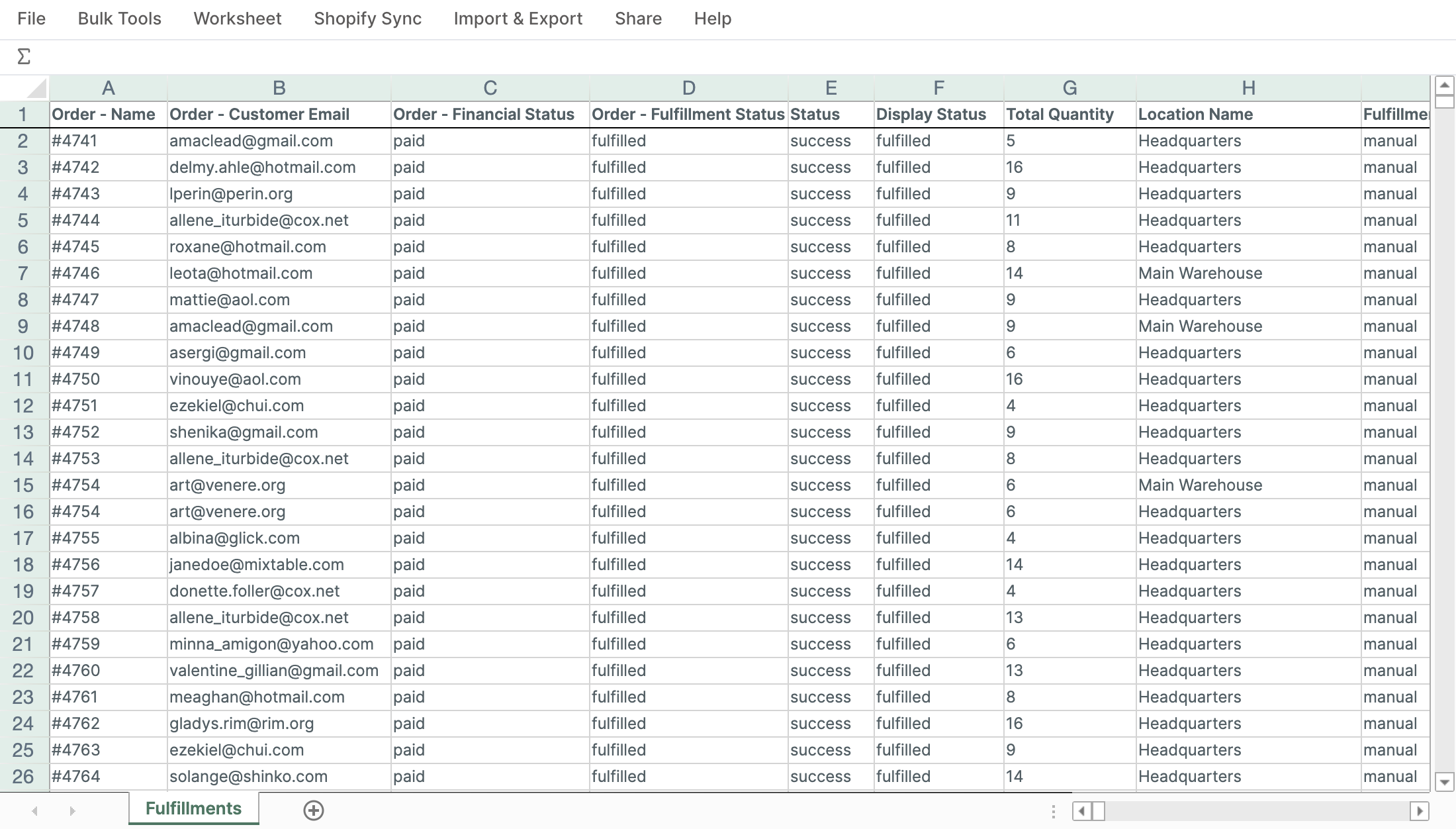
Mixtable can load your Shopify fulfillment data into two kinds of worksheets. These views help you review shipments, track delivery progress, and export fulfillment details without combining the data manually.
- A Fulfillment worksheet has one row for each fulfillment created for an order
- A Fulfillment Line Item worksheet has one row for each item included in a fulfillment
Both worksheets are read-only. They show information from Shopify, but they do not create fulfillments or update tracking details in Shopify.
Choose the right worksheet
Use a Fulfillment worksheet when you want a shipment-level view. Available fields include:
- Order name and Shopify ID
- Fulfillment name, status, and display status
- Total quantity in the fulfillment
- Fulfillment location and service
- Tracking company, tracking number, and tracking URL
- Created, in-transit, estimated delivery, and delivered dates
- Related order details such as customer email, payment status, fulfillment status, and shipping address
Use a Fulfillment Line Item worksheet when you need to see the individual products inside each shipment. Available fields include:
- Order and fulfillment IDs
- Line item name and SKU
- Product and variant IDs
- Fulfilled quantity
- Original and discounted totals
- Fulfillment location ID
- Created and updated dates
An order can have more than one fulfillment, and each fulfillment can contain more than one line item. For that reason, the same order can appear on several rows. To follow the rest of the order lifecycle, pair these worksheets with a Return or Return Line Item worksheet for items customers send back.
Create a fulfillment worksheet
- Open a spreadsheet in Mixtable and click the + button beside the worksheet tabs
- Select Shopify data worksheet, then click Continue
- Select Fulfillments or Fulfillment Line Items
- On Choose your columns, keep the most-used fields or select the specific fields you need, then click Continue
- Choose Load everything or Only rows that match rules
- Click Create Worksheet
Mixtable loads one row per fulfillment or fulfilled item, depending on the worksheet you selected.
Useful ways to work with fulfillment data
- Filter Status or Display Status to focus on open, in-transit, delivered, or cancelled fulfillments
- Sort by Estimated Delivery At or Delivered At to review delivery timing
- Filter Tracking Company to compare shipments by carrier
- Use a Fulfillment Line Item worksheet to total fulfilled quantities by SKU
- Export the worksheet to Excel or CSV when you need to share fulfillment data outside Mixtable
These worksheets give you individual shipments. If you want fulfillment speed as a number instead, Mixtable Analytics Spreadsheet calculates average hours to first fulfillment and average hours to delivery across your orders, and those metrics can be narrowed by fulfillment service, location, or tracking company when you want to compare two warehouses or two carriers.
Troubleshooting
Why do I see several rows for one order?
One order can be split across several fulfillments. A Fulfillment Line Item worksheet also creates a separate row for every item in each fulfillment.
Why can’t I edit the fields?
Fulfillment and Fulfillment Line Item fields are read-only in Mixtable. Make fulfillment or tracking changes in Shopify, then return to Mixtable to work with the updated data.