
Publish and unpublish Shopify variants by sales channel
 Spreadsheet Editor Updated October 21, 2026
 On this page
Mixtable Spreadsheet Editor lets you control sales-channel availability for individual Shopify variants. You can publish one variant to a channel while leaving another variant of the same product unpublished, then apply those changes across many products with a spreadsheet.
Variant availability and product availability work together. A variant can be purchased on a channel only when:
- The parent product is Active
- The parent product is published to that sales channel
- The individual variant is published to that sales channel
Setting a variant to true does not override an inactive or unpublished parent product.
Add product and variant sales-channel columns
Use a Products (with variants) worksheet because it has one row for each variant.
- Open a Products (with variants) worksheet
- To load more Shopify data, click + Shopify data in the header row of an empty column, such as the one right after your last column. You can also choose Column > Add Shopify data… from the menu bar. The field picker opens and asks What should column E show?, with your column's letter in place of E. It lists everything the worksheet can show from Shopify, grouped into sections the way your Shopify admin groups them. Type in the search box at the top, or click a section on the left, to find the field you want.
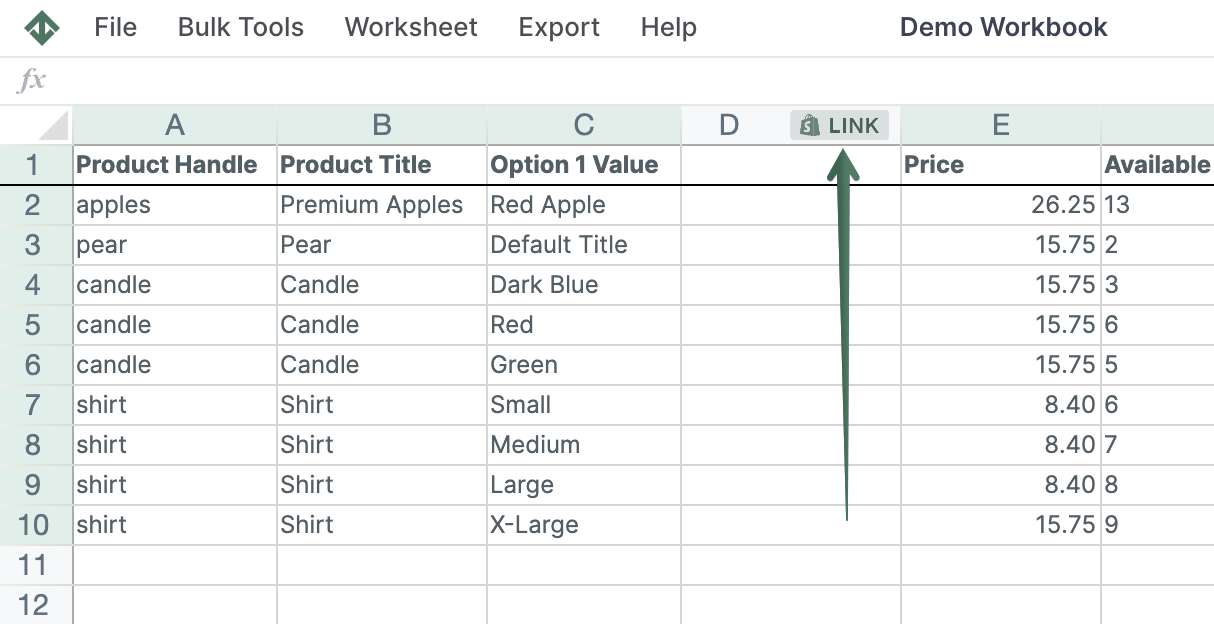
- Click Status & channels in the list of sections on the left, then click the sales channel or catalog you want to control, such as Online Store
- Under Whose publishing?, choose This variant, then click Save Column
- Click + Shopify data in another empty column, click the same channel, leave Product (all variants) selected under Whose publishing?, and click Save Column
- Repeat these steps for any additional channels you want to manage
Mixtable labels the columns so their scope is clear:
Variant: Online Storecontrols the individual variantProduct: Online Storecontrols the parent product
The exact channel name depends on the channels, apps, Markets, and catalogs available in your Shopify store.
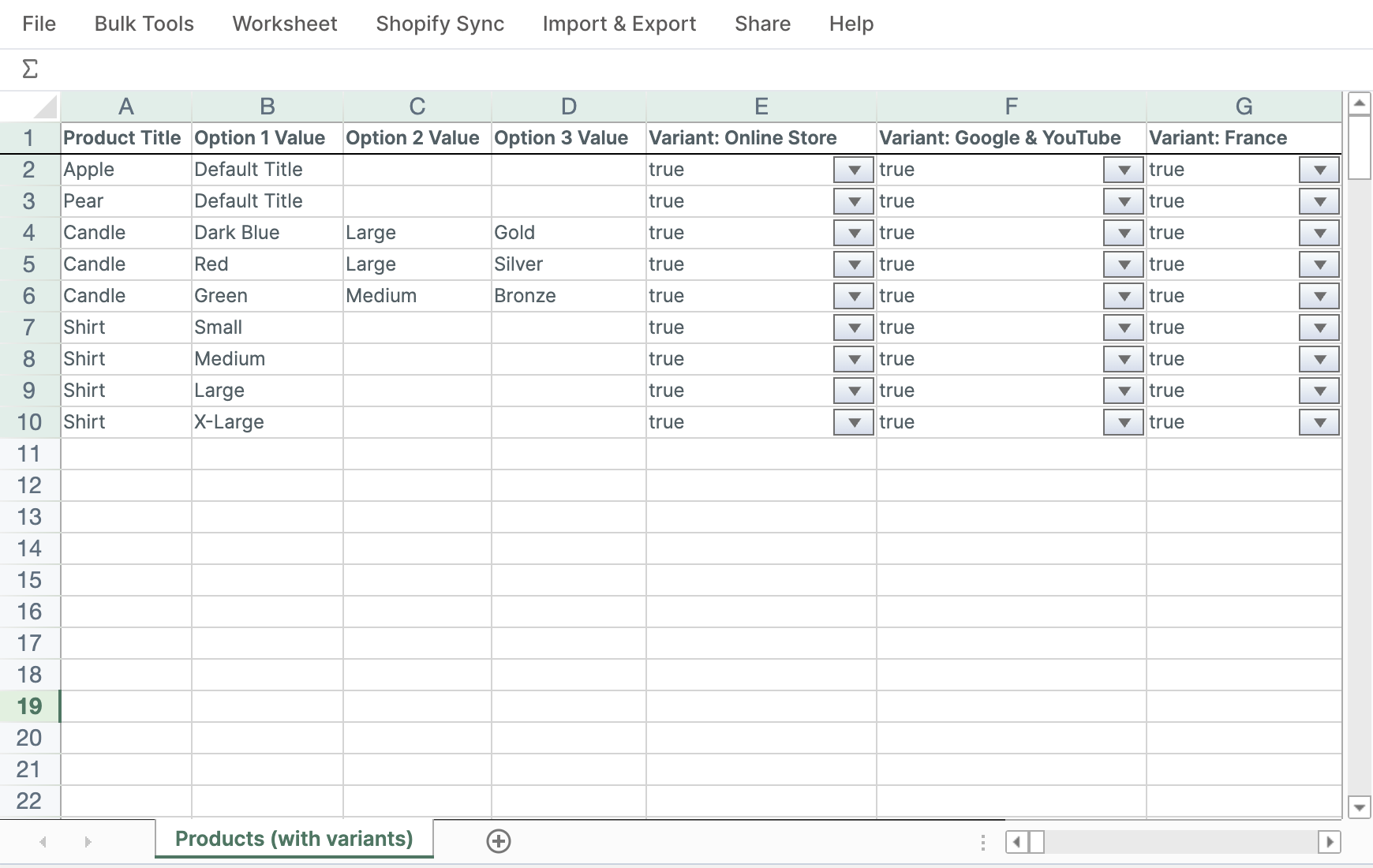
Publish or unpublish variants in bulk
- In the Product: channel column, enter
truefor each parent product that should be available on that channel - In the matching Variant: channel column, enter
truefor variants that should be published andfalsefor variants that should be unpublished - Copy, paste, or fill the values down to update more variants at once
- Click Sync at the top right of the spreadsheet and review the pending product and variant updates in the preview that opens
- Click Sync again to publish the changes
For example, a product may have Small, Medium, and Large variants. You can leave the parent product published, set Small and Medium to true, and set Large to false for a particular channel.
Product and variant columns are different
- A Product (all variants) column, such as
Product: Online Store, controls whether the parent product is published to a channel - A This variant column, such as
Variant: Online Store, controls whether each individual variant is published to that channel
If every variant should have the same availability, fill the same value down the Variant column. If availability differs by variant, set each row separately.
To manage product-level publishing without individual variant controls, see publish and unpublish Shopify products by sales channel.
Troubleshooting
A variant is set to true but is not available on the channel
Confirm that the parent product is Active and that the matching Product: channel column is also true. All three conditions must be met.
A sales channel is missing from the list
Confirm that the channel, app, Market, or catalog is available in Shopify. Then, in the field picker, click Refresh in the Status & channels heading to load your latest channels from Shopify.
I changed values but Shopify did not update
Changes remain pending until you sync. Clicking Sync opens a preview first, so you can confirm the exact product and variant updates that will be sent.