


Filter Shopify Data
Filter Shopify Data
In Mixtable, the filtering feature is a handy tool that helps users analyze data more efficiently by isolating specific subsets based on different criteria. You can use these filters for individual columns, supporting various data types like text, numbers, and dates. For example, using filtering, you can quickly find the products, orders, customers, etc., data you need. Follow these steps to filter your data efficiently.
1. Create a Shopify-linked spreadsheet
Click the Create Spreadsheet button on your Mixtable dashboard to get started. You can pick from a variety of pre-built templates organized by category (Products, Inventory & Pricing, Orders & Customers, and more), or start from scratch with a Blank Excel-like Spreadsheet and add the data you need.
2. Add a worksheet for your Shopify data
Once your spreadsheet is configured, click the [+] button in the worksheet toolbar at the bottom. You will now see a menu with the different worksheets you can add, such as Customers, Orders (no line items), Orders (with line items), Refunds, Products (no variants), Products (with variants), etc.
3. Enable filtering for your worksheet
Now that you have the worksheet, click on the Filter button in the Mixtable toolbar to turn on filtering in your worksheet. Once filtering is enabled, you’ll see [▼] buttons in the cells on the first row of the worksheet.
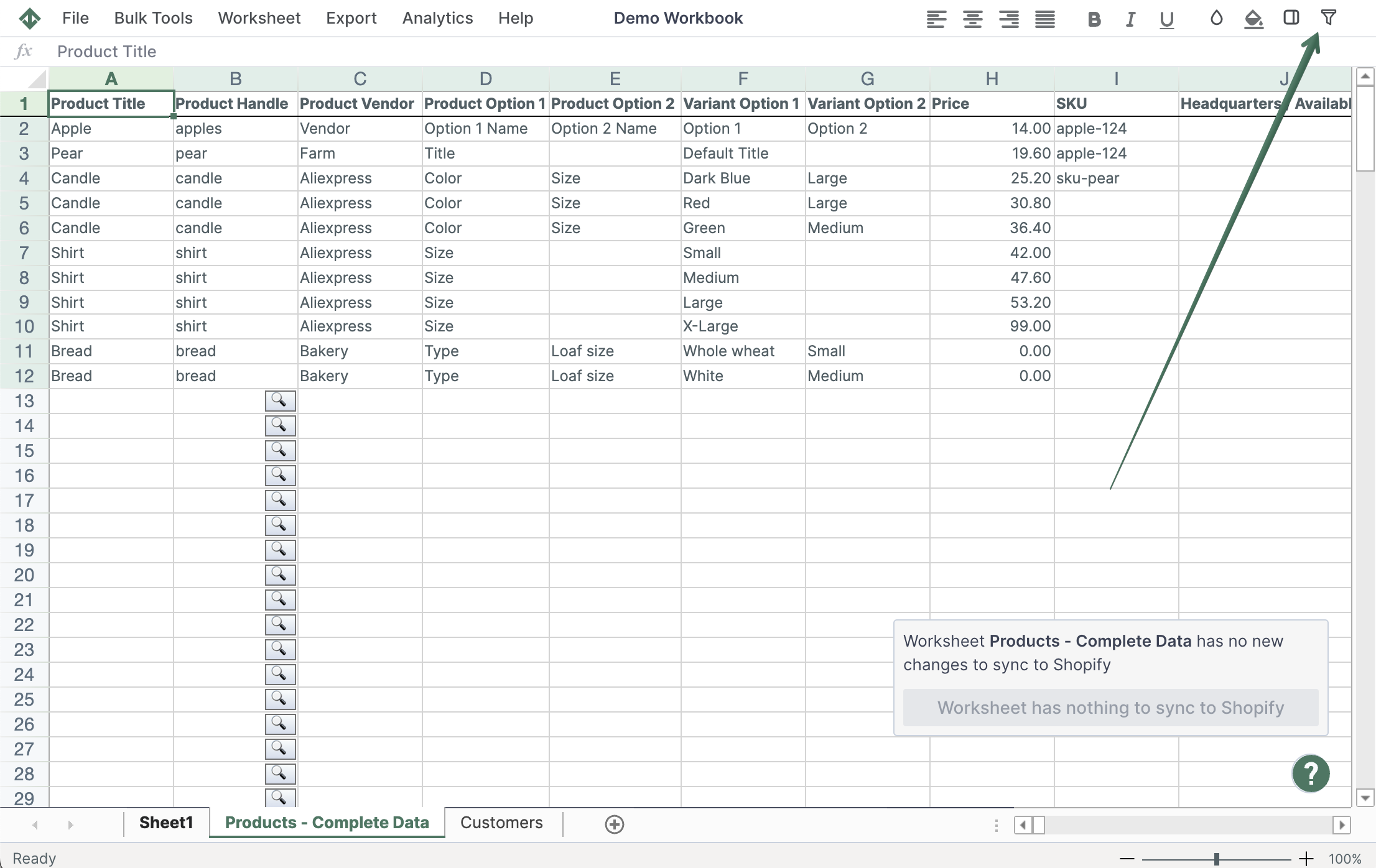
4. Set up filter criteria
Once you click the [▼] button a drop down menu will appear to each of your columns. You can now set up your filter. You have a number of text filters as options, similar to what you get in Excel. You can set up a filter that only shows rows where the column contains a word, is exactly that word, does not contain a word, etc.
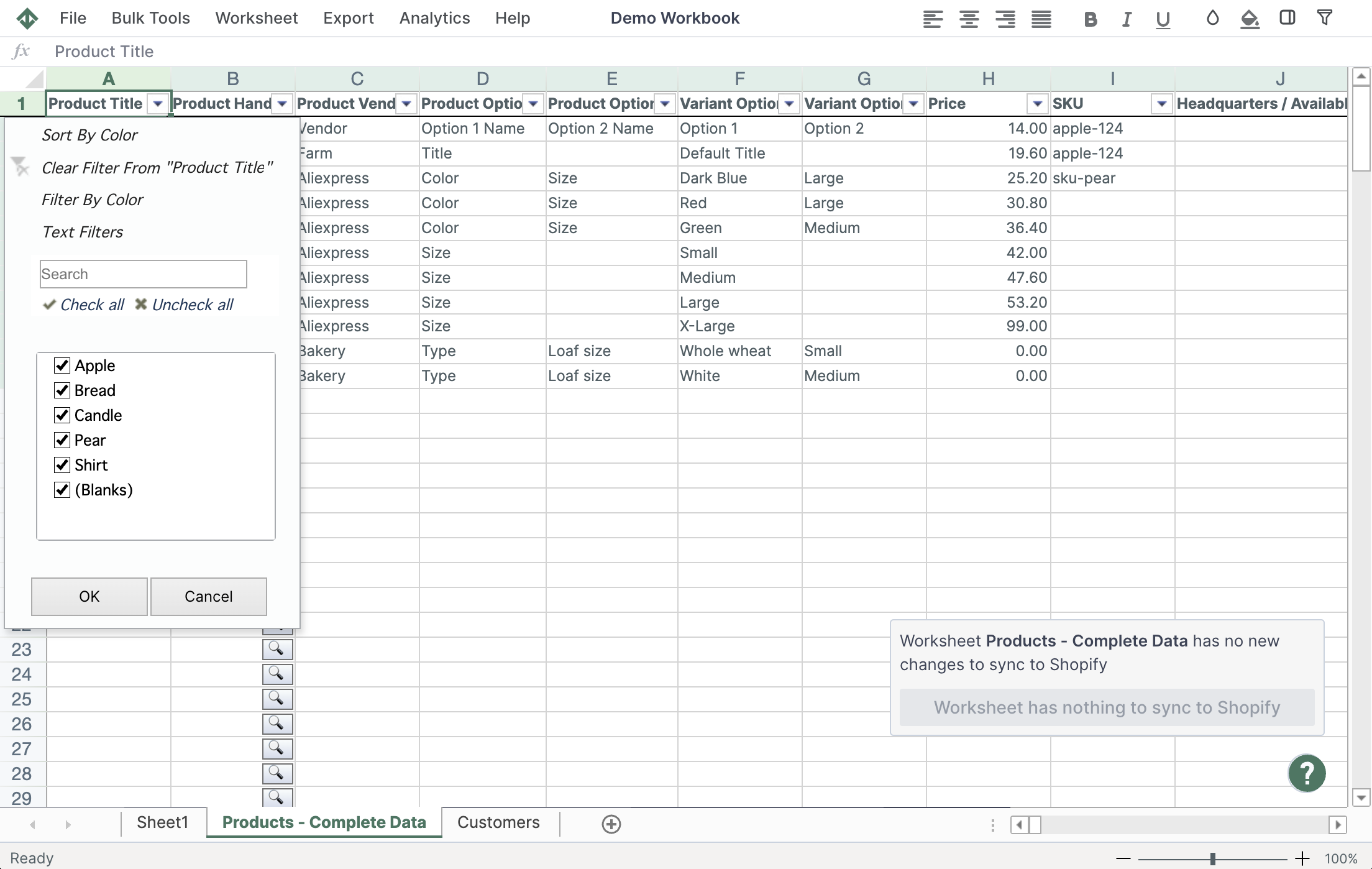
In the example below, we are filtering a Shopify Customers worksheet, but the process is similar for all types of worksheets.
You're ready!
Mixtable is an online spreadsheet designed to sync data with Shopify. It looks, feels, and behaves like Excel (including formulas), but runs in your browser. With Mixtable you can:
- Bulk add products to collections, edit metafields, add or remove tags;
- Change product prices, including international prices, and review price history;
- Manage customers with a spreadsheet CRM for Shopify;
- Use Excel features like sort ascending or descending, find-replace, filter, and more.
Best of all, you can sync changes back to Shopify with a single click. Find out more about the Mixtable suite of products here.
Manage Shopify data in a spreadsheet.
Use Mixtable to edit, sync, analyze, import, and export your Shopify store data without CSV juggling.