


Orders and Order Items Template
Orders and Order Items Template
Organize and manage Shopify orders with the pre-built Orders and Order Items template in Mixtable Spreadsheet Editor. The template creates separate worksheets for orders and their individual line items, then loads the date range you choose.
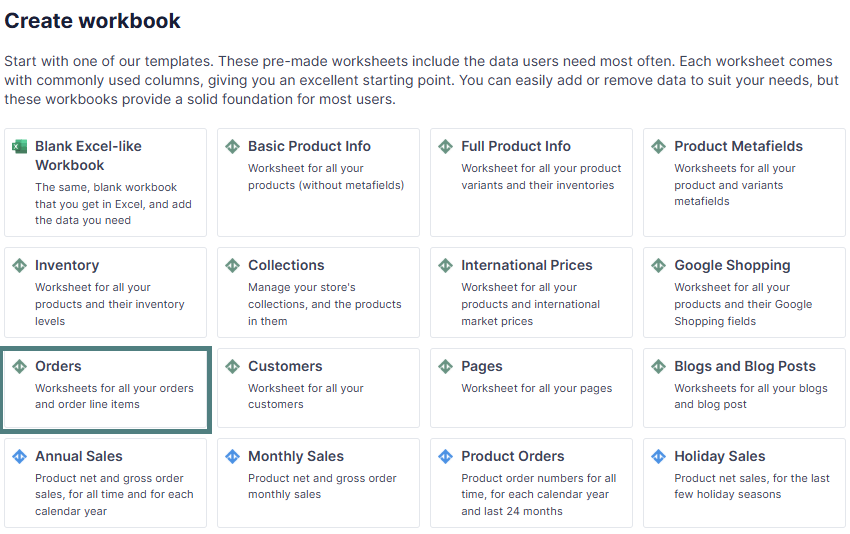
How to use Orders and Order Items template to make data-driven decisions
Here’s what you can use the Orders and Order Items template for:
-
Order management:
-
Track and update in real-time order statuses and other details in bulk without navigating individual order pages in Shopify. Check:
- Financial status: paid, authorized, or refunded
- Fulfillment status: fulfilled or still pending
-
-
Customer behavior:
- Track whether customers are buying in bulk or making single-item purchases.
- Monitoring fulfillment status and delays helps measure and predict customer satisfaction.
-
Inventory Management:
- Identify best-selling items and highlight the need for replenishment to avoid stockouts.
- Items with low or no orders may signal a need for markdowns, promotions, or removal from the catalog.
-
Pricing Strategies:
- Insight into which price points perform well and whether discounts drive purchases.
-
Seasonal Trends:
- Detect patterns in sales over time, such as peak shopping seasons or slow periods.
-
Stats by Region:
- How many orders are generated from a specific region (country, city, ZIP code)
Shopify data included in the Orders and Order Items template
The Orders template comes with two worksheets: Orders (no line items) and Orders (with line items).
The Orders (no line items) worksheet has one row per Shopify order. Its fields cover:
- Order name, Shopify ID, customer email, creation date, tags, and notes
- Financial status, fulfillment status, prices, discounts, and taxes
- Payment due date, payment-term length, overdue status, payment-term name, and payment-term type
- First Fulfillment Date, Delivery Date, Fulfillment Service, and Fulfillment Tracking Carriers
The Orders (with line items) worksheet has one row per item sold. Its fields cover:
- Order name, customer email, and order creation date
- Line item name, Shopify ID, product and variant IDs, price, and quantity
- Fulfillment status, shipping requirement, SKU, vendor, and discounts
- Related order totals, financial status, fulfillment status, and payment terms
For a focused explanation of the payment-term fields, see track Shopify order payment terms.
Map additional data into the Orders and Order Items template:
In addition to the default data pulled from the Orders and Order Items template, you can map extra columns with more useful metrics depending on your store’s data strategy. For example:
- Cost data: COGS (cost of goods sold), fees, shipping
- Tax data: estimated tax, included tax, total tax
Here’s how to do it:
-
Select an empty column (or insert a new one) in your Orders (no line items) or Orders (with line items) worksheet.
-
To load new Shopify data, start by selecting an empty column, meaning any column with a non-green header. A green header means the column is already linked to Shopify data. Then click the
 button in the column header to open the selection window and choose the data you want to pull in.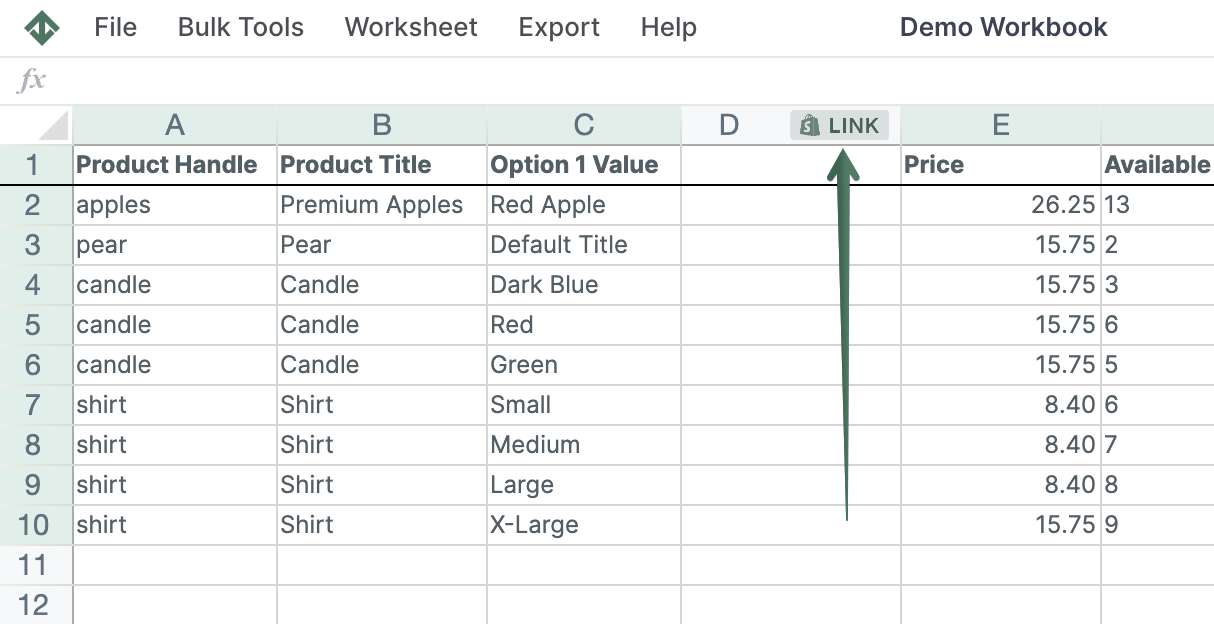
-
From the Shopify Sync Settings window, choose Shopify data fields
-
Then, from the drop-down list, you have a choice of 50+ different metrics to select from, such as:
- Tax details (e.g., customer - tax exempt, current total tax, etc.)
- Fees (e.g., current total additional fees set)
- Discounts (e.g., current total discounts)
- Payment terms (payment due date, duration, overdue status, name, and type)
- Customer details (e.g., number of orders placed), etc.
Add related data for Metafields, Vendors, Product Types, etc. to your Shopify Orders (no line items) worksheet
Connecting order details with Metafields, Vendors, Product Types, etc. information used to mean VLOOKUP formulas. Not anymore! Mixtable now puts this data directly within your reach. Here's how to do it:
If you have already created a Mixtable spreadsheet with your Shopify Order information, you can quickly add related data to it.
Note: The worksheet needs to show order information, e.g., you can use the Orders and Order Items template spreadsheet, or the Orders (no line items) or Orders (with line items) worksheets.
To load new Shopify data, start by selecting an empty column, meaning any column with a non-green header. A green header means the column is already linked to Shopify data. Then click the button in the column header to open the selection window and choose the data you want to pull in.
- From the Shopify Sync Settings window, choose Related Data Fields.
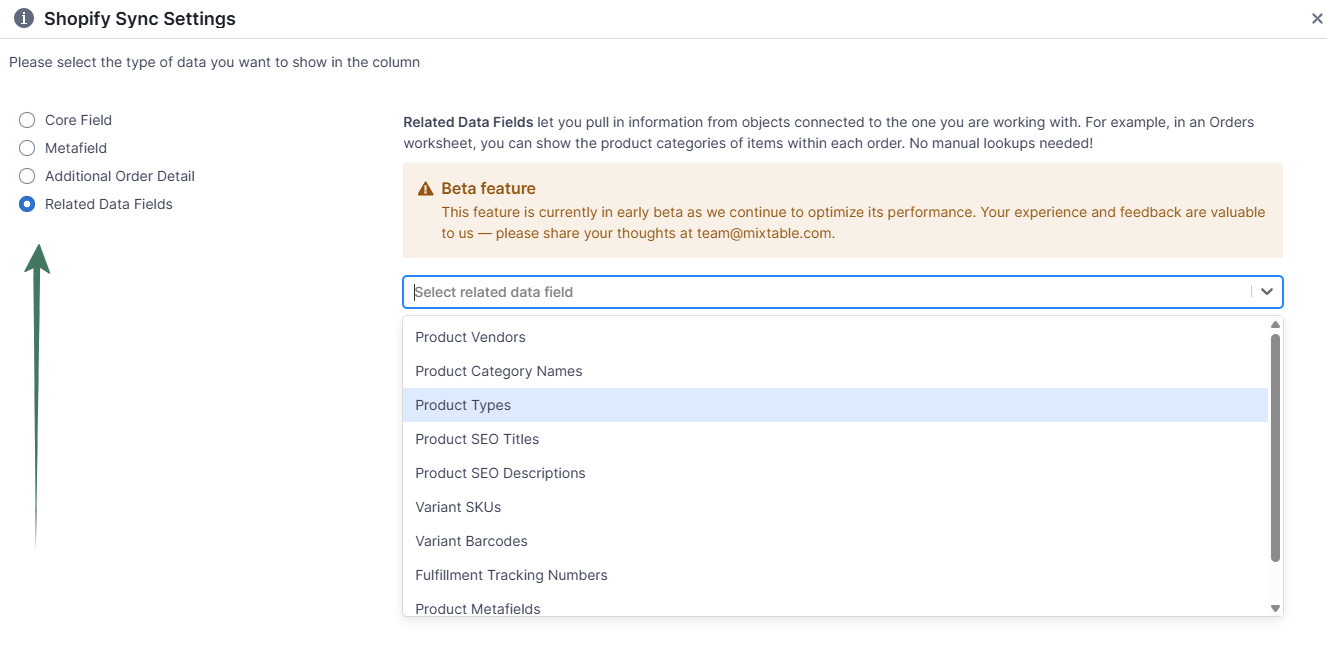
- Then, choose Metafields, Vendors, Product Types, etc. from the drop-down list.
- Allow some time for the data to appear in the columns; you are ready!
Find more about Related Data Fields functionality here.
Related Data Fields also let you add additional fulfillment details and the type, amount, or percentage of discounts applied to an order. See Related Data Fields for the full list.
Analyze Orders data with functions
Operating in the Mixtable Spreadsheet Editor app allows you to use any spreadsheet function to analyze and manage your data, such as:
- sort ascending or descending,
- find-replacе,
- filter,
- use formulas, e.g., for price changes, etc.
Frequently Asked Questions:
Q: Can I have a list of unfulfilled orders, and when an order is fulfilled, have it leave the list?
A: Yes. Create a Conditional Worksheet that only loads unfulfilled orders:
- Click the + button and select Shopify data worksheet
- Select Orders (no line items)
- Choose and arrange the columns you need, then click Continue
- Select Only rows that match a condition
- Create the rule Fulfillment Status equals Pending
- Click Create Worksheet
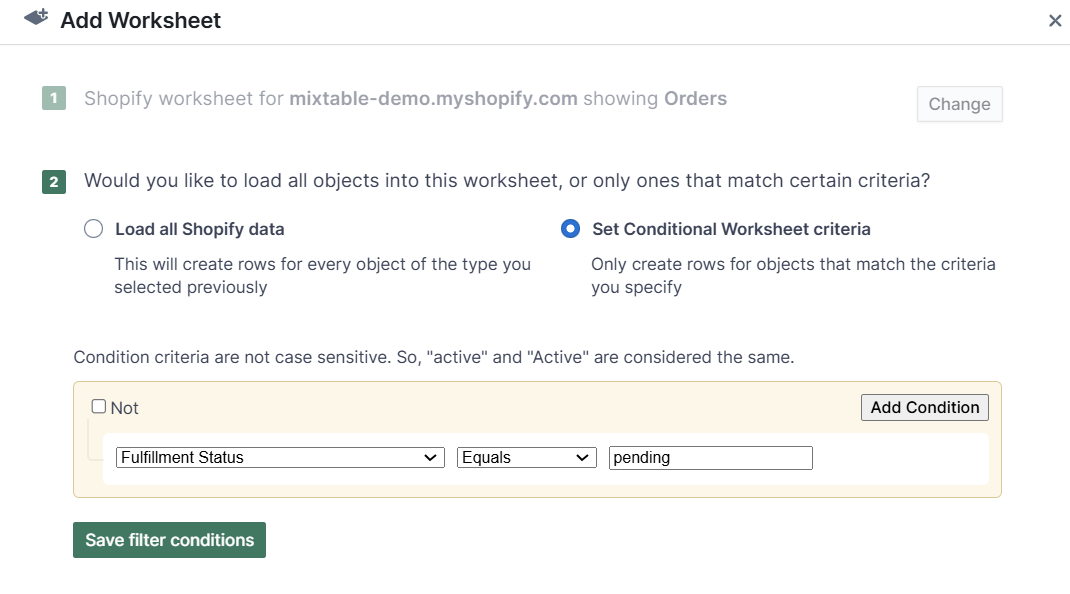
You will now have unfulfilled orders in this worksheet. Whenever an order is fulfilled, its row may become empty.
Use the Empty rows detected notice or select Worksheet > Remove Empty Rows to remove those rows. See find and remove empty worksheet rows for more information.
Q: Can I view orders placed by a particular customer?
A: Yes, viewing orders by a specific customer is very easy.
- Open your Orders (no line items) worksheet and use the filter option.
- From the Email address column, filter the email of the customer whose orders you want to review.
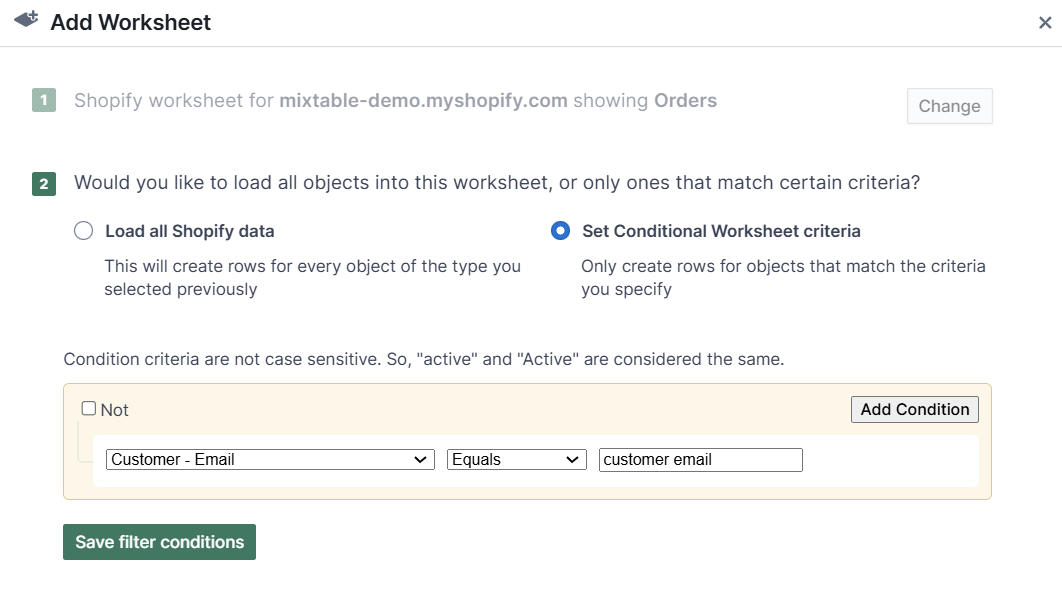
Another option is adding a conditional worksheet to display orders only by this customer. To do that:
- Click the + button and select Shopify data worksheet
- Select Orders (no line items)
- Choose the columns you need, then select Only rows that match a condition
- Create the rule Customer Email equals the customer’s email address
- Click Create Worksheet
Q: Can I see products that have no orders?
A: Yes, you can see which products or product variants from your store have zero orders. You would need Mixtable Analytics Spreadsheet app to view them. Here’s how:
- After installing the Mixtable Analytics Spreadsheet app, click the Create Spreadsheet button.
- In the dialog that appears, select the Sales by Month or Sales by Year pre-built templates.
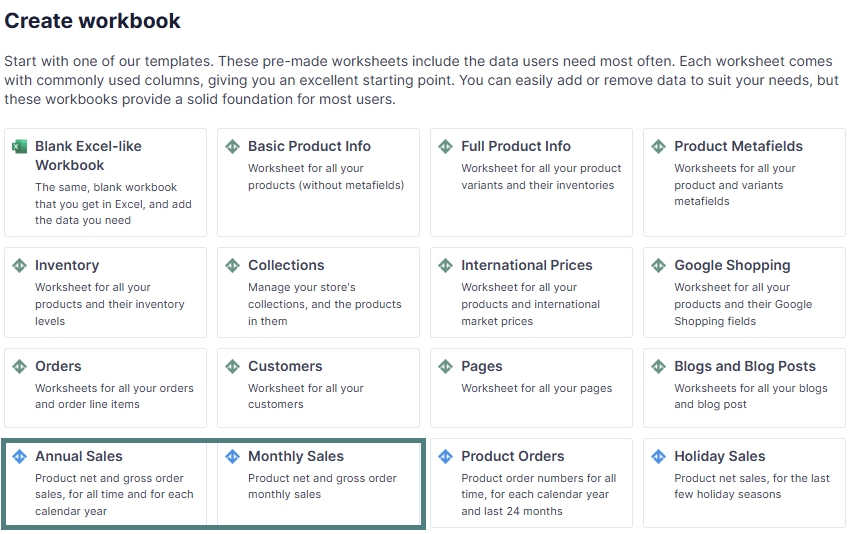
The worksheet will automatically load with the following columns:
-
Product Title
-
Handle
-
Net sales:
- a column showing Net Sales for all orders
- a column showing Net Sales for each year or for each of the last 24 calendar months
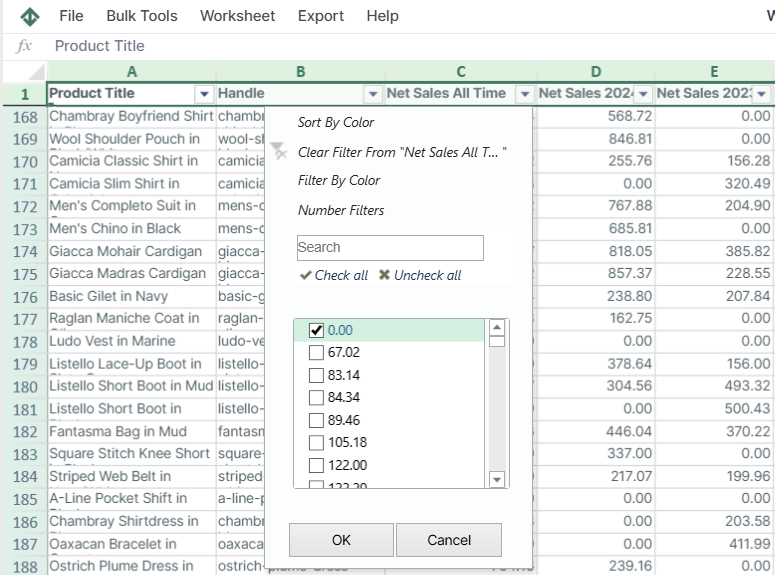
Now, use the filtering option and select Net Sales equal to zero to view products with zero sales for all orders or a specific year or month.
You're ready!
Mixtable is an online spreadsheet designed to sync data with Shopify. It looks, feels, and behaves like Excel (including formulas), but runs in your browser. With Mixtable you can:
- Bulk add products to collections, edit metafields, add or remove tags;
- Change product prices, including international prices, and review price history;
- Manage customers with a spreadsheet CRM for Shopify;
- Use Excel features like sort ascending or descending, find-replace, filter, and more.
Best of all, you can sync changes back to Shopify with a single click. Find out more about the Mixtable suite of products here.
Manage Shopify data in a spreadsheet.
Use Mixtable to edit, sync, analyze, import, and export your Shopify store data without CSV juggling.