
Bulk edit Shopify customer language
 Spreadsheet Editor Updated October 21, 2026
 On this page
Shopify stores the preferred language for each customer as a locale code (for example en for English, fr for French, or fr-FR for French (France)). This field tells Shopify which language a customer prefers and influences which language the storefront shows them. In Mixtable, this field is exposed as the Language column on your customers worksheet, and you can view, filter, and update it in bulk from a spreadsheet.
The customer language field is different from translating your store’s content. If you want to translate the product titles, descriptions, and other content that customers see in each language, see bulk edit Shopify translations.
Why the customer language field matters
Knowing your customers’ preferred language lets you:
- Personalize marketing emails: segment by language to send campaigns in the right language.
- Audit your customer data: quickly spot customers whose language is missing or set to the wrong locale, especially after a data import.
- Update language in bulk: if you’ve migrated from another platform or need to correct locale codes for a group of customers, you can paste the right values in one go and sync to Shopify instantly.
How to add the Language column to your customers worksheet
If you don’t already have a Shopify customers worksheet, add one with the + at the end of the worksheet tabs (or choose Worksheet > Add worksheet…). New Customers worksheets include a Language column by default, so you may already have one. If yours doesn’t, here’s how to add it:
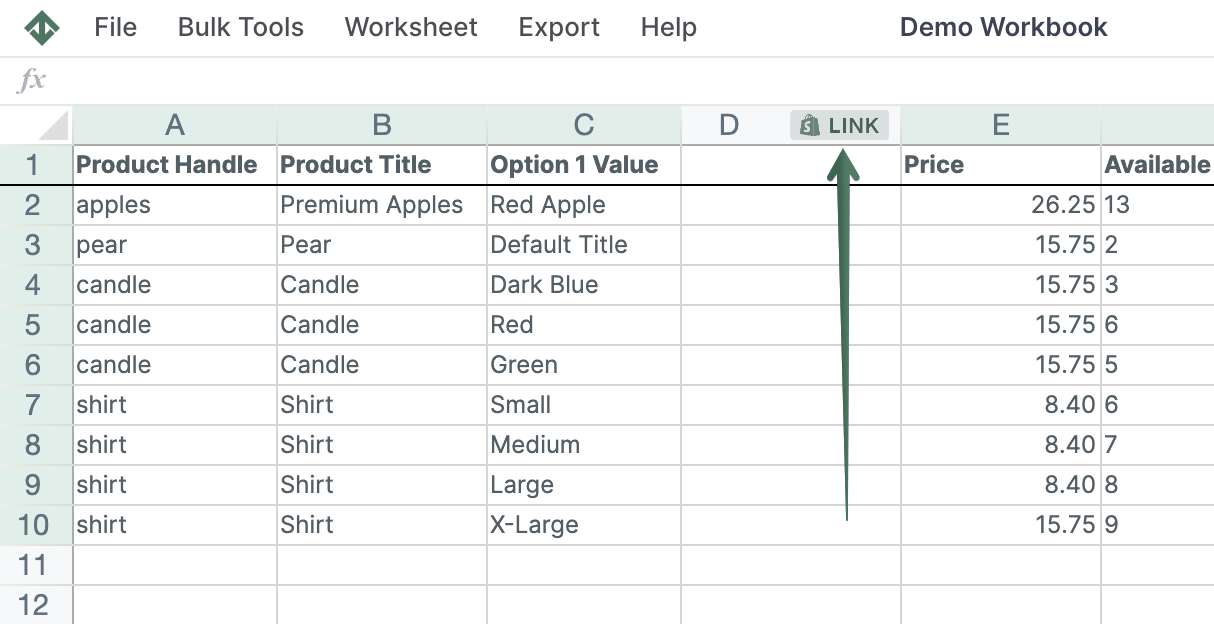
To load more Shopify data, click + Shopify data in the header row of an empty column, such as the one right after your last column. You can also choose Column > Add Shopify data… from the menu bar. The field picker opens and asks What should column E show?, with your column's letter in place of E. It lists everything the worksheet can show from Shopify, grouped into sections the way your Shopify admin groups them. Type in the search box at the top, or click a section on the left, to find the field you want.
Click Language in the Customer section of the field picker, or type language in the search box to find it. Click Save Column and the column will populate with each customer’s current locale code.
Note: The Language column shows a locale code like en, de, or pt-BR. This is the same value Shopify stores internally and it can be edited.
How to bulk edit customer language
Once the Language column is in your worksheet, updating customer language works the same way as editing any other field:
- Click a cell in the Language column and type the new locale code (e.g.,
fr-FR) - To update many customers at once, paste values from Excel or another spreadsheet into the column cells
- Cells you’ve changed will get a light yellow background, indicating they haven’t been synced yet
- When you’re ready, click Sync at the top right of the spreadsheet, review your changes in the preview that opens, then click Sync again to send them all to your store at once
Mixtable will update each customer’s language in Shopify based on the value in the column. You can verify the result by opening a customer record in the Shopify admin and checking the Language field.
Tip: Use the worksheet filter or sort to focus on a subset of customers (for example, filter for rows where Language is empty) before pasting in new values.