
View a row’s full Shopify record in the Details panel
 All Mixtable apps
Updated October 8, 2026
All Mixtable apps
Updated October 8, 2026 On this page
A worksheet shows only the fields you have columns for. The Details panel shows the rest: everything Mixtable has saved for the Shopify record behind the selected row, including fields that aren’t columns in your worksheet. Open it to check a product’s variants and collections, an order’s items and refunds, or a customer’s addresses and marketing consent, without adding a single column.
Details is for looking things up. You make changes in your worksheet cells and sync them to Shopify, as explained in Change a value you see in Details.
Open the Details panel
-
Open a Shopify data worksheet, such as a Products (with variants), Orders, or Customers worksheet
-
Click any cell in the row you want to look at
-
Click Details at the right end of the toolbar

Details opens on the right side of the worksheet. Its header names the kind of record, such as Product, Product variant, or Order, followed by the record’s name, such as the product title or the order number.
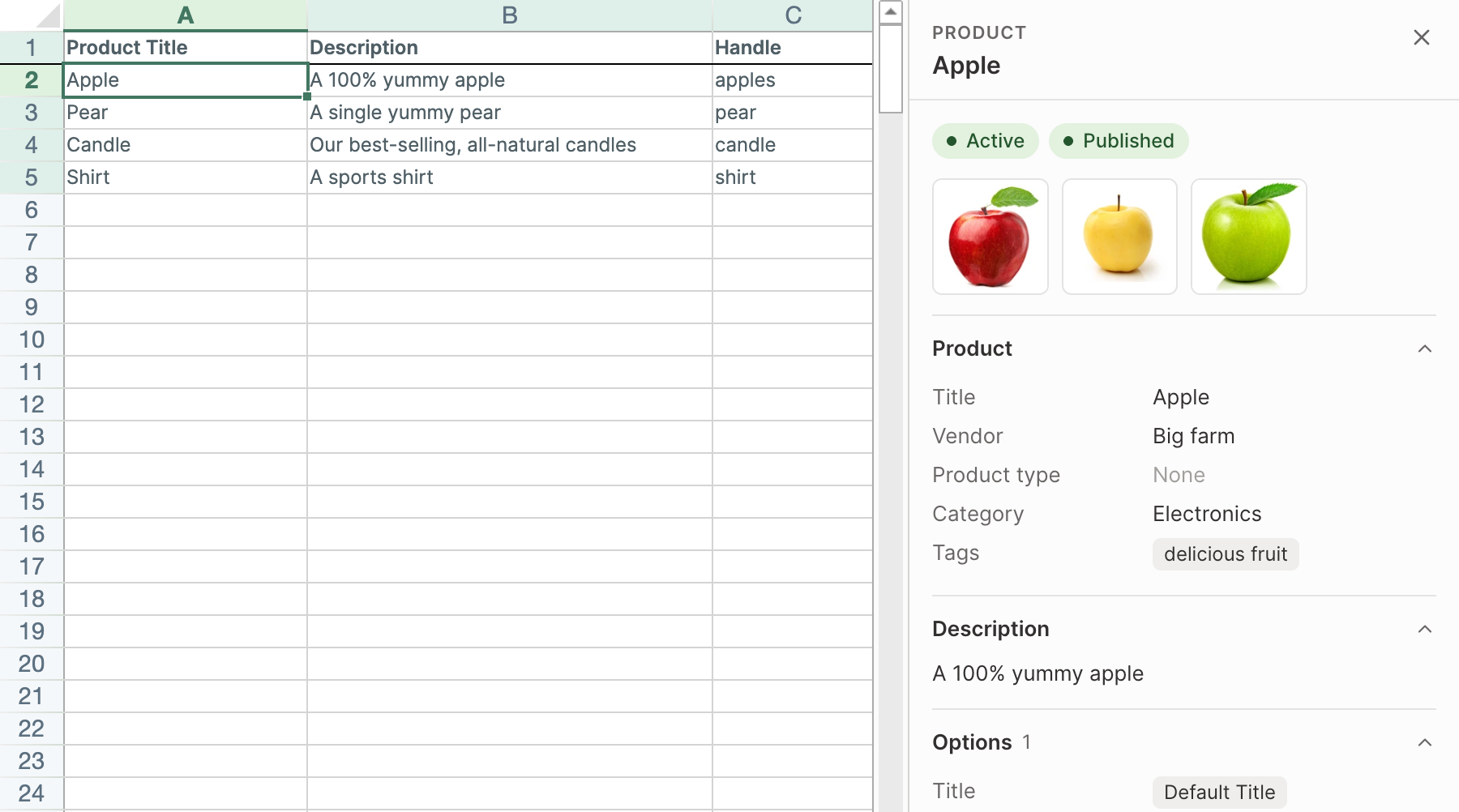
You can also open Details from a row:
- Right-click the row number and choose Open in Details
- Choose Row > Open in Details from the menu bar
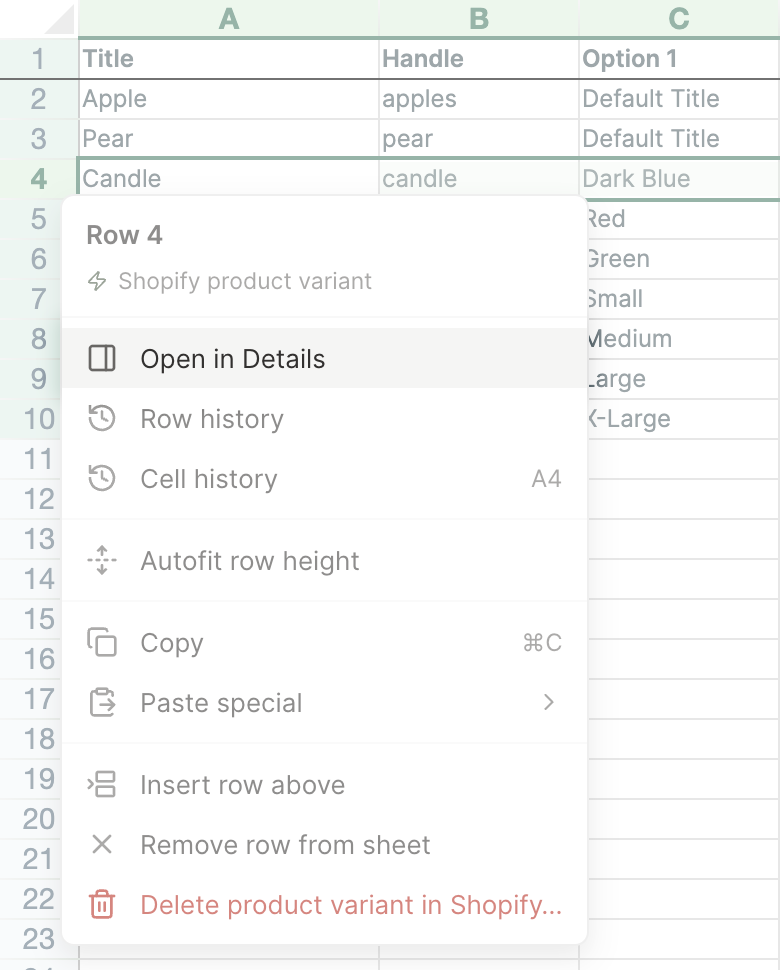
To close it, click Details in the toolbar again, or click the X in the panel’s header. For a tour of the other menus and buttons, see Find your way around the spreadsheet.
Details follows your selection
Leave Details open while you work. When you click a cell in another row, or move to another row with the arrow keys, Details shows that row’s record. When you switch worksheets, it shows the selected row of the new worksheet.
What Details shows
Each record is grouped into sections. Click a section’s heading to close it or open it again. Details keeps your choice as you move between rows of the same kind, and a few sections you need less often, such as Translations and Dates and IDs, start closed.
A few things work the same way across records:
- Many records start with status badges that give you their state at a glance, such as Active or Draft for a product, or Paid and Unfulfilled for an order
- Image thumbnails open the full image in a new browser tab
- Long text, such as a description, is cut to a few lines with a Show more link
- Each Shopify ID has a copy button next to it
- Long lists, such as a product with many variants, show the first part and tell you how many there are in total
Products
- Badges for the product’s status (Active, Draft, or Archived) and whether it’s Published or Not published
- The product’s images
- Product: title, vendor, product type, category, and tags
- Description, as plain text
- Options and Variants, with each variant’s SKU, stock, price, and compare-at price
- Collections, and Sales channels with whether the product is published on each one
- Online store: handle, theme template, and published date
- Search engine listing: the page title and meta description
- Metafields, Translations, and Dates and IDs
Product variants
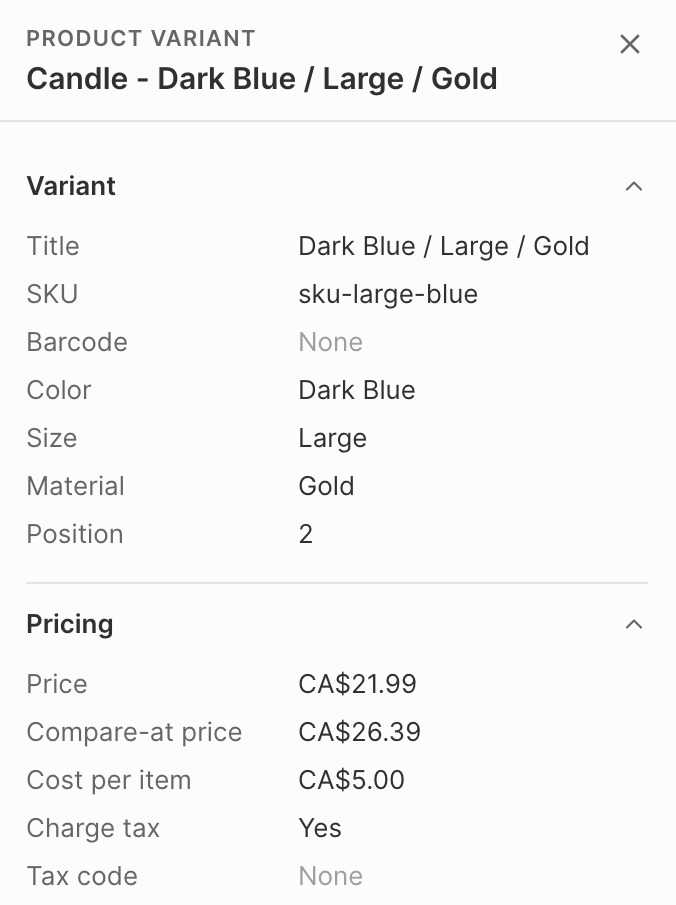
On a Products (with variants) worksheet, each row is a variant. Details shows the variant first, then its whole product under a Product heading.
- Variant: title, SKU, barcode, option values, and position
- Pricing: price, compare-at price, cost per item, whether tax is charged, and tax code
- Inventory: whether stock is tracked, total stock, and whether the variant keeps selling when it’s out of stock
- Stock by location: the available quantity at each location, with the on hand, committed, and incoming quantities
- Shipping and customs: physical product, weight, country and province of origin, and HS code
- Market prices: the variant’s price in each market or B2B catalog, marked Fixed price or Follows the store’s price
- Metafields
Orders
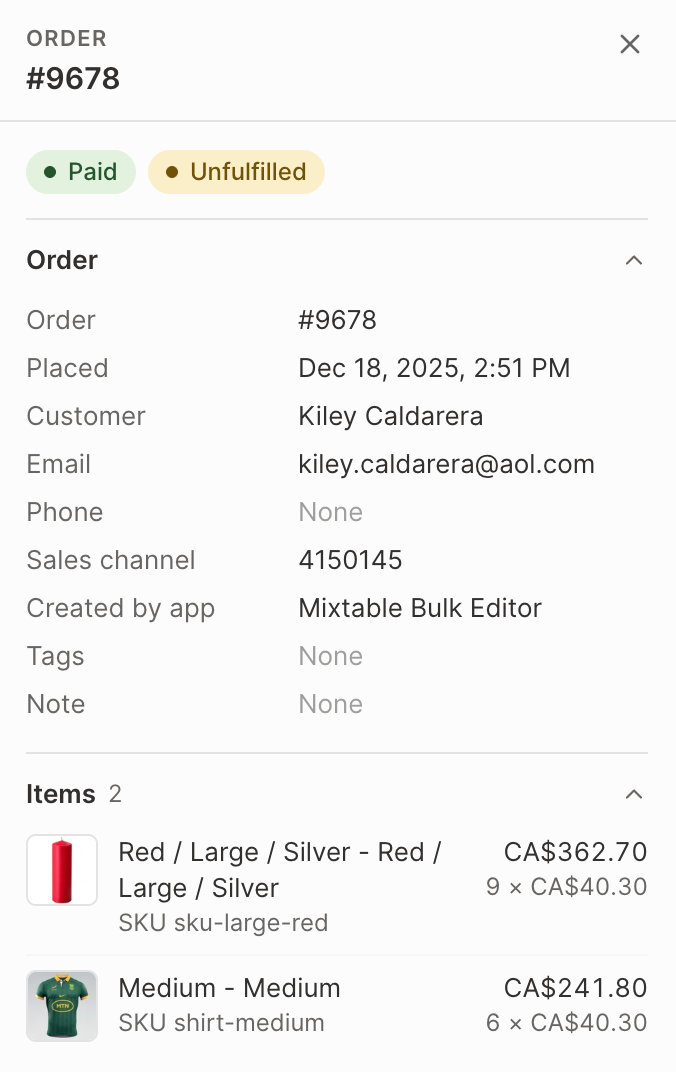
- Badges for the payment status and fulfillment status, plus Cancelled, Test order, or B2B when they apply
- Order: order number, date placed, customer, email, phone, sales channel, tags, and note
- Items: each order line with its picture, SKU, quantity, and price
- Payment: subtotal, discounts and discount codes, shipping, tax, total, the amount still to pay, and how the customer paid
- Totals now, after edits and returns, when the order changed after it was placed
- Shipping address and Billing address
- Fulfillments, Refunds, and Returns
- Customer: name, email, phone, tags, and note
- How the customer found you: the referring site and, where Shopify recorded them, the first and last visits before the order, with their source, landing page, and UTM tags
- Metafields
Customers
- Badges for the customer’s account status, Email subscriber, and Tax exempt
- Customer: name, email, phone, language, tags, and note
- Orders: orders placed, total spent, and the last order
- Marketing: email and text message consent
- Addresses: the default address and any others
- Metafields
Collections
- A badge that says whether the collection is Automated or Manual
- Collection: title, number of products, sort order, handle, and theme template
- Description, as plain text
- Conditions: the rules that pick an automated collection’s products
- Sales channels, Search engine listing, Metafields, and Translations
Pages and blog posts
- A badge that says whether the page or post is Visible or Hidden
- The title, handle, theme template, and published date, plus the blog, author, and tags of a blog post
- Content and Summary, as plain text
- Search engine listing, Metafields, and Translations
Every other record type
Details has a view for each kind of Shopify record a worksheet row can hold: products, product variants, media images, collections, customers, companies, company locations, orders, order lines, refunds, refund lines, fulfillments, fulfillment lines, returns, return lines, order transactions, pages, blogs, blog posts, payouts, balance transactions, markets, discounts, and metaobjects.
Records that belong to an order, such as refunds, fulfillments, returns, and payments, include a short summary of their order. An order line shows its whole order underneath, the same way a variant shows its product.
When Details has nothing to show
- No Shopify record on this row: the selected row isn’t linked to a Shopify record, for example the header row, or a new row that hasn’t been synced to Shopify yet. Click a cell in a row with Shopify data
- No Shopify data in this worksheet: the worksheet isn’t linked to Shopify, such as a Basic worksheet. Open a Shopify data worksheet and select a row
- This row’s record couldn’t be loaded: check your internet connection, then click Try again
Details is view only
Details shows your Shopify data as Mixtable has saved it. It has no text boxes or save buttons, and nothing you do in Details changes Shopify. It shows Shopify’s values, so an edit you haven’t synced yet appears in its worksheet cell but not in Details.
Change a value you see in Details
To change something you spot in Details, edit it in your worksheet and sync it to Shopify:
- Find the field’s column in your worksheet. If the field isn’t a column yet, add it: click + Shopify data in the header row of an empty column, or choose Column > Add Shopify data… from the menu bar. The field picker opens and asks What should column E show?, with your column’s letter in place of E. Type the field’s name in the search box, or click a section on the left, such as Pricing or Custom data for metafields. Then click the field and click Save Column
- Click the cell in the row you want to change, and type the new value
- Click Preview at the top right of the spreadsheet to review your changes, then click Sync
To learn more about previewing, syncing, and updates that come in from Shopify, see how the sync control works.
Descriptions and page content are HTML
Details shows a product’s description, and a page’s or blog post’s content, as plain text with the formatting removed, so it’s easy to read. In your worksheet, the same fields hold HTML: the product’s Description column, and the Content column of pages and blog posts. Edit the HTML in the cell, keeping tags such as <p> and <strong> in place, then preview and sync. For step-by-step help, see Bulk edit product descriptions, Bulk edit Shopify pages, and Bulk edit Shopify blog posts.
See how a record changed over time
Details shows a record as it is now. To see how its fields changed, and who synced each change, choose Row history or Cell history from the same row menu as Open in Details. Learn more in Shopify product change history, and for prices and costs, in View Shopify product price history.