
Bulk edit Shopify B2B Companies
 Spreadsheet EditorExport: Excel & CSV Updated October 21, 2026
 On this page
 Bulk edit Shopify B2B CompaniesVideo walkthrough
 Mixtable makes it easy to view, edit, and analyze your Shopify B2B company information directly in a spreadsheet interface. You can start with our pre-built B2B Companies template or add a new Company worksheet to any existing spreadsheet.
Option 1 - Start with the Pre-built B2B Companies Template
The fastest way to get started is with Mixtable’s pre-built B2B Companies template.
-
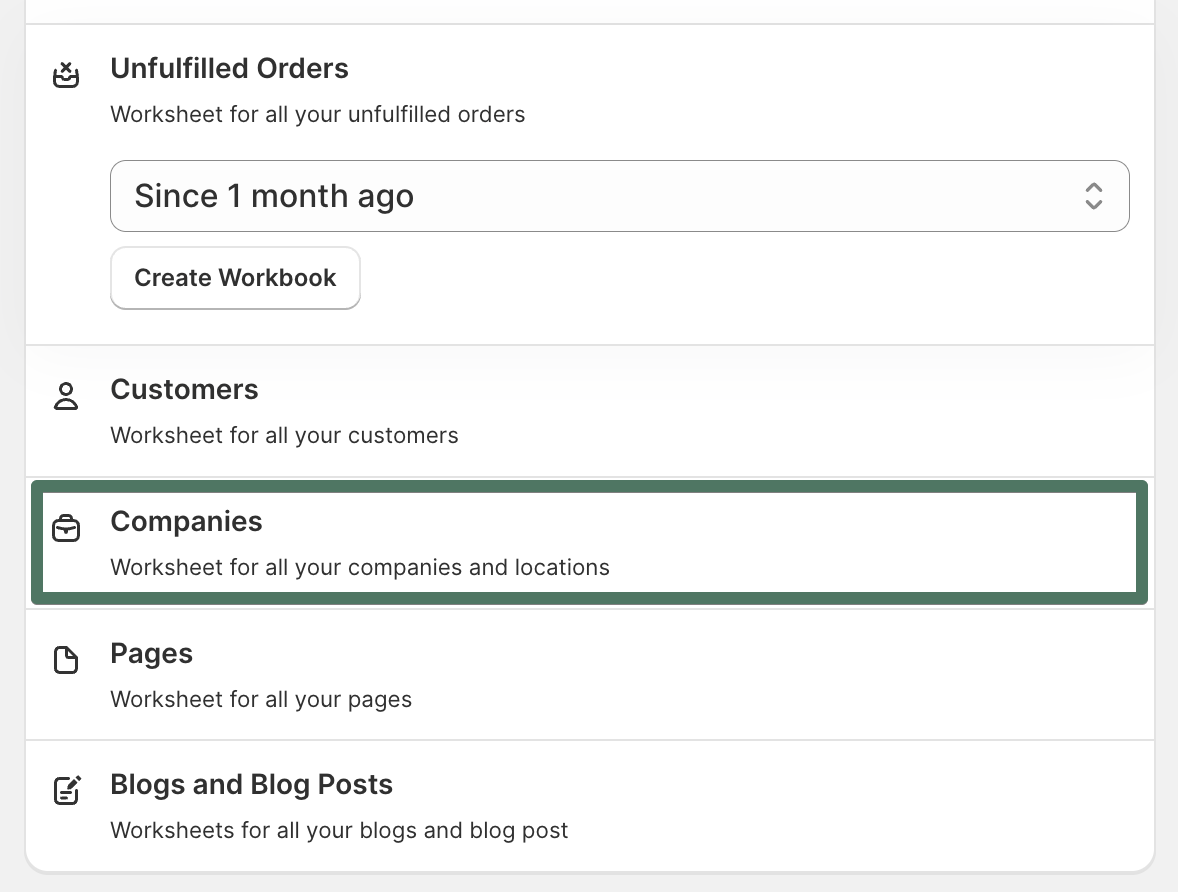
Open your Mixtable dashboard and click Create spreadsheet at the top of the page. If you haven't created a spreadsheet yet, click Browse all templates below the dashboard's suggestions instead. In the Create spreadsheet window, find B2B Companies under Orders & Customers, or type its name in the search box, and click it. Mixtable creates the spreadsheet and fills it with data from your Shopify store.
-
Your new spreadsheet has two worksheets:
-
Companies lists all your Shopify B2B companies. The template adds the following fields as columns by default, but you can add or remove fields as needed
- Company Name
- Note
- Total Spent Amount
- Customer Since
- Locations Count
- Orders Count
-
Company Locations lists each company’s locations
-
-
Mixtable preloads your existing Shopify company and location data into these worksheets
Once loaded, you can:
- Edit company names, notes, or any other editable field
- Add new companies or update existing ones
- Export data to a CSV or Excel file if needed
When you’re ready, click Sync at the top right of the spreadsheet, review your edits in the preview that opens, then click Sync again to send them to Shopify. Mixtable will update your Shopify B2B company data accordingly.
Option 2 - Add a New Companies Worksheet to an Existing Spreadsheet
You can also add a Company worksheet to any existing spreadsheet using the standard Shopify data worksheet setup.
-
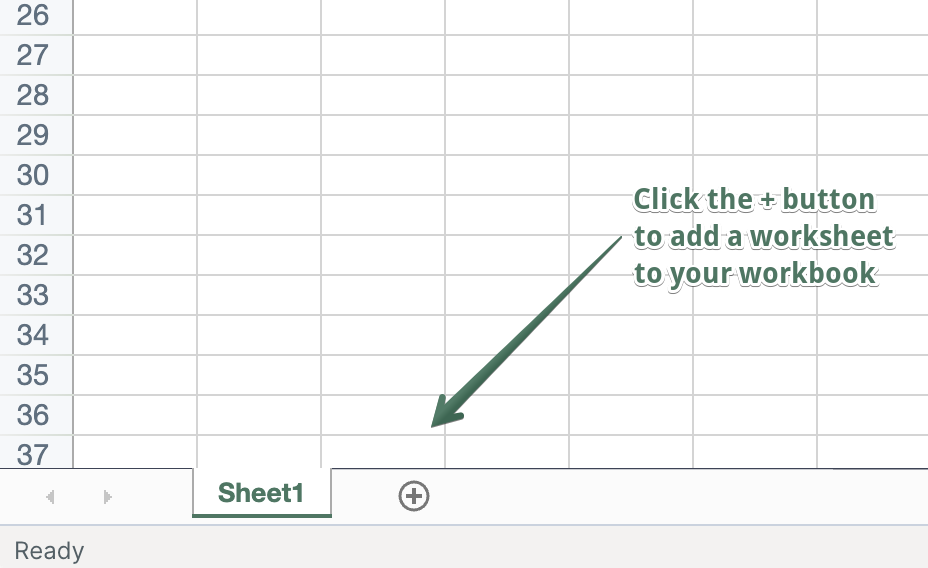
Click the + at the end of the worksheet tabs (or choose Worksheet > Add worksheet…)
-
Select Shopify data worksheet, then click Continue
-
Select Company
-
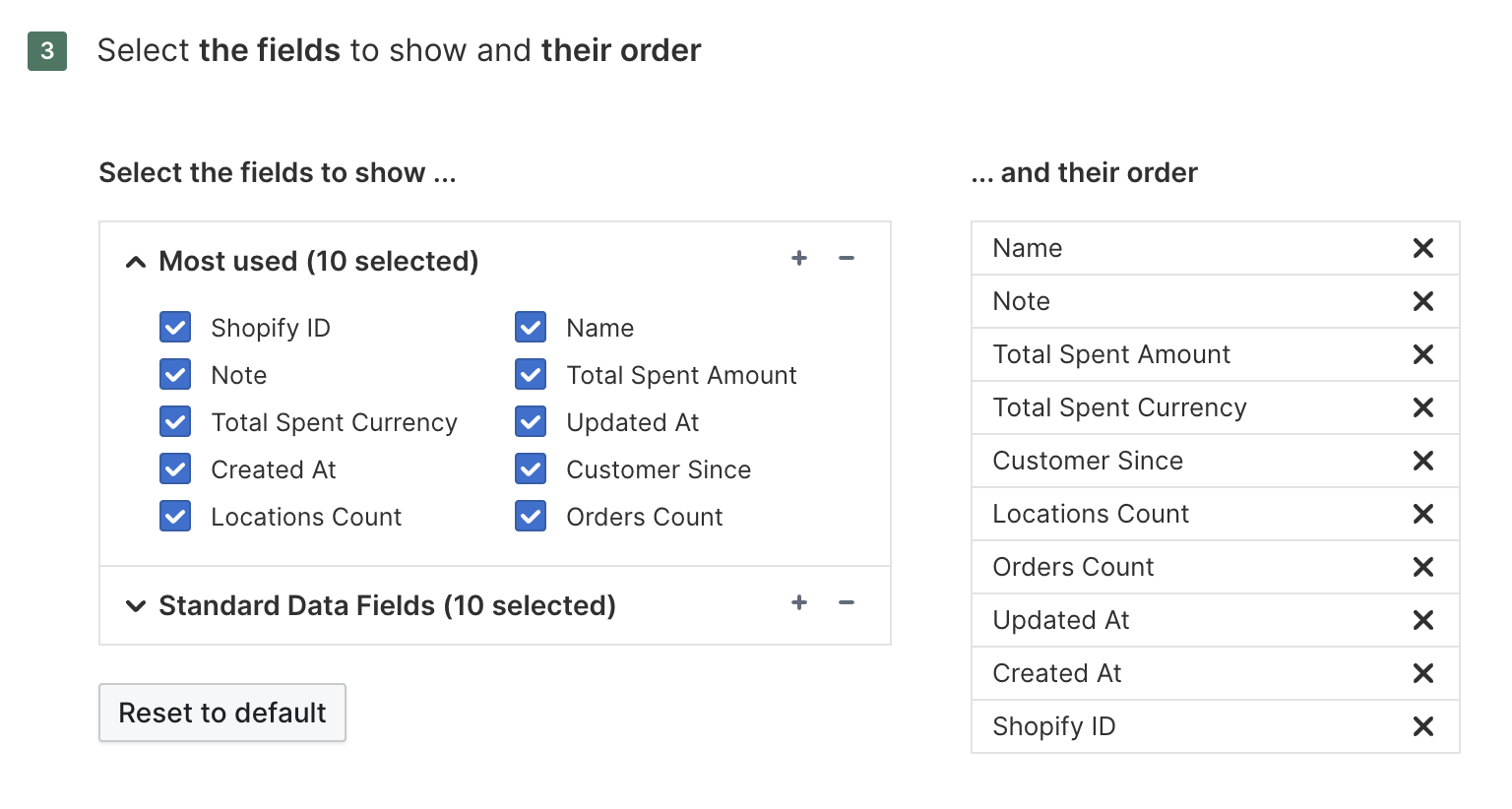
Select the fields to show and drag column headers to arrange their order, then click Continue
-
Choose Load everything or Only rows that match rules
-
Click Create Worksheet
Your new worksheet will now display all Shopify company data for your connected store.
Editing and Syncing Company Data
Once your worksheet is set up:
- You can edit company names, notes, and other information directly in the spreadsheet
- Use the Bulk Edit menu to update multiple rows at once
- Manage pricing with B2B price catalogs
- Click Sync at the top right of the spreadsheet, review your edits in the preview that opens, then click Sync again to update Shopify
Keeping company data up to date
Your Companies and Company Locations worksheets stay up to date with Shopify automatically. When a company or one of its locations is added, edited, or removed in Shopify, the change flows into Mixtable on its own, so there’s nothing to download. If you have the spreadsheet open, the update waits so nothing shifts around while you’re working: the sync control at the top right of the spreadsheet shows how many updates are waiting, for example Apply 2 updates. Click it to bring them in, or close the spreadsheet and they’ll come in on their own.
Add Company metafields
You can map Shopify Company metafields to columns and update their values in bulk:
- Click + Shopify data in the header row of an empty column, or choose Column > Add Shopify data… from the menu bar. The field picker opens
- Click Custom data in the list of sections on the left, or type the metafield's name in the search box
- Click the Company metafield you want to map. If you don't see it, click Refresh in the Custom data heading to load your latest metafield definitions from Shopify
- Click Save Column
- Enter or paste your metafield values
- Click Sync at the top right of the spreadsheet. The Preview changes window opens so you can check your changes
- Click Sync in the window to publish the changes
For more information about defined and custom metafields, see bulk edit Shopify metafields.
Optional - Working with B2B Orders
You can also load and analyze B2B orders linked to your companies:
- Click the + at the end of the worksheet tabs, select Shopify data worksheet, then click Continue
- Select Orders (no line items)
- Select and arrange the columns you want, then click Continue
- Select Only rows that match a condition
- Create the rule Order Type equals B2B
- Click Create Worksheet
Your new worksheet will now load your existing B2B orders. Any new B2B orders will be automatically added to the worksheet.
If an order later stops matching the Conditional Worksheet criteria, that row may become empty. Use the Empty rows detected notice or select Worksheet > Remove Empty Rows to clean it up.
For company-level results rather than a list of individual orders, Mixtable Analytics Spreadsheet reports B2B sales by company and location. Set the Order type filter to B2B and the Company and Company Location filters become available.
Summary
- Use the B2B Companies template to instantly create pre-linked worksheets for companies and locations
- Or manually add a Company worksheet using the standard Add worksheet process
- Edit directly in Mixtable and sync changes back to Shopify at any time
- Optionally, add B2B orders worksheets for deeper analysis
With Mixtable, you can manage your Shopify B2B companies, locations, and orders with a spreadsheet.