
Bulk update SEO titles and SEO descriptions for Shopify collections
 Spreadsheet Editor Updated October 8, 2026
 On this page
SEO titles and SEO descriptions (meta descriptions) shape how your collections appear in Google search results. They influence both rankings and click-through rates, and keeping them clean, consistent, and keyword-focused across your store can make a real difference in organic traffic.
With Mixtable Spreadsheet Editor, you can create and manage collection SEO titles and SEO descriptions in a fast, structured way. Instead of opening each collection in the Shopify admin, you can work on all collection SEO fields in a spreadsheet and sync your changes back to Shopify.
If you’re looking for other Shopify SEO workflows, Mixtable also supports SEO editing for Products, Blog Posts, and Pages, but this guide focuses only on collections.
If your store is multilingual, you can also translate your collection SEO titles and meta descriptions into each language and sync them to Shopify.
Why use a spreadsheet to manage collection SEO?
Editing collection SEO fields in a spreadsheet gives you capabilities that aren’t practical in the Shopify admin:
- View SEO titles and descriptions for all collections at once
- Make bulk changes across dozens or hundreds of collections
- Use copy/paste, drag-to-fill, and formulas
- Quickly spot missing, duplicated, or overly long SEO text
- Keep your spreadsheet up to date with collection changes made in Shopify
Load collection SEO fields into your Mixtable spreadsheet
Before you can edit SEO titles and descriptions, you need to load those fields into a collection-synced worksheet.
Create a collections worksheet
Start by setting up a spreadsheet in Mixtable and creating a Collections worksheet that syncs with your collection data from Shopify. Once the worksheet loads, your existing collections will appear in rows, with one row per collection.
Pro tip: Start with the Collections template
If you want the fastest setup, create a new spreadsheet using Mixtable’s Collections template. Its Collections worksheet already includes the SEO Page Title and SEO Meta Description columns, so you can start editing right away.
Open your Mixtable dashboard and click Create spreadsheet at the top of the page. If you haven't created a spreadsheet yet, click Browse all templates below the starting-point cards instead. In the Create spreadsheet window, find Collections under Organization, or type its name in the search box, and click it. Mixtable creates the spreadsheet and fills it with data from your Shopify store.
Add SEO title and SEO description columns
If your Collections worksheet doesn’t have the SEO columns yet, add them. Mixtable lists a collection’s SEO title and description with its metafields, so you’ll find them in the Custom data section of the field picker as SEO Page Title and SEO Meta Description:
- Open your Collections worksheet
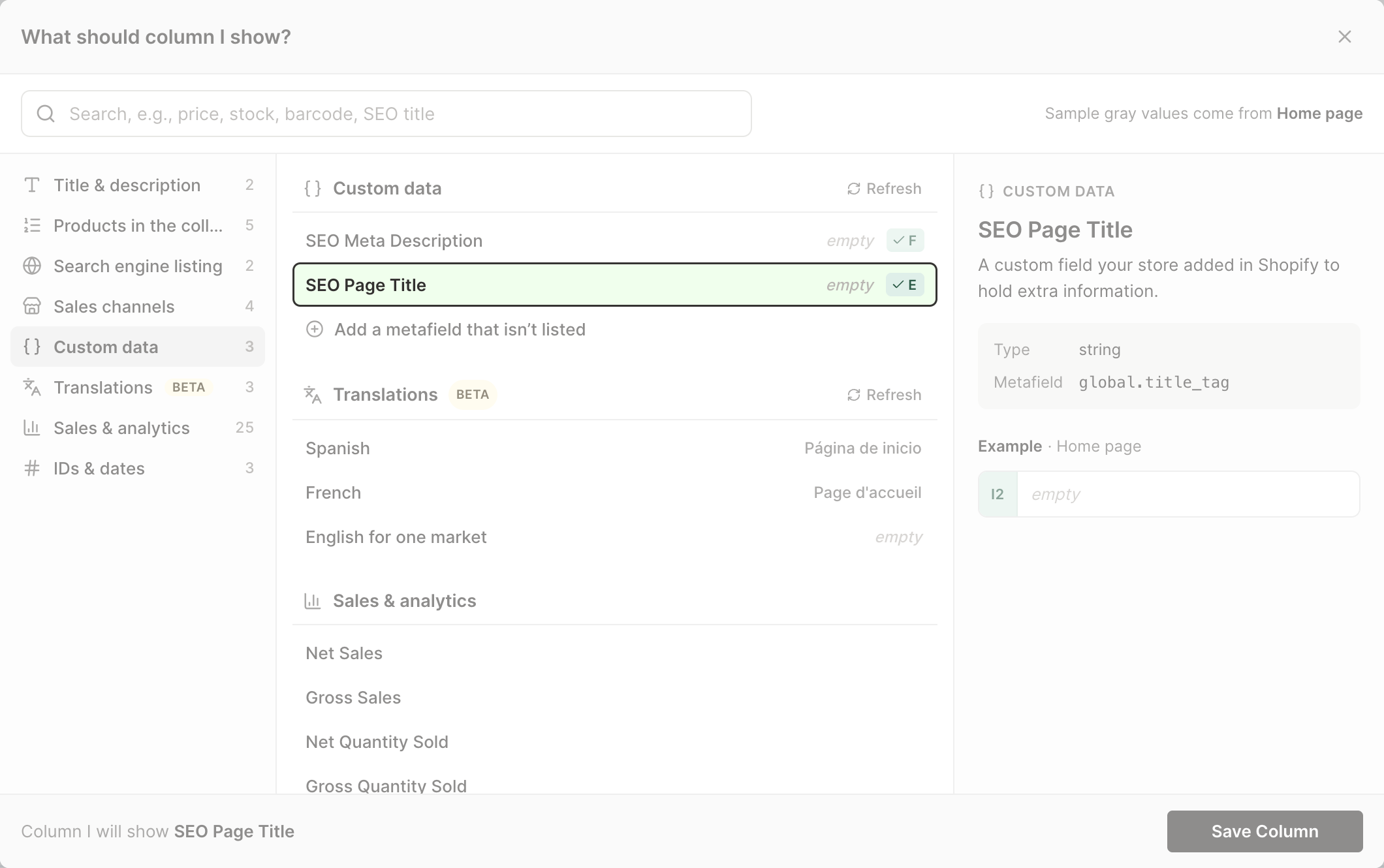
- To load more Shopify data, click + Shopify data in the header row of an empty column, such as the one right after your last column. You can also choose Column > Add Shopify data… from the menu bar. The field picker opens and asks What should column E show?, with your column's letter in place of E. It lists everything the worksheet can show from Shopify, grouped into sections the way your Shopify admin groups them. Type in the search box at the top, or click a section on the left, to find the field you want.
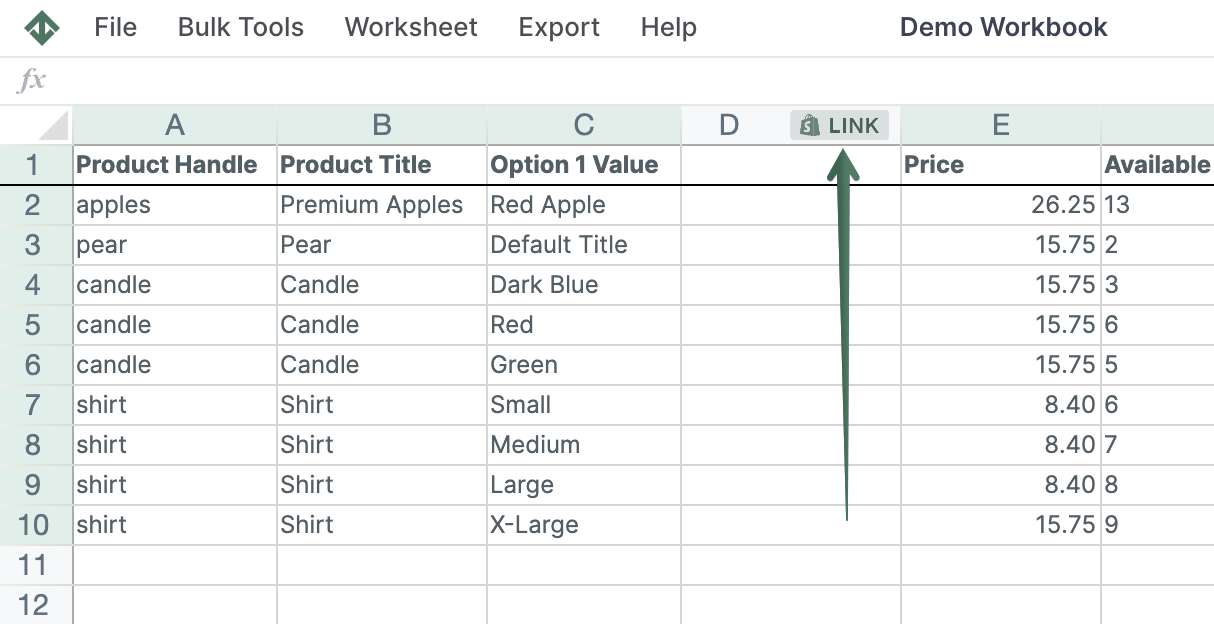
- Click Custom data in the list of sections on the left, or type SEO in the search box
- Click SEO Page Title or SEO Meta Description, then click Save Column
- To add the other field, click + Shopify data in the next empty column and repeat steps 3 and 4
As soon as you add a field, Mixtable populates the column with your existing SEO data from Shopify. The columns are headed SEO Page Title and SEO Meta Description, and their cells are fully editable.
Edit collection SEO titles and descriptions directly in the spreadsheet
Once the SEO fields are visible, you can edit them just like any other spreadsheet data:
- Write SEO titles that match your collection’s intent and keywords
- Improve meta descriptions to better match search intent and increase click-through rates
- Standardize naming (brand, category format, separators, etc.)
- Shorten titles that exceed recommended length
- Fill in missing SEO data at scale
When you’re done, click Preview at the top right of the spreadsheet to review your changes, then click Sync. Mixtable sends them to Shopify, so you don’t have to save each collection individually.
Bulk find and replace collection SEO text
For large-scale changes, Mixtable’s Find and Replace feature is the fastest way to update collection SEO titles and SEO descriptions.
This is especially useful when you need to:
- Replace outdated brand terms
- Remove repeated phrases
- Fix capitalization inconsistencies
- Update keyword phrasing across many collections
How Find and Replace works
Choose Bulk Edit > Find and Replace from the menu bar. Or right-click the SEO column’s letter and choose Find and replace…, which opens the dialog with that column already chosen. In the dialog, you can control exactly how the update is applied:
- Select column
Choose the column to apply the change to, such as SEO Page Title or SEO Meta Description - Find this
The word or phrase you want to replace - Replace with this
The new word or phrase to insert - Case-sensitive match
Decide whether capitalization must match exactly - Match whole words only
Limit replacements to exact word matches instead of partial matches - Preview first 10 rows
Preview how the change will look before applying it to all collections
Click Update Spreadsheet to apply the change to the column. Nothing reaches Shopify yet: click Preview at the top right of the spreadsheet to review your changes, then click Sync to send them to Shopify.
Final notes
Using Mixtable as a spreadsheet editor for Shopify collection SEO gives you speed, visibility, and control that’s hard to match with manual admin editing. Whether you’re cleaning up a small set of collections or optimizing at scale, managing collection SEO titles and descriptions in a spreadsheet is the most efficient approach.