


Manage your Shopify variant images
Manage your Shopify variant images
Mixtable’s spreadsheet interface simplifies the process of choosing an image for a specific product variant. You can either select an existing image from the product the variant belongs to or upload a new one.
Manage Shopify Variant images in a spreadsheet
First, ensure you have a Products (with variants) worksheet in your spreadsheet for the Shopify store whose variants you’re modifying. With this worksheet in place, you’ll need to designate a column for the variant image.
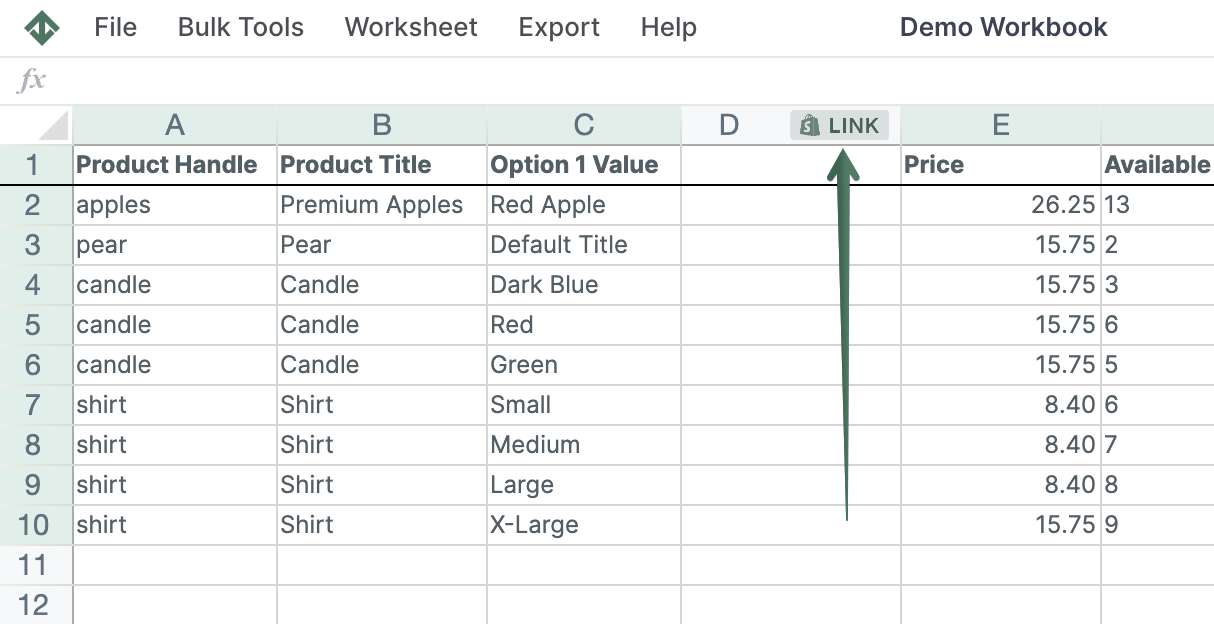
To load new Shopify data, start by selecting an empty column, meaning any column with a non-green header. A green header means the column is already linked to Shopify data. Then click the  button in the column header to open the selection window and choose the data you want to pull in.
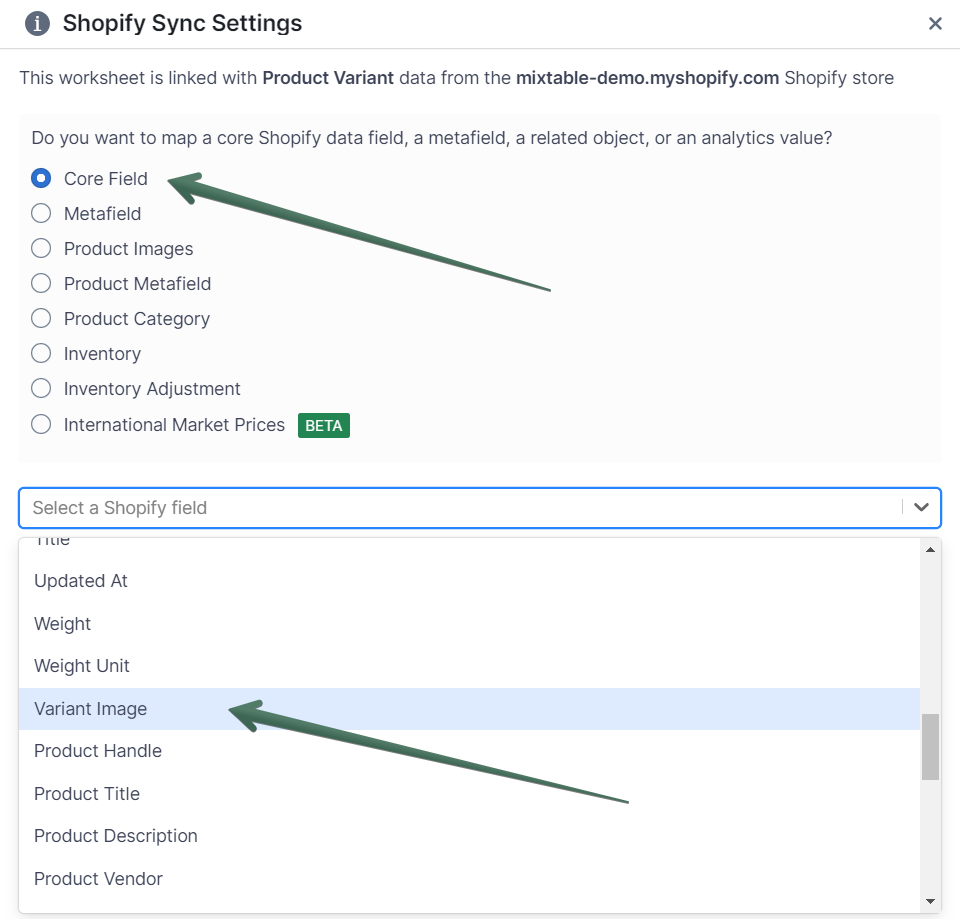
In the window that opens, select Shopify data fields, and then Variant Image from the dropdown menu.
Click the Save button to save the new column mapping.
You’ll see the new column start populating almost immediately with thumbnails of any images currently assigned to your variants. Mixtable populates the cells in the column using the IMAGE function, which holds the URL of the image as a parameter.
Use the IMAGE function to set a variant’s image
Leveraging the power of the Excel-style IMAGE function in Mixtable allows users to efficiently manage Shopify product variant images within the convenience of their spreadsheets. By using a URL as a parameter, the IMAGE function enables seamless display and updating of images within cells.
How to use the IMAGE function in Mixtable to set product variant images
- In the Variant Image column, input the IMAGE function with the image URL enclosed in parentheses. For instance, if the image URL is
https://example.com/image.jpg, the function appears as:=IMAGE("https://example.com/image.jpg") - The specified image appears within the cell, allowing you to visually see the variant image directly in the Mixtable spreadsheet.
- To replace the image, modify the URL within the IMAGE function to another publicly accessible image link. For example, to use a new image located at
https://example.com/new-image.jpg, update the function accordingly:=IMAGE("https://example.com/new-image.jpg") - Synchronize the updated Mixtable spreadsheet with your Shopify store by selecting the “Save” button on the toolbar. Mixtable uploads the new image from the modified URL to Shopify, establishing it as the product variant image.
Use the Change button to set a variant’s image
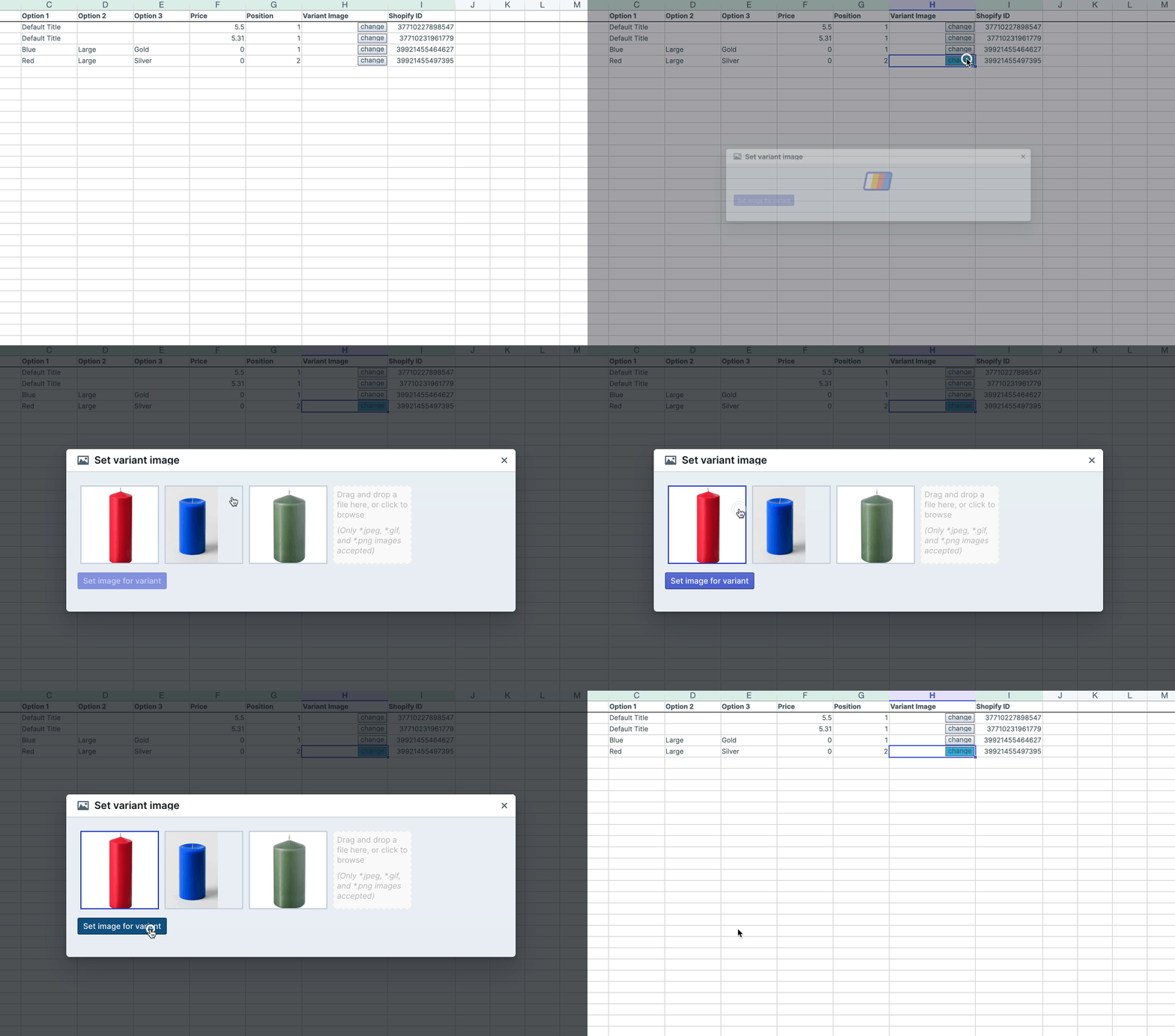
The Change button visible in each variant image cell allows you to set the variant image to another image associated with the product or upload a new one. Clicking the button brings up the Set Variant Image widget. The widget allows you to set the image for a given variant from the set of images already belonging to the same product, or by uploading a file from your computer.
You're ready!
Mixtable is an online spreadsheet designed to sync data with Shopify. It looks, feels, and behaves like Excel (including formulas), but runs in your browser. With Mixtable you can:
- Bulk add products to collections, edit metafields, add or remove tags;
- Change product prices, including international prices, and review price history;
- Manage customers with a spreadsheet CRM for Shopify;
- Use Excel features like sort ascending or descending, find-replace, filter, and more.
Best of all, you can sync changes back to Shopify with a single click. Find out more about the Mixtable suite of products here.
Manage Shopify data in a spreadsheet.
Use Mixtable to edit, sync, analyze, import, and export your Shopify store data without CSV juggling.