


Mark Shopify orders as paid in bulk
Mark Shopify orders as paid in bulk
If you manage Shopify orders in Mixtable, you can mark multiple orders as paid at once using an Action Column. Just select the orders in your spreadsheet, then sync the changes back to Shopify.
Before you start
Make sure you have:
- An Orders (no line items) worksheet connected to Shopify
- A column that uniquely identifies each order (like Shopify ID or Order Name)
Add the “Mark Order as Paid” Action Column
- Click on an empty column in your Orders (no line items) worksheet (or insert a new one)
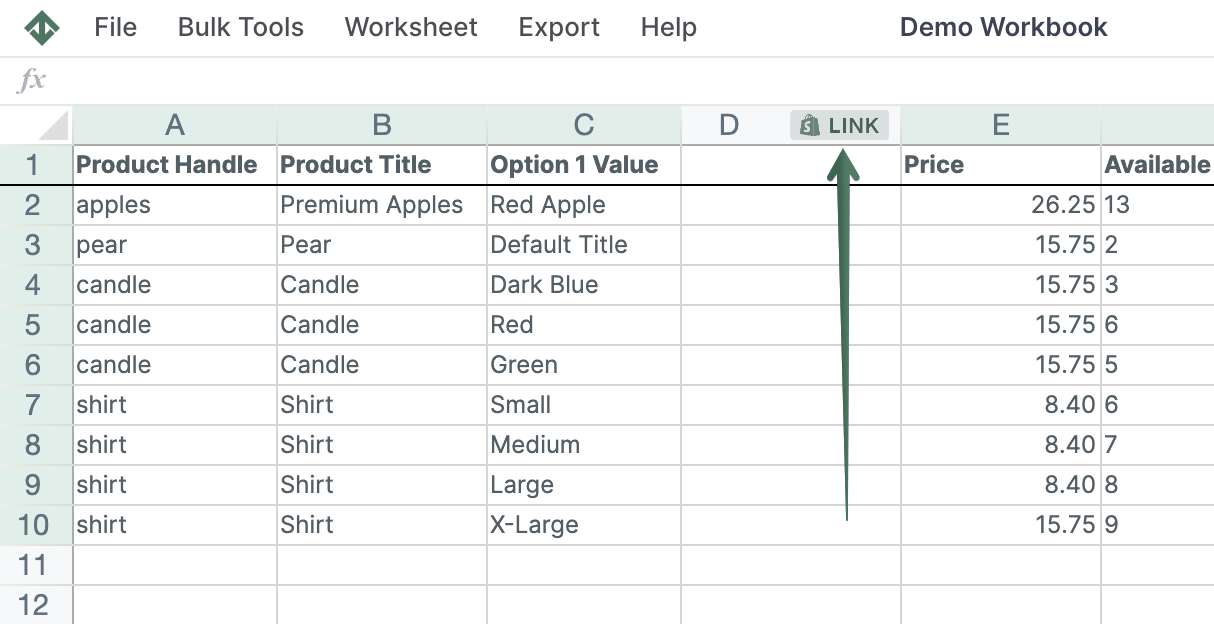
- To load new Shopify data, start by selecting an empty column, meaning any column with a non-green header. A green header means the column is already linked to Shopify data. Then click the
 button in the column header to open the selection window and choose the data you want to pull in.
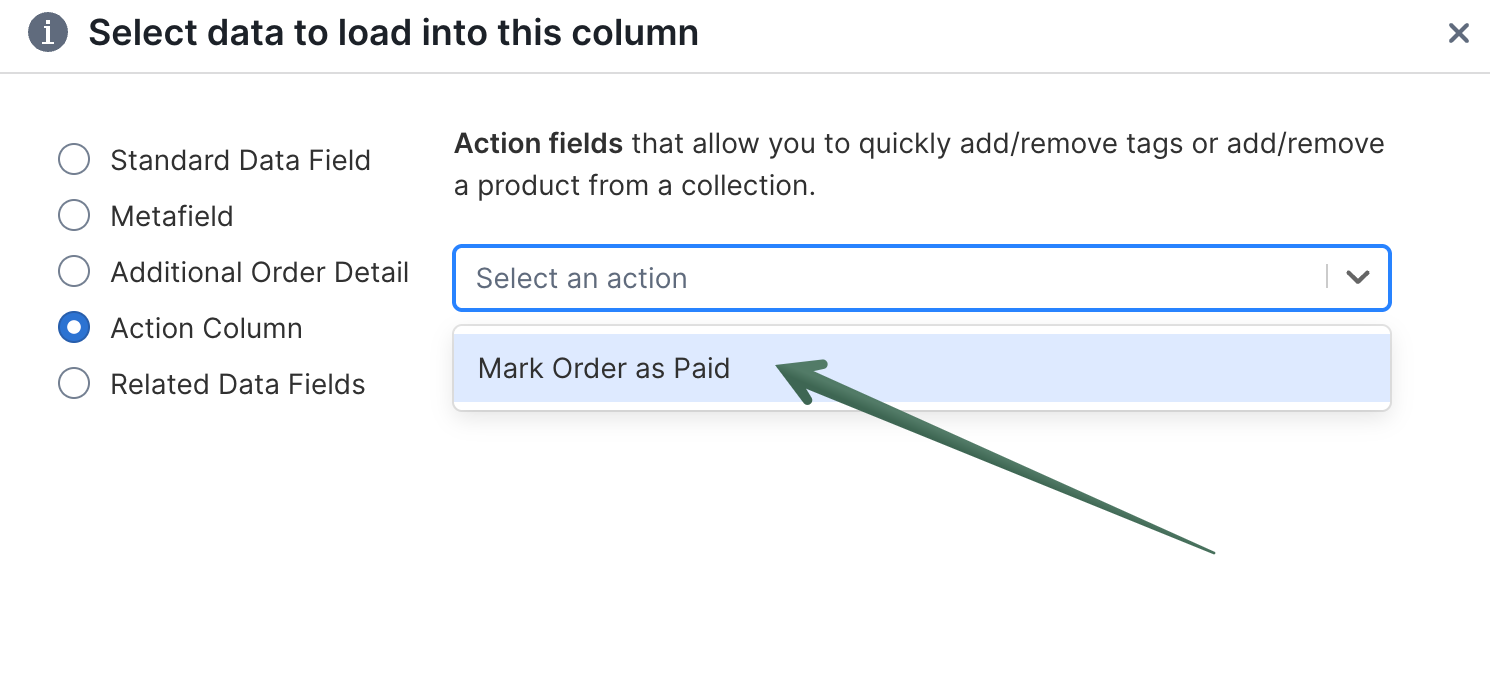
- Under Shopify Sync Settings, select Action Column
- In the action dropdown, choose Mark Order as Paid
- Click Save
Choose which orders to mark as paid
In the Action Column, enter true for each order you want to mark as paid in Shopify.
Tips:
- You can copy and paste
trueinto multiple rows at once - Leave cells blank for orders you don’t want to change
Sync your changes to Shopify
- Click Sync
- Mixtable will mark the orders as paid for every row where you entered
true
After syncing successfully, Mixtable automatically clears the true values from the Action Column.
Troubleshooting
Nothing happened
Make sure you entered true exactly (lowercase). Any other value will be ignored and may cause a sync error.
Shopify sync error
Some orders can’t be marked as paid due to Shopify restrictions or the order’s current status. Check the sync error details to see which orders failed and why, then try again.
You're ready!
Mixtable is an online spreadsheet designed to sync data with Shopify. It looks, feels, and behaves like Excel (including formulas), but runs in your browser. With Mixtable you can:
- Bulk add products to collections, edit metafields, add or remove tags;
- Change product prices, including international prices, and review price history;
- Manage customers with a spreadsheet CRM for Shopify;
- Use Excel features like sort ascending or descending, find-replace, filter, and more.
Best of all, you can sync changes back to Shopify with a single click. Find out more about the Mixtable suite of products here.
Manage Shopify data in a spreadsheet.
Use Mixtable to edit, sync, analyze, import, and export your Shopify store data without CSV juggling.