
Bulk edit Shopify translations with a spreadsheet
 Spreadsheet Editor Updated October 21, 2026
 On this page
- What you need before you start
- How translations work in Mixtable
- Step-by-step: add a translation column (Product title example)
- Translate Shopify image alt text in bulk
- Download the latest translations from Shopify
- Use the Translations pre-built template
- Supported Shopify objects and translatable fields
- Troubleshooting
- Frequently asked questions
- Can I bulk edit Shopify translations?
- Can I bulk translate product titles and descriptions?
- Can I translate Shopify metafields?
- Can I translate Shopify image alt text?
- Can I export Shopify translations to a spreadsheet?
- Does Mixtable work with Shopify Markets translations?
- Does Mixtable automatically translate my content?
- How is this different from Shopify Translate & Adapt?
- Is customer language the same as translating my content?
Mixtable lets you bulk edit Shopify translations with a spreadsheet: product titles, descriptions, SEO titles and meta descriptions, collections, pages, blogs, articles, metafields, and even image alt text, across every language your store has configured. Shopify gives you two native ways to manage translations: edit them one resource and one language at a time in the admin or in Translate & Adapt, or export a translations CSV, change it offline, and import it back. Mixtable keeps the whole workflow live in a spreadsheet instead. You review the source and translated content side by side, paste or fill translations across many rows, and sync everything back to Shopify in one click, with no CSV files to export and re-import.
Here is what bulk translations look like in Mixtable: the original product fields in one set of columns, with a translated column for each language you add, like Spanish and French below.
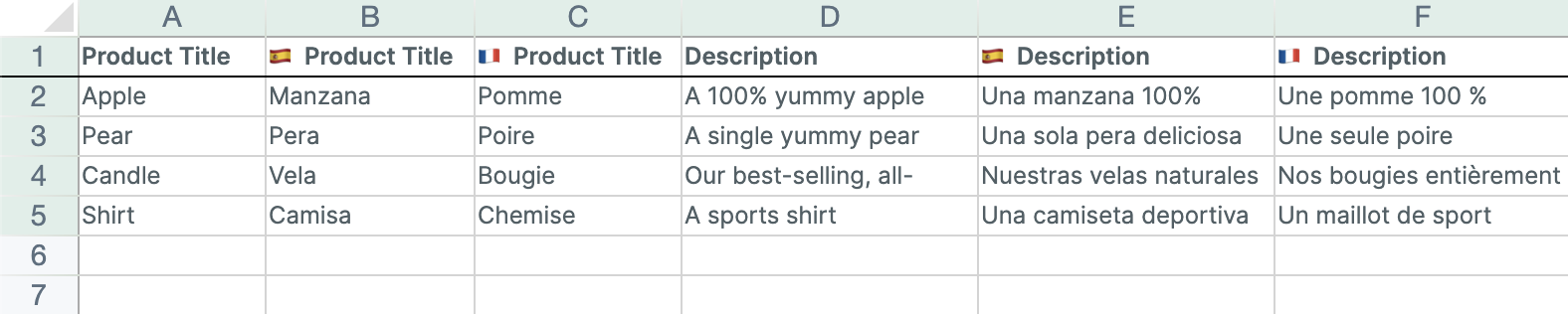
Shopify stores translations at the resource level: each product title, description, collection, page, and so on can have a translated value per locale (the language code, like fr or es), and optionally per Shopify Market. Keeping all of that current one record and one language at a time is slow. Mixtable turns it into a familiar spreadsheet: add a translation column for a supported field and language, then edit it like any other column.
Note: Translations are a beta feature in Mixtable, so you’ll see a Beta label on the Translations section of the field picker, on the Translations template, and in a translation column’s details. If something doesn’t work as expected, email Mixtable support and we’ll look into it.
What you need before you start
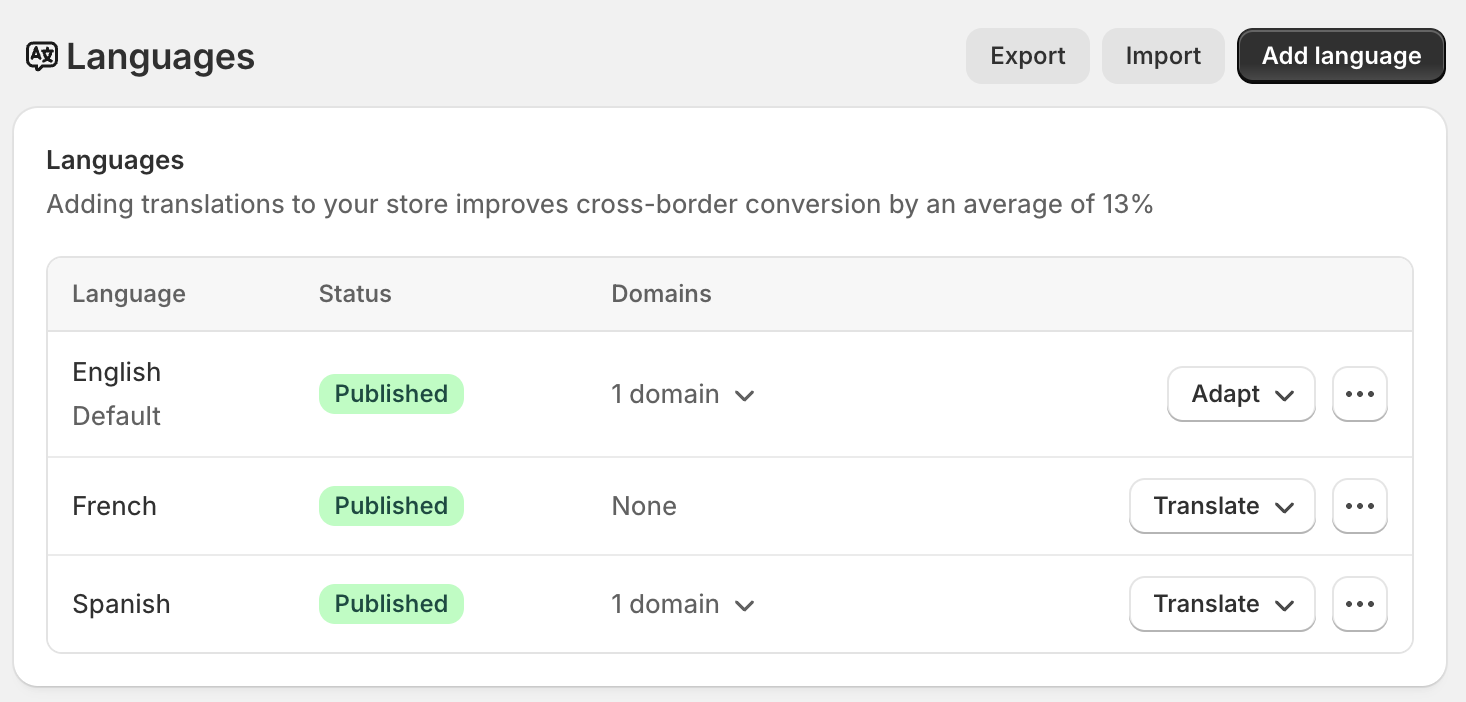
- At least one language besides your store’s default language. You add languages in Shopify under Settings → Languages. If your store has two or more Shopify Markets, you can also change your default-language content for one market without adding a language
- A Mixtable worksheet that syncs the Shopify data you want to translate: products, collections, pages, blogs, blog posts, or media images
Only the languages you have added in Settings → Languages are available to translate into from Mixtable. That screen lists each defined language and its status, like the English default plus French and Spanish below.
How translations work in Mixtable
When you add a translation column to a worksheet, Mixtable:
- Loads the current translated value for that field and locale from Shopify into the column
- Lets you read and edit the translated content directly in the spreadsheet, one row per resource, one column per translatable field and language combination
- Pushes your changes back to Shopify when you click Sync, updating the translation for every edited row at once
You can have as many translation columns as you need, for example, a French title column, a Spanish description column, and a French SEO title column all in the same worksheet.
If your store uses Shopify Markets, you can also scope a translation column to a specific market so the translated value only applies to that market’s customers. Market scope applies to the fields where Shopify supports market-specific translations, such as titles and descriptions. Some fields are language-level only: URL handles, for example, are translated per language and are not market-specific, so leave those columns set to All.
Important: Shopify does not send Mixtable notifications when translations are changed outside of Mixtable (for example, via the Shopify admin or a third-party translation app). If your translations are updated elsewhere, your worksheet will not reflect those changes automatically. Use the Download button described below to pull the latest values from Shopify on demand.
Change your default-language content for one market
When your store has two or more Shopify Markets, a Translations column can also hold a market-specific version of your default language, for example different shipping details in a product description for customers in the EU. The Translations section of the field picker then ends with a row for your default language, such as English for one market. Click it, and the translation settings open with your default language chosen (the Languages list marks it (default language), such as English (default language)). Pick the field, then pick the market that should see this version under Market Scope. There’s no All option here, because customers in other markets keep seeing your regular content. Mixtable labels the column with the language and market, such as Product title (English, Canada market).
This works for every translatable field except URL handles, which Shopify translates per language only. It also means a store with a single language can use Translations columns, as long as it has two or more markets.
Step-by-step: add a translation column (Product title example)
The steps below use Product title → French as an example, but the process is the same for any supported field and language.
-
Open a Products (no variants) or Products (with variants) worksheet in Mixtable. If you don’t have one yet, set up a spreadsheet and add a Products worksheet
-
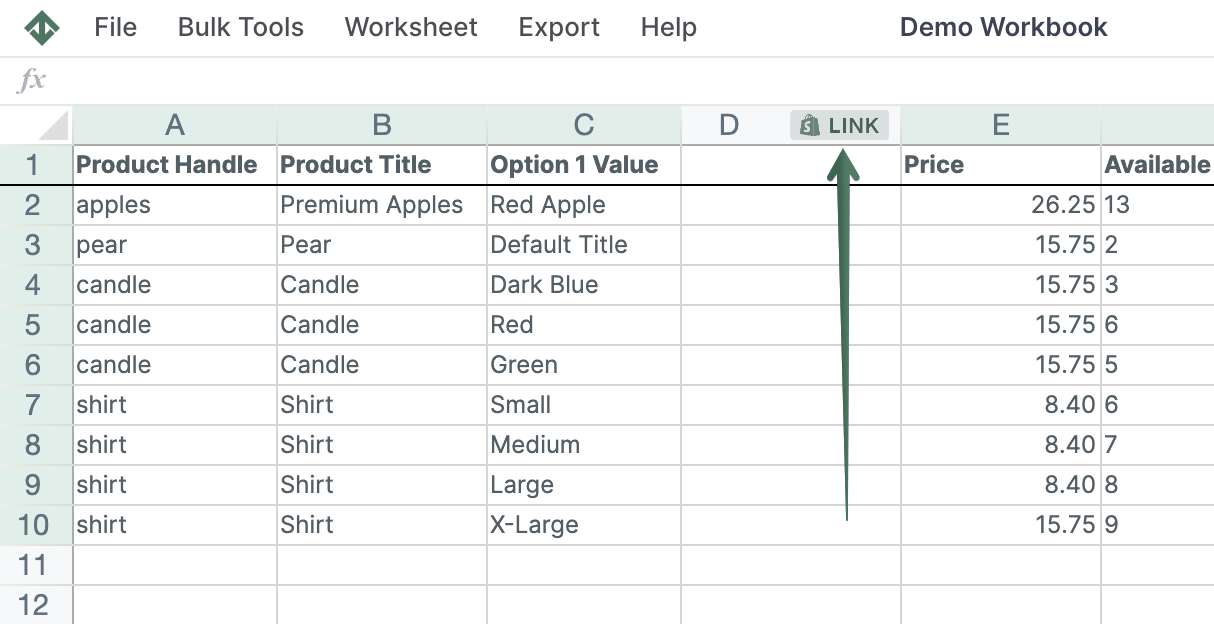
To load more Shopify data, click + Shopify data in the header row of an empty column, such as the one right after your last column. You can also choose Column > Add Shopify data… from the menu bar. The field picker opens and asks What should column E show?, with your column's letter in place of E. It lists everything the worksheet can show from Shopify, grouped into sections the way your Shopify admin groups them. Type in the search box at the top, or click a section on the left, to find the field you want.
-
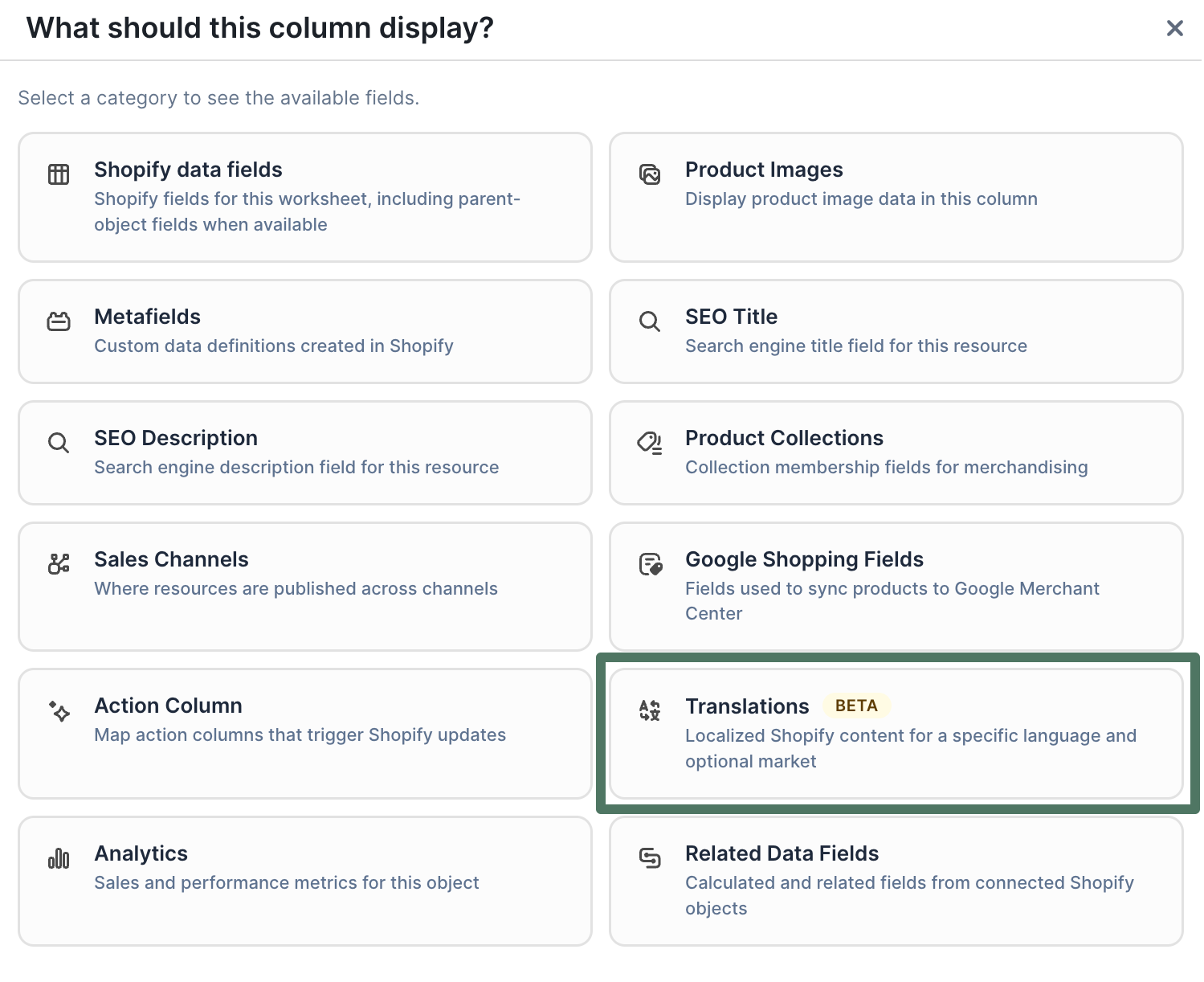
Click Translations in the list of sections on the left. It lists each language your store has added in Shopify
-
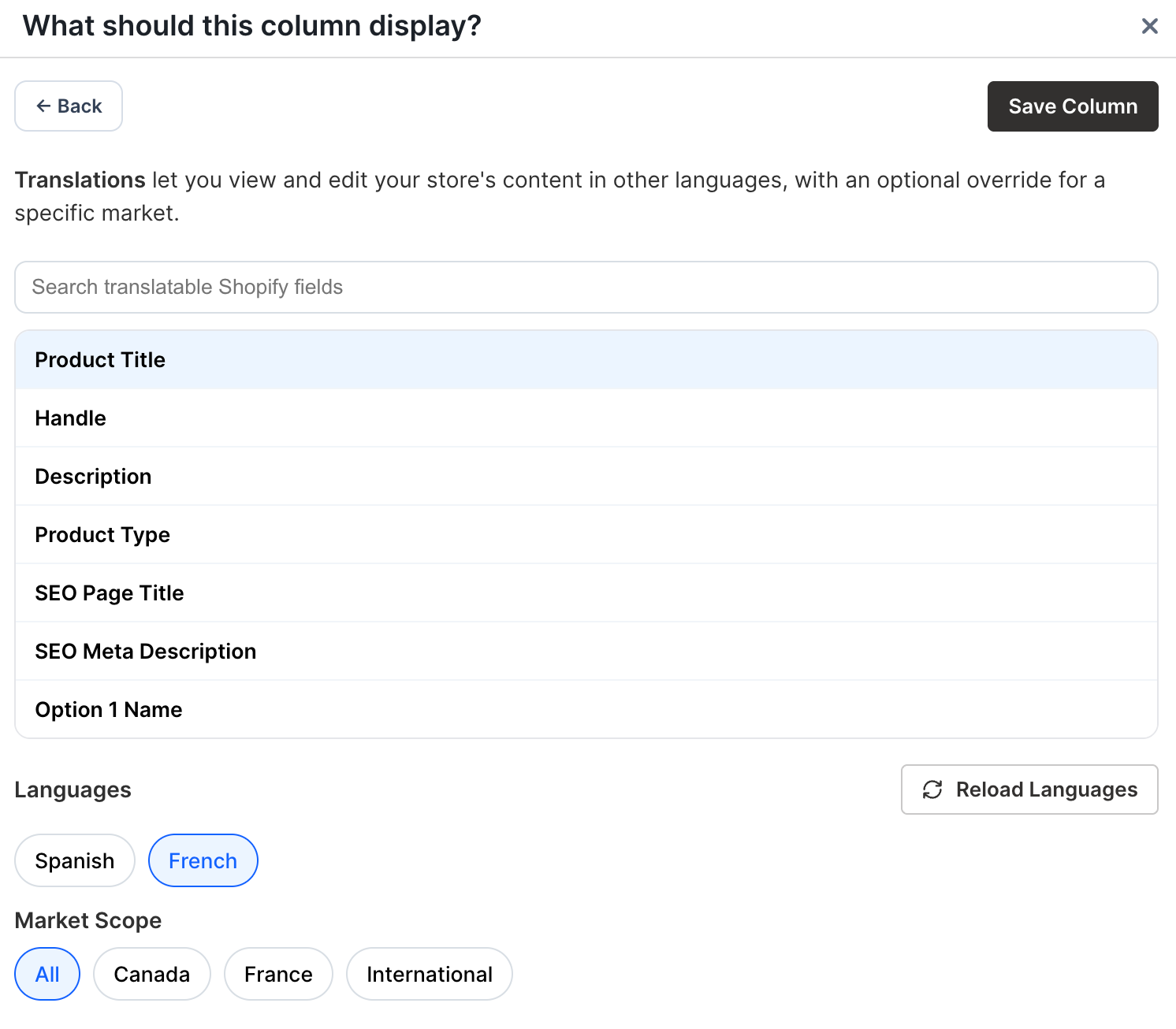
Click the language you want to translate into, for example, French. The translation settings open in place of the list, with French already chosen under Languages. To go back to the full list, click All fields at the top
-
In the list of translatable fields, find and click Product title. Use the search box above it to filter the list if needed
-
If your store has Shopify Markets configured, choose a Market Scope: All sets a store-wide translation, or pick a specific market to target only that market’s customers. If you clicked your default language in step 4, pick a market, since All isn’t offered
-
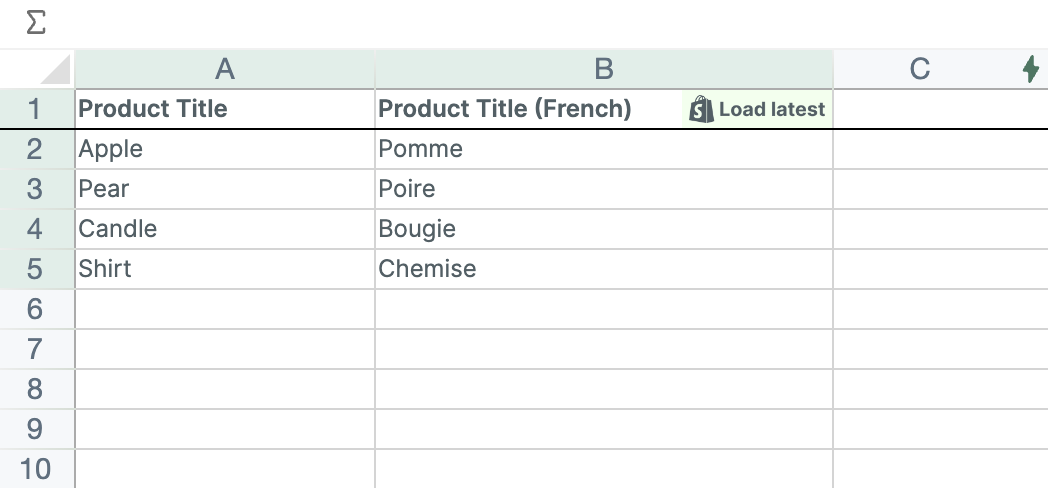
Click Save Column. Mixtable adds the column, labelled Product title (French), and loads any existing French translations from Shopify. A column for one market is labelled with the market too, such as Product title (French, Canada market)
-
Type or paste your translated content into the cells. You can fill down, paste from Excel, or use Find & Replace to make bulk edits
-
Click Sync at the top right of the spreadsheet, review your changes in the preview that opens, then click Sync again to push them all to Shopify at once
Translate Shopify image alt text in bulk
Shopify doesn’t give you a practical way to bulk edit translated image alt text with a spreadsheet. Mixtable does: it offers the Alt text translation on the Media Images worksheet, so you can manage translated alt text across many images at once and sync it straight to Shopify.
The workflow is the same as any other translation column:
- Create a Media Images worksheet, or open one you already have
- Add a translation column: in the field picker, click Translations on the left, click the language you want, for example Spanish, then click Alt text and Save Column
- Type or paste your translated alt text into the cells, one row per image
- Click Sync at the top right of the spreadsheet, review your changes in the preview that opens, then click Sync again to write the translated alt text back to Shopify for every edited row
Translated alt text helps your images show up in each language’s image search and keeps your store accessible to screen-reader users no matter which language they browse in. If you haven’t written your alt text yet, start with adding and editing Shopify image alt tags, then add translation columns to translate them.
Download the latest translations from Shopify
Shopify doesn't send changes to translations on its own, so download them when you need the latest. Click Download latest in the sync control at the top right of the spreadsheet (or choose Shopify Sync > Sync with Shopify…) to open the sync card. Under Download latest from Shopify, click Download next to Translations.
The Translations row appears whenever the worksheet has at least one translation column. You can also click a cell in a translation column, click the Translation chip beside the formula box, and click Download latest to open the same card.
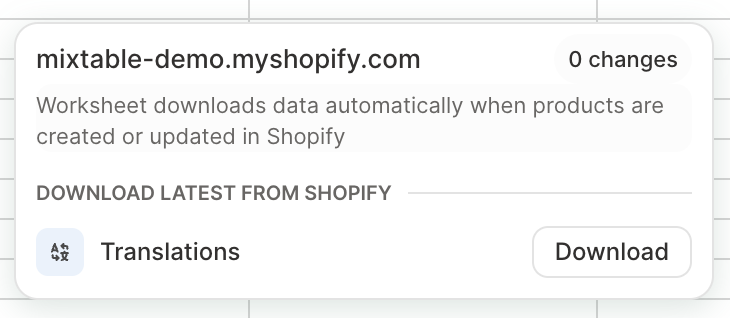
Clicking Download pulls the current translation values from Shopify, including market-specific ones, and updates the relevant cells in your worksheet. A column you’ve just added for one market fills in on the next download or sync. Downloading is useful when:
- Translations were edited directly in the Shopify admin or by another app after you loaded your worksheet
- You want to confirm that your worksheet reflects the current state in Shopify before making further edits
This gives you the same starting point as a Shopify translations CSV export, your existing translated content loaded into a spreadsheet, except the cells stay connected to Shopify. You edit them in place and sync back, so there are no CSV files to download, import, or re-upload. If you do need a file to share with a translator or agency, you can still Export to Excel or Export to CSV from the worksheet.
Use the Translations pre-built template
If you want to get started quickly, Mixtable’s Translations spreadsheet template creates a ready-to-use spreadsheet that covers the most common translatable fields across products, collections, pages, and more, organized by language. It’s the fastest way to get an overview of your store’s translation coverage and start filling gaps.
To use it:
Open your Mixtable dashboard and click Create spreadsheet at the top of the page. If you haven't created a spreadsheet yet, click Browse all templates below the dashboard's suggestions instead. In the Create spreadsheet window, find Translations under Content, or type its name in the search box, and click it. Mixtable creates the spreadsheet and fills it with data from your Shopify store.
Supported Shopify objects and translatable fields
Mixtable supports translation columns for the following Shopify objects and fields. Text metafield translations (the Single-line text and Multi-line text metafield types) are also supported for products, variants, collections, pages, blogs, and blog posts.
Products
| Field | Description |
|---|---|
| Product title | The product’s name |
| URL handle | The URL-friendly identifier |
| Description | The product’s body HTML |
| Product type | The product type label |
| SEO title | The SEO meta_title field |
| SEO description | The SEO meta_description field |
| Option 1 name | Name of the first product option (e.g. “Color”) |
| Option 2 name | Name of the second product option (e.g. “Size”) |
| Option 3 name | Name of the third product option |
Product Variants
Works from a Products (with variants) worksheet. You can translate both the parent product fields and the variant-specific fields from the same worksheet.
Parent product fields:
| Field | Description |
|---|---|
| Product title | The parent product’s name |
| Product description | The parent product’s body HTML |
| Product URL handle | The parent product’s URL handle |
| Product type | The parent product type label |
| Product SEO title | The parent product’s SEO meta_title |
| Product SEO description | The parent product’s SEO meta_description |
| Product option 1 name | Name of the first product option |
| Product option 2 name | Name of the second product option |
| Product option 3 name | Name of the third product option |
Variant-specific fields:
| Field | Description |
|---|---|
| Option 1 value | The variant’s value for option 1 (e.g. “Red”) |
| Option 2 value | The variant’s value for option 2 (e.g. “Large”) |
| Option 3 value | The variant’s value for option 3 |
Collections
| Field | Description |
|---|---|
| Collection title | The collection name |
| URL handle | The URL-friendly identifier |
| Description | The collection body HTML |
| SEO title | The SEO meta_title field |
| SEO description | The SEO meta_description field |
Pages
| Field | Description |
|---|---|
| Page title | The page title |
| URL handle | The URL-friendly identifier |
| Content | The page body HTML |
| SEO title | The SEO meta_title field |
| SEO description | The SEO meta_description field |
Blogs
| Field | Description |
|---|---|
| Blog title | The blog title |
| URL handle | The URL-friendly identifier |
| SEO title | The SEO meta_title field |
| SEO description | The SEO meta_description field |
Articles
| Field | Description |
|---|---|
| Blog post title | The article title |
| URL handle | The URL-friendly identifier |
| Content | The article body HTML |
| Excerpt | The article summary HTML |
| SEO title | The SEO meta_title field |
| SEO description | The SEO meta_description field |
Media Images
| Field | Description |
|---|---|
| Alt text | The alt text for product images |
Note: Shopify’s admin doesn’t offer a practical way to bulk edit translated image alt text with a spreadsheet. Mixtable lets you translate product image alt text in bulk and sync those translations directly to Shopify.
Troubleshooting
- No languages showing in the field picker: Add a language in Shopify under Settings → Languages, then click Refresh in the Translations heading of the field picker to load it. If your store has two or more markets, your default language is listed too, such as English for one market
- Market scope options not appearing: Markets only show up if your store has Shopify Markets configured. If you don’t see market options, translation columns will apply globally to all markets. If you added a market recently, click Refresh in the Translations heading of the field picker, which refreshes the markets as well
- No All option under Market Scope: You chose your default language, which only has market-specific versions. Pick the market that should see this version
- Translation not appearing on the storefront after sync: Confirm the language is published in Shopify (Settings → Languages). Unpublished languages can receive translation data, but translated content won’t appear to customers until the language is published
Frequently asked questions
Can I bulk edit Shopify translations?
Yes. Add a translation column to a worksheet of products, collections, pages, blogs, blog posts, or media images, choose the field and language, and edit the translated values in the grid. When you click Sync, Mixtable updates the translation for every edited row at once.
Can I bulk translate product titles and descriptions?
Yes. On a Products worksheet you can add translation columns for the title, description, product type, and option names in any language your store supports, then edit them all in one place. The same approach works for product descriptions and SEO titles and meta descriptions. Translated descriptions are HTML, like the originals, so you can click Edit in a translated description or content cell to format it with the rich text editor.
Can I translate Shopify metafields?
Yes, for text metafields (the Single-line text and Multi-line text types) on products, variants, collections, pages, blogs, and blog posts. Metafields on other objects, such as customers and orders, aren’t available for translation.
Can I translate Shopify image alt text?
Yes. Shopify doesn’t provide a practical way to do this in bulk from a spreadsheet, so it’s a handy thing to have. Add a translation column for the Alt text field on a Media Images worksheet and sync your translated alt text back to Shopify. See Translate Shopify image alt text in bulk above for the steps.
Can I export Shopify translations to a spreadsheet?
Yes. Add the translation columns you want, then click Download to pull your existing Shopify translations into the worksheet. That gives you the same content as a Shopify translations CSV export, loaded straight into a connected spreadsheet, where you can edit it and sync back without re-importing a file. If you also need a file to hand to a translator, you can Export to Excel or Export to CSV from the worksheet.
Does Mixtable work with Shopify Markets translations?
Yes. If your store uses Shopify Markets, you can scope a translation column to a specific market so the translated value only applies to that market’s customers, or leave it store-wide to apply across all markets. Market scope works for the fields where Shopify supports market-specific translations, such as titles and descriptions. Fields like URL handles are language-level and aren’t market-specific. When your store has two or more markets, you can also change your default-language content for one market, and Mixtable downloads market-specific values from Shopify along with the rest.
Does Mixtable automatically translate my content?
No. Mixtable is built for editing and managing translations in bulk, not machine translation. You bring the translated text (from a translator, an agency, or an AI tool), paste or fill it into the spreadsheet, and Mixtable syncs it to Shopify. Because you see the source and the translation side by side, it’s easy to review and correct translations at scale.
How is this different from Shopify Translate & Adapt?
Translate & Adapt is built for editing translations one resource at a time in the Shopify admin, and Shopify also lets you export and import a translations CSV for larger changes. Mixtable sits between those two: you get the bulk reach of a spreadsheet, but it stays connected to Shopify, so there are no CSV files to export and re-import. You can work across many rows and languages at once, paste translations in bulk, run Find & Replace across them, and edit fields the admin and CSV flows make awkward, like image alt text. You don’t have to choose one approach: Mixtable reads and writes the same Shopify translations, so you can keep using Translate & Adapt too.
Is customer language the same as translating my content?
No. The customer language field is each customer’s preferred locale, which influences the language Shopify shows them. Content translations are the translated text itself: the product titles, descriptions, and other fields shown on your storefront in each language. This page covers content translations.