


Export Shopify products to Mirakl marketplaces
Export Shopify products to Mirakl marketplaces
To sell on a marketplace that runs on Mirakl, you usually add your products with a product import file. Most Mirakl marketplaces want that file at the variant level: one row per SKU, with its EAN or other barcode, its options, and its image URLs on the same row.
Shopify’s own product export doesn’t look like that. It puts extra product images on separate rows, and a variant that has no image of its own gets no image URL at all. Reshaping that file by hand takes a long time on a large catalog.
The Mirakl export template in Mixtable does the reshaping for you. It loads your Shopify products into a spreadsheet with one row per variant, and puts each product’s gallery images into their own URL columns on every variant row. You then download it as CSV or Excel and use it to fill in your marketplace’s Mirakl product template or import file.
Note: This is a file export, not a direct Shopify to Mirakl connection. Mixtable doesn’t connect to your Mirakl seller account or upload products for you. You import the file through your marketplace’s seller portal, often called the Mirakl back office. Mixtable isn’t affiliated with Mirakl.
Why variant rows and separate image columns help
Marketplaces list each size, color, or other variation as its own item, so the retailer needs a full set of details for every SKU. The template gives you that:
- One row per Shopify variant. A product with six sizes shows up on six rows, and the product details repeat on each one
- Product images in their own columns. Up to 10 product image URLs sit side by side in separate columns and repeat on every variant row, so a variant without its own image still carries the product’s photos
- Identifiers up front. SKU, barcode, and the parent product ID are the first columns you see, which makes it easy to spot gaps before a marketplace rejects the file
A spreadsheet export or a Mirakl connector app?
Some marketplaces and third-party apps offer connectors that sync Shopify products, stock, and orders with a Mirakl marketplace automatically. A connector is usually the better fit if you sell on several Mirakl marketplaces, or you need prices, stock, and orders to keep flowing without anyone touching a file.
A spreadsheet export fits when:
- Your marketplace works from template files. Many Mirakl marketplaces onboard sellers with a downloadable product template, and you need your Shopify data in a shape you can copy into it
- You want to clean up your data first. Seeing every variant on one screen makes it easy to find missing SKUs, barcodes, and images before anything goes live
- You’re adding products now and then. A first catalog upload or an occasional batch of new products doesn’t need a paid, always-on sync
- You want to test the marketplace first. You can list a few products and see how they sell before you commit to a connector
Step 1: Create the Mirakl export template in Mixtable
- Open the Mixtable Explore & Export app in your Shopify admin. The template is also available in Mixtable Spreadsheet Editor
- Click Create Spreadsheet
- Scroll to the Integrations group, or type “Mirakl” in the template search box
- Select Mirakl export template. If you have more than one Shopify store connected, choose the store you want to export from
Mixtable creates the spreadsheet with a single worksheet called Mirakl export template and fills it with your Shopify product and variant data. On a large catalog, the first download can take a minute or two.
Step 2: Review the 34 columns in the template
The template comes with 34 columns, grouped here so it’s easier to see what each part is for.
Identifiers
- Parent Product ID: the Shopify ID of the product the variant belongs to. It’s the same on every variant of a product, so it’s a handy way to group variants together
- Variant Shopify ID: Shopify’s internal ID for the variant. This isn’t your SKU
- SKU: the variant SKU from Shopify
- Barcode: the variant barcode from Shopify, which is where most stores keep an EAN, UPC, or other GTIN
Product details
- Product Status
- Product Title
- Product Description
- Vendor
- Shopify Category Full Name: the product’s category in Shopify’s standard product taxonomy
- Product Type
- Tags
Variant options
- Option 1 Name and Option 1 Value
- Option 2 Name and Option 2 Value
- Option 3 Name and Option 3 Value
These keep each variant’s options as name and value pairs, for example “Size” and “M”, or “Color” and “Blue”.
Product and variant image URLs
- Product Image 1 Source URL through Product Image 10 Source URL: links to the first 10 images in the product’s gallery, repeated on every variant row
- Variant Image Source URL: a link to the image assigned to that specific variant, if it has one
These columns hold image links (URLs), which is what marketplace product files usually ask for. Columns stay blank when a product has fewer than 10 images or a variant has no image assigned.
Shipping details
- Weight Value and Weight Unit
- Country Code of Origin
Price and stock
- Price
- Compare at Price
- Total Inventory: the variant’s total stock across all your Shopify locations, not a quantity set aside for the marketplace
Add more columns if your marketplace needs them
The Mirakl export template is a regular Shopify data worksheet, so you can add more columns before you export. For example, if you keep marketplace details such as material, gender, or sport in Shopify metafields, you can add them as columns.
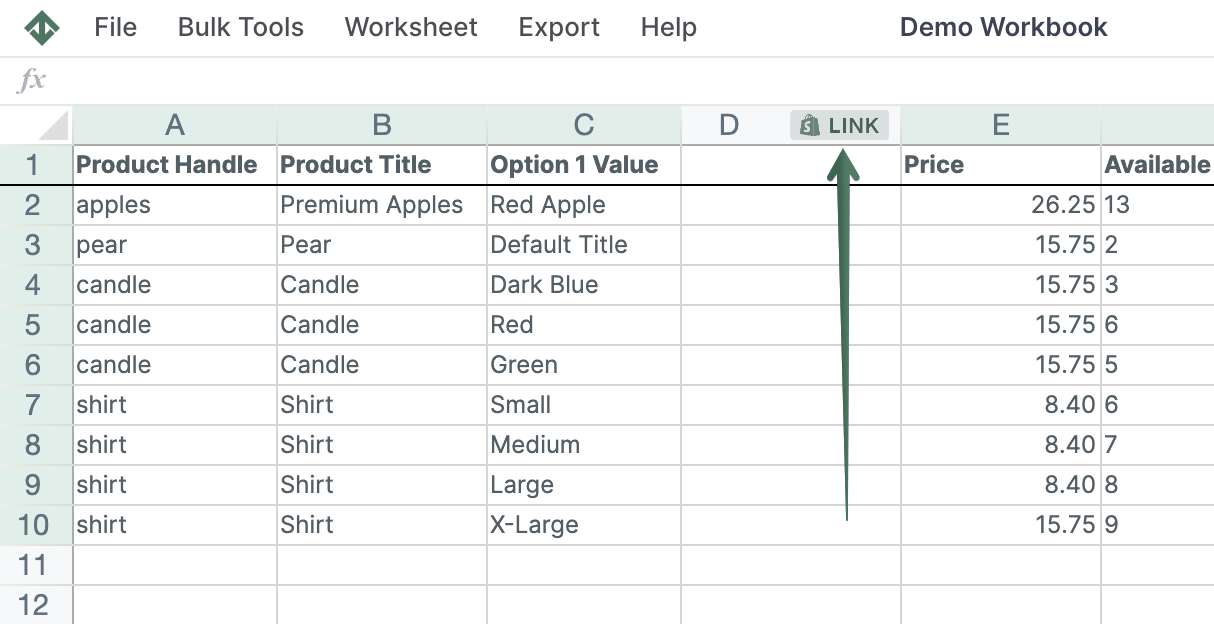
To load new Shopify data, start by selecting an empty column, meaning any column with a non-green header. A green header means the column is already linked to Shopify data. Then click the  button in the column header to open the selection window and choose the data you want to pull in.
Step 3: Check for missing SKUs, barcodes, and images
A marketplace import usually fails on missing or invalid values, so it pays to check the worksheet first. Look for:
- Missing SKUs or barcodes. Every variant gets a row, even one with an empty SKU. Most marketplaces need both a seller SKU and a valid product identifier such as an EAN
- Barcodes that aren’t real EANs or GTINs. Mixtable exports whatever is stored in Shopify’s barcode field, and it doesn’t check or convert the value
- Products with no images. If all the image columns are empty on a row, the marketplace will likely reject it
- Descriptions with formatting. Some marketplaces limit length or don’t accept HTML in descriptions
If you use Mixtable Spreadsheet Editor, you can fix a missing SKU or barcode right in the worksheet and sync the change to Shopify. That way your store and your next export are both correct.
When you are ready, review your pending changes and click Sync in the Shopify sync card. Mixtable sends the updated variant data to Shopify. It may take a few seconds for the changes to appear in your store.
Step 4: Export to CSV or Excel
Shopify changes come into Mixtable automatically, so your worksheet is already up to date. If the Shopify sync card shows updates from Shopify, click Apply now first so your export includes them.
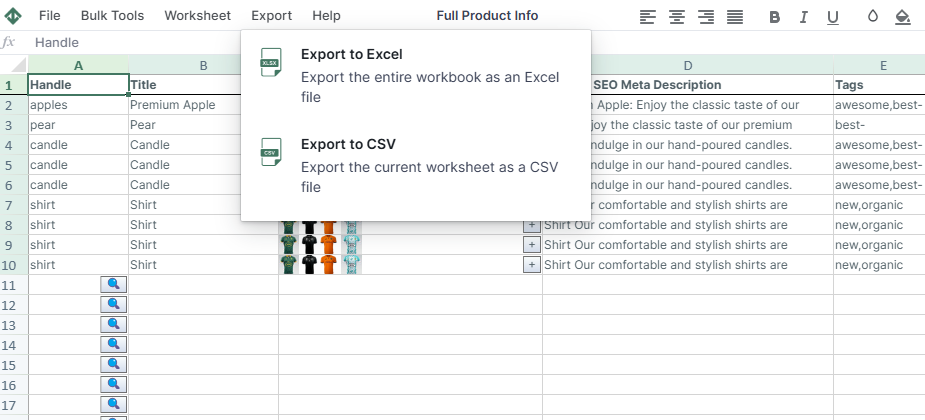
- CSV: click Import & Export in the top toolbar and choose Export to CSV. This downloads the worksheet you’re on, which is the whole template
- Excel: click Import & Export and choose Export to Excel to download the spreadsheet as an .xlsx file
Tip: Mixtable exports barcodes as text so leading zeroes are kept. If you open the CSV in another spreadsheet program, check that it hasn’t turned long barcodes into plain numbers or scientific notation (like 5.01E+12), and that leading zeroes are still there.
For more on downloading files, see Export Shopify data to Excel or CSV.
Step 5: Map your export to the Mirakl product template
Every retailer that runs a Mirakl marketplace sets its own categories, required fields, and accepted values, and those can change from one product category to the next. That’s why the Mixtable export is a source file for your import rather than a finished marketplace file. Menus and labels in the Mirakl back office also differ between marketplaces, so follow your marketplace’s own seller help for the exact steps.
Most Mirakl marketplaces offer one of these two ways to add products:
Option A: Fill in the marketplace’s product template
- In the seller portal, choose the product category you want to sell in
- Download that category’s product template
- Copy the values you need from your Mixtable export into the matching columns, such as SKU, barcode, title, description, and image URLs
- Fill in any category fields the template asks for that aren’t in your export
Option B: Upload your own file and map the columns
Some marketplaces let you upload your own CSV or Excel file and then map it in the portal. If yours does:
- Upload the file you exported from Mixtable
- Match each Mixtable column to the marketplace’s field, for example SKU to the seller SKU field and Barcode to the EAN field
- Map your products to the marketplace’s categories, and your option values (such as sizes or colors) to the values the marketplace accepts
- Review the result before you import. Some portals let you save the mapping so the next import is quicker
Things to map with care
- Category: Shopify Category Full Name uses Shopify’s categories, not the marketplace’s. You still need to choose or map the marketplace category
- Brand: Vendor is often your brand, but some marketplaces only accept brand names from their own approved list
- Variant grouping: some marketplaces ask for a variant group code (VGC) to link the variants of one product. Parent Product ID can work as that value if the marketplace accepts it
- Sizes and colors: your Shopify option values may need to be changed to match the marketplace’s own size charts and color names
Step 6: Import your products and fix any errors
Import your file through the seller portal. Most Mirakl marketplaces check each row and give you an import error report that lists any products that failed and why. Fix those rows, in Shopify or with Mixtable where the problem is with your source data, then export and import again.
Prices and stock may need a separate offer file
On many Mirakl marketplaces, products and offers are separate. The product file describes the item, and the offer file sets its price, stock, condition, and shipping. Some portals take both in one import, and others want a separate offer import, sometimes only after your products are approved.
The template’s Price, Compare at Price, and Total Inventory columns give you a useful starting point for your offers, but they aren’t a finished offer file. Check which offer fields your marketplace needs, such as currency, condition, or shipping details, and how much stock you want to list there.
Frequently asked questions
Is this a direct Shopify to Mirakl integration?
No. The Mirakl export template prepares your Shopify product data in a spreadsheet, and you download it as CSV or Excel. You then import that file through your marketplace’s seller portal. Mixtable doesn’t upload products or keep prices and stock in sync with the marketplace. If you need that, look at a connector app instead.
Which file format should I export?
Most Mirakl marketplaces accept product imports as CSV or Excel files. Choose Export to CSV if your marketplace’s mapping tool asks for a CSV, and Export to Excel if you plan to copy values into the marketplace’s own .xlsx template. Check your marketplace’s seller help for the formats and encoding it accepts.
Can I upload the CSV to a Mirakl marketplace as-is?
Usually not. Each marketplace and product category has its own columns, required fields, and accepted values, so expect to map the columns or copy the values into the marketplace’s template, and to add any fields it asks for that Shopify doesn’t store.
What happens when a variant has no image?
The Variant Image Source URL column is blank for that row, but the Product Image 1 Source URL through Product Image 10 Source URL columns still contain the product’s gallery images. That means every variant row carries image links as long as the product has images in Shopify.
Are price and stock included?
Yes, the template includes Price, Compare at Price, and Total Inventory from Shopify. Many Mirakl marketplaces handle price and stock in a separate offer import, so use these values as a starting point for it.
Can I use it for a specific retailer’s marketplace?
Yes. The template is a starting point for any retailer’s Mirakl marketplace, because it contains the Shopify data that most product files ask for. Check that retailer’s requirements for the categories you sell in, and add columns in Mixtable for anything extra you keep in Shopify, such as metafields.
Does it include products without a SKU?
Yes. Every Shopify variant gets its own row, even when the SKU is empty. That makes it easy to find and fix variants that are missing a SKU before you import.
Related export guides
- Export Shopify products
- Export Shopify products with metafields
- Export Shopify data to Excel or CSV
- Manage Shopify product variant images
Keep exploring your Shopify data
Mixtable Explore & Export puts supported Shopify data into an Excel-like spreadsheet that runs in your browser. Choose the fields you need, then export the full spreadsheet to Excel or the active worksheet to CSV.
- Compare all the main approaches in the Shopify to Excel guide
- Export Shopify products, collections, products with metafields, or products with collections
- Export Shopify orders or orders with metafields
- Export Shopify blog posts or Shopify pages
- Export Shopify products to Mirakl marketplaces with one row per variant and image URLs in separate columns
For data types that use manual downloads, refresh the relevant Shopify data before exporting so the file contains the latest available records.
Manage Shopify data in a spreadsheet.
Use Mixtable to edit, sync, analyze, import, and export your Shopify store data without CSV juggling.