
Product Sales Metrics Template
 Analytics Spreadsheet Updated October 15, 2026
 On this page
The Product Sales Metrics template creates one row per Shopify product with lifetime sales metrics beside the product title. It is the quickest way to rank your catalog without building every analytics column yourself.
What this template answers
Shopify tells you what sold. This template tells you how each product performed on the measures that drive decisions, all in one sortable sheet:
- Which products carry your revenue, and which ones you keep stocking out of habit
- Which sell in volume but contribute little once discounts are counted
- Which get returned often enough to be worth investigating
- Which are candidates for more ad spend, and which for clearance
Because it is a spreadsheet, you can sort it, filter it, add your own formulas, and export it to Excel or CSV for a buying meeting.
Create the Product Sales Metrics spreadsheet
-
Install Mixtable Analytics Spreadsheet
-
Open your Mixtable dashboard and click Create spreadsheet at the top of the page. If you haven't created a spreadsheet yet, click Browse all templates below the dashboard's suggestions instead. In the Create spreadsheet window, find Product Sales Metrics under Analytics & Reporting, or type its name in the search box, and click it. Mixtable creates the spreadsheet and fills it with data from your Shopify store.
On your first visit to Mixtable Analytics Spreadsheet, you can also click Create spreadsheet on the dashboard’s Which products sell best? card to create this template in one step.
Columns included in the template
The template creates a Product Sales worksheet with:
- Product Title
- Total Order Count
- Gross Quantity Sold
- Net Quantity Sold
- Returns
- Discounts
- Net Sales
The Returns column uses Refund Count, which counts distinct orders with refund activity. It is not a count of returned units.

What you can learn from the template
- Sort by Net Sales or Net Quantity Sold to identify your leading products
- Compare Gross Quantity Sold with Net Quantity Sold to see how much returns are eating; a wide gap is worth investigating, with sizing, quality, and product descriptions the usual places to start
- Read Returns beside Total Order Count, since a big return number on a big seller is normal and the same number on a small seller is not
- Compare Discounts with Net Sales to find products that only move when they are marked down, which is a pricing decision rather than a merchandising win
- Add inventory, vendor, category, tags, or product status for the context that turns a ranking into an action
Add more Shopify fields or analytics
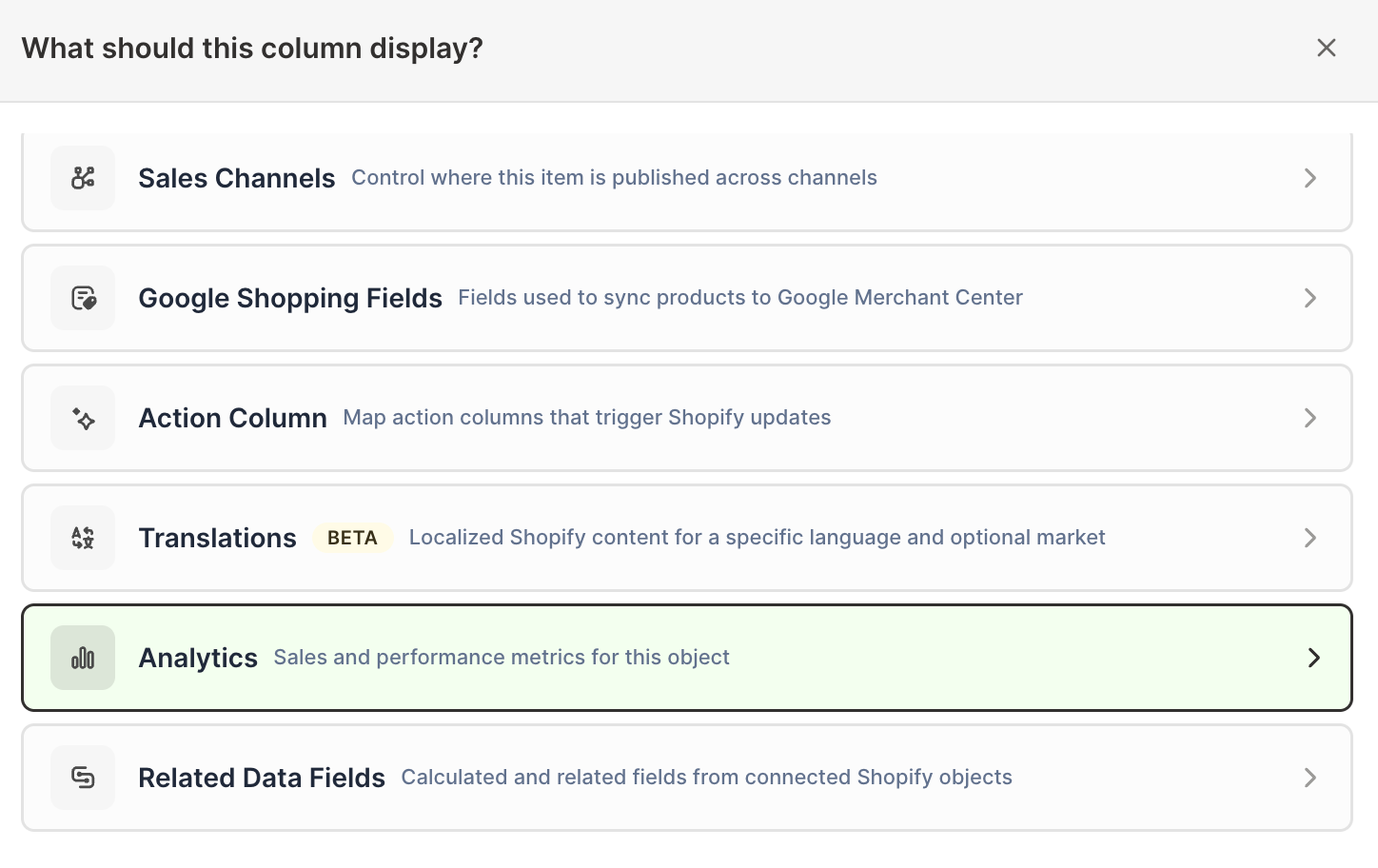
To add a Shopify field, click + Shopify data in the header row of an empty column, or choose Column > Add Shopify data… from the menu bar. The field picker opens and asks What should column E show?, with your column’s letter in place of E. Type the field’s name in the search box, or click a section on the left, then click the field you want and click Save Column. To fill a column you’ve inserted between others instead, right-click the column’s letter and choose Shopify field….
To add another performance metric:
-
Open your Product Sales worksheet
-
Click + Shopify data in the header row of an empty column, or choose Column > Add Shopify data… from the menu bar. The field picker opens
-
Click Sales & analytics in the list of sections on the left, or type the metric's name in the search box
-
Click the metric you want. The metric's settings open with it already chosen under Which metric?
-
Under Over what time period?, choose All time, Fixed dates, Rolling period, Calendar year, or Calendar month
-
Under Limit which orders count, add any optional filters supported by the metric
-
Click Save Column
The template’s metrics cover all time. Adding the same metric again over a shorter window, such as the last 90 days, is what turns the sheet into a trend view: a product high on lifetime sales but low on recent sales is fading, and you would never see that from one column. Name the new column clearly, for example Net Sales · Last 90 days, so it is never confused with the lifetime figure.
Build a more focused product report
Within an existing spreadsheet, add a worksheet, choose Reporting worksheet, and pick Product sales & return rate under Shopify data worksheet with analytics columns. That report combines Shopify product fields with Net Sales, Net Quantity Sold, Orders Count, Return Request Rate, and Total Refund Amount, which is the better starting point when returns are the thing you are investigating.
For a variant-level view of the same catalog, see Product Variant Sales Metrics Template.