


Format columns in Mixtable
Format columns in Mixtable
Mixtable lets you change how columns display and behave in your spreadsheet. You can control how values appear, how they’re edited, and even turn columns into dropdowns for easier data entry.
When working with Shopify data, column formatting makes your spreadsheet cleaner and helps prevent errors, especially useful for prices, inventory counts, dates, and SKUs.
Format a column
- Right-click any column header (the A, B, C, etc. at the top of your worksheet)
- Click Format Column
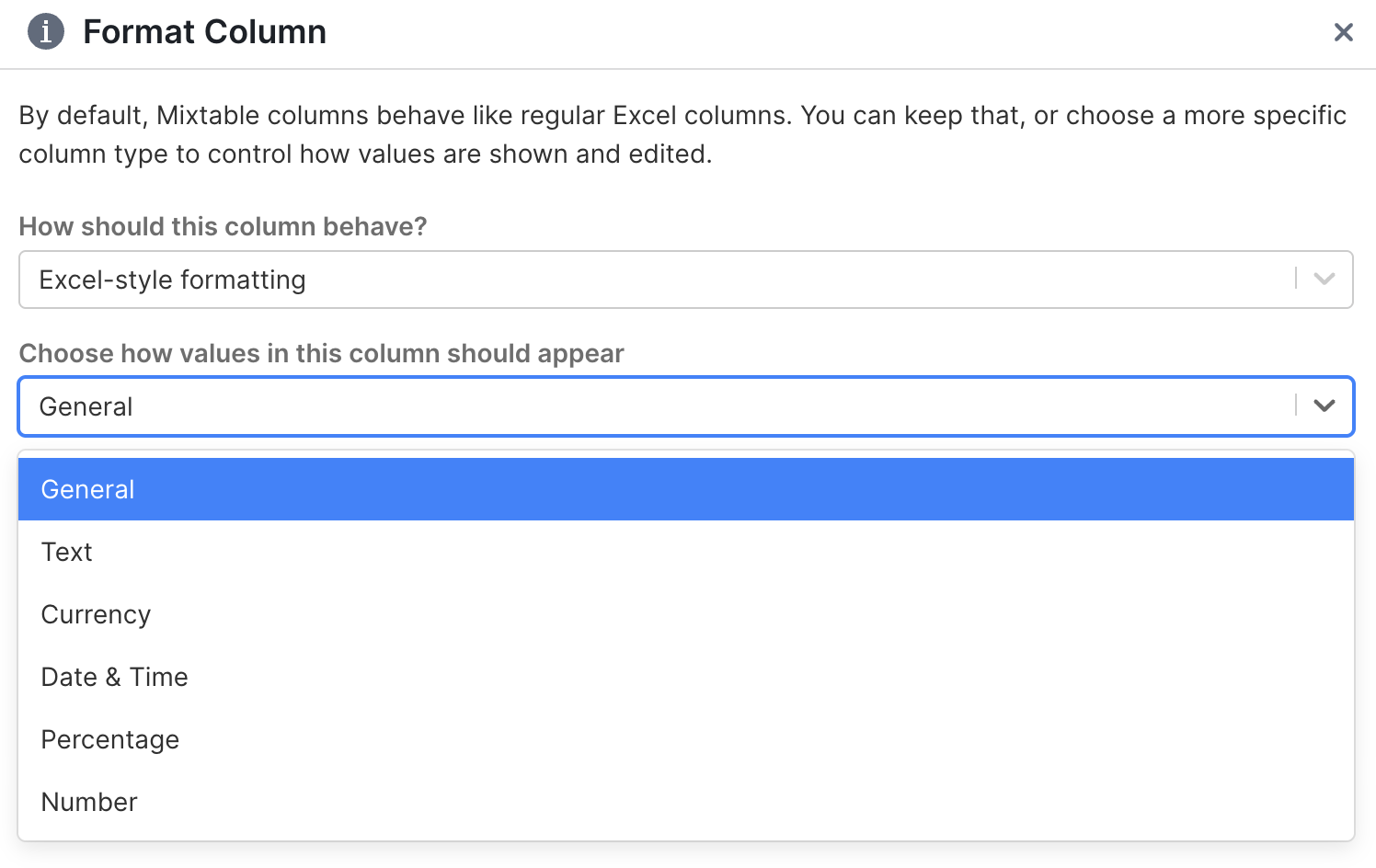
Choose your column type
In the format column dialog, you’ll see a dropdown asking “How should this column behave?” with two main options:
- Excel-style formatting Use this when you want the column to look and act like a standard spreadsheet column, but with specific formatting like currency or percentages
- Select / Dropdown Use this when you want cells to show a list of options you can pick from
Excel-style formatting options
When you choose Excel-style formatting, you can pick from these formats:
General
This is the default spreadsheet behavior. Mixtable displays values naturally and treats numbers as numbers, which keeps formulas, sorting, and filtering working smoothly.
Use General when you don’t need special formatting and want standard Excel-like behavior.
Text
Text formatting treats everything as text, even if it looks like a number.
This is perfect for Shopify fields where you need to preserve the exact value you type, such as:
- SKUs with leading zeros (like
00123) - Zip codes or postal codes
- Order numbers like
#1001 - Product handles that shouldn’t be auto-converted
Currency
Currency formatting adds a currency symbol and keeps your decimal places consistent.
You can customize:
- Currency symbol:
$,€,¥,£ - Decimal places: 0 to 10
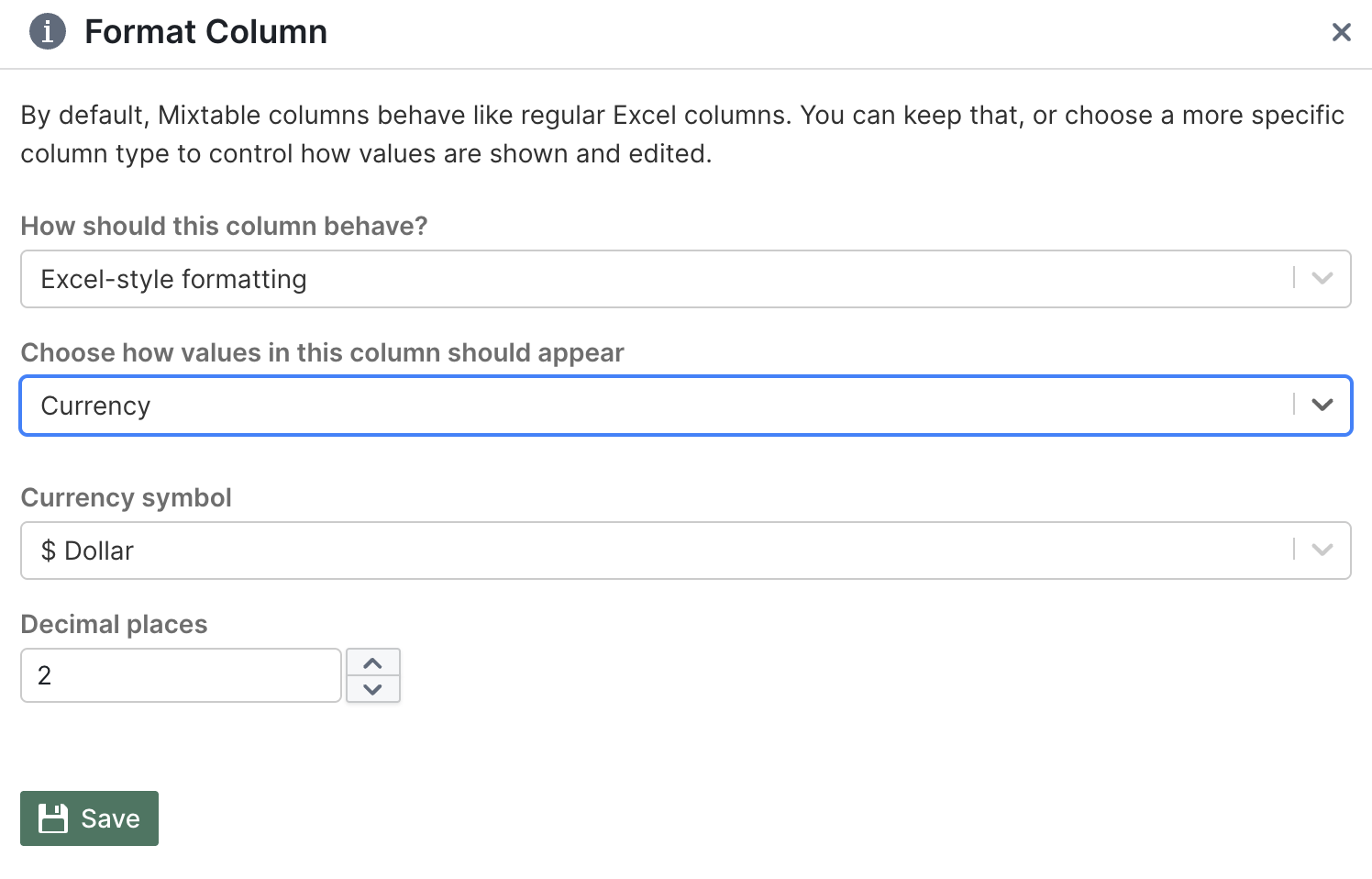
This is ideal for Shopify price columns, compare-at prices, product costs, and any other money-related fields.
Date & Time
Date & Time formatting displays values in a human-readable date or time format. Choose the format that matches how you or your team prefers to read dates.
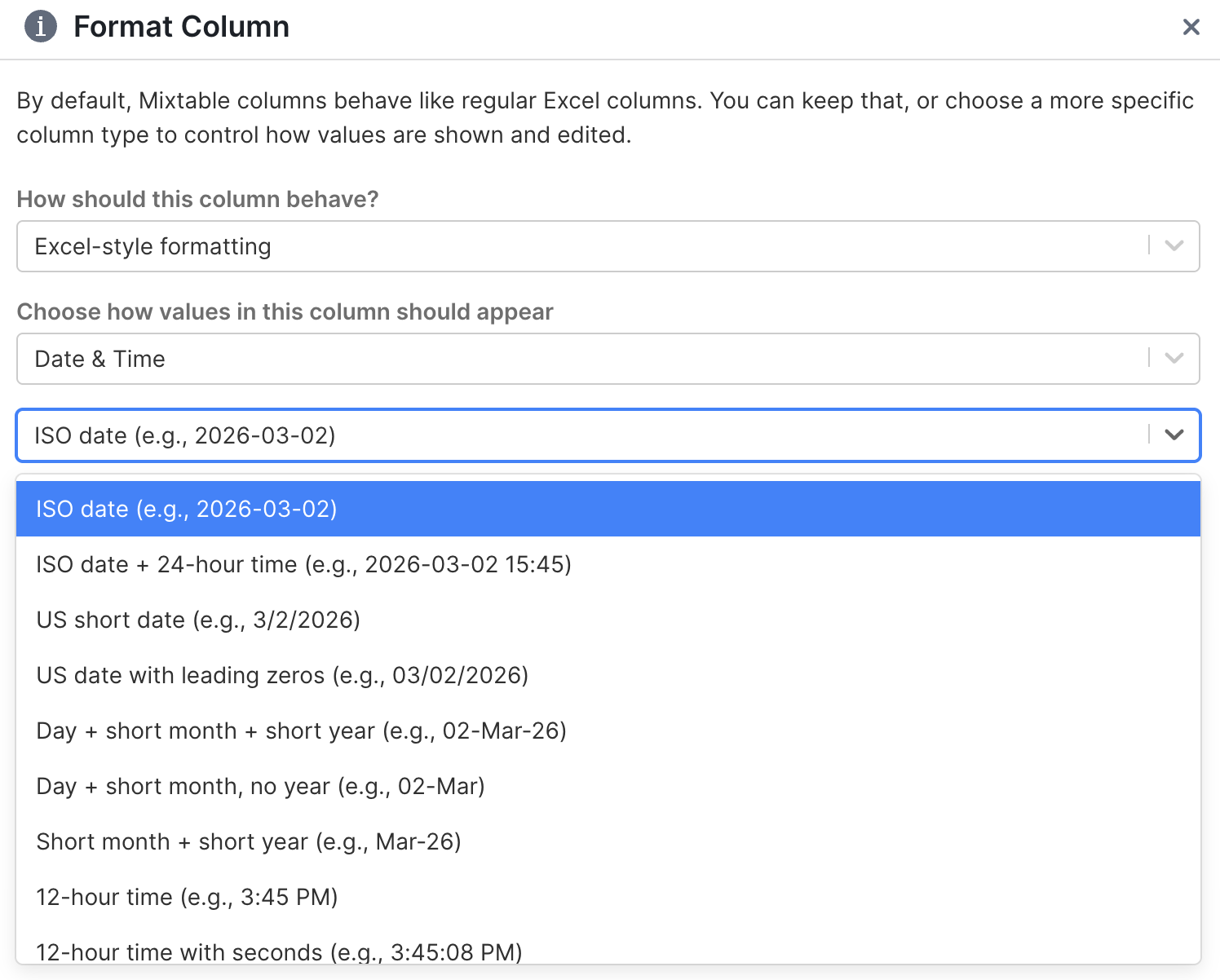
Date formats
| Format | Example |
|---|---|
yyyy-mm-dd (ISO date) | 2026-03-02 |
m/d/yyyy (US short date) | 3/2/2026 |
mm/dd/yyyy (US date with leading zeros) | 03/02/2026 |
dd-mmm-yy | 02-Mar-26 |
dd-mmm | 02-Mar |
mmm-yy | Mar-26 |
Date and time
| Format | Example |
|---|---|
yyyy-mm-dd hh:mm (ISO date + 24-hour time) | 2026-03-02 15 |
Time only
| Format | Example |
|---|---|
h:mm AM/PM | 3 PM |
h:mm:ss AM/PM | 3:45 PM |
hh:mm (24-hour) | 03 |
hh:mm:ss (24-hour with seconds) | 03:45 |
Use date formatting for Shopify fields like product creation dates, publish dates, or any custom date tracking columns in your workflow.
Percentage
Percentage formatting shows numbers as percentages.
You can customize:
- Decimal places: 0 to 10
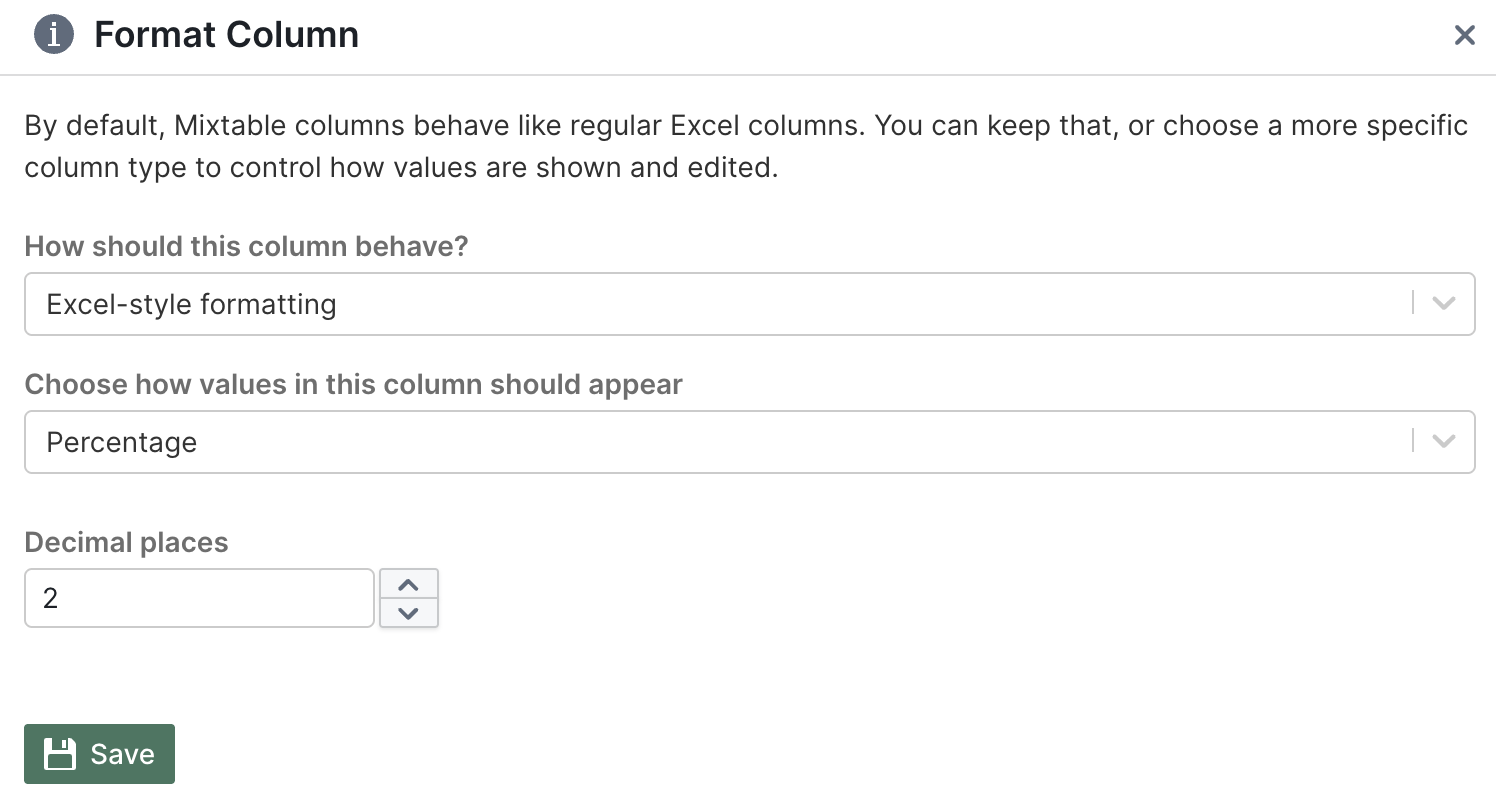
Tip: Percentages follow standard spreadsheet rules. For example, 0.25 displays as 25%. If you type 25, it will show as 2500%.
Number
Number formatting displays values as numbers with optional thousand separators and consistent decimals.
You can customize:
- Use 1000 Separator (adds commas like
1,000) - Decimal places: 0 to 10
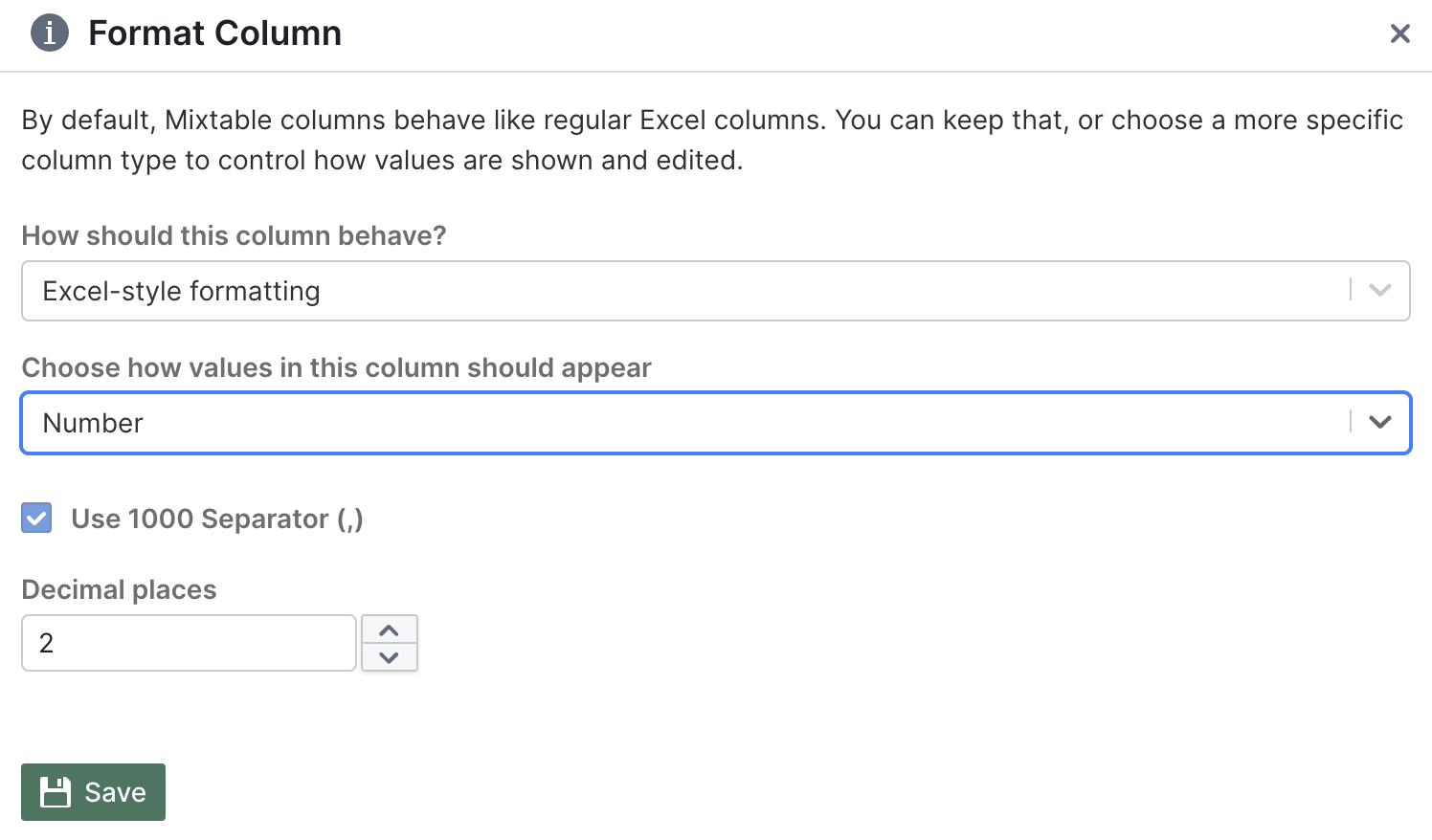
This works great for Shopify inventory quantities, units sold, order counts, and other numeric data.
Dropdown columns
When you choose Select / Dropdown, the column works like a picklist where you choose from predefined options.
You can set:
- Dropdown options Type your list of options, pressing Enter after each one
- Multiple selection Turn this on if you want cells to hold more than one option at the same time
Dropdown columns are perfect for workflow tracking alongside your Shopify data, such as:
- Review status tags:
Needs review,Approved,Ready to sync - Internal category labels
- Product flags like
Do not discountorCheck images
Quick formatting tips for Shopify data
Here are some common formatting setups that work well:
- Product prices and variant prices: Currency with 2 decimal places
- Inventory quantities: Number with 0 decimals and thousand separator turned on
- Discount percentages: Percentage with 1 or 2 decimal places
- SKUs, handles, and barcodes: Text (prevents accidental number conversions)
- Created dates and publish dates: Date & Time (use
yyyy-mm-ddfor ISO, ormm/dd/yyyyfor US-style)
Troubleshooting common issues
My formulas aren’t calculating correctly
If your column is formatted as Text, values get treated as text instead of numbers. Switch the format to General or Number to fix this.
My percentages look way too big
Make sure you’re using spreadsheet-style values. In spreadsheets, 0.25 equals 25%, not 25. If you type 25, it will display as 2500%.
You're ready!
Mixtable is an online spreadsheet designed to sync data with Shopify. It looks, feels, and behaves like Excel (including formulas), but runs in your browser. With Mixtable you can:
- Bulk add products to collections, edit metafields, add or remove tags;
- Change product prices, including international prices, and review price history;
- Manage customers with a spreadsheet CRM for Shopify;
- Use Excel features like sort ascending or descending, find-replace, filter, and more.
Best of all, you can sync changes back to Shopify with a single click. Find out more about the Mixtable suite of products here.
Manage Shopify data in a spreadsheet.
Use Mixtable to edit, sync, analyze, import, and export your Shopify store data without CSV juggling.