
Open a Shopify data spreadsheet someone shared with you
 All Mixtable apps
Updated October 20, 2026
All Mixtable apps
Updated October 20, 2026 On this page
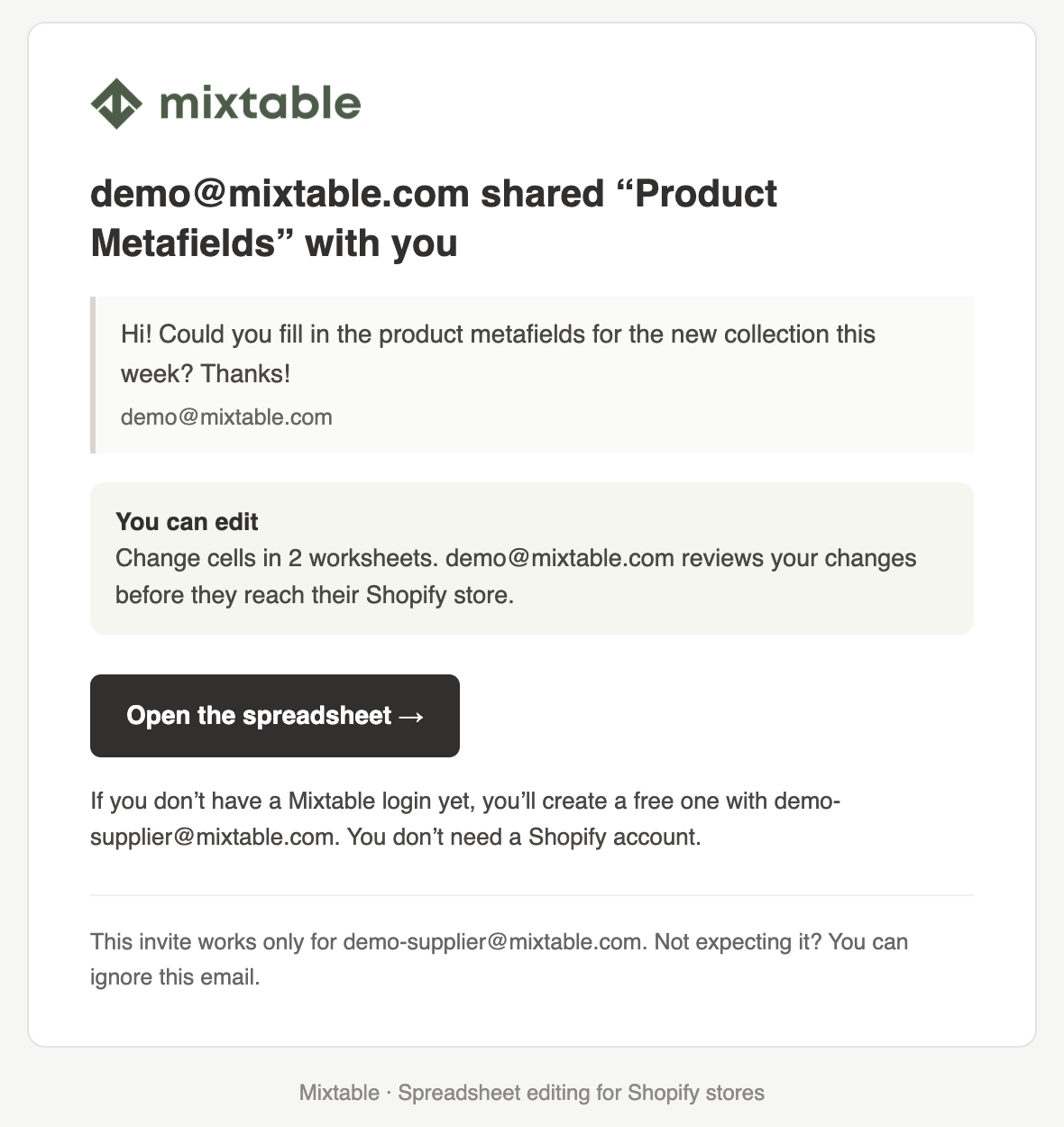
When a Shopify store owner shares a Mixtable spreadsheet with you, you get an invite email from Mixtable that names the spreadsheet and the person who shared it. You don’t need access to their Shopify admin, or a Shopify account of your own. How you open the spreadsheet depends on how they shared it:
- With a Mixtable login: you create a free login with the email address the invite went to, or log in if you already have one
- With a private link: you open your personal link and enter the password the owner gives you
You can tell them apart by the email. A private link invite says “No sign-up needed” and that the owner will give you the password separately.
If you’re the owner, Give your team, agency, or vendors access to Shopify data explains how to invite people and choose what they can do.
Open it with a Mixtable login
- Click Open the spreadsheet in the invite email
- The page that opens shows Join with the spreadsheet’s name, who invited you, and your access, e.g., “You can edit”
- Click Create login and open spreadsheet, and sign up with the email address the invite went to. It has to be that address. If you already have a Mixtable login with it, click Log in instead
- The spreadsheet opens
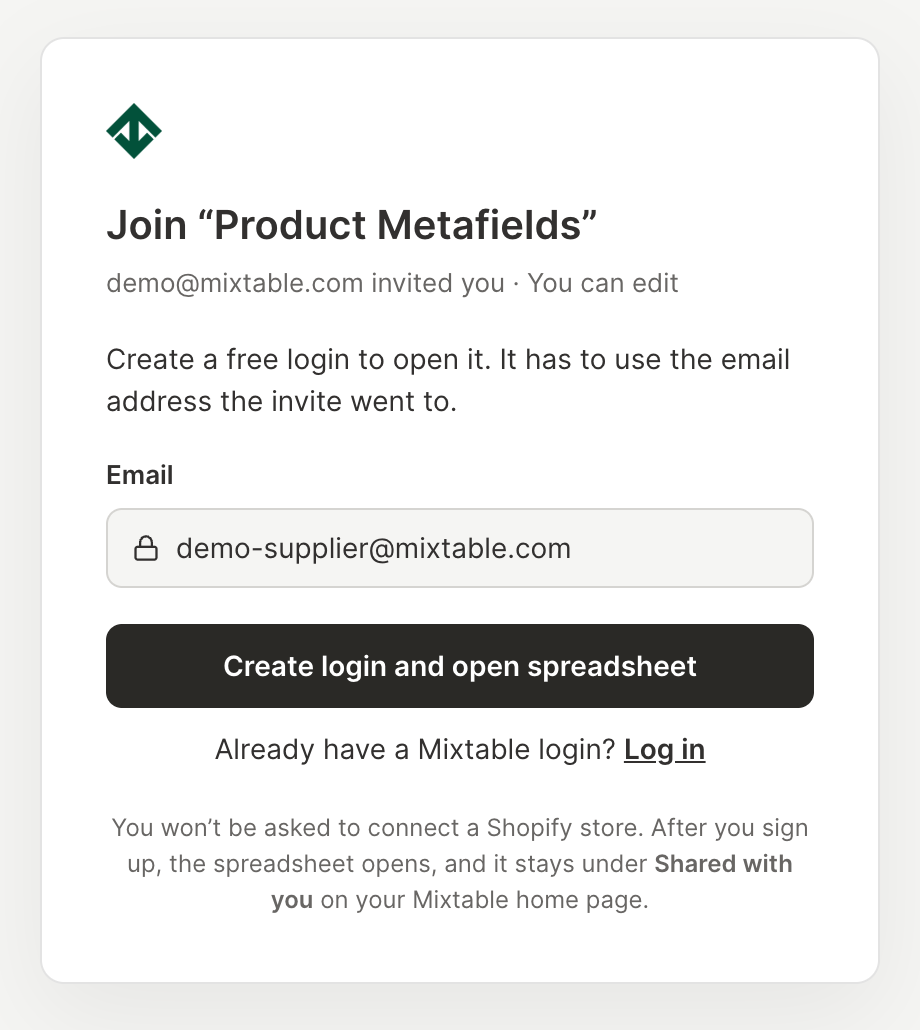
You won’t be asked to connect a Shopify store. To come back to the spreadsheet later, sign in to the Mixtable web app and open it from Shared with you on your home page, where it has a Shared tag.

Open it with a private link
- Click Open the spreadsheet in the invite email. The page shows the spreadsheet’s name and who shared it with you
- Enter the password the owner gave you. It isn’t in the email: the owner sends it another way, e.g., by text message
- Click Open spreadsheet
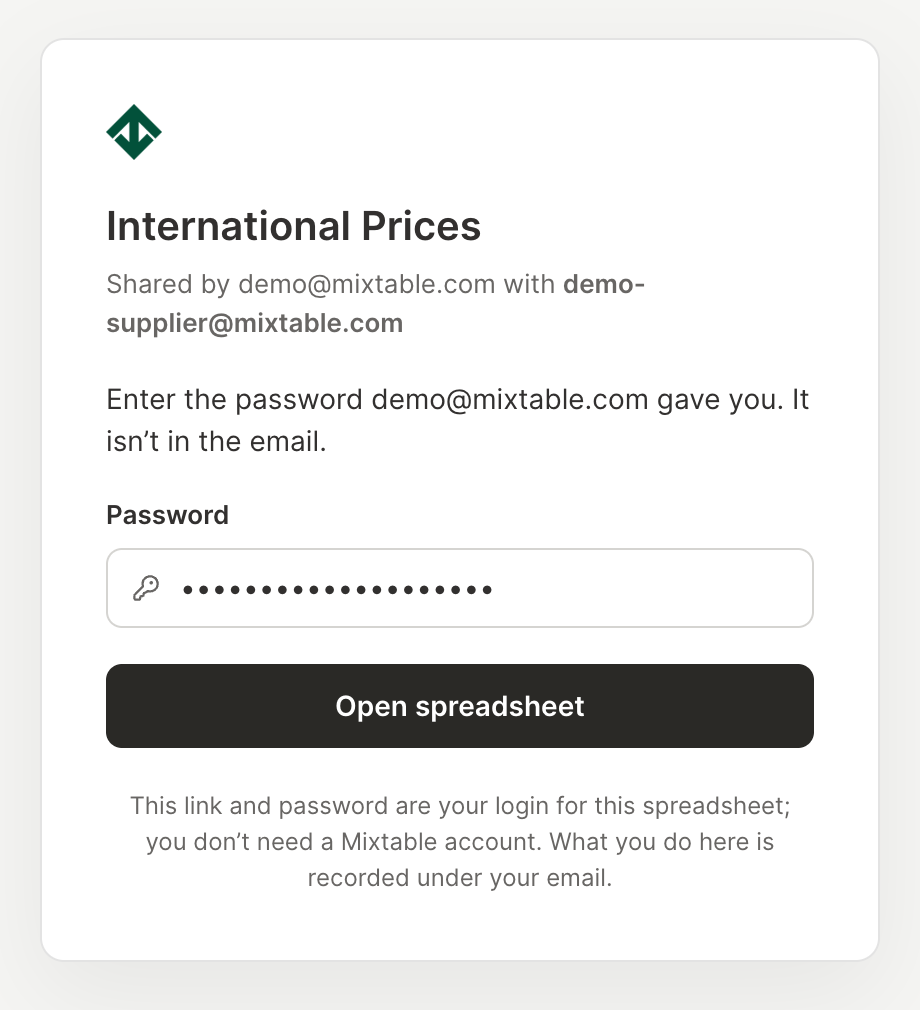
There’s nothing to sign up for. The link and the password are your login for this spreadsheet. Your browser stays signed in for up to 7 days, so the link takes you straight to the spreadsheet. After that, enter the password again.
The link is just for you, so please don’t forward it. Everything done with it is recorded under your email address, and the owner can see it.
To sign out, for example on a shared computer, click Shared by at the top right of the spreadsheet and choose Sign out.
Tip: Would you rather have a regular login? Click Shared by, then Use a Mixtable login instead, and Continue. Your link stops working, you sign up with the same email address, and you keep the same access.
What you can do in a shared spreadsheet
At the top right of the spreadsheet, Shared by and the owner’s email address (or their store’s name) take the place of the Share button. Click it to see who owns the spreadsheet, the email address you’re signed in with, your access, and what it lets you do.
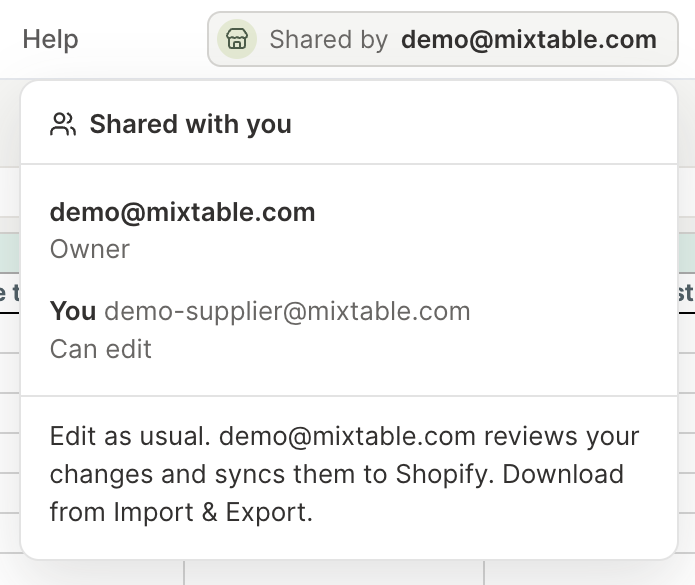
Your access is one of these:
- Can view: look through the data and download it. View only takes the place of the sync control, and a View only notice above the grid has Find, Download as Excel (the whole spreadsheet), and Download as CSV (the worksheet you’re on)
- Can edit: edit cells as usual. Your changes don’t go to Shopify until the owner reviews them and syncs them. The sync control counts them, e.g., 12 unsynced changes, and Preview shows what you changed
- Can edit and sync: edit cells and send your changes to the owner’s Shopify store with Sync, which shows them in a preview first, as Sync Shopify data with Mixtable explains
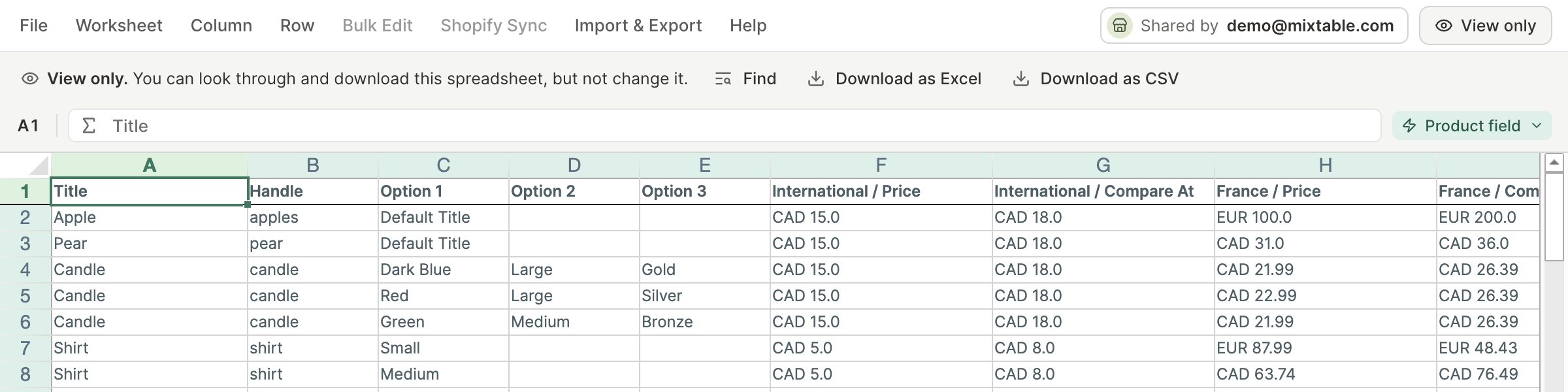
The owner can also choose your access worksheet by worksheet. You see only the worksheets they shared with you. On a worksheet you can only view, the View only notice says “You can look through this worksheet, but not change it,” and menu items that would change the worksheet are turned off.
If the owner lets you add Shopify data to a worksheet, you can fill empty columns with more of the store’s data, such as Cost per item or a metafield, from + Shopify data or Column > Add Shopify data…. On a worksheet you can only view, use Column > Add Shopify data….
Some things stay with the owner: sharing the spreadsheet, renaming or deleting it, adding or deleting worksheets, deleting items in Shopify, and the Details panel.
If the owner changes your access while you have the spreadsheet open, Mixtable asks you to reload it, so you see your new access straight away.
Troubleshooting
“This invite doesn’t work anymore”
The owner cancelled the invite, or changed how you open the spreadsheet. If they switched you to a private link, look for a newer email with your link. Otherwise, ask them to invite you again.
“This link doesn’t work anymore”
The owner replaced your link with a new one, switched you to a Mixtable login, or removed your access. Look for a newer invite email from Mixtable, or ask the owner for a new link.
“This link turned off after 5 wrong passwords in a row”
To keep the spreadsheet safe, a private link turns off after 5 wrong passwords in a row. Ask the owner to set a new password. Your link works again with the new one.
The password doesn’t work
Check the password with the owner, who can copy it again from the Share window. Passwords have at least 10 characters. Keep in mind that 5 wrong passwords in a row turn the link off.
I can’t see a worksheet I need
The owner hasn’t shared that worksheet with you. Worksheets they add after inviting you stay hidden until they give you access, so ask them to tick See and download for it.
There’s no Sync button
With Can edit access, the owner syncs your changes. The sync control shows how many are waiting, e.g., 12 unsynced changes, with Preview but no Sync. If you should sync your changes yourself, ask the owner for Can edit and sync access.
A spreadsheet shared by private link isn’t under Shared with you
A spreadsheet shared with you by private link opens only with that link, even if you have a Mixtable login with the same email address. Open the link from your invite email, or switch to your login with Use a Mixtable login instead (see the tip above).