
Shopify Tax, Shipping, Duties, and Additional Fee Analytics
 Analytics Spreadsheet Updated October 6, 2026
 On this page
- How Shopify order charges relate to your sales metrics
- Why order charges belong on a report
- Order charge metrics
- Add order-charge analytics
- Build a Shopify Total Sales bridge
- Analyze charges by customer and B2B account
- Track charges by month
- Compare Shopify Markets and countries
- Do not treat charges as profit
- Make the report easier to interpret
Shopify order charges are the four amounts added on top of merchandise revenue: tax, shipping, duties, and additional fees. Together they make up the difference between Net Sales and Total Sales.
Shopify order charges explain the difference between merchandise-focused Net Sales and the broader Total Sales amount. Mixtable can calculate tax, shipping, duties, and additional fees for supported customers, B2B companies, company locations, store reports, and other analytics targets.
How Shopify order charges relate to your sales metrics
Total Sales = Net Sales + Total Tax Amount + Total Shipping Amount + Total Duties + Total Additional Fees
Each charge is summed from the orders matching your row, timeframe, and filters. None of them appear in Net Sales or Gross Sales, which count merchandise only, so these four metrics are exactly the gap between the two sales figures.
Why order charges belong on a report
Most sales reports stop at the product. But the money moving through your Shopify store includes tax you collect and pass on, shipping customers pay, duties on international orders, and any extra fees. Leaving them out is fine for merchandising decisions and misleading for almost everything else.
Breaking these out answers questions a single sales figure cannot:
- Shipping: are you charging enough to cover what carriers bill you? Shipping revenue beside order count shows the average customers actually pay
- Duties: international orders can carry duties large enough to change whether a market is worth serving, and they never appear in Net Sales
- Tax: knowing what you collected by period makes filing and reconciliation far less painful than reconstructing it later
- Additional fees: small per-order charges are easy to ignore individually and add up to real money across a year
Charges are also where a mismatch between your Shopify reports and your bank deposits usually hides. If Net Sales and your payouts never quite agree, these four metrics are where you go looking. To see the payouts themselves, with the fees and orders behind each one, load your Shopify payouts into a worksheet.
Order charge metrics
Total Tax Amount
Measures tax associated with the relevant Shopify sales and orders.
Total Shipping Amount
Measures the shipping amount associated with the relevant orders. In Mixtable’s Total Sales calculation, shipping is added excluding its tax component because tax is reported separately.
Total Duties
Measures duties associated with the relevant Shopify orders.
Total Additional Fees
Measures additional order fees stored with the relevant Shopify orders.
Availability differs by worksheet target. Mixtable shows only the charge metrics supported for the selected analytics context.
Add order-charge analytics
-
Open a supported Shopify data worksheet
-
Click + Shopify data in the header row of an empty column, or choose Column > Add Shopify data… from the menu bar. The field picker opens
-
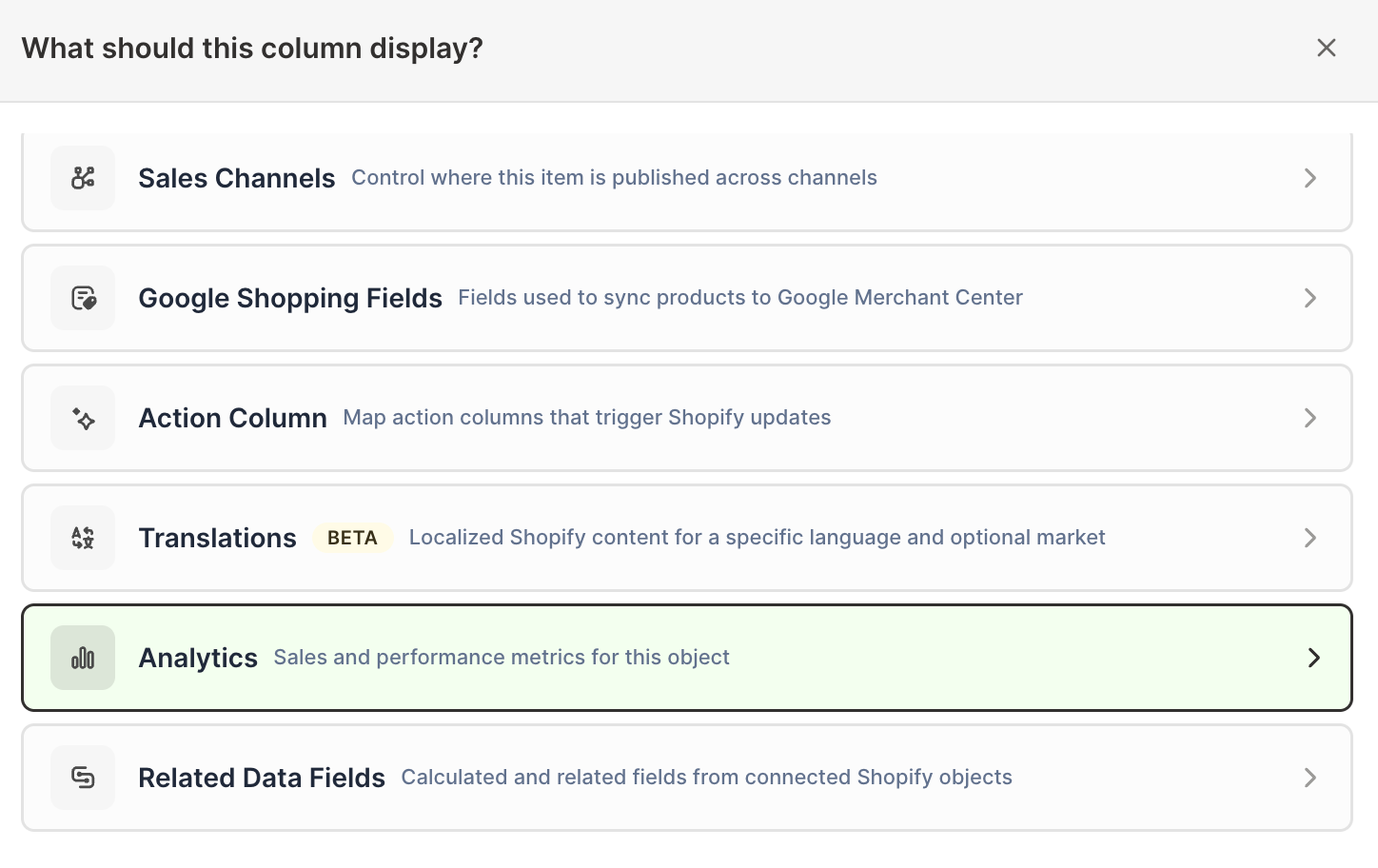
Click Sales & analytics in the list of sections on the left, or type the metric's name in the search box
-
Click the charge metric you want. The metric's settings open with it already chosen under Which metric?
-
Under Over what time period?, choose All time, Fixed dates, Rolling period, Calendar year, or Calendar month
-
Under Limit which orders count, add any optional filters supported by the metric
-
Click Save Column
Use the same timeframe and filters when adding several charge columns.
Build a Shopify Total Sales bridge
Add:
- Net Sales
- Total Tax Amount
- Total Shipping Amount
- Total Duties
- Total Additional Fees
- Total Sales
This shows the components that expand the merchandise-focused Net Sales figure into the broader Total Sales result.
See Shopify Total Sales Analytics.
Analyze charges by customer and B2B account
Customer, Company, and Company Location worksheets are useful when charges vary by destination or account arrangement.
Compare:
- Total Sales and Net Sales
- Shipping per order
- Duties per order
- Additional fees per order
- Average Order Value
- Order Count
Use formula columns to divide each charge by Orders Count or Total Sales. A large charge total can be normal for a high-volume account, while a high rate may indicate a structural difference.
Track charges by month
The Monthly Store Performance template includes recent monthly rows for:
- Total Tax
- Total Shipping
- Total Duties
- Total Additional Fees
- Total Sales
It also includes orders, Net Sales, Gross Sales, refunds, discounts, Average Order Value, and average quantities. This makes it easier to tell whether order charges are moving because store volume changed or because the charge mix changed.
See the Monthly Store Performance template.
Compare Shopify Markets and countries
Shipping, duties, tax, and fee patterns can differ across international orders. Use Shopify Market reporting for your selling regions and customer-country filters for customer geography.
Keep in mind that these are different dimensions. One Shopify Market can include several countries.
See Shopify Markets Sales Analytics.
Do not treat charges as profit
Tax, shipping, duties, and fees are order components, not a complete measure of cost or profitability. The shipping amount charged to a customer may differ from the shipping cost paid by the business. Duties and fees can also have different accounting treatment.
Use these analytics to understand Shopify order composition. Use your accounting and carrier-cost data for financial statements or true shipping profitability.
Make the report easier to interpret
Add formula columns such as:
Shipping per order = Total Shipping / Orders CountDuties per order = Total Duties / Orders CountTax share = Total Tax / Total SalesAdditional fee share = Total Additional Fees / Total Sales
Keep the underlying totals visible so a percentage is never separated from its scale.