
Review Shopify discounts in a spreadsheet
 Spreadsheet EditorExport: Excel & CSV Updated October 21, 2026
 On this page
A Discounts worksheet gives you one row for each Shopify discount campaign or automatic promotion. It is useful for reviewing active and scheduled promotions, comparing discount rules, and exporting your discount catalog.
The standard discount fields are read-only in Mixtable. You can view and export them, but you cannot change a discount’s value, dates, limits, status, or combination rules from the worksheet. Discount metafields can be mapped to columns and edited with Mixtable Spreadsheet Editor.
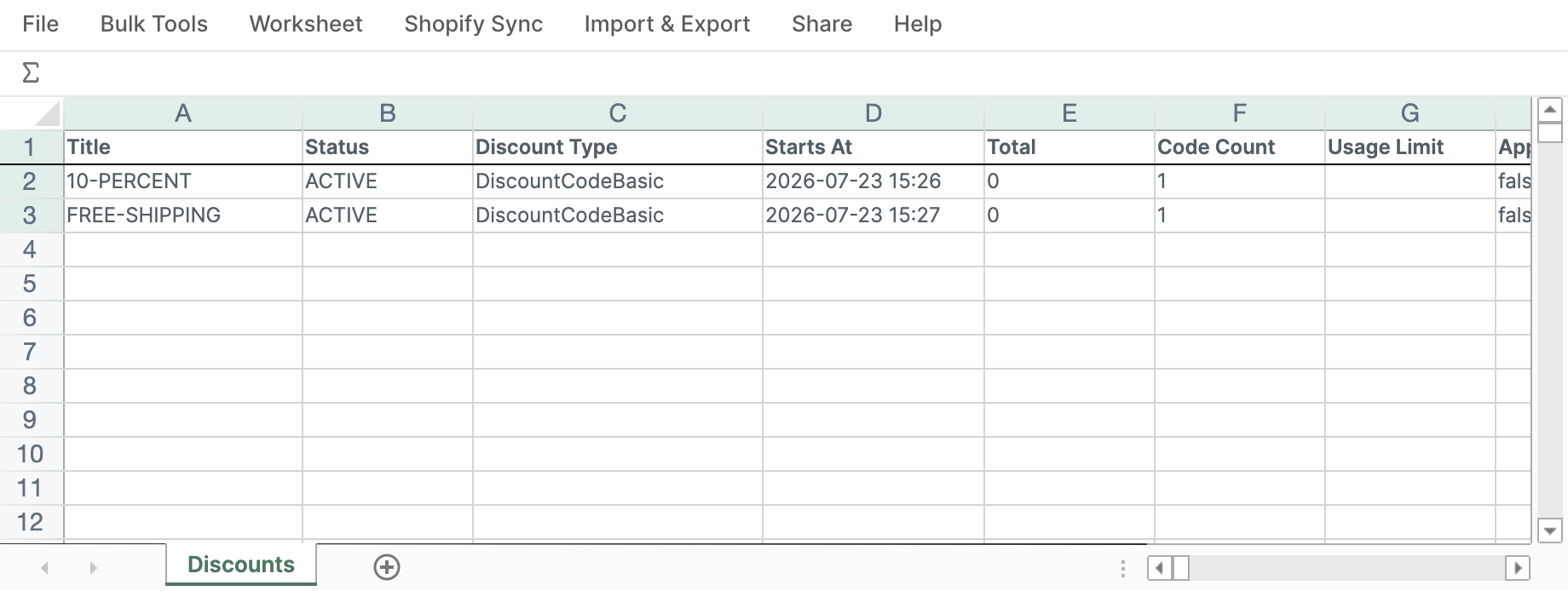
What you can see
A Discounts worksheet can include:
- Title, status, and discount type
- Start and end dates
- Fixed amount or percentage value
- Total redemptions and number of discount codes
- Usage limit and whether the discount applies once per customer
- Whether the discount combines with order, product, or shipping discounts
- Shopify’s full and short summaries of the promotion
- Created and updated dates
- Shopify ID
One row represents the discount itself. The worksheet does not create a separate row for every redeem code attached to a discount.
Create a Discounts worksheet
- Open a spreadsheet in Mixtable and click the + button beside the worksheet tabs
- Select Shopify data worksheet, then click Continue
- Select Discounts
- On Choose your columns, keep the most-used fields or select the fields you want to review, then click Continue
- Choose Load everything or Only rows that match rules
- Click Create Worksheet
Get the latest discounts from Shopify
When you create or change a discount in Shopify, it doesn’t appear in your Discounts worksheet until you download it.
Shopify doesn't send changes to discounts on its own, so download them when you need the latest. Click Download latest in the sync control at the top right of the spreadsheet (or choose Shopify Sync > Sync with Shopify…) to open the sync card. Under Download latest from Shopify, click Download next to Discounts.
Useful ways to review discounts
- Filter Status to focus on active, scheduled, or expired promotions
- Sort by Starts At or Ends At to review your promotion calendar
- Compare Value Amount and Value Percentage across campaigns
- Use Total Redemptions to identify frequently used promotions
- Review the Combines With fields before planning overlapping campaigns
- Export the worksheet to Excel or CSV for campaign planning or auditing
Add discount metafields
Discounts can have Shopify metafields for custom campaign information. To add one to the worksheet:
- Click + Shopify data in the header row of an empty column, or choose Column > Add Shopify data… from the menu bar. The field picker opens
- Click Custom data in the list of sections on the left, or type the metafield's name in the search box
- Click the discount metafield you want to map. If you don't see it, click Refresh in the Custom data heading to load your latest metafield definitions from Shopify
- Click Save Column
- Enter or paste your metafield values
- Click Sync at the top right of the spreadsheet. The Preview changes window opens so you can check your changes
- Click Sync in the window to publish the changes
Only mapped metafield columns are editable. The standard discount fields remain read-only.
For more detail, see bulk edit Shopify metafields.
Measure what a promotion produced
A Discounts worksheet shows how each promotion is set up, not what it produced. For results, Mixtable Analytics Spreadsheet calculates the total discount amount given away, and its Discount code filter groups redeem codes under their parent campaign, so a promotion that generated hundreds of codes still reports as one thing. Add the same set of columns for a second campaign and you have a like-for-like comparison.
Troubleshooting
The Discounts option is missing or no discounts load
Your Shopify connection must grant Mixtable permission to read discounts. Reconnect the store and approve the requested Shopify access if Mixtable prompts you to do so.
I changed a standard discount field but it did not sync
Standard discount fields are read-only. Make that change in Shopify. Mixtable Spreadsheet Editor can sync edits only from mapped discount metafield columns.