


Export Shopify Orders’ Metafields
Export Shopify Orders’ Metafields
To export your Shopify orders along with their metafields you’ll need to perform two quick steps. First, have a worksheet that shows your Shopify orders. Second, map one or more columns to show the data of the metafield(s) you want to export. Once this is done, just export the spreadsheet and you’ll be able to download all your order metafields data as an Excel file. Below are more details on each step.
Step 1 - Have a worksheet that shows your Shopify Orders
In an existing Mixtable spreadsheet, click the (+) button to add a new worksheet.
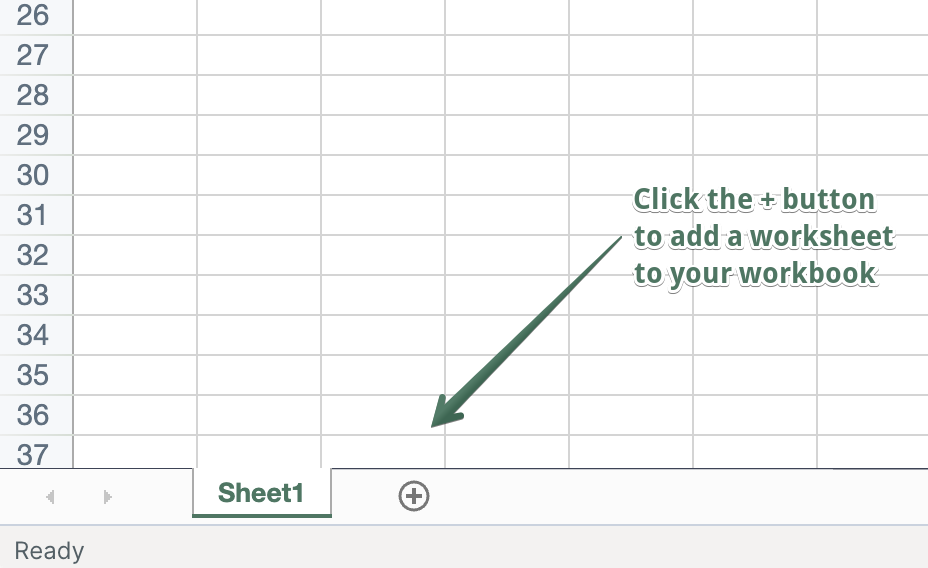
You’ll now be presented with a list of what Shopify data you’d like to sync to the new worksheet - products, orders, customers, etc. Select the Orders (no line items) option. The new worksheet will be added, and you’ll see your Shopify Orders data starting to populate in it.
Step 2 - Sync metafields to columns
Now that we have our Orders (no line items) worksheet, we need to get our metafields data to show up in it. All that’s involve dis to configure columns to display the metafields you want to export. Here’s how:
To load new Shopify data, start by selecting an empty column, meaning any column with a non-green header. A green header means the column is already linked to Shopify data. Then click the  button in the column header to open the selection window and choose the data you want to pull in.
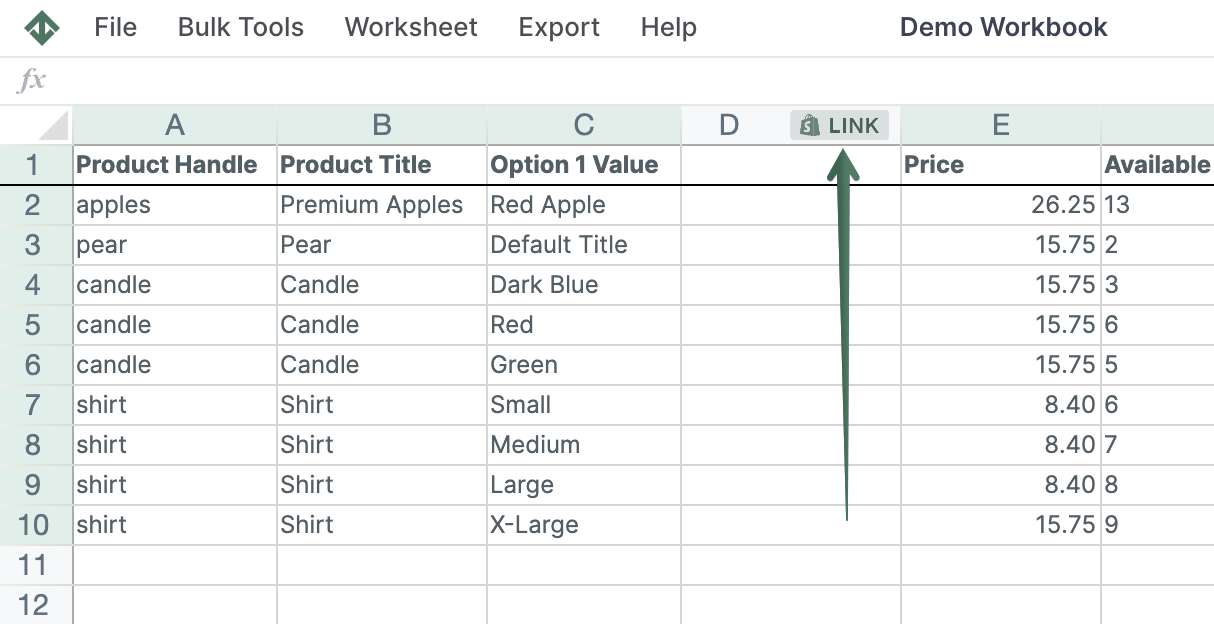
-
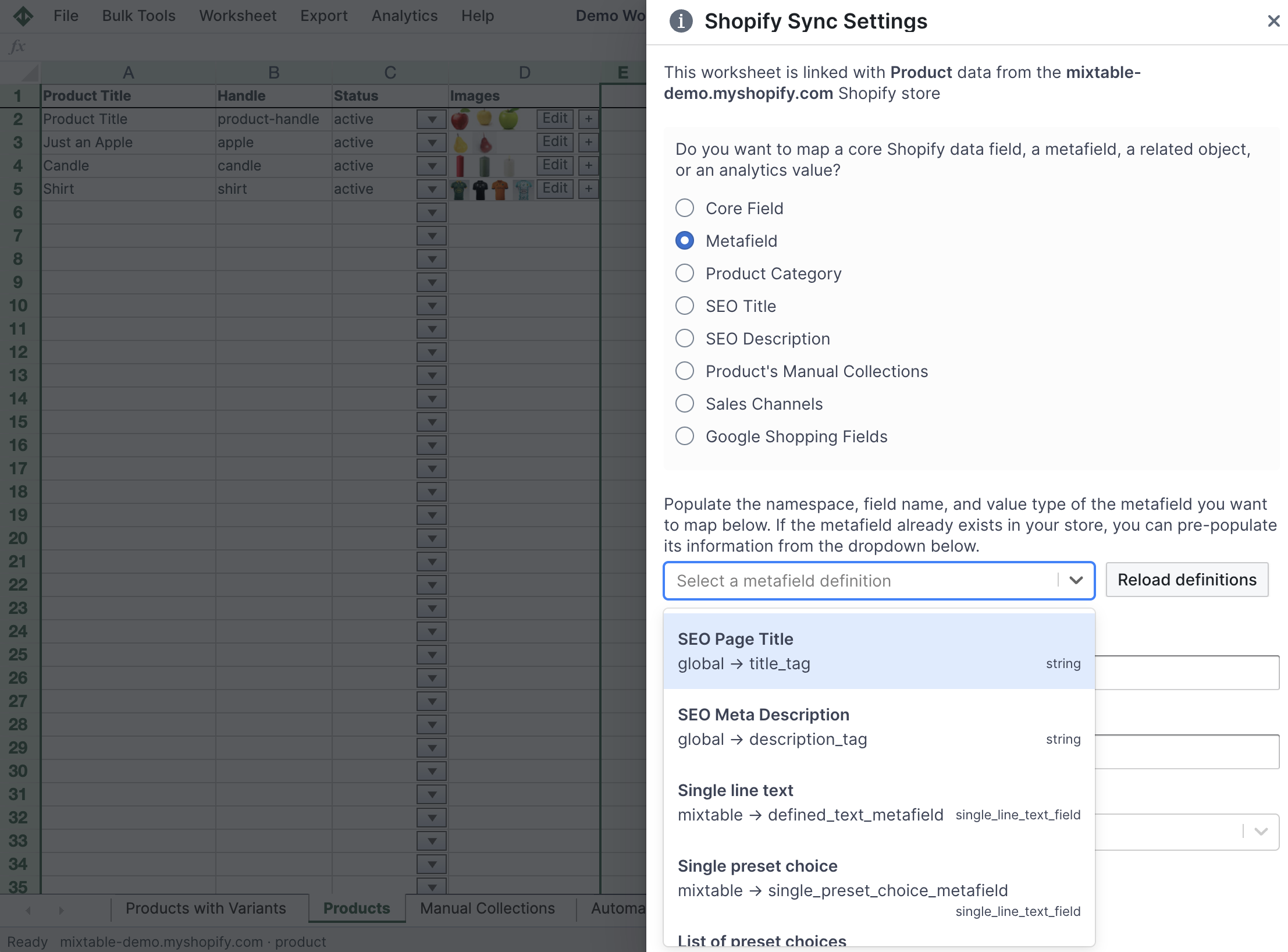
In the window that opens, select the Metafield radio button option.
-
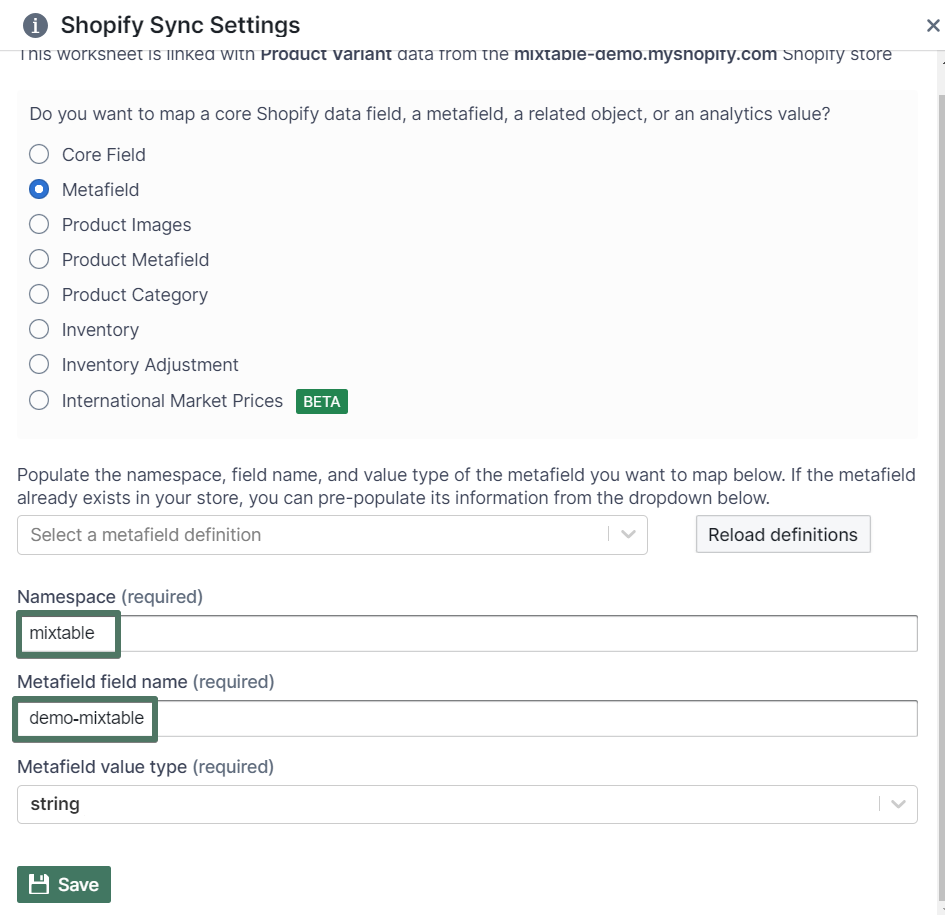
You’ll see that you are now being prompted for information on the metafield that we’ll map into this column. Each metafield in Shopify has a Namespace and a Name. Enter the values for any existing metafields here. If you are creating a new metafields then enter the Namespace and Name values you’d like to use. Then, click the Save button.
-
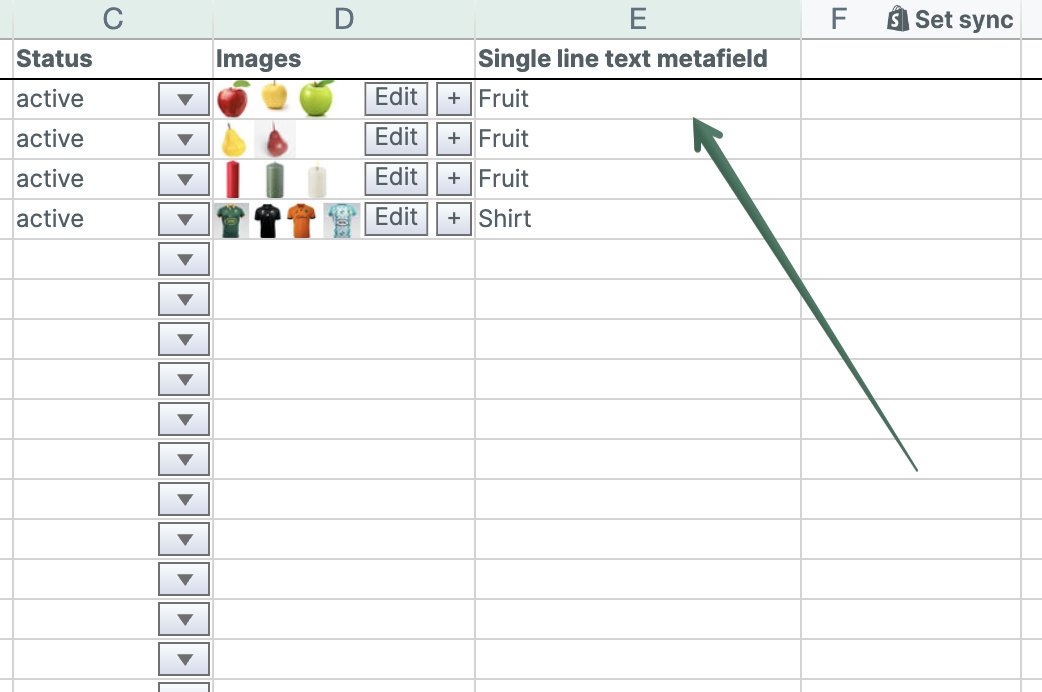
You’ll now see Mixtable set up this new column with a heading (which you are free to change), and populate all the cells with any pre-existing data for the metafield you just set up.
Add related data for Metafields to your Shopify Orders (no line items) worksheet
Connecting order details with Metafields information used to mean VLOOKUP formulas. Not anymore! Mixtable now puts this data directly within your reach. Here's how to do it:
If you have already created a Mixtable spreadsheet with your Shopify Order information, you can quickly add related data to it.
Note: The worksheet needs to show order information, e.g., you can use the Orders and Order Items template spreadsheet, or the Orders (no line items) or Orders (with line items) worksheets.
To load new Shopify data, start by selecting an empty column, meaning any column with a non-green header. A green header means the column is already linked to Shopify data. Then click the button in the column header to open the selection window and choose the data you want to pull in.
- From the Shopify Sync Settings window, choose Related Data Fields.
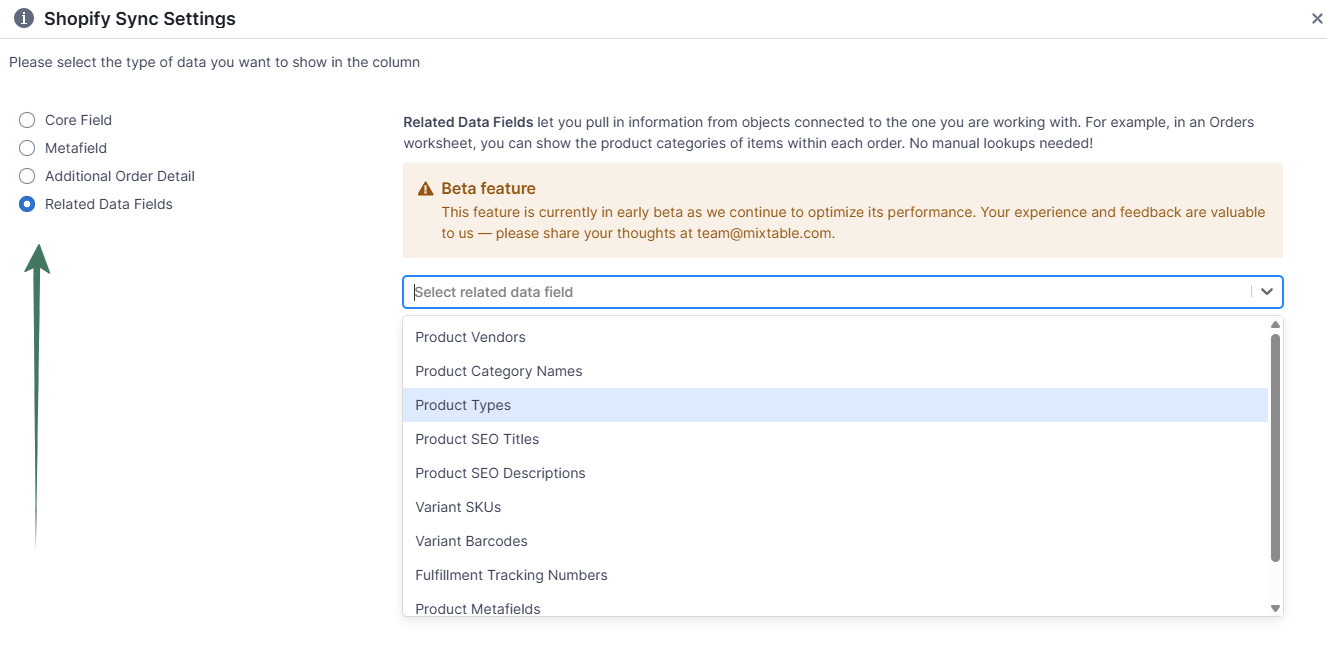
- Then, choose Metafields from the drop-down list.
- Allow some time for the data to appear in the columns; you are ready!
Find more about Related Data Fields functionality here.
Step 3 - Export your spreadsheet to an Excel file
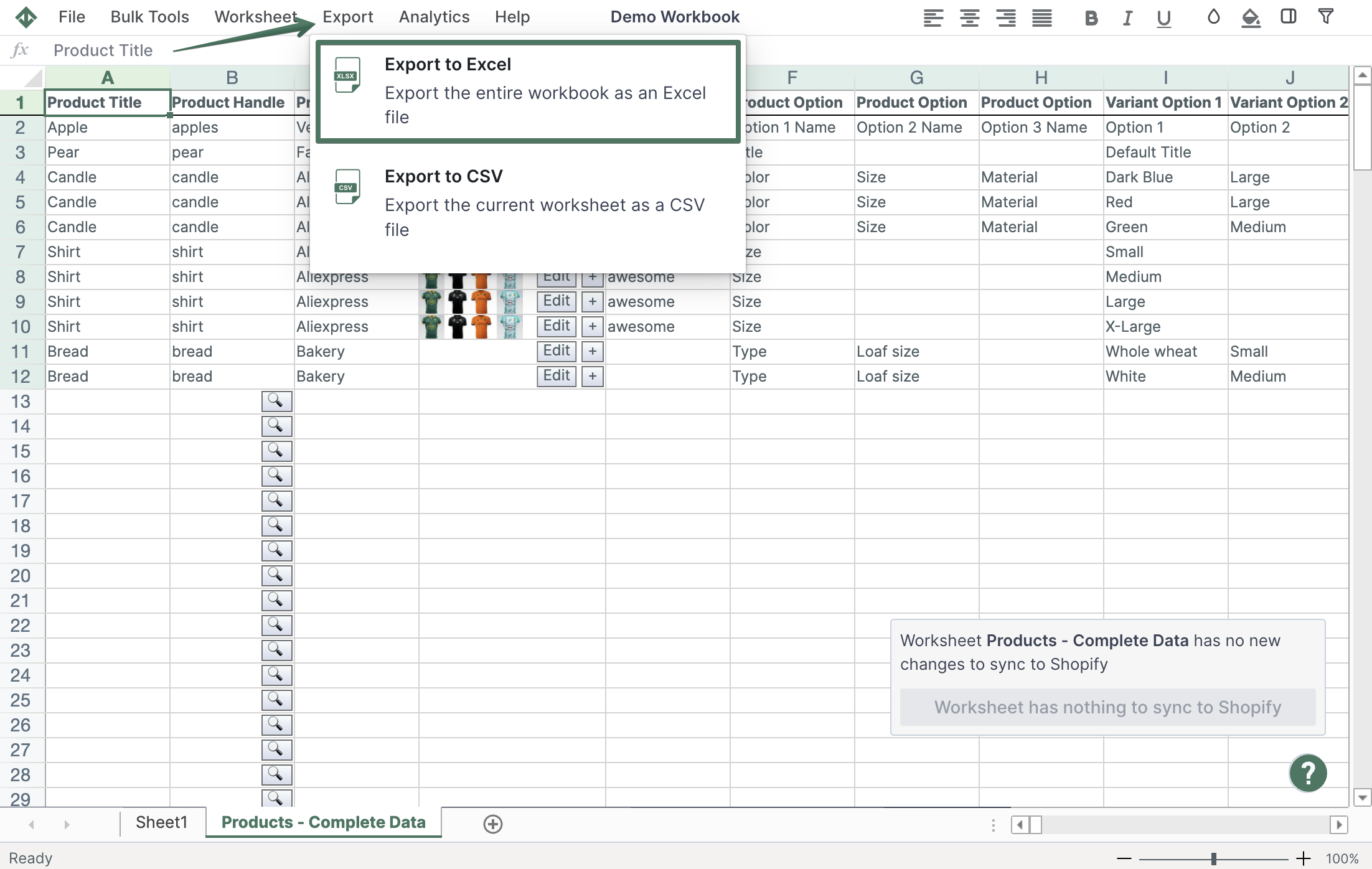
Now that we have our Orders metafields data in our worksheet, let’s export everything to an Excel file. Click Import & Export in the top toolbar, then select Export to Excel. The file will be downloaded to your computer right away. And that’s it!
Keep exploring your Shopify data
Mixtable Explore & Export puts supported Shopify data into an Excel-like spreadsheet that runs in your browser. Choose the fields you need, then export the full spreadsheet to Excel or the active worksheet to CSV.
- Compare all the main approaches in the Shopify to Excel guide
- Export Shopify products, collections, products with metafields, or products with collections
- Export Shopify orders or orders with metafields
- Export Shopify blog posts or Shopify pages
For data types that use manual downloads, refresh the relevant Shopify data before exporting so the file contains the latest available records.
Manage Shopify data in a spreadsheet.
Use Mixtable to edit, sync, analyze, import, and export your Shopify store data without CSV juggling.