


Bulk edit your Shopify store’s data
Bulk edit your Shopify store’s data
Mixtable’s Excel-like spreadsheet interface was designed from the ground up to be the best way out there to bulk edit the data in your Shopify store. You can edit almost everything, and you can customize your spreadsheet to suit your needs.
In Mixtable, you work within a spreadsheet. Mixtable spreadsheets look, feel, and behave almost exactly as Excel does. They just run in your browser. To begin bulk editing your Shopify data, you first have to create a spreadsheet and link that spreadsheet with your Shopify store’s data. You have two paths to start when creating a spreadsheet.
- The first path is to create a blank spreadsheet. This spreadsheet looks and feels exactly like a new spreadsheet you would create in Excel. It has one empty worksheet. After the spreadsheet is created, you are free to add worksheets for only the data that you need to sync.
- The second path to start when creating a spreadsheet is to select the option to create a spreadsheet based on Mixtable’s Shopify template. This template gives you the worksheets most commonly used by our users, and within those worksheets, there are columns preset up with the most commonly synced data.
Note: Not all data is automatically populated into these template worksheets, just the most commonly used ones. You are free to add more data as needed.
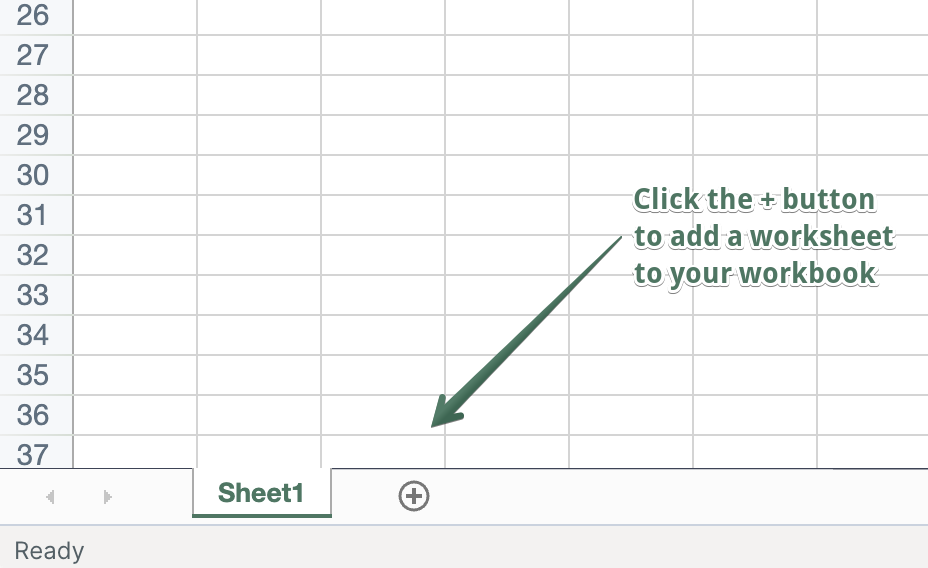
In an existing Mixtable spreadsheet, click the (+) button to add a new worksheet.
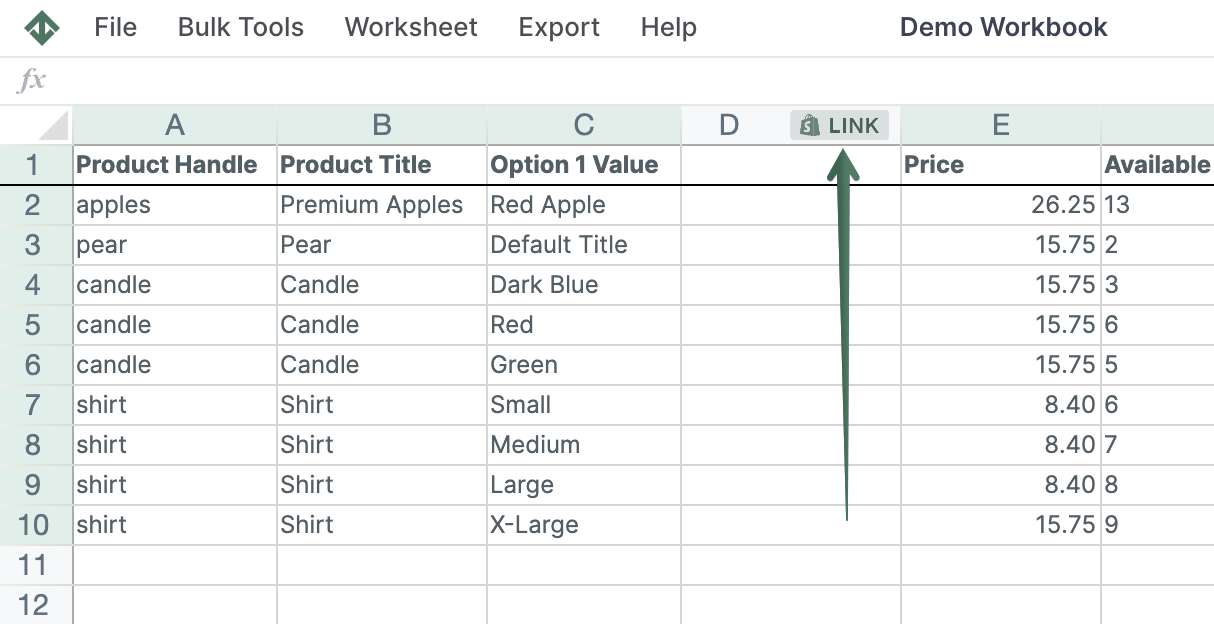
Columns in Mixtable can either be standard ones, i.e., work just like in Excel, or they can be linked to a particular data field in Shopify.
To load new Shopify data, start by selecting an empty column, meaning any column with a non-green header. A green header means the column is already linked to Shopify data. Then click the  button in the column header to open the selection window and choose the data you want to pull in.
You will now be presented with a set of options for the data you want to sync. These options will change depending on what data (e.g., products) you have set to sync to the particular worksheet. The column sync settings options are:
- Shopify data fields: This option lets you map the column to one of Shopify’s standard fields for that data type. For example, you can map the Description for Products or the Email Address for a Customer
- Metafield: This option allows you to map a column to sync with a particular meta field by specifying the namespace, meta field name, and meta field type.
- Product Collections: This column maps to show the handles of the Manual Collections that the product is a part of, allowing you to add/remove a product from a Manual Collection.
- Inventory (Products (with variants) worksheet only) - Allows you to sync inventory from Shopify and sync inventory to Shopify. If Inventory is mapped to a worksheet containing Products, then the inventory synced will be the inventory for the first variant of the product only.
- Additional Order Detail (Orders (no line items) worksheet only): If your orders include Additional Order Details data, you can map each such field to sync to a column.
- Line Item Custom Property (Orders (with line items) worksheet only) - If you have any Order Line Item Customizations data as part of your line items (e.g., engravings), you can map each such field to sync to a column.
- Google Shopping Fields: This category comprises the Google Shopping fields available in Shopify. You have several options to select to sync to a column.
- Product Category: Mixtable makes it easy to change your Shopify product categories in bulk. To edit your product category, you have three options for what to map to a column: the category ID, the short name, or the full name. You can select whichever version you use.
- International Market Prices - You can map columns to set fixed prices and Compare-At pricing for any international markets you sell to. This allows you to modify Shopify international prices in bulk.
When a column is added to a worksheet, whether that is during worksheet creation or by you afterward, the column immediately begins populating with data. This might take a bit of time, depending on how much data you have. For example, if you are trying to populate the product title for 100,000 products, that will take considerably longer than if you have 1,000 products. So please be patient while your data loads. You will see a visual indicator at the top of the screen in the formula bar saying that the worksheet is read-only as it is being populated with data. Once the data population is done, you can begin to bulk edit your content.
This part is fairly straightforward: Find the cell that contains the existing data you want to update, modify its value, and then initiate a sync of your data to Shopify. You initiate the sync by pressing the Sync to Shopify button on the right side of the worksheet. If you want to review what will change first, click Preview changes next to it to see every pending edit before anything reaches Shopify.
Please note that data is synchronized to Shopify on a per-worksheet basis. So when you click the Sync to Shopify button, Mixtable will begin to sync the changed cells in the currently opened worksheet. Any changes in other worksheets that are currently inactive will not be touched. This allows you to modify multiple worksheets and trigger their sync to Shopify one at a time as you see fit.
You're ready!
Mixtable is an online spreadsheet designed to sync data with Shopify. It looks, feels, and behaves like Excel (including formulas), but runs in your browser. With Mixtable you can:
- Bulk add products to collections, edit metafields, add or remove tags;
- Change product prices, including international prices, and review price history;
- Manage customers with a spreadsheet CRM for Shopify;
- Use Excel features like sort ascending or descending, find-replace, filter, and more.
Best of all, you can sync changes back to Shopify with a single click. Find out more about the Mixtable suite of products here.
Manage Shopify data in a spreadsheet.
Use Mixtable to edit, sync, analyze, import, and export your Shopify store data without CSV juggling.