
How to Bulk Edit Product Template (Template Suffix)
Works with  Spreadsheet Editor Updated October 8, 2026
Spreadsheet Editor Updated October 8, 2026 On this page
In Shopify, a theme template controls the layout of a page: which sections it shows and in what order. Most products use your theme’s default product template, but you can create extra templates, for example one for pre-order items or one for bundles. Shopify stores a product’s template choice in a field called the template suffix.
When you edit a template, the change applies to every product that uses it. So if you want a group of products to switch to a different template, you’d normally open each product in the Shopify admin and change it one by one. With Mixtable Spreadsheet Editor, you can change them all at once from a spreadsheet.
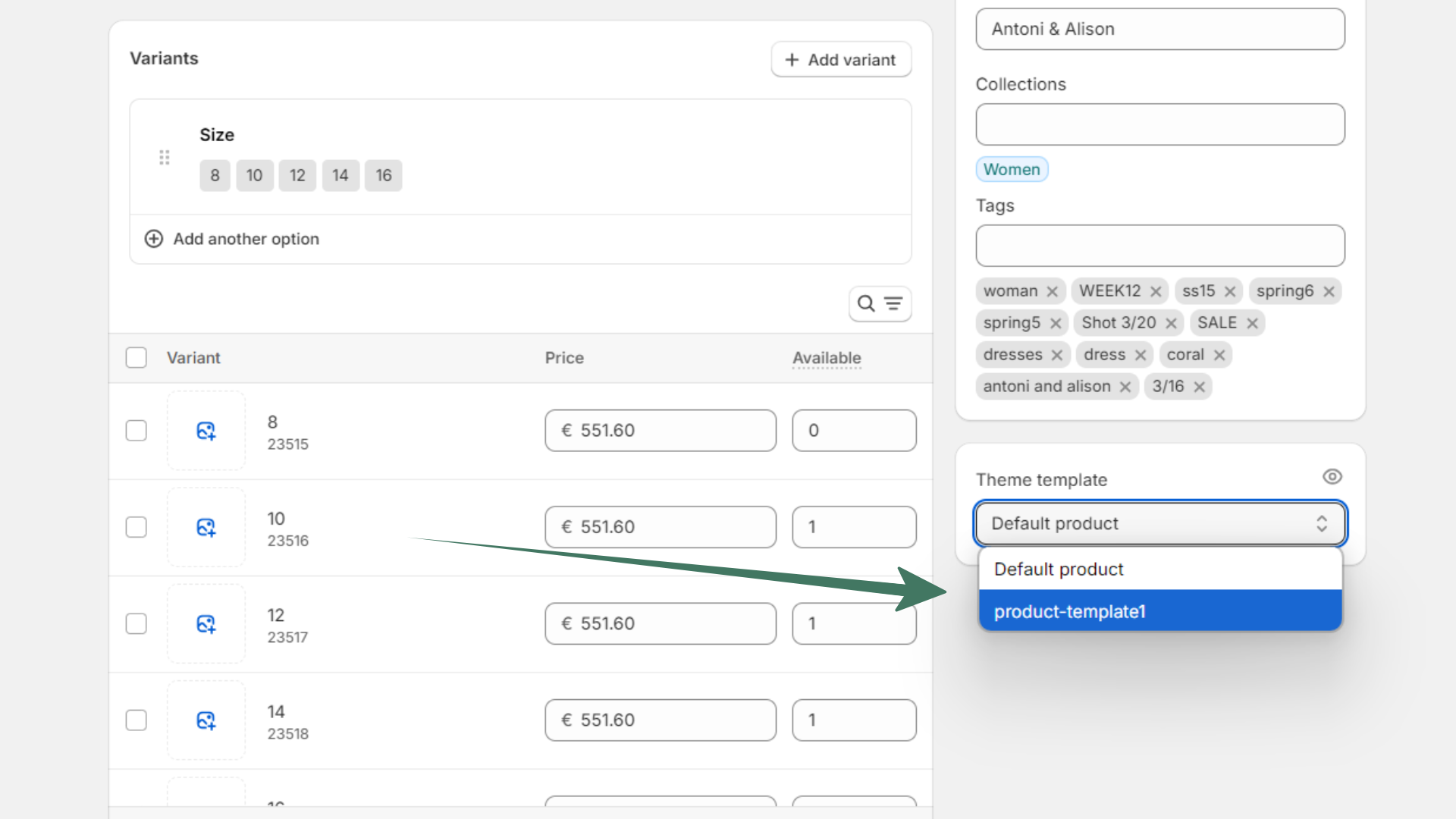
Change a product’s template in the Shopify admin
For comparison, here’s the manual way, one product at a time:
- Open the product in the Shopify admin
- In the Theme template section of the sidebar, choose the template from the drop-down, then save the product
Change product templates in bulk with Mixtable Spreadsheet Editor
- After installing Mixtable Spreadsheet Editor, open a Mixtable spreadsheet with a Products (no variants) worksheet. If you don’t have one yet, create it first
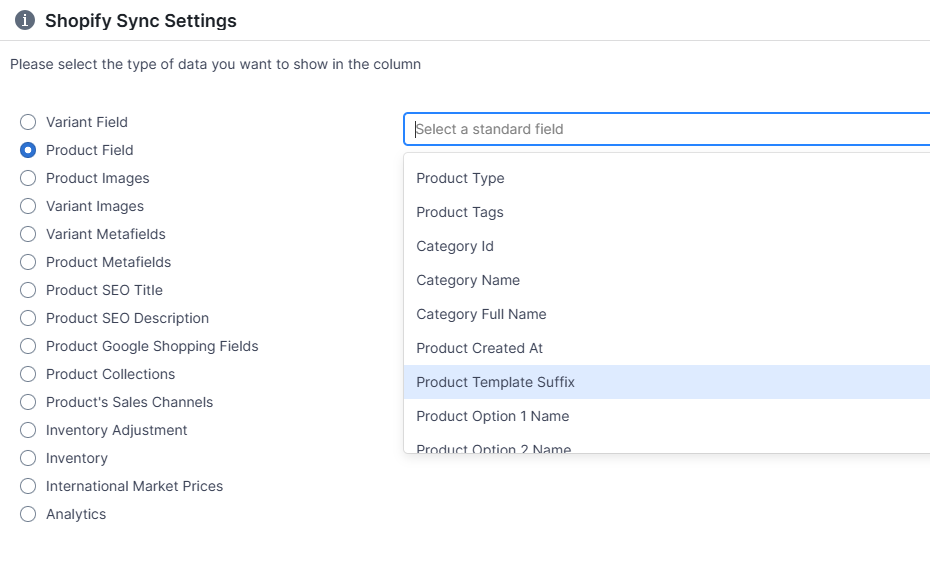
- Click + Shopify data in the header row of an empty column, or choose Column > Add Shopify data… from the menu bar. The field picker opens and asks What should column E show?, with your column’s letter in place of E
- Type “template” in the search box, or click Search engine listing in the list of sections on the left. Click Theme template (Shopify’s template suffix), then click Save Column. On a Products (with variants) worksheet, the same field is marked Product, because the template belongs to the product
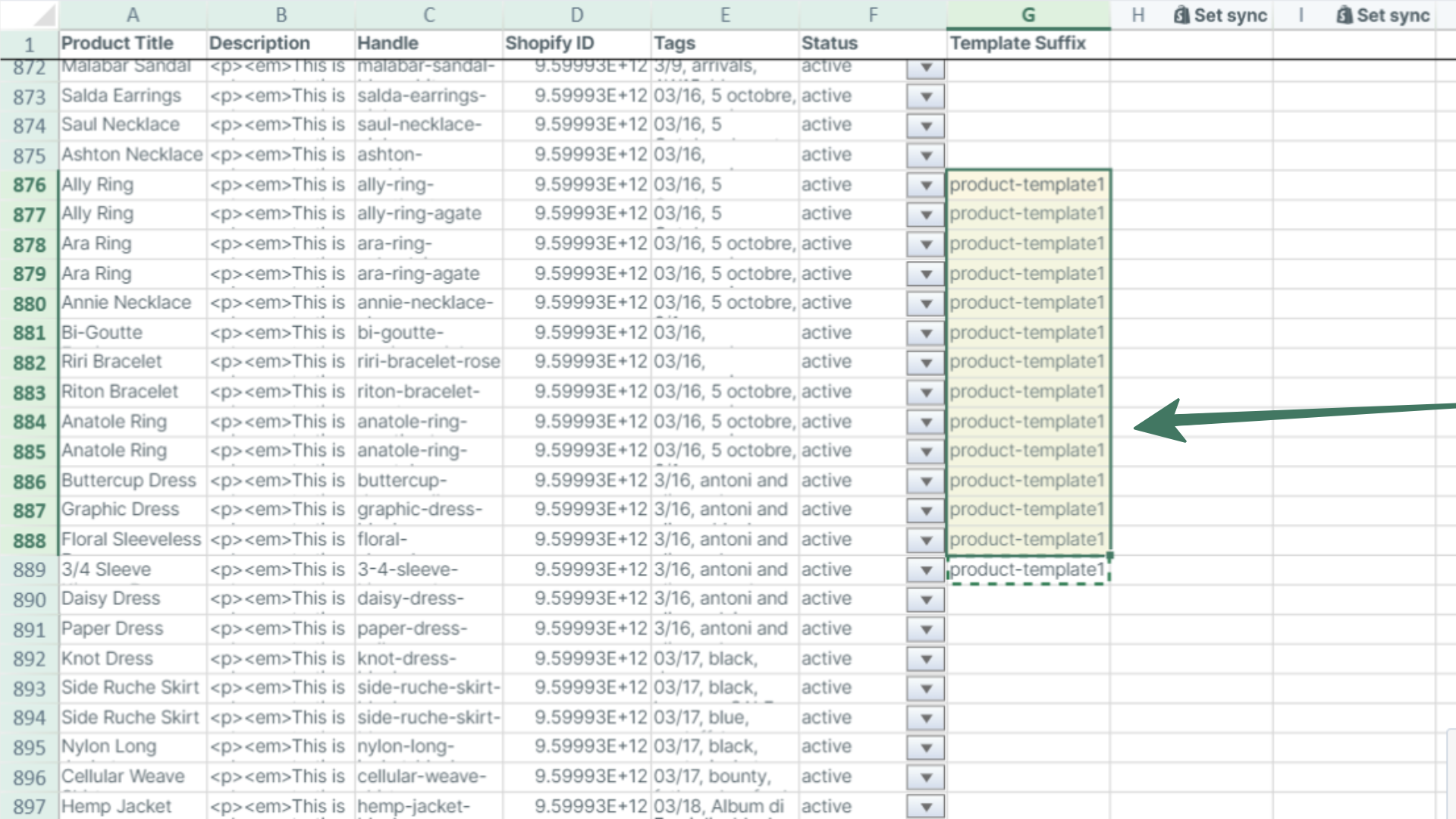
- In the new column, type the name of the template each product should use. The name is the part after
product.in the template’s file name, so for a template calledproduct.pre-order, typepre-order. Copy and paste or fill down to change many products at once - Click Preview at the top right of the spreadsheet to review your changes, then click Sync to send them to Shopify
Mixtable Spreadsheet EditorBulk edit and sync products, prices, inventory, metafields, and more
Install on Shopify