
Review Shopify Markets in a spreadsheet
 Spreadsheet EditorExport: Excel & CSV Updated October 21, 2026
 On this page
A Markets worksheet gives you one row for each Shopify Market. It brings your regional setup into one spreadsheet so you can compare countries, currencies, regions, and web presences across markets.
The standard Market fields are read-only in Mixtable. You can review and export the setup, but you cannot change a Market’s countries, currencies, status, or web presence from this worksheet. Market metafields can be mapped to columns and edited with Mixtable Spreadsheet Editor.
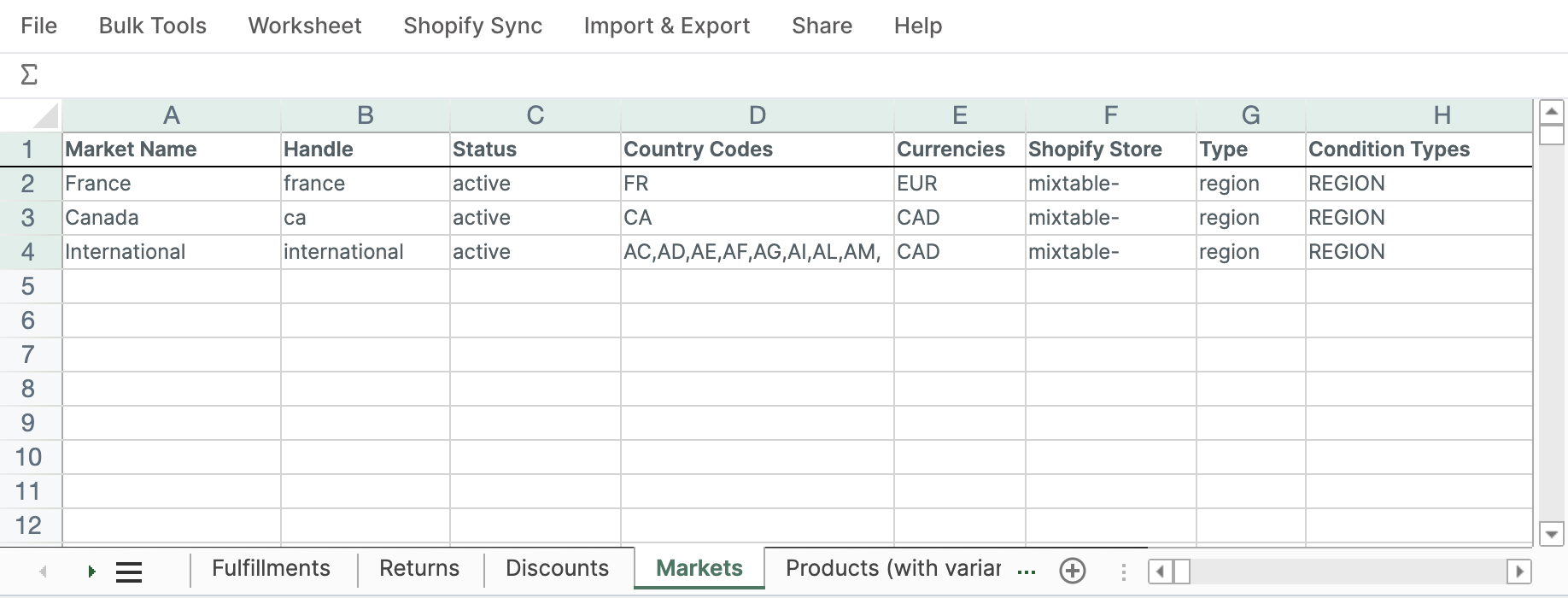
What you can see
A Markets worksheet can include:
- Market name, handle, status, and type
- Country codes and regions
- Currencies and base currency
- Whether local currencies are enabled
- Whether currency rounding is enabled
- Market conditions and the level at which region conditions apply
- Web presences associated with the Market
- Updated date and Shopify ID
Country codes, currencies, regions, and web presences can contain more than one value in the same cell.
Create a Markets worksheet
- Open a spreadsheet in Mixtable and click the + button beside the worksheet tabs
- Select Shopify data worksheet, then click Continue
- Select Markets
- On Choose your columns, keep the most-used fields or select the fields you want to compare, then click Continue
- Choose Load everything or Only rows that match rules
- Click Create Worksheet
How your Markets stay up to date
Your Markets worksheet stays up to date with Shopify automatically. When you add, edit, or remove a Market in Shopify, the change flows into Mixtable on its own, so there’s nothing to download. Mixtable also refreshes the price lists and Market prices that belong to your Markets at the same time.
Changing a price in Shopify works differently, because price edits don’t come in on their own. To pull the latest prices into a worksheet with Market price columns, open that worksheet and click Download latest in the sync control at the top right of the spreadsheet to open the sync card. Then click Download next to Market & B2B prices. See set Shopify international pricing for the full steps.
Useful ways to review Markets
- Filter Status to separate active and inactive Markets
- Compare Country Codes and Regions to spot overlaps or gaps
- Review Base Currency and Currencies before planning regional pricing
- Check Local Currencies Enabled and Rounding Enabled across Markets
- Export the worksheet to Excel or CSV when documenting your international setup
The Markets worksheet describes how each Market is configured. To edit fixed product prices for a Market, use Market price columns in a Products (with variants) worksheet. See set Shopify international pricing.
Configuration is one half of the picture. To compare what each region actually earns, Mixtable Analytics Spreadsheet reports sales by Shopify Market, which is a good way to check whether your regional pricing and currency settings are paying off.
Add Market metafields
Markets can have Shopify metafields for custom regional information. To add one to the worksheet:
- Click + Shopify data in the header row of an empty column, or choose Column > Add Shopify data… from the menu bar. The field picker opens
- Click Custom data in the list of sections on the left, or type the metafield's name in the search box
- Click the Market metafield you want to map. If you don't see it, click Refresh in the Custom data heading to load your latest metafield definitions from Shopify
- Click Save Column
- Enter or paste your metafield values
- Click Sync at the top right of the spreadsheet. The Preview changes window opens so you can check your changes
- Click Sync in the window to publish the changes
Only mapped metafield columns are editable. The standard Market fields remain read-only.
For more detail, see bulk edit Shopify metafields.
Troubleshooting
Why can’t I edit a country’s Market assignment or currency?
Standard Market fields are read-only in Mixtable. Change the Market configuration in Shopify, and your Markets worksheet picks up the change automatically.
I changed a Market in Shopify. Why don’t I see it yet?
Market changes come in on their own. If you have the spreadsheet open, they wait so nothing shifts around while you’re working, and the sync control at the top right of the spreadsheet shows how many are waiting, for example Apply 1 update. Click it to bring the change in right away.
Why are several countries or currencies shown in one cell?
One Shopify Market can include several countries, regions, currencies, or web presences. Mixtable keeps one row per Market and lists those values together.