


Export Shopify Customers
Export Shopify Customers
Managing Shopify customer data in bulk (changing names, tags, addresses, notes, etc.) is a hassle unless you use the Mixtable spreadsheet tool, which is designed to simplify the management of your Shopify store.
This guide will walk you through the steps to set up Mixtable and use it to export your Shopify customer data.
Use the Customers template
Step 1: Load the Customers template
Once you open the Mixtable Explore & Export application, you will see the pre-built spreadsheet templates you can use. Create a spreadsheet from the Customers template:
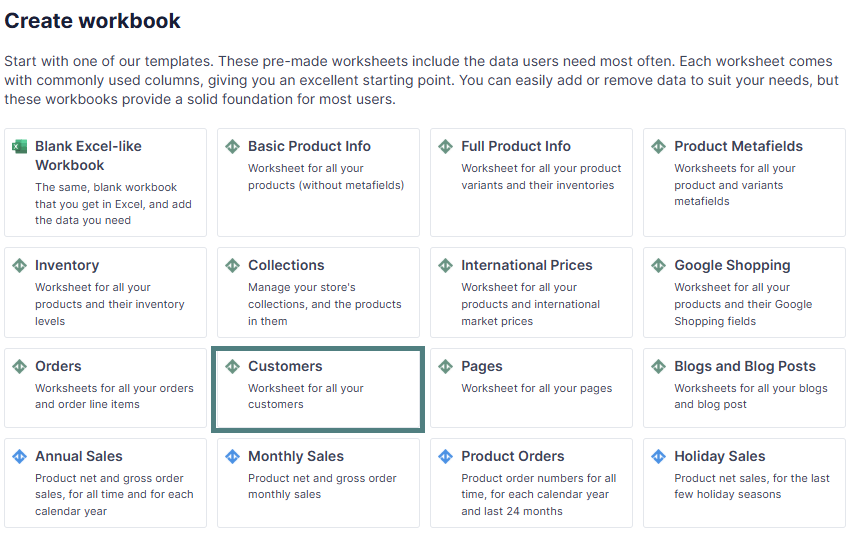
The template contains the following columns:
- Shopify ID
- First name
- Last name
- Total orders
- Tags
Step 2: Add extra data columns if necessary
To load new Shopify data, start by selecting an empty column, meaning any column with a non-green header. A green header means the column is already linked to Shopify data. Then click the  button in the column header to open the selection window and choose the data you want to pull in.
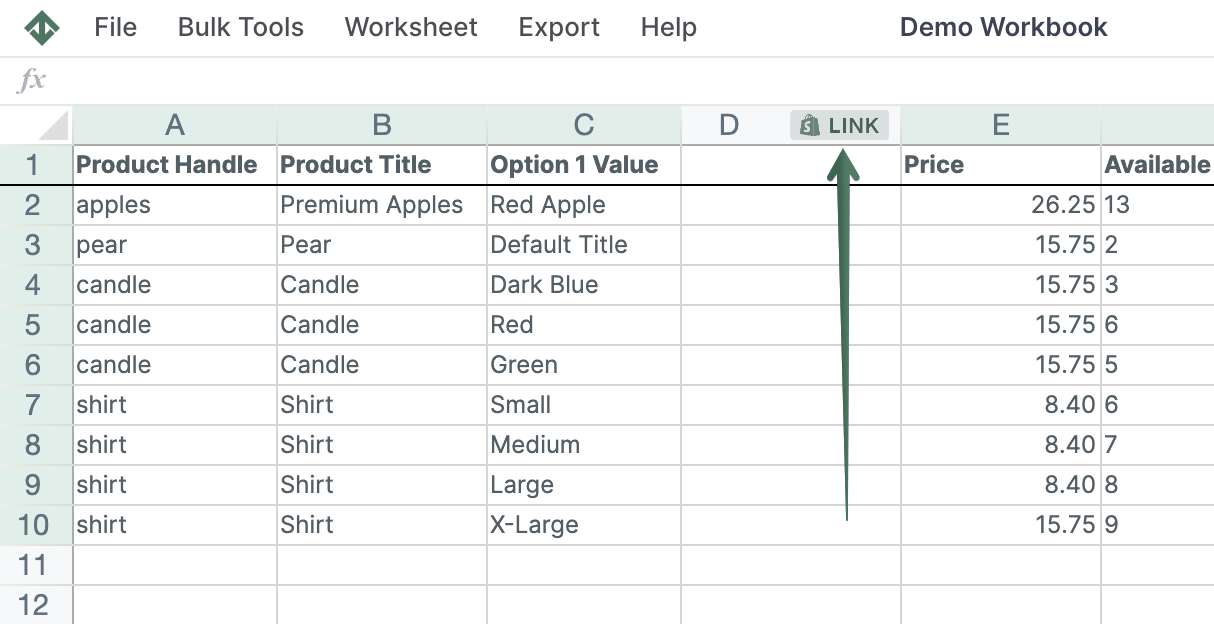
Here, you can select additional data to include in the spreadsheet.
Set up a Customers worksheet
You can add customer data as an additional worksheet if you already have a Mixtable spreadsheet. Here are the steps to do this:
Step 1: Create a spreadsheet (optional)
Before diving into worksheets, you’ll need to create a spreadsheet that syncs data with your Shopify store. To do this, open Mixtable and click on the Create Spreadsheet button. When you initially installed the Mixtable app from the Shopify App Store to your store, Mixtable started an initial download of your Shopify customer data.
Step 2: Create a new worksheet with customer data
In an existing Mixtable spreadsheet, click the (+) button to add a new worksheet.
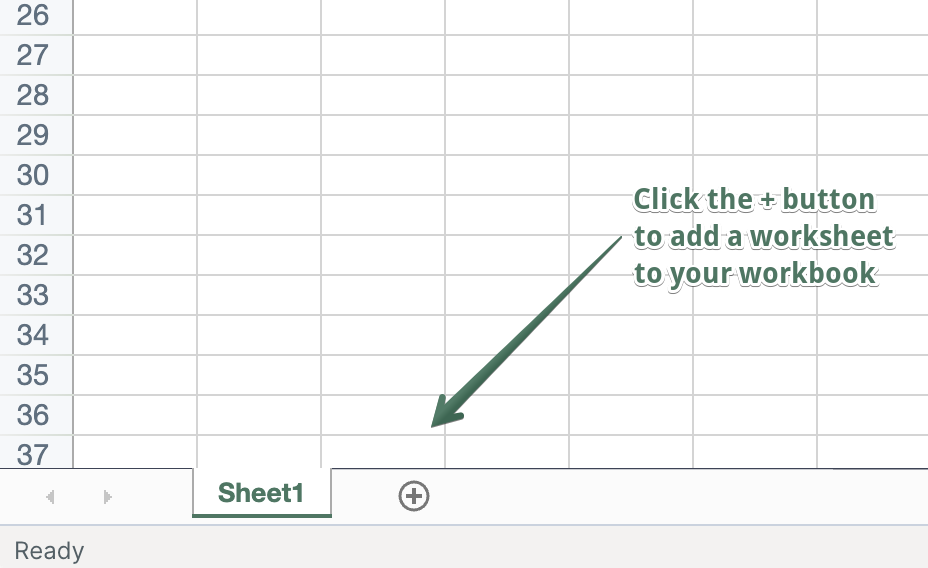
When prompted, select to create a worksheet that syncs your Shopify customer data. When the worksheet is created, it will have a set of default columns mapped to data, but feel free to add columns for any other customer data you want. Mixtable will automatically populate these columns with the existing data from your Shopify store.
Step 3 (Optional): Configure a Conditional Worksheet
If you wish to export only specific customer data or a range of customers, you can set up a Conditional Worksheet. This feature allows you to specify the criteria for the customers that should be included in the export.
If a customer later stops matching the Conditional Worksheet criteria, that row may become empty. To clean up those empty rows before exporting, click the Worksheet menu and select Remove Empty Rows.
Exporting Shopify customer data
Step 1: Verify that you have the data you want
Before initiating the export process, ensure that all the data you wish to export is correctly populated in the worksheet. This includes customer names, emails, tags, and any other relevant data you wish to include. If the Shopify sync card shows updates from Shopify, click Apply now first so your export includes them.
Step 2: Trigger an export to an Excel file (XLSX)
To start the export, click Import & Export in the top toolbar to open the menu. From the dropdown menu, select the Export to Excel option. You will then be prompted to choose the location where you’d like to save the Excel file on your computer.
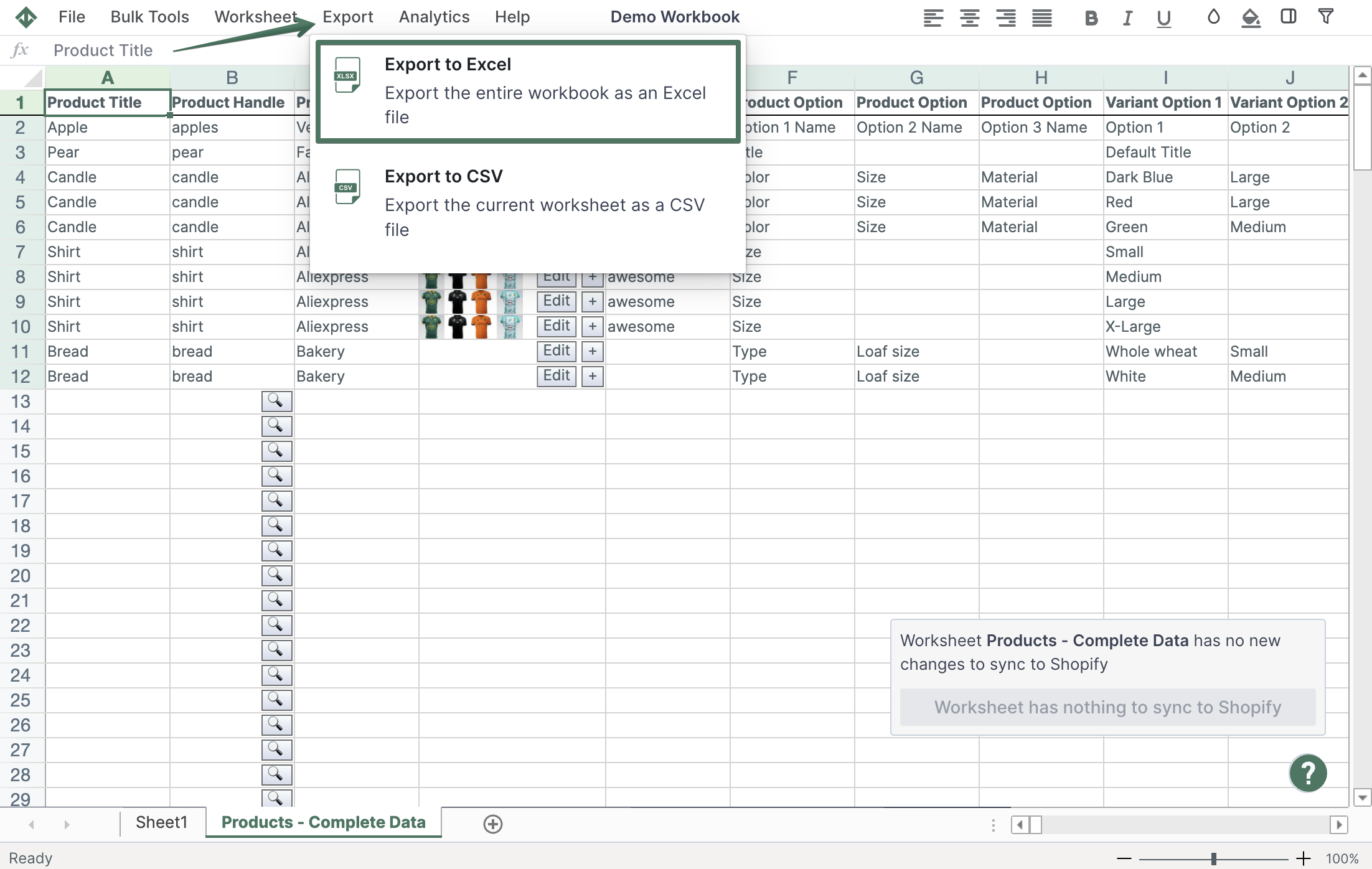
Step 3: Trigger an export to a CSV file
Alternatively, you can also export the data to a CSV file. To do this, select the Export to CSV option from the Import & Export menu. Just like with the Excel export, you’ll be prompted to choose a save location for the CSV file.
Tip: Exporting customers so you can segment them elsewhere? Mixtable Analytics Spreadsheet can add spend, orders count, and Customer Lifetime Value columns to the same Customers worksheet before you export, so the file leaves Mixtable with those numbers already in it.
You're ready!
Mixtable is an online spreadsheet designed to sync data with Shopify. It looks, feels, and behaves like Excel (including formulas), but runs in your browser. With Mixtable you can:
- Bulk add products to collections, edit metafields, add or remove tags;
- Change product prices, including international prices, and review price history;
- Manage customers with a spreadsheet CRM for Shopify;
- Use Excel features like sort ascending or descending, find-replace, filter, and more.
Best of all, you can sync changes back to Shopify with a single click. Find out more about the Mixtable suite of products here.
Manage Shopify data in a spreadsheet.
Use Mixtable to edit, sync, analyze, import, and export your Shopify store data without CSV juggling.