
Formula columns: one formula for every row of your Shopify spreadsheet
 All Mixtable apps
Updated November 9, 2026
On this page
A formula column uses the same formula in every row. You type the formula once, for example “price is cost times 2.5”, and Mixtable puts it in every row of the column, including rows hidden by a filter. New products that arrive from Shopify get it too, so the column never has gaps, and nobody can overwrite one cell by accident.
It works on columns linked to Shopify, such as Price or Compare-at price, and on your own columns, such as a margin you calculate. On a Shopify column, the results wait for you to review and sync them, like any other edit.
What you can do with a formula column
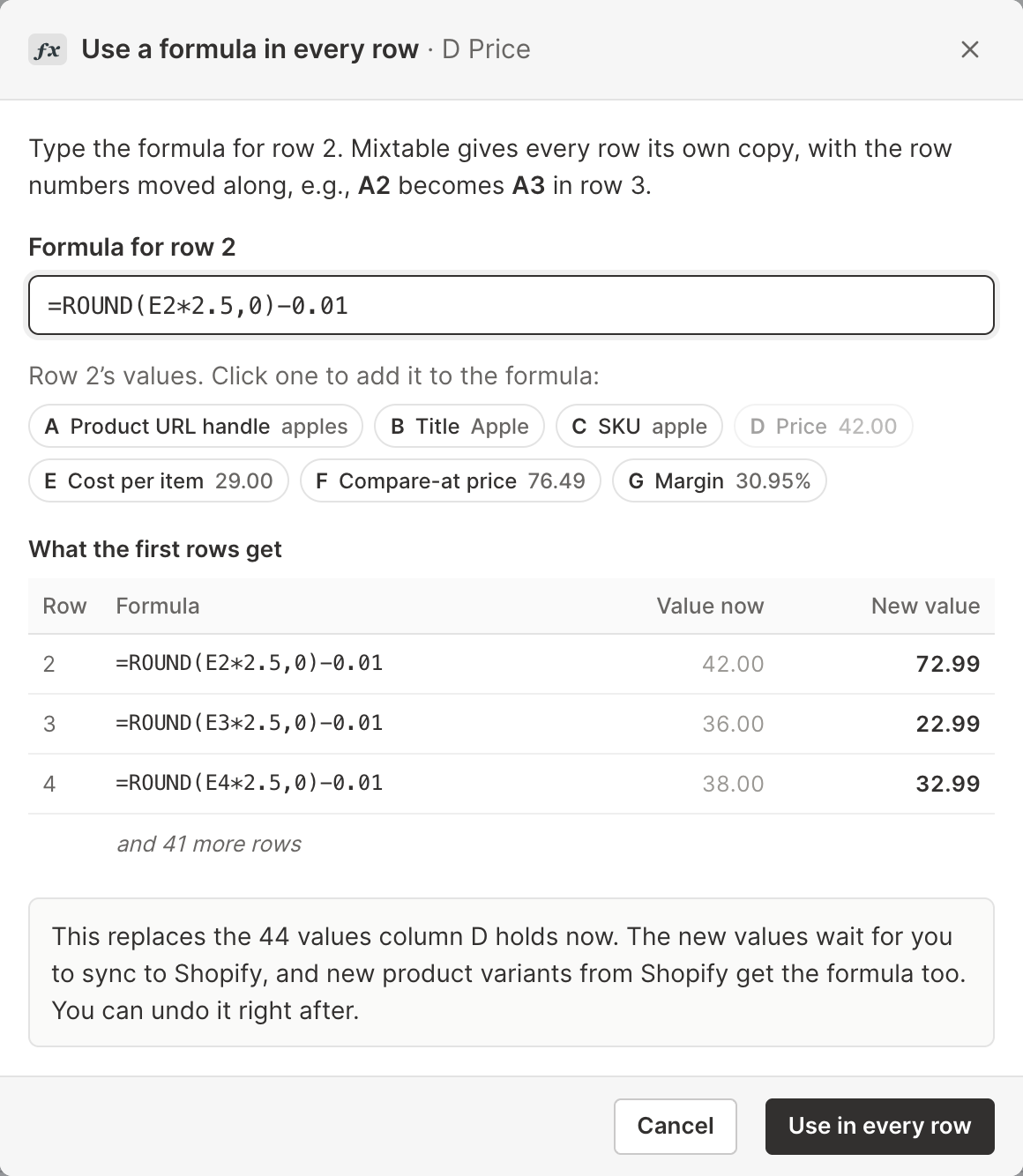
Here are a few columns stores set up with one formula. Each example uses the worksheet above, where column B is Title, D is Price, E is Cost per item, and F is Compare-at price.
- Set Shopify prices from cost: a markup of 2.5 times cost, rounded to a .99 ending, on the Price column:
=ROUND(E2*2.5,0)-0.01 - Price for a target margin: a 45% margin on cost, on the Price column:
=ROUND(E2/(1-0.45),2) - Fill in compare-at prices: 25% above the selling price, on the Compare-at price column:
=ROUND(D2*1.25,2) - See each variant’s margin: in an empty column of your own, with the column’s number format set to Percent:
=(D2-E2)/D2 - Set wholesale or market prices: a B2B or market price column at 60% of the retail price:
=ROUND(D2*0.6,2) - Build SEO titles: add your store’s name after each product title in an SEO title column:
=B2&" | Your Store"
You can use the same Excel-style functions as anywhere else in Mixtable, such as ROUND, IF, MIN, and VLOOKUP. See Excel formulas for your Shopify store for more ideas.
Why not just fill the formula down?
You can still type a formula in one cell and drag it down the column. A formula column saves you the work you’d otherwise repeat:
| Formula filled down | Formula column | |
|---|---|---|
| New products from Shopify | Arrive with an empty cell you have to fill | Get the formula automatically |
| Rows you insert | Need the formula copied in | Get the formula automatically |
| A value typed or pasted over one cell | Replaces that cell’s formula without warning | Is left out, with a message saying the column follows a formula |
| Changing the formula | Edit one cell, then fill it down again | Edit it once, and every row updates |
Set up a formula column
There are two ways to start. Both need permission to edit the worksheet.
Type a formula in an empty column
The quickest way is to type the formula where you’d normally start.
- In an empty column, type a header in row 1, for example Margin
- In the first row under the header, type your formula, for example
=(D2-E2)/D2, and press Enter - Mixtable asks Use this formula in every row? and says how many rows will get it, such as “All 44 product variants”
- Click Use in every row. To keep the formula in that one cell only, click Just this cell
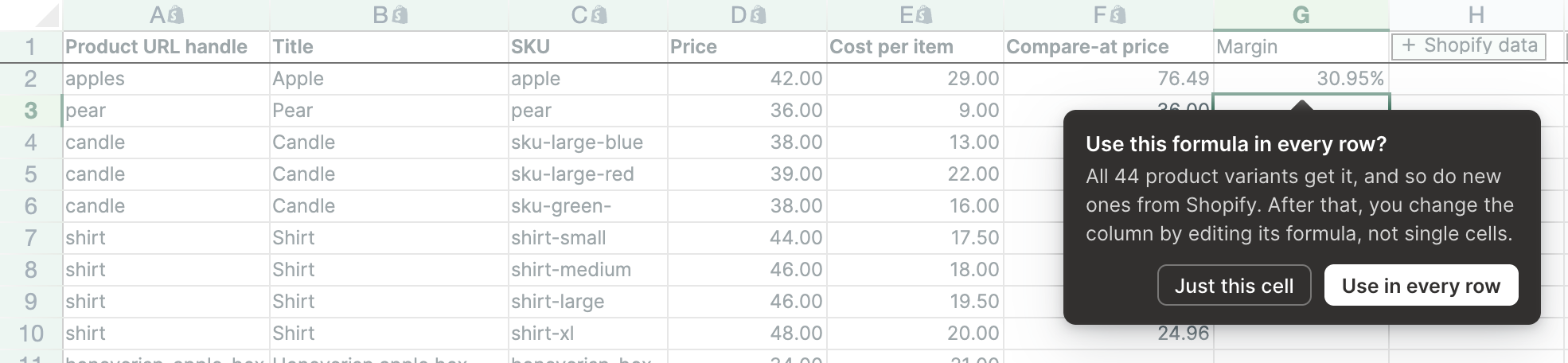
The question only appears when the formula is the first thing in the column. If other rows already hold values, use the column menu instead.
Use the column menu
Use the column menu to put a formula on a column that already has values, such as a Shopify Price column.
-
Right-click the column’s letter at the top of the worksheet. You can also click a cell in the column and choose Column from the menu bar
-
Choose Use formula in every row…
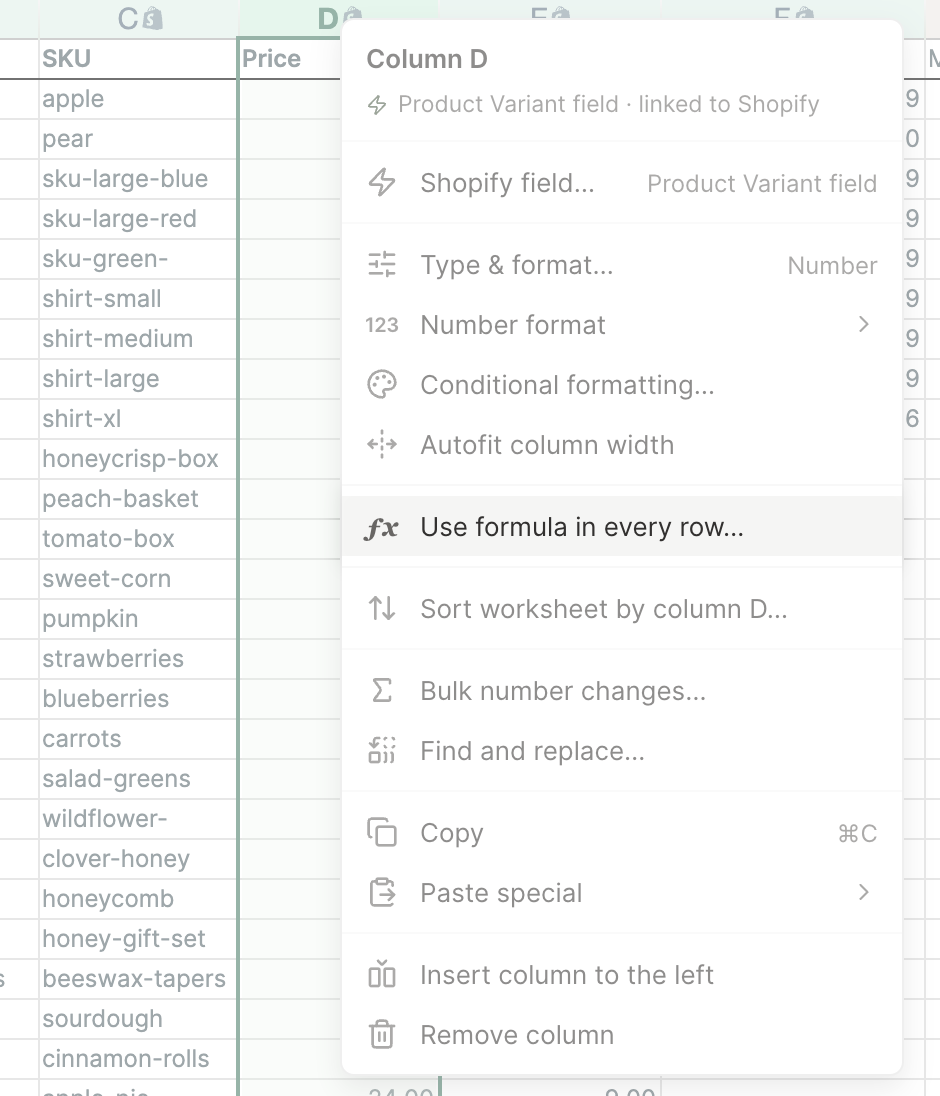
-
In the Use a formula in every row window, type the formula as it should read in the first row under the header, usually row 2. Mixtable gives every row its own copy with the row numbers moved along, so
E2becomesE3in row 3 -
Not sure which letter holds what? Under the formula, the row’s values are listed by column, for example E Cost per item 29.00. Click one to add it to the formula
-
Check What the first rows get. It shows the formula, the value each row has now, and the new value it will get. Underneath, Mixtable says how many values the formula replaces
-
Click Use in every row
Mixtable fills the column and shows “Column D now uses this formula in every row”. Click Undo in that message if the results aren’t what you wanted.
Calculate Shopify prices from cost
Pricing from cost is one of the most common reasons to use a formula column. Here’s the full flow:
- Open a worksheet of your product variants, for example from the Full product information template
- Add a Cost per item column if the worksheet doesn’t have one. Click + Shopify data in an empty column, click Pricing on the left, click Cost per item, then click Save Column. See Shopify cost per item for more on costs
- Right-click the Price column’s letter and choose Use formula in every row…
- Type your pricing rule, for example
=ROUND(E2*2.5,0)-0.01for 2.5 times cost with a .99 ending, check the new values, and click Use in every row - The new prices turn pale yellow as unsynced changes. Click Sync now at the top right of the spreadsheet, review your changes in the preview that opens, then click Sync in the preview
Your prices now follow your costs. When a cost changes, for example after you update it in Shopify or in the spreadsheet, the price recalculates and waits for you to sync it. Prices never change in your store until you sync, or until a scheduled change runs.
Tip: A formula can’t use its own column, so a Price formula can’t say “the current price plus 10%“. To raise prices by a percentage, use Bulk number changes instead, as described in Increase Shopify prices in bulk.
See which columns have a formula
A column with a formula shows ƒx next to its letter. Click any of its cells, and a ƒx Column formula button appears at the end of the formula bar. Click it to see:
- Formula: the formula in the row you clicked
- Covers: how many rows follow it, and whether new rows will too
- Format: the column’s number format, with Change… to pick another
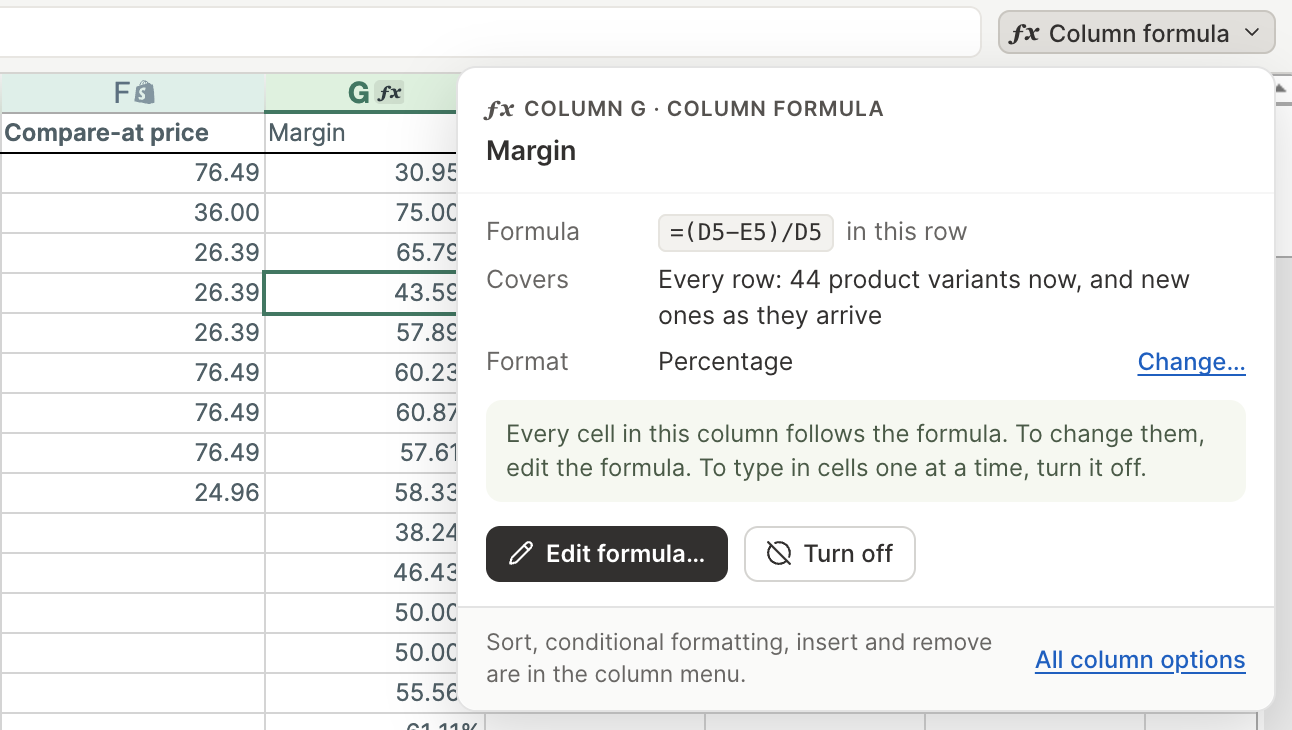
On a column linked to Shopify, the details also say that its results go to Shopify when you sync them, and that changes made to this field in Shopify don’t replace them.
Change the formula
Every cell follows the formula, so you change the whole column at once. Any of these opens the Edit column formula window:
- Double-click a cell in the column, or select it and press F2
- Click Edit formula… in the column formula details
- Right-click the column’s letter and choose Edit column formula…
Change the formula, check the preview, and click Update every row. On a Shopify column, the changed values wait for you to sync them.
Turn off a column formula
To go back to editing cells one at a time, right-click the column’s letter and choose Turn off column formula, or click Turn off in the column formula details.
Each cell keeps its formula and its value, so nothing changes in the worksheet or in Shopify. New rows no longer get the formula, and you can type over any cell again. Click Undo in the message that appears to put the column formula back.
Things to know
- Cells follow the formula. You can’t type, paste, clear, or drag-fill values into a formula column, and Bulk Edit tools and CSV imports skip it. Mixtable shows “Column D follows its column formula” with Edit formula and Turn off buttons, and the rest of your change still goes through
- New rows get the formula. That includes rows you insert, rows you add by pasting, and new products, variants, orders, or customers that arrive from Shopify. Formulas calculate while the spreadsheet is open, so items that arrive while it’s closed get their values the next time you open it
- Shopify changes don’t replace formula results. If someone edits a formula column’s field in the Shopify admin, the spreadsheet keeps the formula’s value rather than the one from Shopify
- A formula can use any other column. That includes Shopify fields that Mixtable fills in for you and analytics columns, such as Net Sales. Those columns can’t have a column formula of their own
- Not on Reporting worksheets. Pivot Table and Time Series worksheets fill in their own cells, so their columns don’t offer formulas
- Formula columns can’t be linked to Shopify later. To turn one of your own formula columns into a Shopify field, turn off its formula first
- Formula columns work in every Mixtable app. Sending the results to Shopify needs Mixtable Spreadsheet Editor, like any other sync