
Print Shopify orders, pick lists, and other worksheets
 All Mixtable apps
Updated October 8, 2026
All Mixtable apps
Updated October 8, 2026 On this page
Sometimes you need your Shopify data on paper: a pick list of unfulfilled orders to tick off in the warehouse, a product list for a stock count, or a sales report to bring to a meeting. Mixtable can print any worksheet. You choose the columns, see every page before it prints, and get a clean printout without column letters, row numbers, or the toolbar in the way.
Printing works on every kind of worksheet: Shopify data worksheets, Reporting worksheets such as a Pivot Table of sales by vendor, and Basic worksheets.
Print a worksheet
- Open the worksheet you want to print
- Choose File > Print… from the menu bar, or press ⌘P (Ctrl+P on Windows) while you’re in the worksheet. The Print window opens, with your settings on the left and a preview of the printed pages on the right
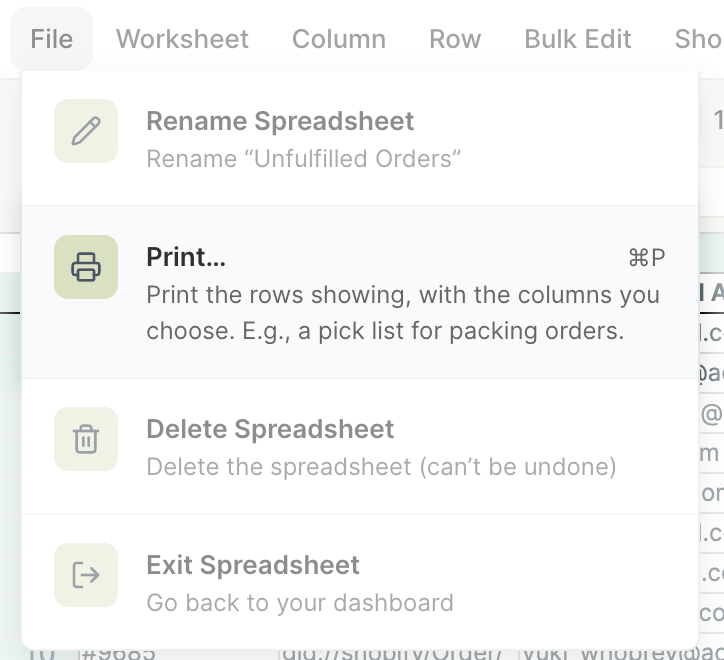
- Check the settings, and untick any columns you don’t need (see Choose what prints below)
- Look over the preview. Use the arrows under the page to flip through the pages. The bottom of the window shows how many pages and rows will print, for example “3 pages · 42 rows showing”
- Click Print…. Your browser’s print window opens, where you pick your printer and print
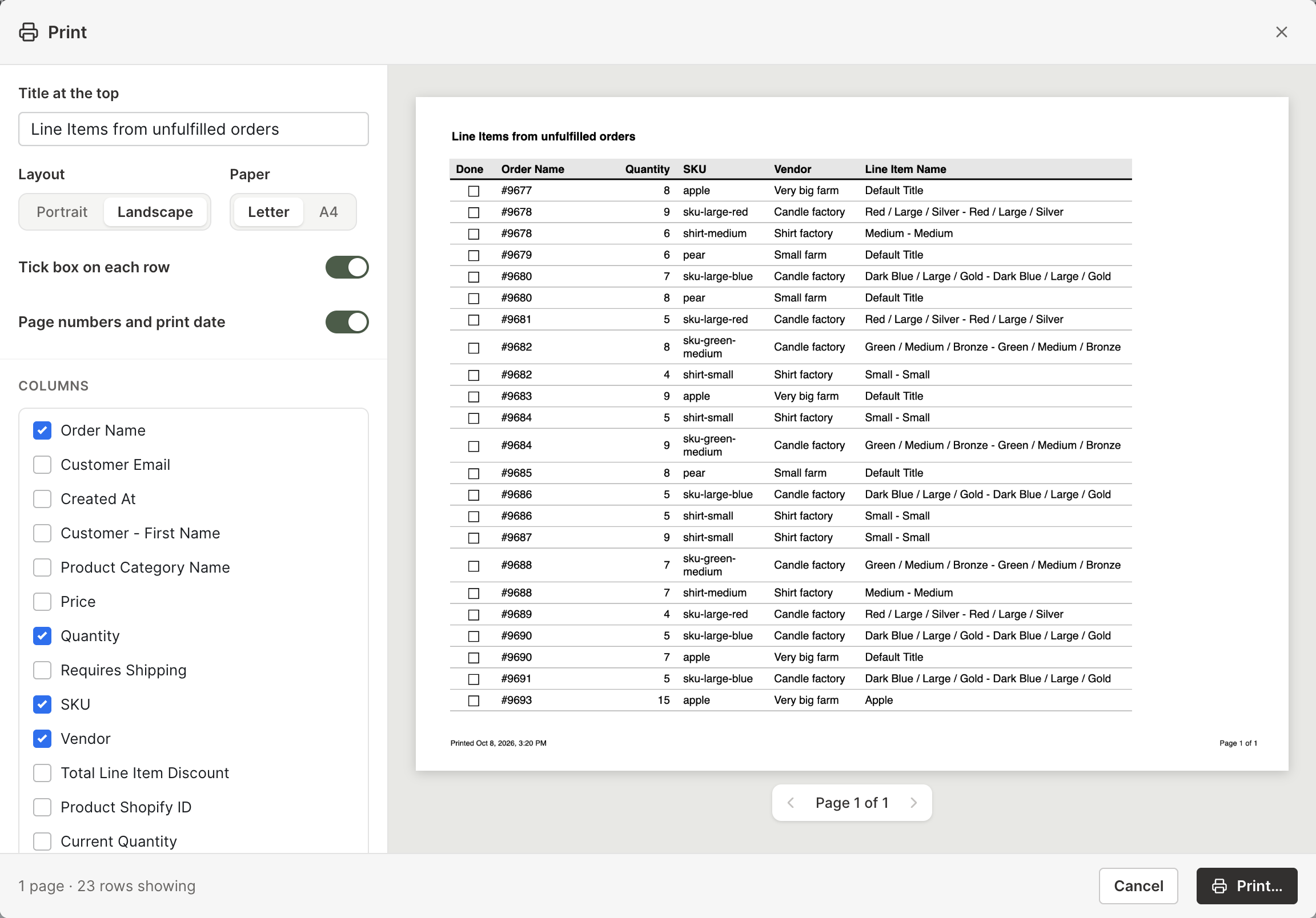
Pressing ⌘P (Ctrl+P on Windows) in a worksheet opens the Mixtable Print window instead of printing the whole app screen.
Tip: Most browsers’ print windows can also save the pages as a PDF, which is handy for emailing a list or printing it later.
The Print window starts fresh each time you open it, so your choices from the last print aren’t kept.
What prints
Mixtable prints the rows your worksheet is showing, in the order they’re showing:
- If a filter is on, only the rows it shows are printed. Filtering first is the easiest way to print just what you need, such as today’s orders or one vendor’s products
- Rows print in the worksheet’s current order, so sort the worksheet first if you want them grouped, for example by SKU or by vendor
- Empty rows between your data print as blank lines. To leave them out, choose Worksheet > Remove Empty Rows before you print
- Values print the way they look in the cells, such as $12.99 or a formatted date
- The column titles from your header row print in bold at the top of every page
- The columns you tick are fitted to the width of one page. With many columns the text gets smaller, so untick the ones you don’t need or switch to Landscape
Picture columns, such as product images, aren’t listed in the Print window, because pictures don’t print.
A Basic worksheet has no header row, so the column list names each column by its letter, such as Column A, and your first row prints like any other row.
If the sync control at the top right shows updates waiting from Shopify, for example Apply 3 updates, click it first so your printout includes them.
Choose what prints
These are the settings on the left of the Print window, from top to bottom. The preview updates a moment after you change one.
- Title at the top: printed at the top of every page. It starts as the worksheet’s name, and you can type anything you like, such as “Pick list for Monday”
- Layout: Portrait or Landscape. Mixtable starts in landscape when your columns are too wide for a portrait page
- Paper: Letter or A4. Letter is selected to start
- Tick box on each row: adds an empty box at the start of each row, so you can tick rows off by hand. On worksheets with a header row, the box column is titled Done. It’s on to start
- Page numbers and print date: prints the date and time you printed at the bottom left of each page, and the page number, such as “Page 1 of 3”, at the bottom right. It’s on to start
- Columns: a checklist of the worksheet’s columns. Tick the ones you want to print. They print in the worksheet’s order, whatever order you tick them in
On most worksheets, every column starts ticked. Worksheets of Shopify orders or order line items start with just the columns a pick list needs, as the next section shows.
Print a pick list of unfulfilled orders
A pick list tells your team what to pull off the shelves. The Unfulfilled Orders template gives you one that stays up to date with your Shopify store, ready to print:
- If you don’t have one yet, create a spreadsheet from the Unfulfilled Orders template. It makes two worksheets: Unfulfilled Orders, with one row per order, and Line Items from unfulfilled orders, with one row per item
- Open Line Items from unfulfilled orders to pick item by item, or Unfulfilled Orders for a list of orders
- To print only some orders, such as today’s, turn on the filter and narrow the rows. To group items for picking, sort the worksheet by SKU or Vendor
- Choose File > Print…
- The pick list columns are already ticked. On the line items worksheet, they’re Order Name, Quantity, SKU, Vendor, and Line Item Name. On the orders worksheet, they’re Order Name, Customer Email Address, Created At, and Note. Tick any others you need, such as Variant Title
- Leave Tick box on each row on, so your team can check off each item as they pick it
- Click Print…
Mixtable finds the pick list columns by the Shopify field they show, so this works even if you’ve renamed them, and on any other worksheet of orders or line items too.
Long printouts
- Above 100 pages, the Print window warns you with the page count, for example “That’s 250 pages”. Preparing that many pages takes a while, and your browser may not respond until it’s done. The button then names the count, such as Print 250 pages…
- One print can include up to 10,000 rows. If your worksheet shows more, Mixtable asks you to filter it to fewer rows, such as today’s orders, and print again
If the preview says “This worksheet has no rows to print”, a filter may be hiding every row. Change or turn off the filter, then open File > Print… again.