
Schedule Shopify price changes, sales, and bulk edits
 Spreadsheet Editor Updated October 27, 2026
 On this page
Shopify doesn’t let you set a product’s price to change on a future date. With scheduled changes in Mixtable Spreadsheet Editor, you make your edits in the spreadsheet as usual, then pick when they go to Shopify instead of syncing them right away. You can also schedule a return to the original values, so a sale starts and ends on its own, even in the middle of the night.
A scheduled change makes your edits exactly as if you had clicked Sync now at that moment. Mixtable makes it whether or not anyone has the spreadsheet open.
What you can schedule
You can schedule any edit that you could sync to Shopify, on products, variants, and other items that are already in your store. For example:
- Prices and compare-at prices, including market and B2B fixed prices
- Cost and stock levels by location
- Product status, sales channel publishing, tags, and collections
- Titles, descriptions, SEO fields, and theme templates
- Metafields and translations
Edits to new rows that you haven’t created in Shopify yet can’t be scheduled. They go out with your next sync. To schedule a change to a new product, sync the product first, then edit and schedule the values you want to change later.
Scheduling works on every Mixtable Spreadsheet Editor plan that can sync, with no limit on how many changes can wait. On a spreadsheet shared with you, you can schedule changes if you have Can edit and sync access and can edit the worksheet.
Schedule your edits
-
Edit the cells you want to change, the same way you would before a sync. Each edited cell turns pale yellow
-
At the top right of the spreadsheet, the sync control counts your edits, for example 12 unsynced changes. Click Schedule sync next to Sync now. You can also choose Shopify Sync > Schedule changes… from the menu bar, or click Schedule sync in the Preview changes window

-
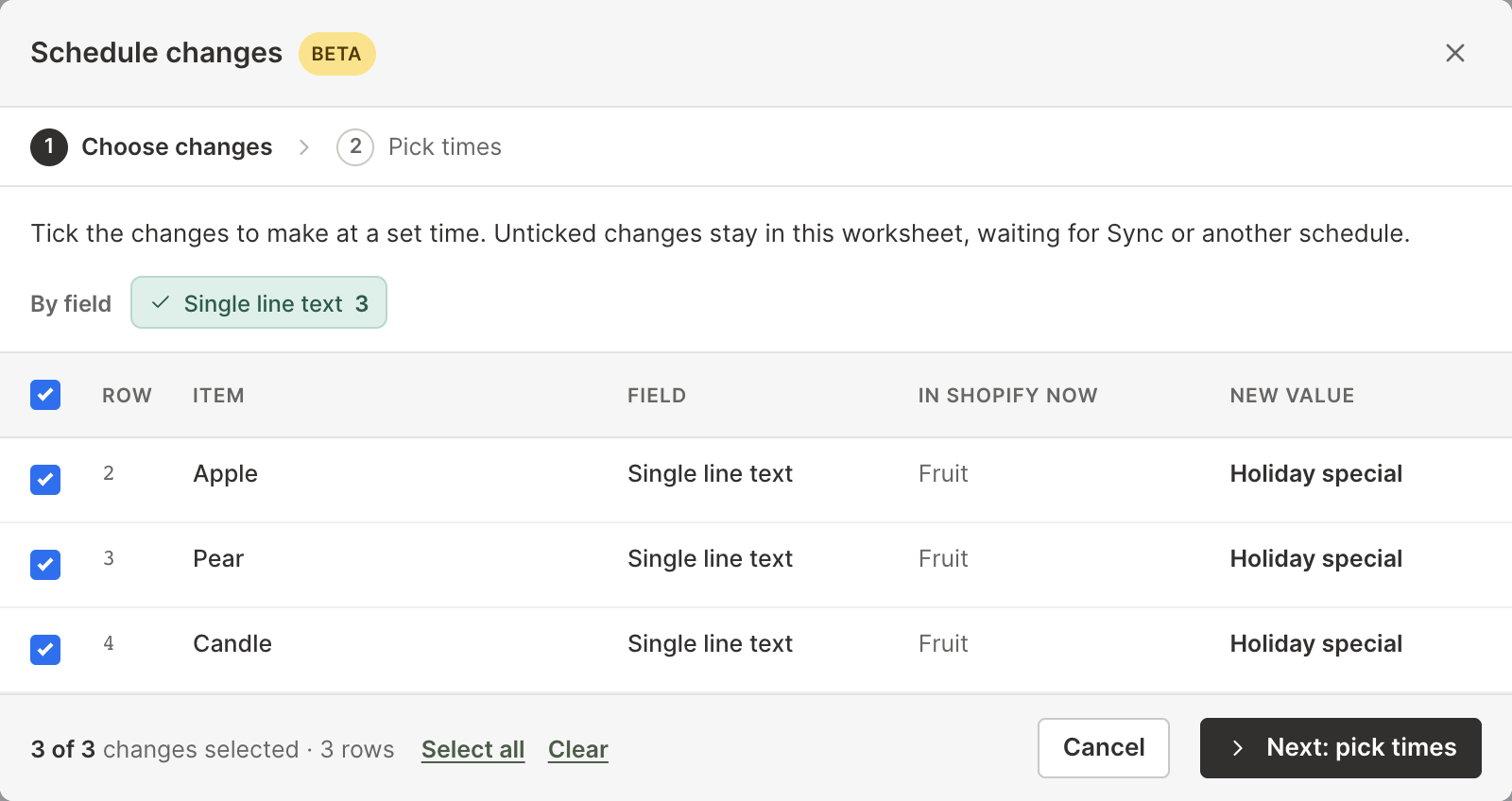
The Schedule changes window lists every unsynced change in the worksheet, with its row, item, field, value in Shopify now, and new value. All of them are ticked. Untick any you want to leave out. To tick or untick every change to one field at once, for example all the price changes, use the toggles under By field
-
Click Next: pick times
-
Under Make the changes, pick a date and type or pick a time
-
To end a sale on its own, tick Also schedule a return to the original values and pick when (see the next section)
-
Click Schedule 12 changes, with your number in place of 12
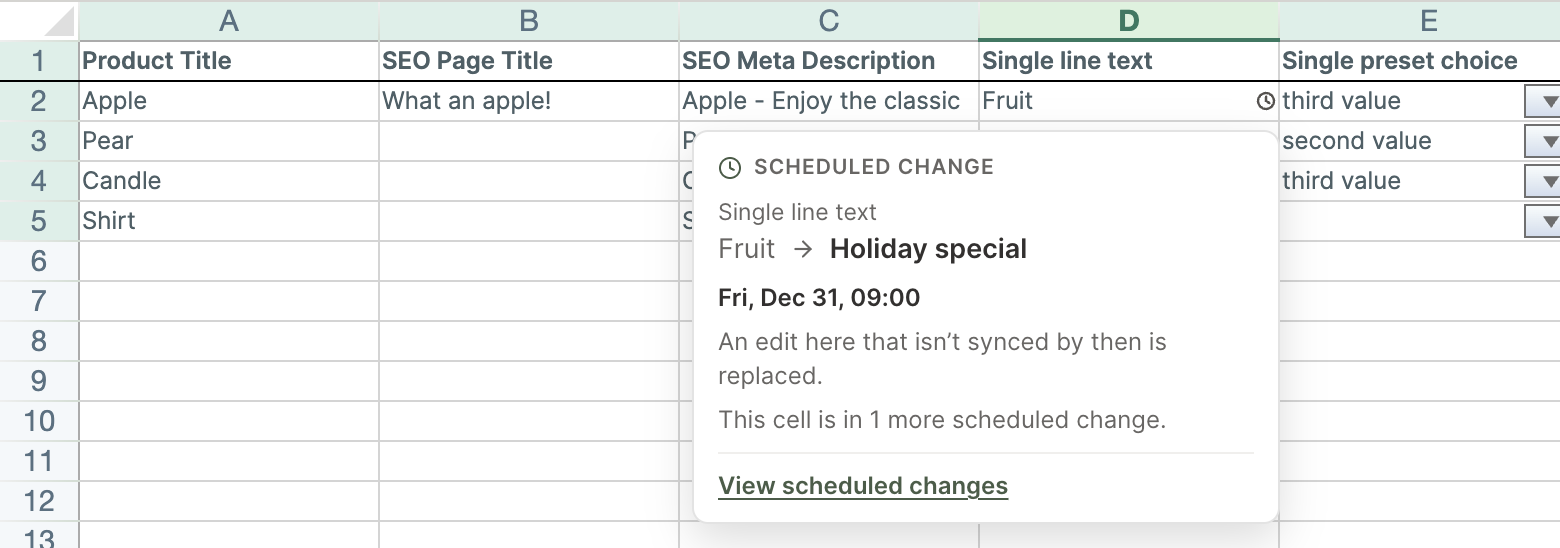
The scheduled cells go back to showing what’s in Shopify now, and each one gets a small clock mark at its right edge. Any changes you unticked stay as unsynced edits in the worksheet, so you can sync them now or schedule them for another time.
Tip: Times use your Shopify store’s time zone, which the window names, even when your computer is set to a different one. Times are on the 24-hour clock, so type 0900 or 9 for 09:00 and 2359 for 23:59.
Return to the original values when a sale ends
When you tick Also schedule a return to the original values, pick a time after the change. The Return to list then shows each cell with its value in Shopify now, which is what it goes back to.
You can type a different value for any cell, for example a new regular price for after the sale. Leave a value empty to make that field blank again. Images go back to the image the item has now and can’t be typed.
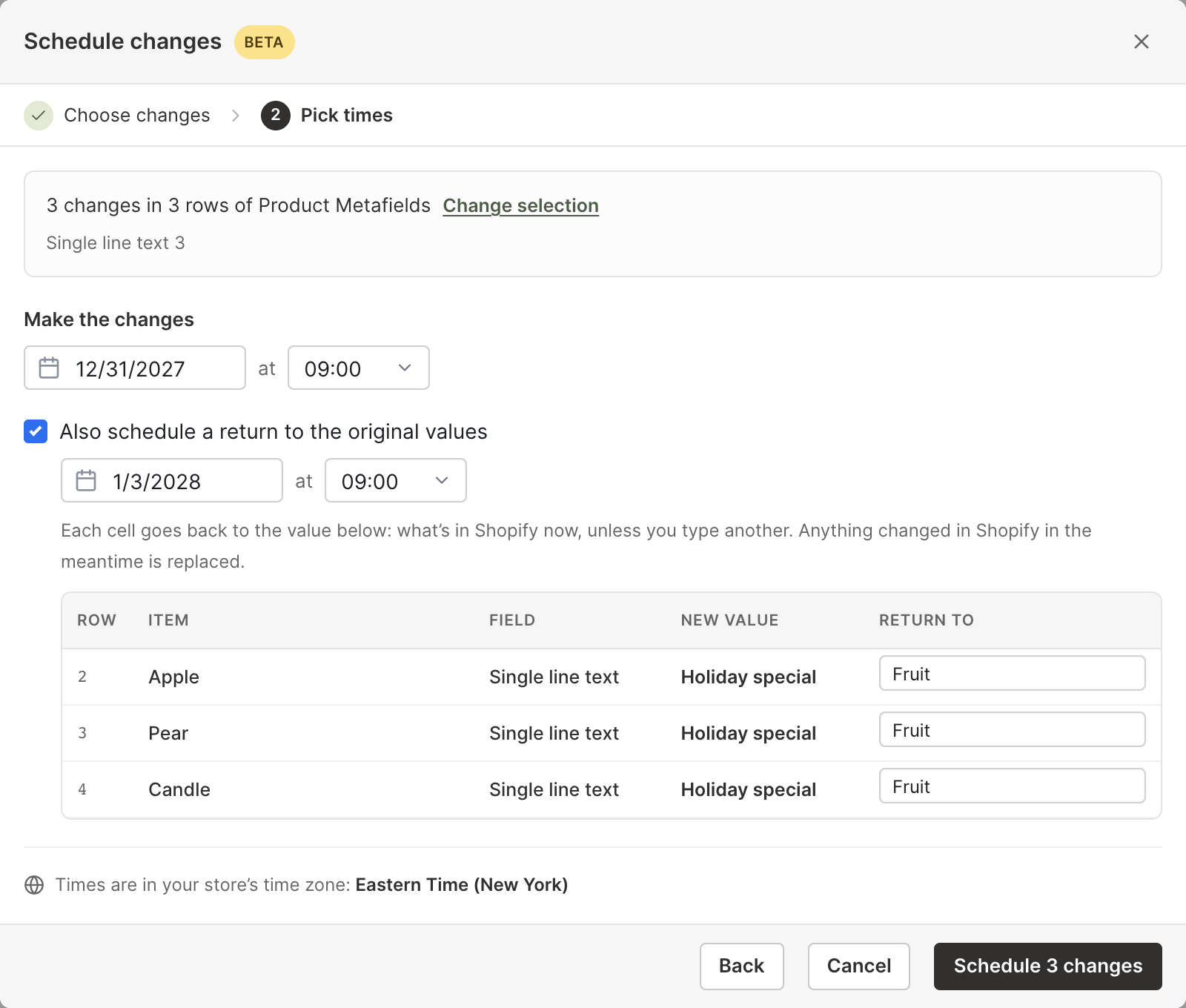
Mixtable saves these values when you schedule. At the return time, it sets them even if something changed in Shopify during the sale, for example an edit in Shopify admin or stock that sold.
The return is its own scheduled change. You can change its time, edit it, or delete it without touching the change that starts the sale.
See what’s scheduled
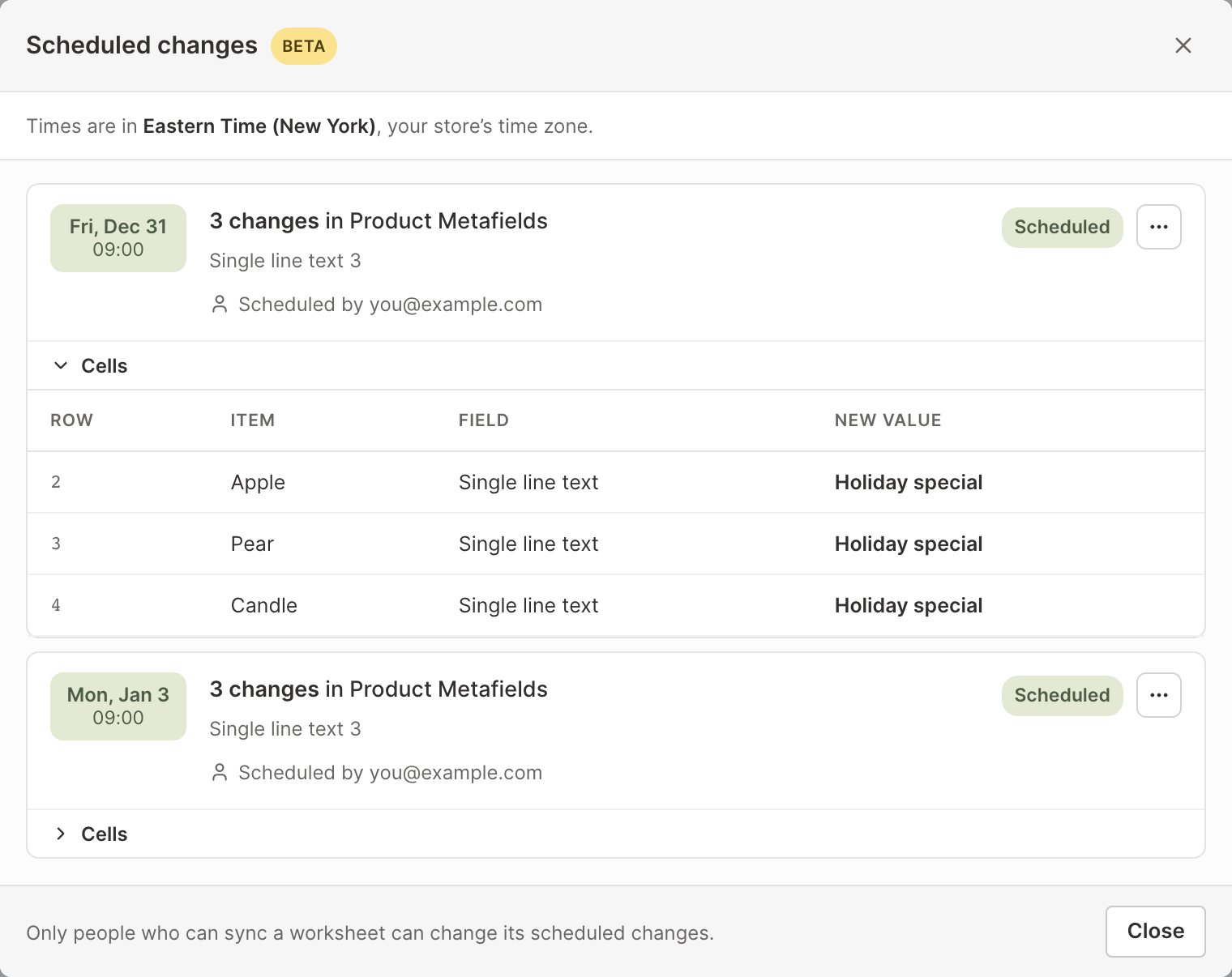
While a worksheet has scheduled changes, a green Scheduled changes button shows to the left of the sync control. Click it, or choose Shopify Sync > Scheduled changes, to open the list for the whole spreadsheet.

The list shows upcoming changes first. Each one shows:
- Its date and time
- The worksheet, and how many changes it makes to each field, for example “Price 12 · Compare-at price 12”
- Who scheduled it
- Its status: Scheduled, Making changes, Done, or Didn’t run
Click Cells under a change to see each of its cells, with the row, item, field, and new value. Changes that have run move to Finished in the last 30 days, where they stay for 30 days.
You can also hover over a cell’s clock mark to see the value it will get and when.
Change or cancel a scheduled change
Click ⋯ on a change in the Scheduled changes list:
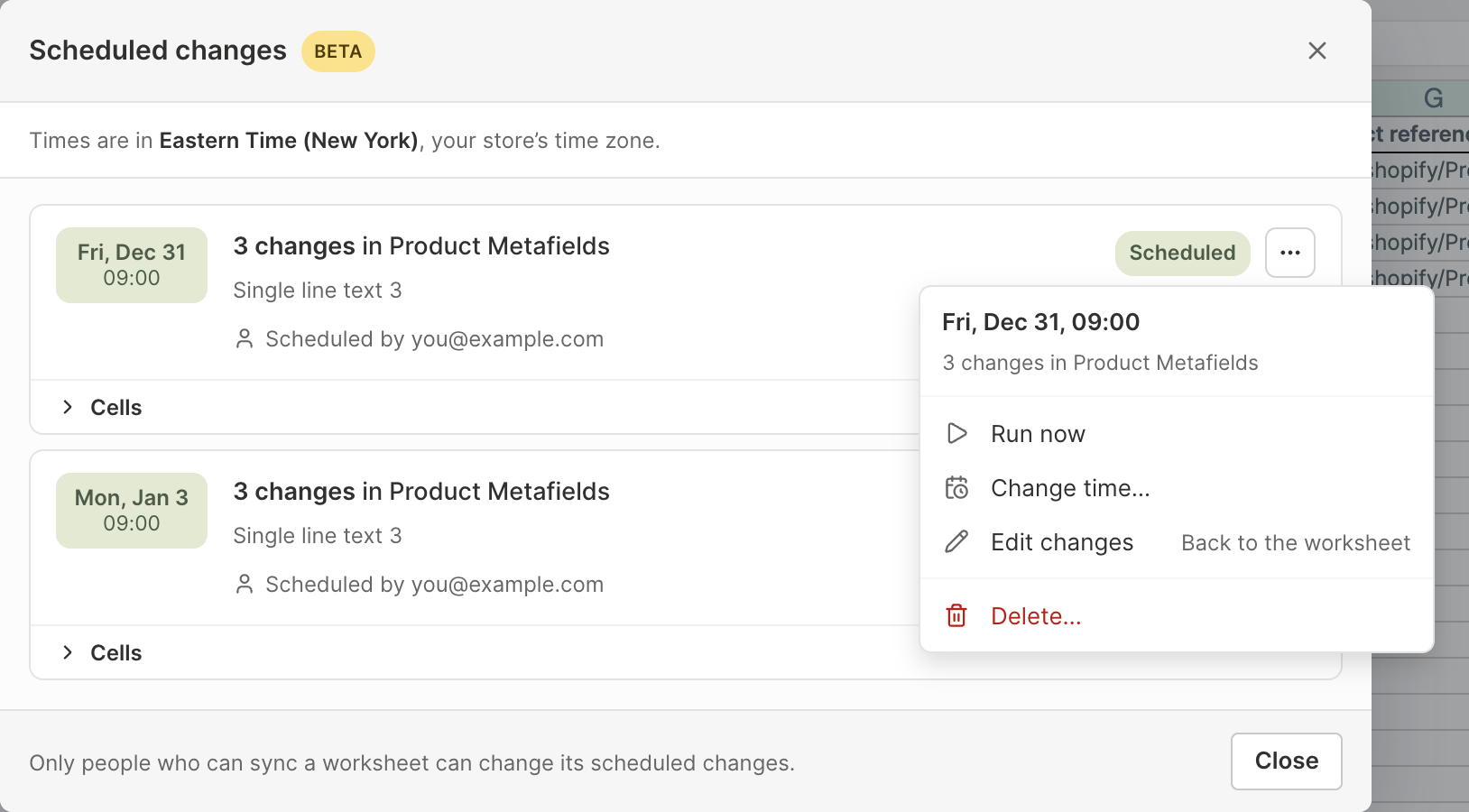
- Run now makes the change within a minute. If the worksheet is syncing, it starts once that’s done
- Change time… moves this change to a new time. A return scheduled with it keeps its own time
- Edit changes puts the values back into their cells as unsynced edits and removes the scheduled change, so you can adjust them and schedule again
- Delete… cancels the change. Its values are discarded, and nothing changes in Shopify
When you change a time or click Run now, the change then runs as you.
When a scheduled change runs
At its time, Mixtable enters the values as unsynced edits, credited to the person who scheduled them, and syncs just those cells. Other unsynced edits in the worksheet stay unsynced, even in the same rows. If you have the spreadsheet open, you’ll see the cells turn pale yellow and the sync control say Making scheduled changes…, then the new values arrive in Shopify.
Afterward, the change shows Done in the list with how many changes were made. If Shopify refused any, the list counts the sync errors and View sync errors opens them. Cells whose row or column is no longer in the worksheet are skipped and marked Not set: no longer in the worksheet.
Cell history records each scheduled change like any other sync.
If a scheduled change didn’t run
A scheduled change doesn’t run, and nothing is sent, when:
- The person it runs as can no longer sync the worksheet
- The store has no Mixtable Spreadsheet Editor plan
- Mixtable couldn’t start it within an hour of its time, so your prices don’t change a day late
The sync control then shows a red Scheduled change didn’t run button until you open the list. The list explains why, and Run now makes the change once the problem is fixed.
Things to know
- What you schedule is what syncs. If you edit a scheduled cell and don’t sync that edit before the scheduled time, the scheduled value replaces it. To change what’s scheduled, use Edit changes and schedule again
- Formulas are scheduled as values. A cell with a formula is scheduled as the value it shows when you schedule it, just like the preview shows
- Undo doesn’t bring scheduled values back. Use Edit changes instead
- Big changes take a while to sync. Mixtable syncs about 60 rows a minute, so when a change will take more than a few minutes, the window says how long. Pick an earlier time if every row needs to be live by a set moment
- Changes to one worksheet run one at a time, in time order, so a sale ending at 23:59 finishes syncing before the next one starts at 00:00
- Clock changes are handled. A time that’s skipped when clocks go forward runs at the next minute, and a time that happens twice runs the first time
- Deleting a worksheet cancels its scheduled changes. Shopify keeps whatever values it has
- Schedule as much as you need. You can have any number of scheduled changes waiting, across worksheets and dates, and each can cover up to 50,000 cells
- Schedules don’t repeat on their own. Each scheduled change runs at its time. To run the same sale again, edit the cells and schedule them again
Example: a weekend sale that ends on its own
- Open a worksheet with your variants’ Price and Compare-at price columns
- Copy each price into Compare-at price, then lower Price, for example with Bulk Edit > Bulk number changes to take off 20%
- Click Schedule sync, check the list of changes, and click Next: pick times
- Set Make the changes to Friday at 00:00
- Tick Also schedule a return to the original values and set it to Monday at 23:59
- Click Schedule 24 changes, with your number of changes
On Friday at midnight the sale prices go live. On Monday at 23:59 every price and compare-at price goes back to what it was before. For more ways to set up the sale prices, see Bulk edit Shopify compare-at prices.