
Find and remove empty rows from a Mixtable worksheet
 Spreadsheet EditorExport: Excel & CSV Updated October 6, 2026
 On this page
Empty rows can remain in a Shopify worksheet after a record is deleted in Shopify or stops matching the rules for a Conditional Worksheet. Mixtable can detect and remove these rows so the worksheet stays compact and easier to navigate.
Removing an empty row cleans up the worksheet only. It does not delete a product, order, customer, or other record from Shopify.
Use the Empty rows detected notice
The first time you open each worksheet during a browser session, Mixtable checks it for empty rows. If it finds any, an Empty rows detected notice appears.
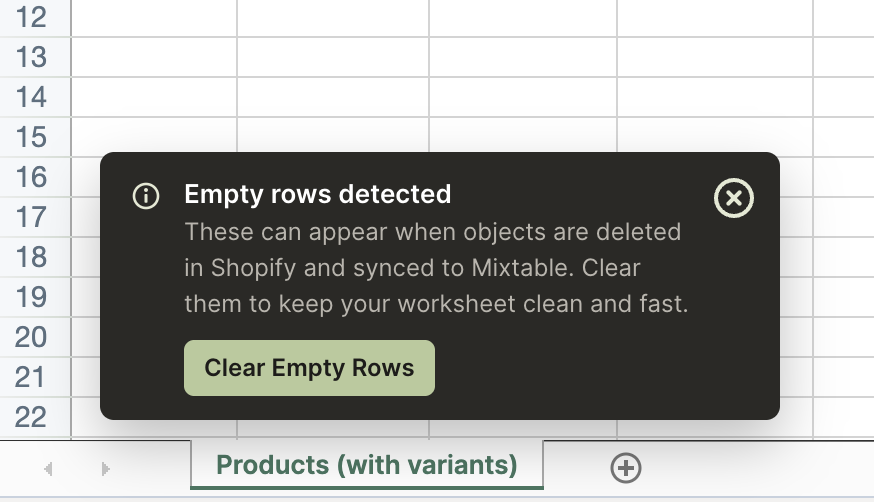
- Review the notice to confirm that empty rows were found
- Click Clear Empty Rows
- Wait while Mixtable removes the empty rows and closes the gaps in the worksheet
You can dismiss the notice if you are not ready to clean the worksheet. Use the Worksheet menu later to run the same cleanup manually.
Remove empty rows manually
- Open the worksheet you want to clean
- Click Worksheet in the menu bar
- Select Remove Empty Rows
- Wait while Mixtable removes rows that no longer contain worksheet data
If Mixtable does not find any, it displays No empty rows found in the active worksheet.
Why empty rows appear
- A Shopify record was deleted and its worksheet row no longer has an object to display. This includes items you delete from Mixtable with an option such as Delete product in Shopify… on the row menu: once Shopify has deleted the item, Mixtable clears its row and leaves it empty
- A record changed in Shopify so it no longer matches your Conditional Worksheet rules, such as a product being set to draft in a worksheet that only loads active products
- You edited a Conditional Worksheet’s rules, so some records that used to qualify no longer match
When a Shopify record begins matching your Conditional Worksheet rules, Mixtable can add it. When a loaded record stops matching, its row may be cleared and left empty until you run the cleanup.
For more information about row rules, see set up a Conditional Worksheet.
Troubleshooting
Will this delete data from Shopify?
No. Remove Empty Rows only removes rows that no longer contain worksheet data.
Why didn’t Mixtable remove a row that looks empty?
The row may still contain a value, formula, formatting-related data, a linked Shopify record, or an unsaved edit. Review the row before removing it manually. To remove it, right-click its row number and choose Remove row from sheet. This takes the row out of the worksheet only and doesn’t change anything in Shopify.
Why don’t I see the automatic notice again?
Mixtable checks a worksheet the first time it becomes active during the current browser session. You can always use Worksheet > Remove Empty Rows without waiting for the notice.