
Bulk Edit Shopify B2B Company Locations
 Spreadsheet EditorExport: Excel & CSV Updated October 21, 2026
 On this page
 Bulk Edit Shopify B2B Company LocationsVideo walkthrough
 The Company Locations worksheet in Mixtable allows you to view, edit, and sync Shopify B2B company location data, including billing and shipping addresses, contact details, and payment terms. Each row corresponds to a unique Company Location in Shopify, which is ideal for merchants managing multiple offices, stores, or distribution points under one B2B customer.
You can get started with the pre-built B2B Companies template, which includes both Companies and Company Locations worksheets, or you can manually add a Company Locations worksheet to an existing spreadsheet.
Option 1 - Start with the Pre-Built B2B Companies Template
-
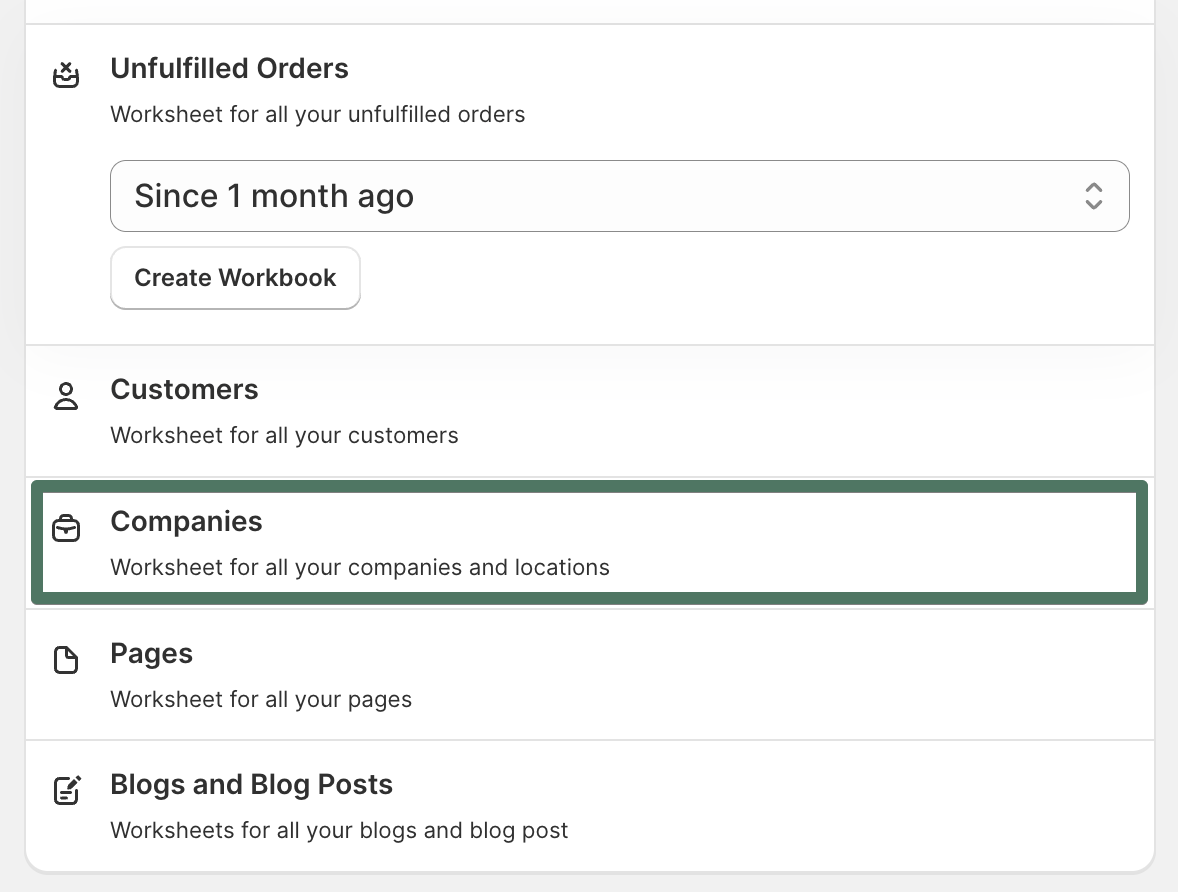
Open your Mixtable dashboard and click Create spreadsheet at the top of the page. If you haven't created a spreadsheet yet, click Browse all templates below the dashboard's suggestions instead. In the Create spreadsheet window, find B2B Companies under Orders & Customers, or type its name in the search box, and click it. Mixtable creates the spreadsheet and fills it with data from your Shopify store.
-
Your new spreadsheet contains:
- A Companies worksheet with your B2B companies
- A Company Locations worksheet with all related location data
-
The template automatically loads your existing Shopify company and location records
Once loaded, you can:
- Review address, payment, and contact details
- Edit existing data directly within the spreadsheet
- Export the data for analysis or reporting
- Sync updates back to Shopify when ready
Option 2 - Add a Company Locations Worksheet to an Existing Spreadsheet
You can also add a Company Locations worksheet manually to an existing spreadsheet.
-
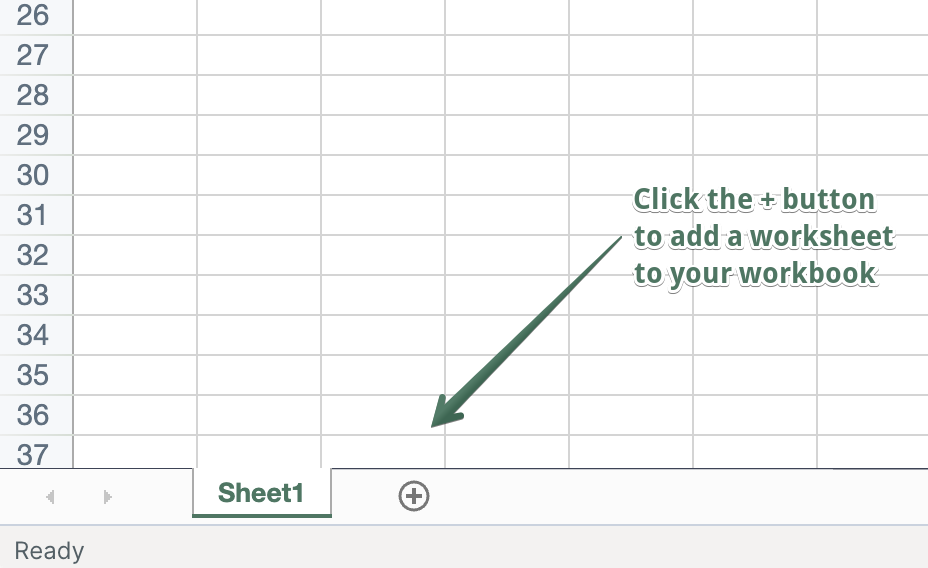
Click the + at the end of the worksheet tabs (or choose Worksheet > Add worksheet…)
-
Select Shopify data worksheet, then click Continue
-
Select Company Locations
-
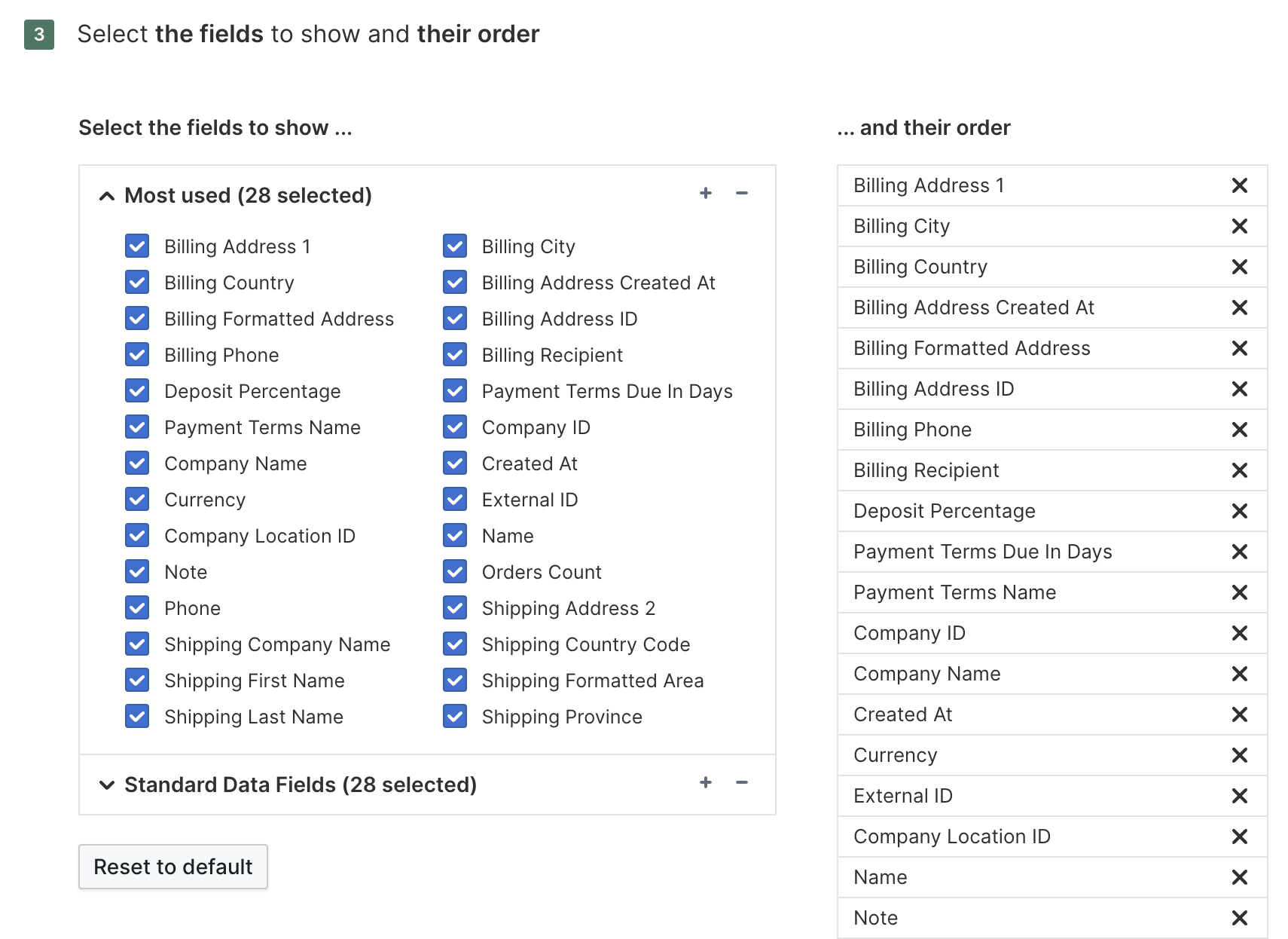
Select the fields to include and drag column headers to arrange their order, then click Continue
-
Choose Load everything or Only rows that match rules
-
Click Create Worksheet
Your new worksheet will now display all company location records synced from your Shopify store.
Working with Company Location Fields
Each row represents one Shopify company location. Common fields include:
- Billing and Shipping Details: Address, City, Country, Province, and Postal Code
- Payment Terms: Payment terms name, deposit percentage, and due-in-days values
- Company Association: Company ID and Company Name
- Contact Info: Billing recipient, phone, and email fields
- Order and Currency Details: Orders count and currency used
Add Company Location metafields
You can map Shopify Company Location metafields to columns and update their values in bulk:
- Click + Shopify data in the header row of an empty column, or choose Column > Add Shopify data… from the menu bar. The field picker opens
- Click Custom data in the list of sections on the left, or type the metafield's name in the search box
- Click the Company Location metafield you want to map. If you don't see it, click Refresh in the Custom data heading to load your latest metafield definitions from Shopify
- Click Save Column
- Enter or paste your metafield values
- Click Sync at the top right of the spreadsheet. The Preview changes window opens so you can check your changes
- Click Sync in the window to publish the changes
For more information about defined and custom metafields, see bulk edit Shopify metafields.
Keeping location data up to date
Your Company Locations worksheet stays up to date with Shopify automatically. When a location is added, edited, or removed in Shopify, the change flows into Mixtable on its own, so there’s nothing to download. If you have the spreadsheet open, the update waits so nothing shifts around while you’re working: the sync control at the top right of the spreadsheet shows how many updates are waiting, for example Apply 2 updates. Click it to bring them in, or close the spreadsheet and they’ll come in on their own.
Syncing Updates Back to Shopify
When you’re ready to apply changes:
- Click Sync at the top right of the spreadsheet and review your updates in the preview that opens
- Click Sync again
- Mixtable updates the corresponding B2B company locations in Shopify
Summary
- Start with the B2B Companies template to instantly create linked worksheets for both companies and locations
- Or manually add a Company Locations worksheet to any spreadsheet
- Edit Company Location information right within Mixtable spreadsheet
- Sync your changes to Shopify at any time
With Mixtable, managing your B2B company locations, from billing addresses to payment terms, is as simple as working with a spreadsheet.