


Preview Shopify changes before syncing
Preview Shopify changes before syncing
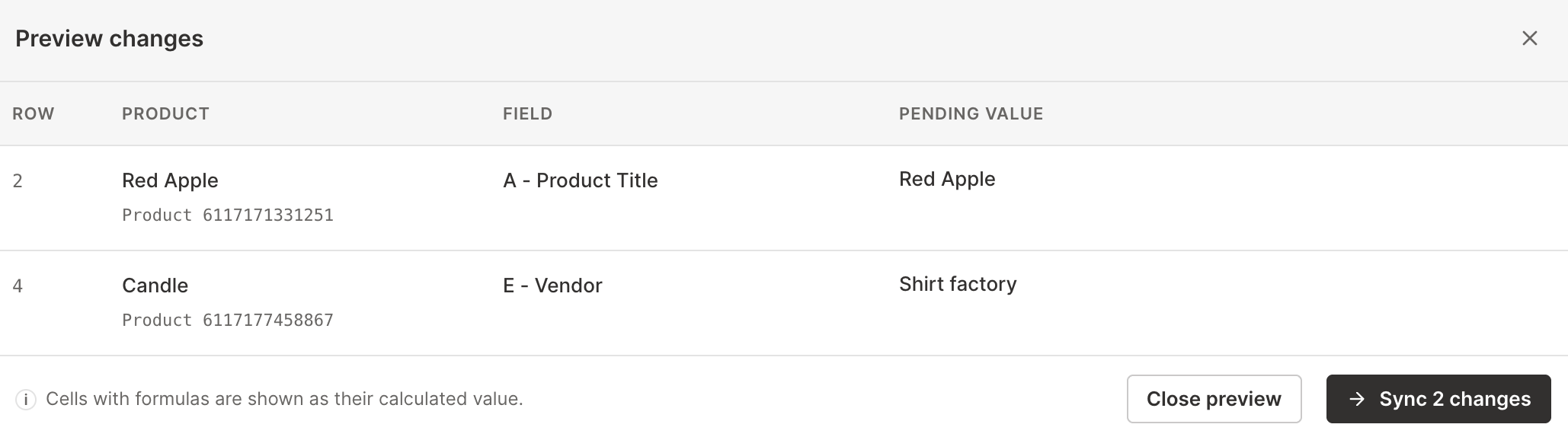
When you’re editing Shopify data in Mixtable, it’s helpful to double-check your changes before they go live. The Preview changes dialog makes this easy by listing every pending Shopify edit in one place, so you can confirm exactly what will update before anything reaches Shopify.
This is especially useful before syncing updates to Shopify product prices, inventory quantities, tags, metafields, and order details.
What the preview shows
When you open Preview changes, Mixtable lists each pending Shopify edit as its own line, grouped by the row it belongs to. The dialog has four columns:
- Row: the worksheet row number where the change was made
- The object column (for example, Products): the Shopify object that row maps to, shown by its title. Rows that aren’t in Shopify yet appear as a new object, like
(new product) - Field: the column being changed, shown by its column letter and header name (like
C - Price) - Pending value: the value Mixtable will send to Shopify
Cells with formulas are shown as their calculated value, so you see the actual value that will sync rather than the formula text.
Preview your changes
- Open the Shopify worksheet you want to sync (like Products, Inventory, Customers, or Orders (no line items))
- Make your edits in the spreadsheet
- In the Shopify sync card, check the row showing how many changes are ready (like
5 changes to sync) - Click Preview
- Review the list to confirm what will update in Shopify
- When everything looks good, click Sync N changes in the dialog, or click Close preview to go back and keep editing
You can also start a sync without opening the preview by clicking Sync in the Shopify sync card.
Tips for better reviews
- Review in stages: if you’re making lots of updates, preview after each batch to catch mistakes early
- Start small: when syncing a worksheet to Shopify for the first time, test with a few rows, preview them, then sync
- Check formula results: if you used formulas to generate updates, the pending value column is a quick way to spot unexpected values before they go to Shopify
Troubleshooting
I don’t see the Preview button
On Shopify worksheets, the Shopify sync card shows Up to date before you’ve edited anything. The Preview and Sync buttons appear after you make Shopify-linked changes and your store has sync access. If you see an install, trial, or upgrade message instead, follow that prompt first.
The preview is empty
If you don’t have any pending Shopify changes in the worksheet, the dialog shows that no pending Shopify changes were found. Make some edits first, then reopen the preview.
You're ready!
Mixtable is an online spreadsheet designed to sync data with Shopify. It looks, feels, and behaves like Excel (including formulas), but runs in your browser. With Mixtable you can:
- Bulk add products to collections, edit metafields, add or remove tags;
- Change product prices, including international prices, and review price history;
- Manage customers with a spreadsheet CRM for Shopify;
- Use Excel features like sort ascending or descending, find-replace, filter, and more.
Best of all, you can sync changes back to Shopify with a single click. Find out more about the Mixtable suite of products here.
Manage Shopify data in a spreadsheet.
Use Mixtable to edit, sync, analyze, import, and export your Shopify store data without CSV juggling.