How to add Shopify product images in bulk using the Add Images Action Column
Need to add images to dozens (or hundreds) of Shopify products at once? The Add Images Action Column in Mixtable lets you do exactly that. Paste image URLs into spreadsheet cells, hit sync, and Mixtable uploads each image to the right product in your Shopify store.
This works for both existing products already in your Shopify store and brand-new products you are creating in the same sync. If you are building out a new product row in Mixtable (filling in the title, price, description, and so on), you can add image URLs in the same row and everything will be sent to Shopify together when you sync.
What you need before getting started
- A Mixtable workbook with a Products worksheet that is synced to your Shopify store. If you don’t have one yet, you can create one from the Basic Product Info template
- One or more publicly accessible image URLs (the URLs must be reachable by Shopify, so they cannot be behind a login or firewall)
Step 1: Add the “Add Images” Action Column
- In your products worksheet, find an empty column (any column with a non-green header, meaning it is not already linked to Shopify data)
- To load new Shopify data, start by selecting an empty column — any column with a non-green header (green headers mean the column is already linked to Shopify data). Then, click the ⚡️ button in the column header to open the selection window to choose the data you want to pull in.
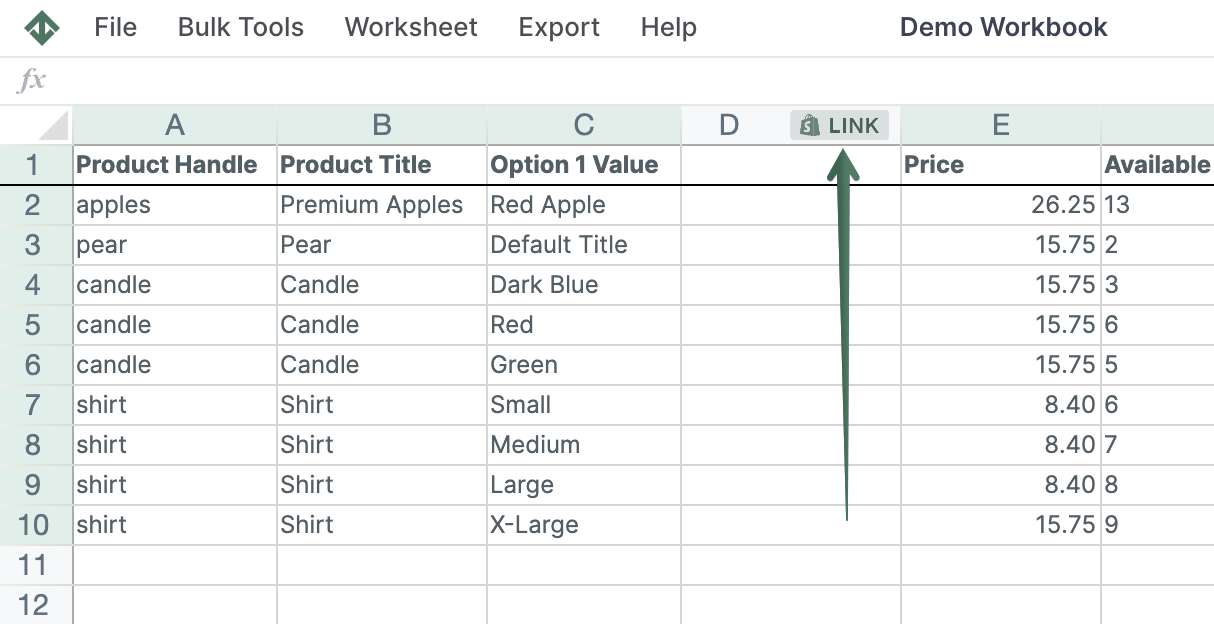
- In the selection window, choose Action Column
- From the list of available actions, select Add Images
- Click Save
A new column will appear in your worksheet, ready for you to enter image URLs.
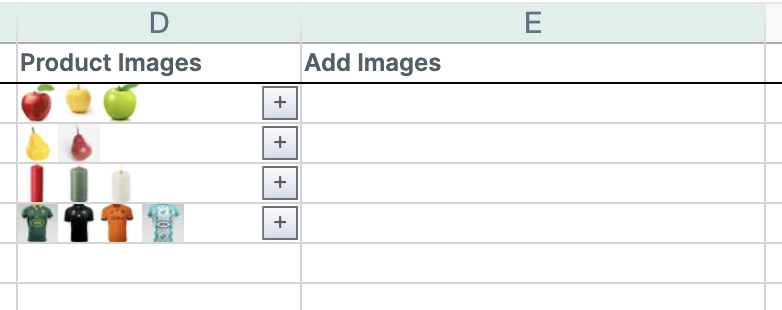
Step 2: Enter your image URLs
Click into a cell in the Add Images column next to the product you want to add images to, whether it is an existing product or a new one you are creating, and paste your image URL.
Adding a single image:
Enter one URL in the cell. For example:
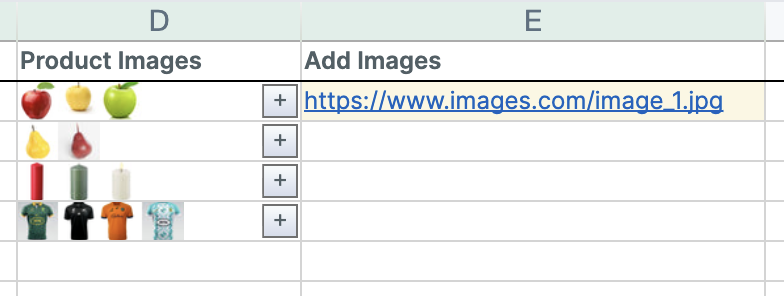
Adding multiple images at once:
Separate each URL with a semicolon (;). For example:
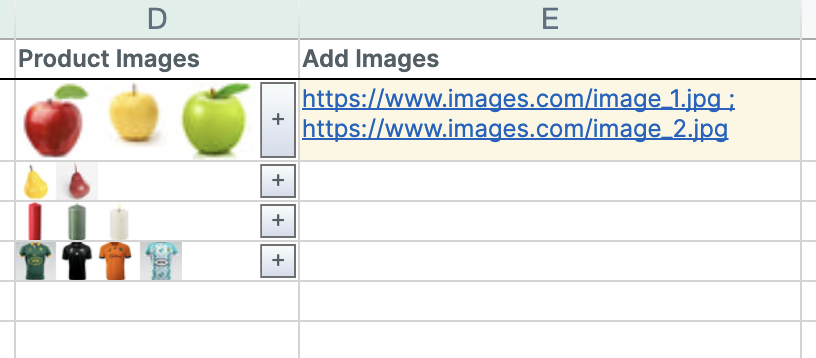
Tip: You can use copy-paste and fill-down to quickly set the same image URL across many products.
Repeat this for every product row where you want to add images.
Step 3: Sync your changes to Shopify
- Click the Sync worksheet changes to Shopify button
- Mixtable processes each row and uploads the images to the corresponding Shopify product
After the sync completes:
- All images uploaded successfully: the cell is cleared automatically, so you know the action is done
- Some images failed: only the URLs that failed stay in the cell. You can fix or replace those URLs and sync again without re-entering the ones that already worked
Tips and things to keep in mind
- URLs must be publicly accessible. Shopify needs to download the image from the URL you provide. If the link requires a login, is behind a firewall, or has expired, the upload will fail
- Each URL is processed independently. If you enter five URLs and two fail, the three that succeeded are already on your Shopify product. Only the two that failed remain in the cell for you to retry
- Works for new and existing products. You can add images to products that are already in Shopify, or include image URLs on a brand-new product row. Mixtable will create the product and attach the images in one sync
- This works on product worksheets. If you need to set a specific image for a product variant, see Manage your Shopify variant images instead
- Want to manage existing images too? You can view, edit, and delete product images from within Mixtable. See Manage your Shopify product images for details
You're ready!
Mixtable is an online spreadsheet designed to sync data with Shopify. It looks, feels, and behaves like Excel (including formulas), but runs in your browser. With Mixtable you can:
Best of all, you can sync changes back to Shopify with a single click. Find out more about the Mixtable suite of products here.


 Bulk Editor