

 Bulk Editor
Mixtable is an online spreadsheet, designed from the ground up to bulk edit and analyze Shopify data.
Got a question? We're here to help! Reach out at [email protected], and we'll get back
to you promptly.

SEO titles and SEO descriptions (meta descriptions) shape how your collections appear in Google search results. They influence both rankings and click-through rates, and keeping them clean, consistent, and keyword-focused across your store can make a real difference in organic traffic.
With the Mixtable spreadsheet editor, you can create and manage collection SEO titles and SEO descriptions in a fast, structured way. Instead of opening each collection in the Shopify admin, you can work on all collection SEO fields in a spreadsheet and sync your changes back to Shopify.
If you’re looking for other Shopify SEO workflows, Mixtable also supports SEO editing for Products, Blog Posts, and Pages — but this guide focuses only on collections.
Editing collection SEO fields in a spreadsheet gives you capabilities that aren’t practical in the Shopify admin:
Before you can edit SEO titles and descriptions, you need to load those fields into a collection-synced worksheet.
Start by setting up a workbook in Mixtable and creating a worksheet that syncs with your Collection data from Shopify. Once the worksheet loads, your existing collections will appear in rows, with one row per collection.
If you want the fastest setup, create a new workbook using Mixtable’s Collections template. It creates a ready-to-use Collections worksheet synced to your Shopify collections, so you can immediately add the SEO fields and start editing.
To add the SEO fields:
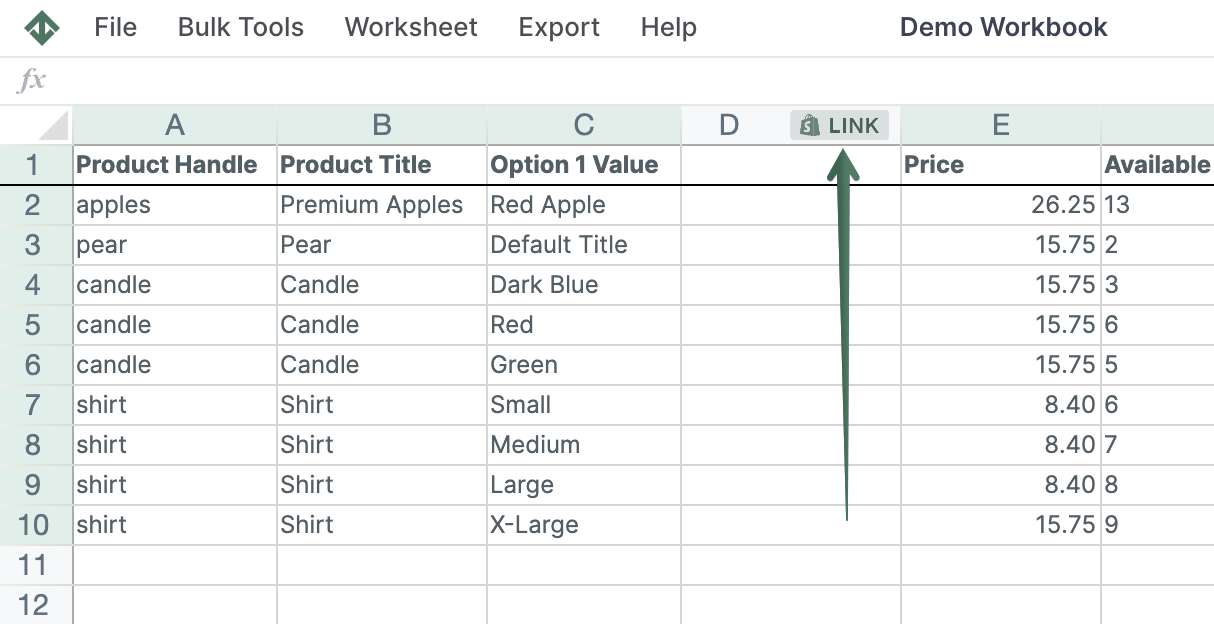
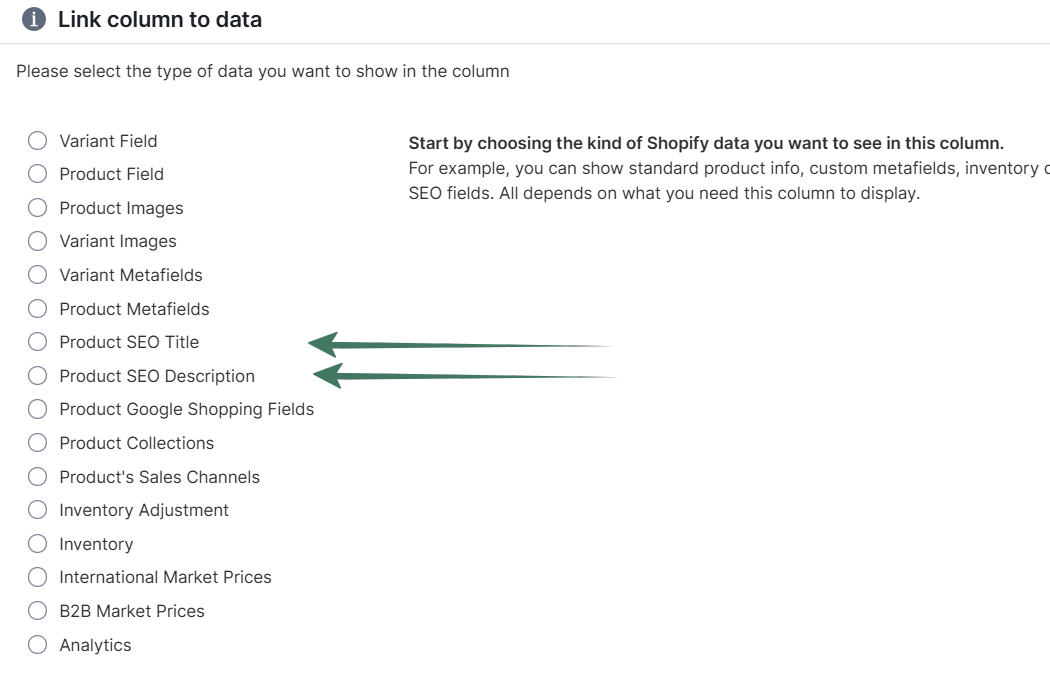
As soon as you add a field, Mixtable populates the column with your existing SEO data from Shopify. These cells are now fully editable.
Once the SEO fields are visible, you can edit them just like any other spreadsheet data:
Any edits you make are synced back to Shopify, eliminating the need to save changes collection by collection.
For large-scale changes, Mixtable’s Find and Replace feature is the fastest way to update collection SEO titles and SEO descriptions.
This is especially useful when you need to:
Open Find and Replace from the toolbar. In the dialog, you can control exactly how the update is applied:
After confirming, Mixtable applies the update across the selected collections and syncs the results back to Shopify.
Using Mixtable as a spreadsheet editor for Shopify collection SEO gives you speed, visibility, and control that’s hard to match with manual admin editing. Whether you’re cleaning up a small set of collections or optimizing at scale, managing collection SEO titles and descriptions in a spreadsheet is the most efficient approach.
You're ready!
Mixtable is an online spreadsheet designed to sync data with Shopify. It looks, feels, and behaves like Excel (including formulas), but runs in your browser. With Mixtable you can:
Best of all, you can sync changes back to Shopify with a single click. Find out more about the Mixtable suite of products here.