Shopify metaobjects let you manage structured, reusable content (for example: size charts, care guides, store locations, authors, FAQs, or any other custom data you want to reference across your theme and storefront).
Mixtable makes metaobjects easy to manage in a spreadsheet: each metaobject definition becomes its own worksheet, existing entries load automatically, and edits can be synced back to Shopify in bulk.
Before you start
- Make sure your Shopify store is connected to Mixtable.
- Set up your metaobject definitions in Shopify (Shopify admin → Settings → Custom data → Metaobjects).
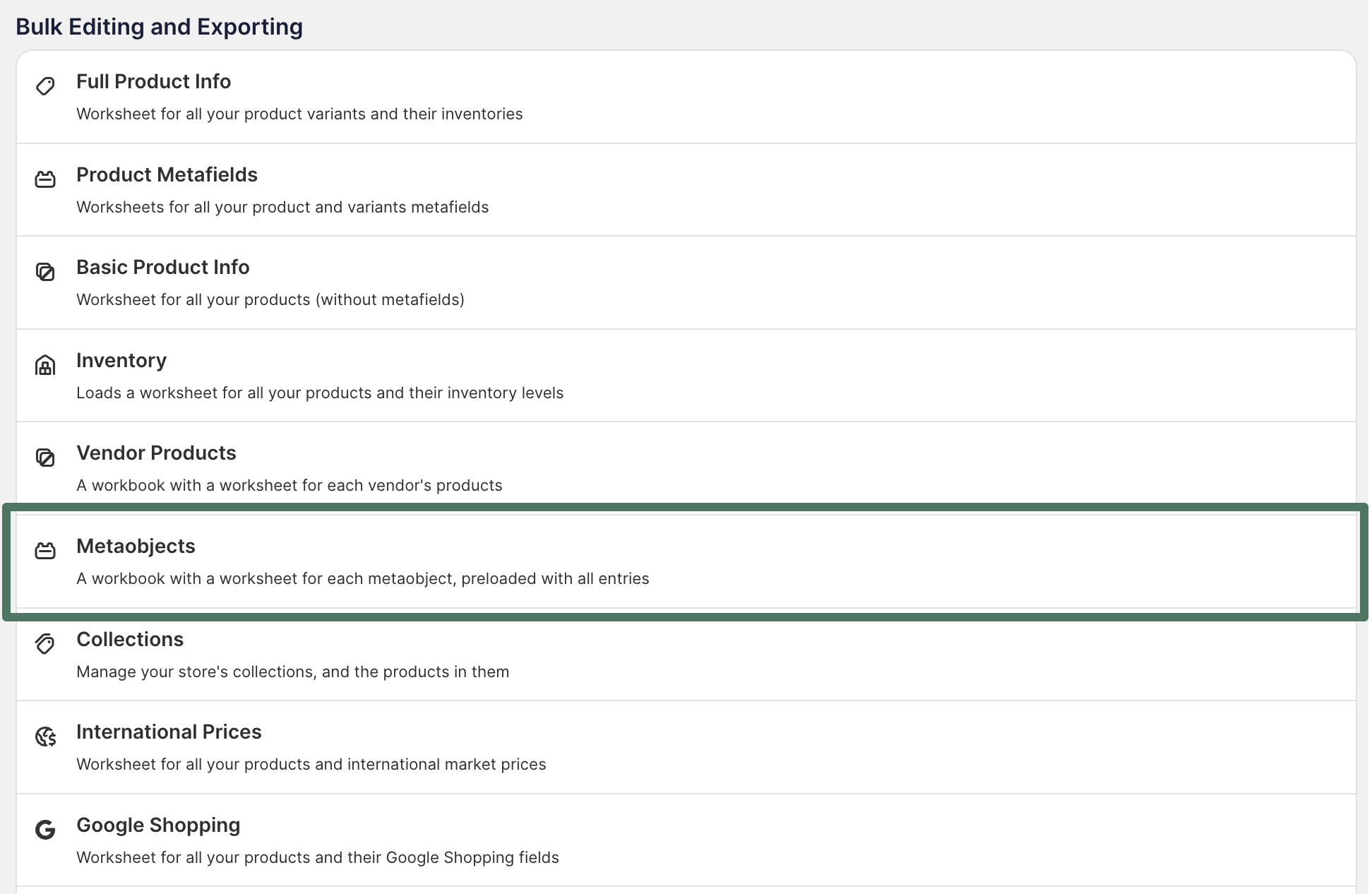
The fastest way to get started is with Mixtable’s Metaobjects template.
- On your dashboard click on Create Spreadsheet
- Choose the Metaobjects template (instead of starting from a blank workbook).
- Mixtable creates one worksheet per metaobject definition and immediately loads your existing metaobject entries into each sheet.
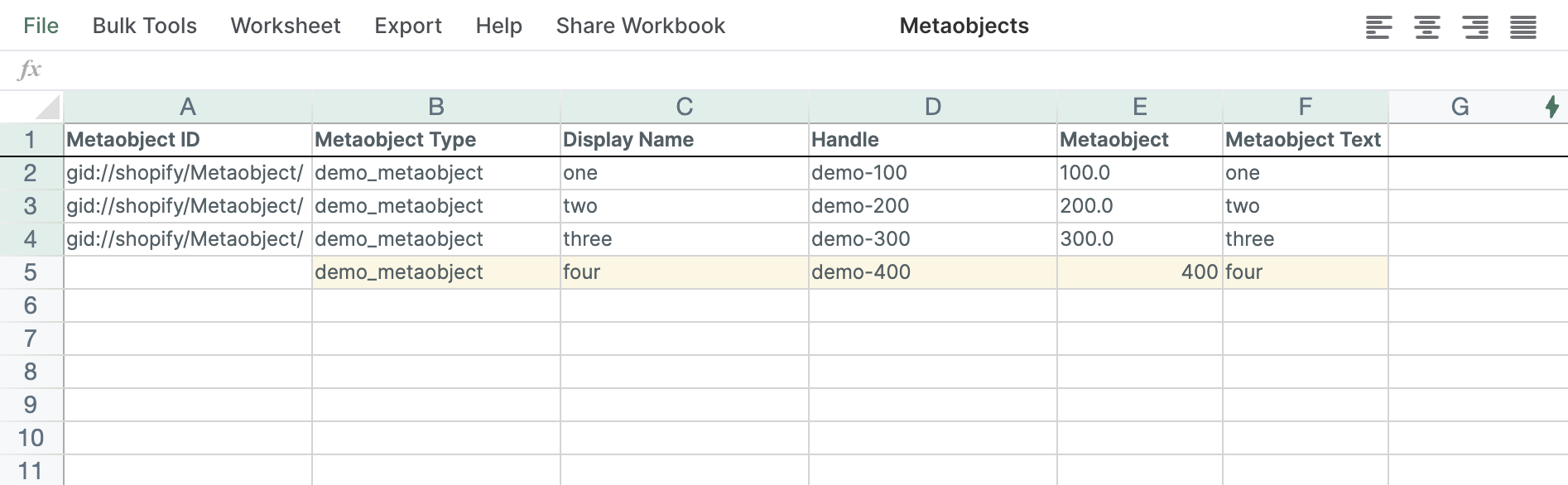
Add a new metaobject entry
-
Open the worksheet for the metaobject definition you want to add an entry to.
-
Find an empty row.
-
Fill in the required fields for the entry.
- If your sheet includes a Type column, copy it from an existing row and paste it into your new row (so the new entry is created under the same metaobject definition).
-
Click Sync worksheet changes to Shopify to create the entry in Shopify.
- Update any cells you want to change (you can paste, fill down, and edit many rows at once).
- Click Sync worksheet changes to Shopify to push your updates to Shopify.
Keep Mixtable and Shopify in sync
Mixtable automatically stays in sync with Shopify:
- If an entry is added in Shopify, the data for new entry will appear on the next empty row.
- If an entry is edited in Shopify, the updated values will appear in your worksheet.
- If an entry is deleted in Shopify, Mixtable removes the corresponding row from the worksheet.
Troubleshooting
- I don’t see a worksheet for my metaobject: Confirm the metaobject definition exists in Shopify, then create a new Metaobjects workbook (or refresh/reconnect the workbook).
- My changes aren’t showing in Shopify: After editing, click Sync worksheet changes to Shopify and wait a few seconds, then refresh the relevant page in Shopify admin.
- Rows don’t update after changes in Shopify: Give Shopify a moment to send the update; then reload the workbook if needed.
You're ready!
Mixtable is an online spreadsheet designed to sync data with Shopify. It looks, feels, and behaves like Excel (including formulas), but runs in your browser. With Mixtable you can:
Best of all, you can sync changes back to Shopify with a single click. Find out more about the Mixtable suite of products here.


 Bulk Editor