

 Bulk Editor
Mixtable is an online spreadsheet, designed from the ground up to bulk edit and analyze Shopify data.
Got a question? We're here to help! Reach out at [email protected], and we'll get back
to you promptly.

Mixtable makes it easy to control which sales channels your products are visible in. You can publish or unpublish products per-channel in bulk, using simple true/false values in a spreadsheet.
Publishing and unpublishing is two-way synced: if you change a product’s channel availability directly in Shopify, Mixtable will automatically sync that update back to your spreadsheet (and vice versa).
This works for:
Each sales channel (or catalog) is mapped to its own column. Mixtable will then populate the column with true/false for each product, based on whether that product is published in that channel.
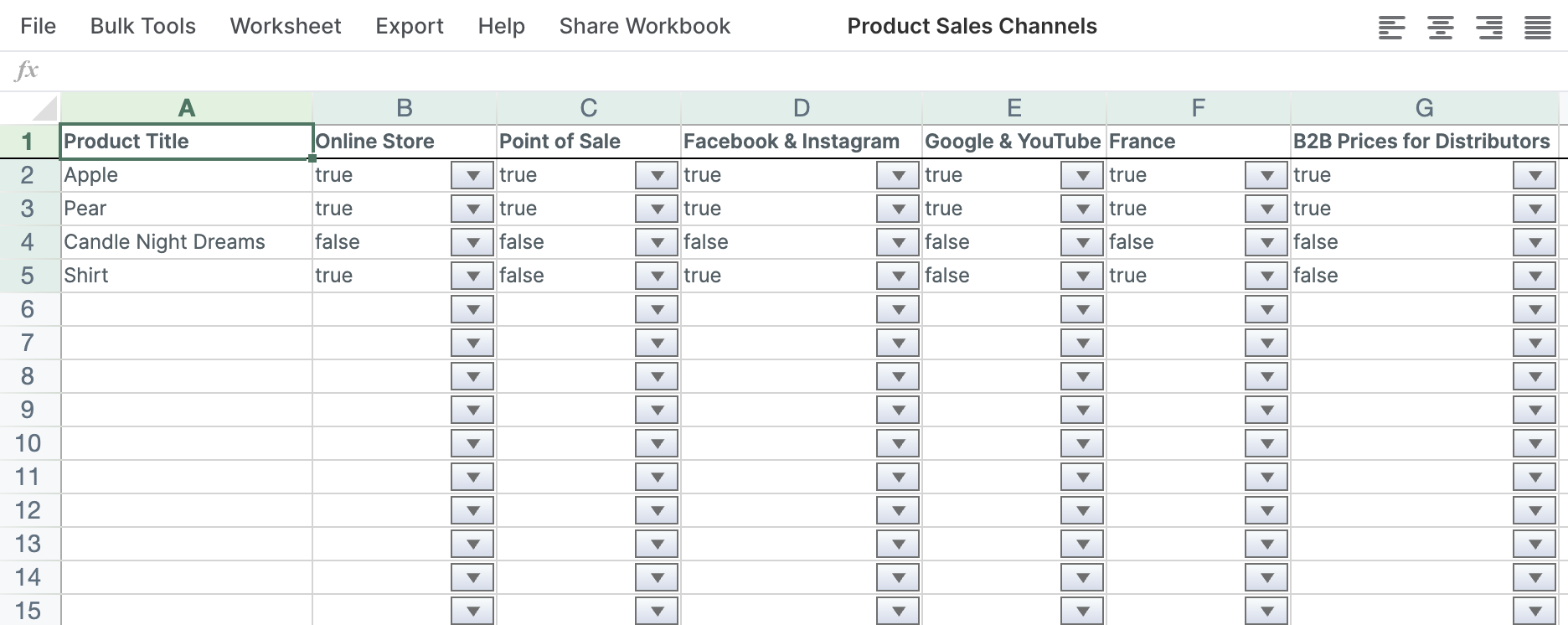
In a sales channel column, set:
true to publish the product to that channelfalse to unpublish the product from that channelUse copy/paste or fill-down to apply the same true/false value across multiple channel columns and/or multiple products.
Click Sync worksheet changes to Shopify to apply the changes.
Mixtable will sync the updates quickly, and the product’s sales channel availability will update in Shopify.
You're ready!
Mixtable is an online spreadsheet designed to sync data with Shopify. It looks, feels, and behaves like Excel (including formulas), but runs in your browser. With Mixtable you can:
Best of all, you can sync changes back to Shopify with a single click. Find out more about the Mixtable suite of products here.