
Fulfillment, Return, Discount, and Market Worksheets, plus a Refreshed Interface
On this page
- Track Shopify fulfillments with new Fulfillment worksheets
- Review Shopify returns with new Return worksheets
- See all your Shopify discounts in one worksheet
- A worksheet for your Shopify Markets
- Metafields for Companies, Company Locations, Markets, and Discounts
- Publish product variants to sales channels individually
- Payment terms columns for orders
- More fulfillment and discount columns for orders
- A dedicated Preview Changes dialog
- A redesigned Add Worksheet experience
- Redesigned spreadsheet search
- Easier cleanup of empty worksheet rows
- Clearer row history
- A refreshed interface
Track Shopify fulfillments with new Fulfillment worksheets
You can now create a Fulfillments worksheet with one row per Shopify fulfillment. Map columns to fields such as the fulfillment status, carrier, tracking number and tracking URL, the location it shipped from, and the created, in transit, estimated delivery, and delivered timestamps.
Fulfillment rows can also include columns from the related order, such as order name, customer email, financial status, fulfillment status, total price, shipping city, shipping country, and shipping postal code. New Fulfillments worksheets include the most useful order status and shipping columns by default, so you get a working fulfillment tracker with almost no setup. And as with any Mixtable worksheet, the default columns are just a starting point: you can map any of the available fields to an empty column whenever you need more detail.
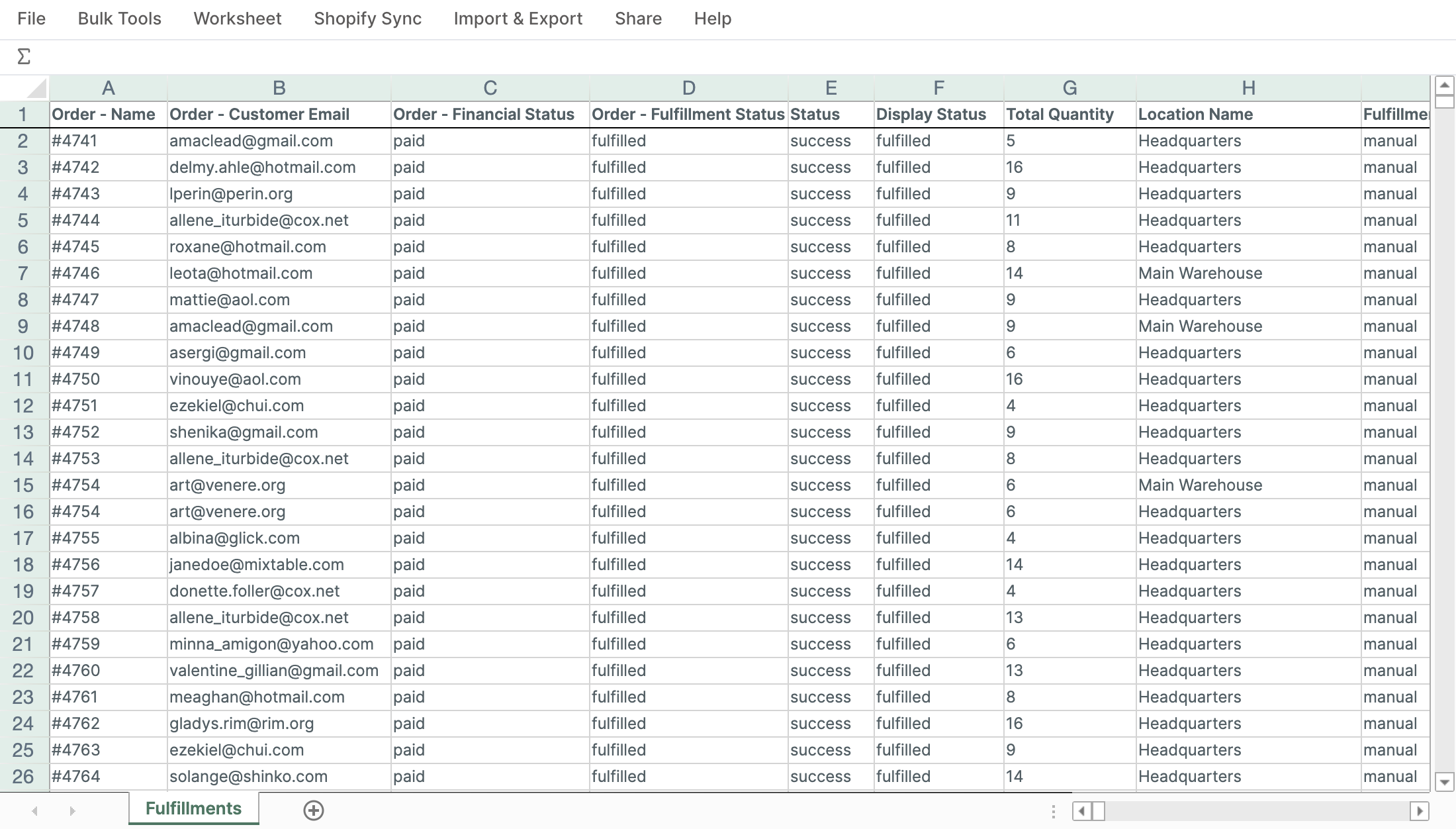
There is also a new Fulfillment Line Items worksheet with one row per fulfilled item. Each row links back to both the original order line item and the fulfillment it belongs to, so you can see exactly what shipped, when, and in which package.
Read more: View Shopify fulfillments and fulfilled items in a spreadsheet
Review Shopify returns with new Return worksheets
A new Returns worksheet gives you one row per Shopify return request, with fields such as its status, the date it was requested, when the request was approved, and when the return was closed.
Alongside it, the new Return Line Items worksheet shows one row per returned item, with fields such as the returned quantity, the return reason, and any note the customer left. Together they make it easy to spot problem products and keep an eye on open returns without clicking through orders one by one in the Shopify admin.
Read more: View Shopify returns and returned items in a spreadsheet
See all your Shopify discounts in one worksheet
You can now create a Discounts worksheet with one row per discount campaign or automatic promotion in your Shopify store. Map columns to fields such as the discount status, start and end dates, discount type, value (amount or percentage), code count, usage limits, and total redemptions.
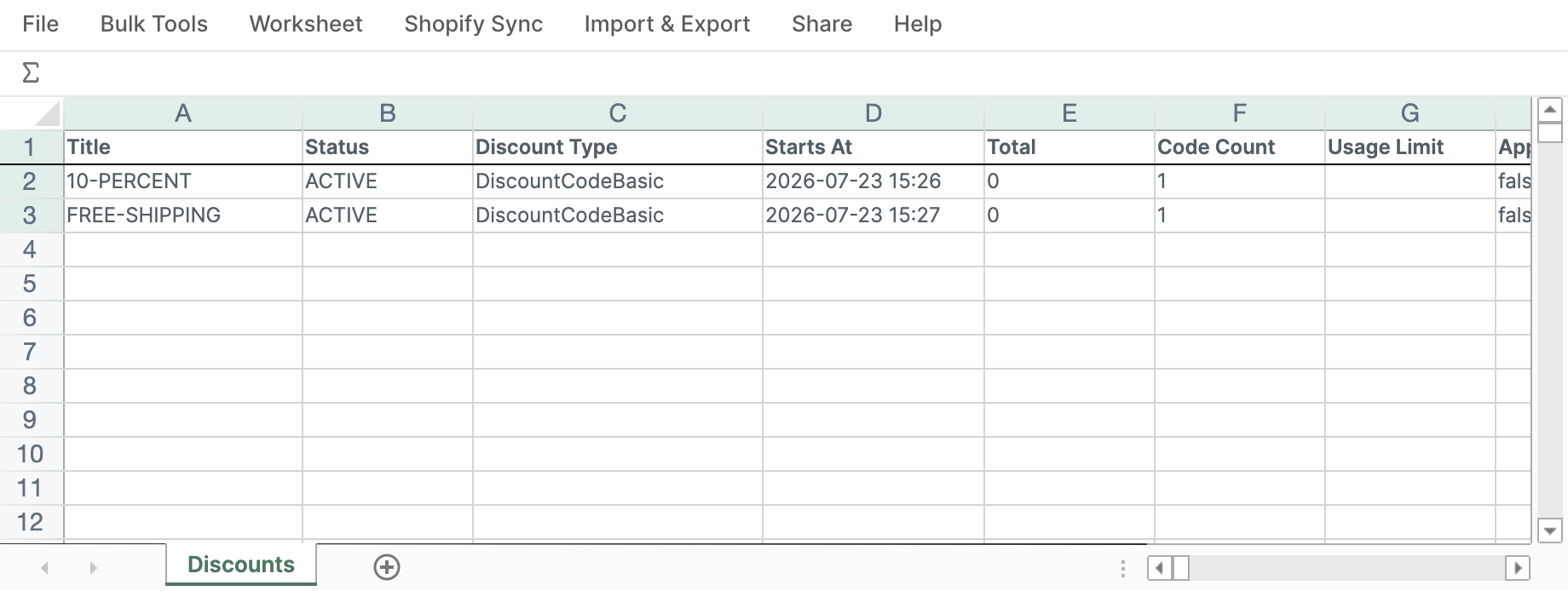
This gives you a single overview of every promotion in your store: perfect for auditing old discounts, checking what is currently running, and reporting on how often each one gets redeemed.
Read more: Review Shopify discounts in a spreadsheet
A worksheet for your Shopify Markets
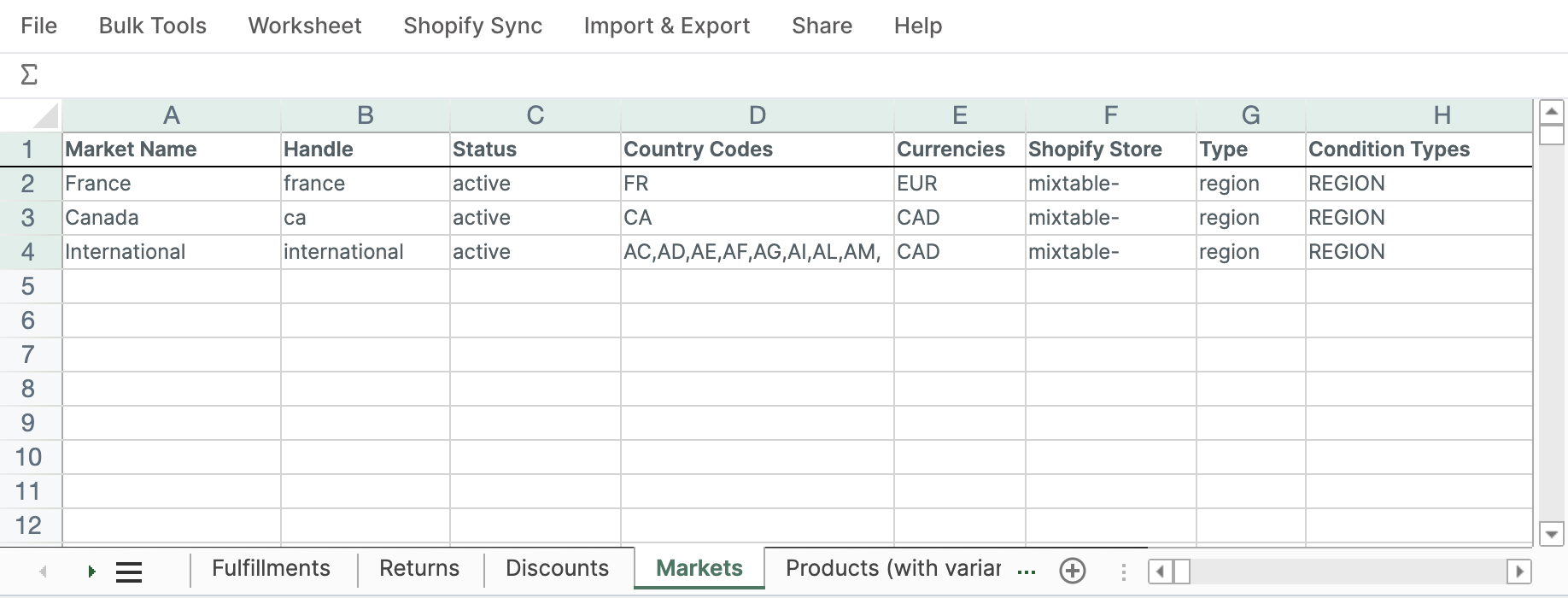
The new Markets worksheet shows one row per Shopify Market, with fields such as its status, countries and regions, currencies and currency settings, and web presences. If you sell internationally, this is the quickest way to review how all your markets are configured, side by side.
Read more: Review Shopify Markets in a spreadsheet
Metafields for Companies, Company Locations, Markets, and Discounts
Metafield columns are now available on Companies, Company Locations, Markets, and Discounts worksheets. Map a metafield to a column to see its current value from Shopify for every row, update values in bulk, and sync your changes back to Shopify when you are ready.
If you run a B2B store, this is especially handy for keeping custom company and location data (like account tiers or delivery instructions) accurate across hundreds of records at once.
Publish product variants to sales channels individually
You could already publish and unpublish products on your sales channels from Mixtable. Now you can do the same for individual product variants, independently of the parent product. On a Products (with variants) worksheet, map a variant sales channel column and use true/false values to control each variant’s availability on that channel.
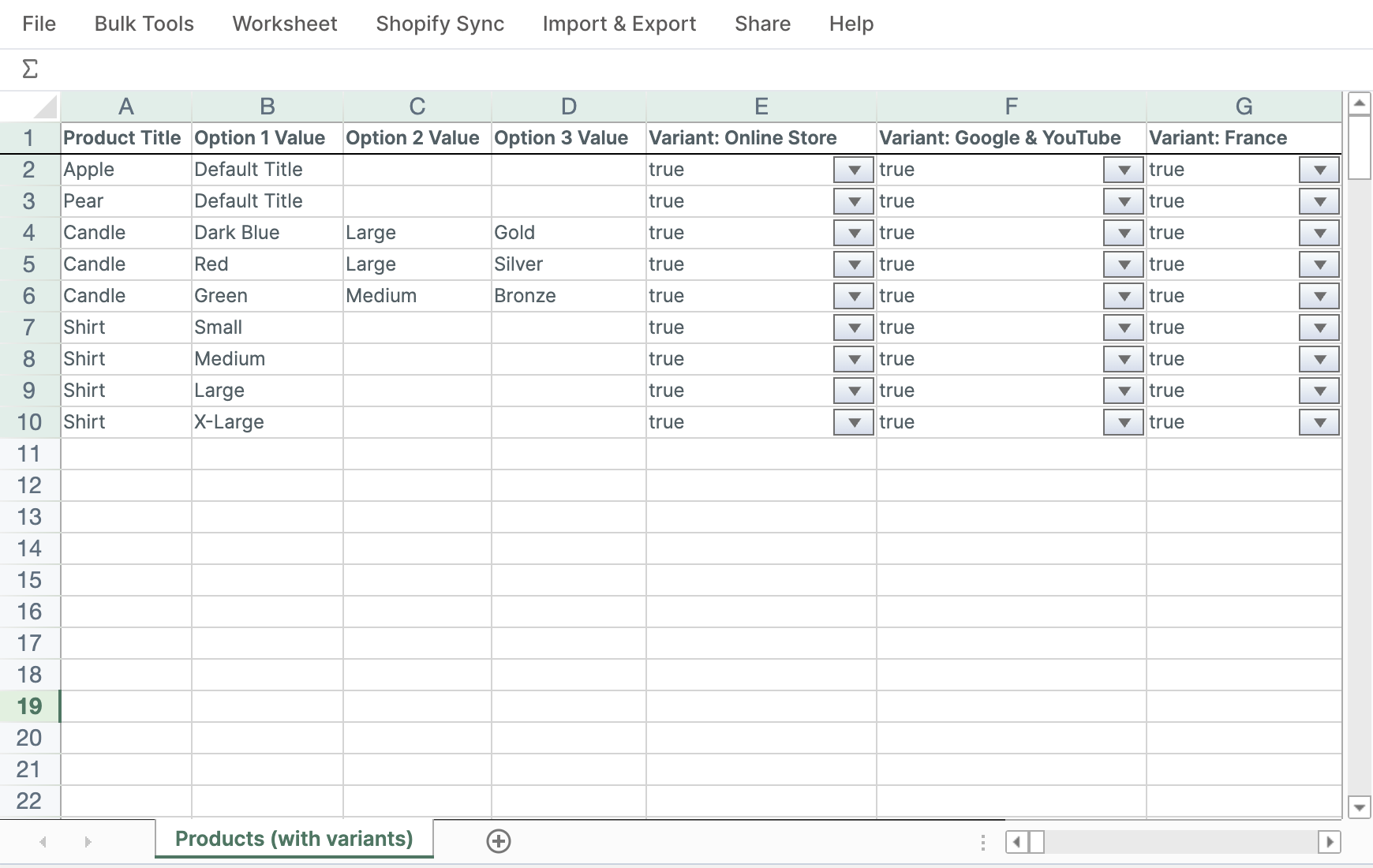
One thing to keep in mind: a variant can only be purchased on a channel when its parent product is also published there. Mixtable shows guidance in the app to help you keep the two in sync.
Read more: Publish and unpublish Shopify variants by sales channel
Payment terms columns for orders
Order worksheets can now show payment term information for each order: the payment due date, the payment terms duration in days, the payment terms name and type (such as NET, FIXED, FULFILLMENT, or RECEIPT), and whether payment is overdue.
If you sell B2B on Shopify and invoice customers on payment terms, you can now monitor payment due dates and spot overdue orders right in your spreadsheet.
Read more: Track Shopify order payment terms in a spreadsheet
More fulfillment and discount columns for orders
Order worksheets also gained new related-data columns:
- Fulfillment columns: fulfillment count, first fulfillment date, in-transit date, estimated delivery date, delivery date, fulfillment service, tracking carriers, and origin location
- Discount columns: the discount type, value type, value amount, and value percentage of the discounts applied to each order
New order worksheets include the most common fulfillment columns by default, so delivery tracking works out of the box.
A dedicated Preview Changes dialog
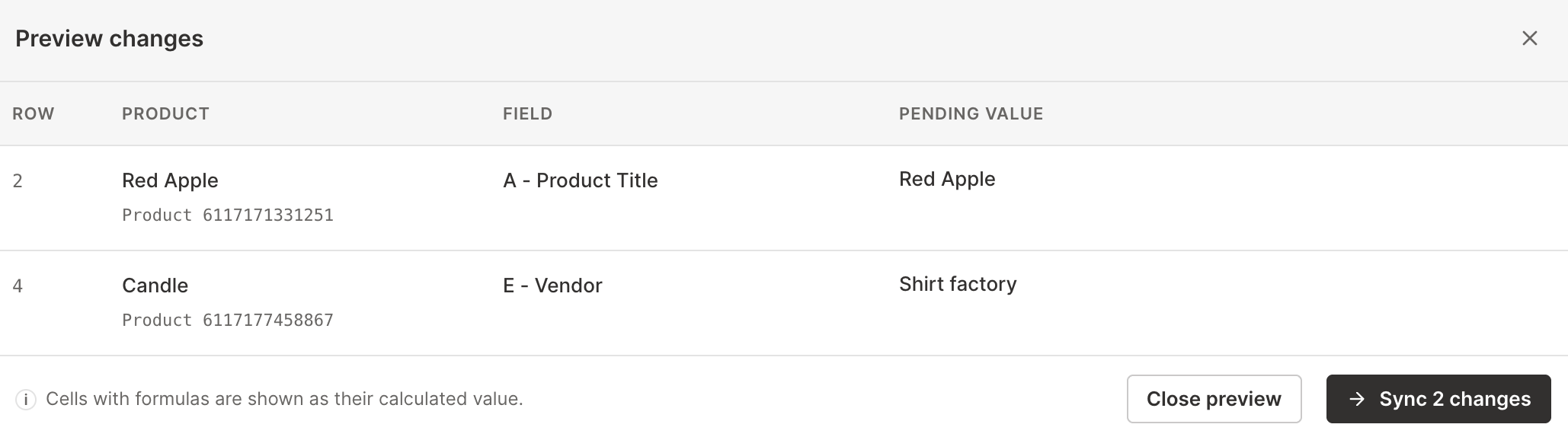
Reviewing pending edits before a sync is now much easier. The new Preview changes dialog lists every pending edit on the current worksheet in one place, row by row, with the Shopify object, the field, and the pending value for each change. Cells with formulas are shown with their calculated values, so what you see is exactly what will be sent to Shopify.
Read more: Preview Shopify changes before syncing
A redesigned Add Worksheet experience
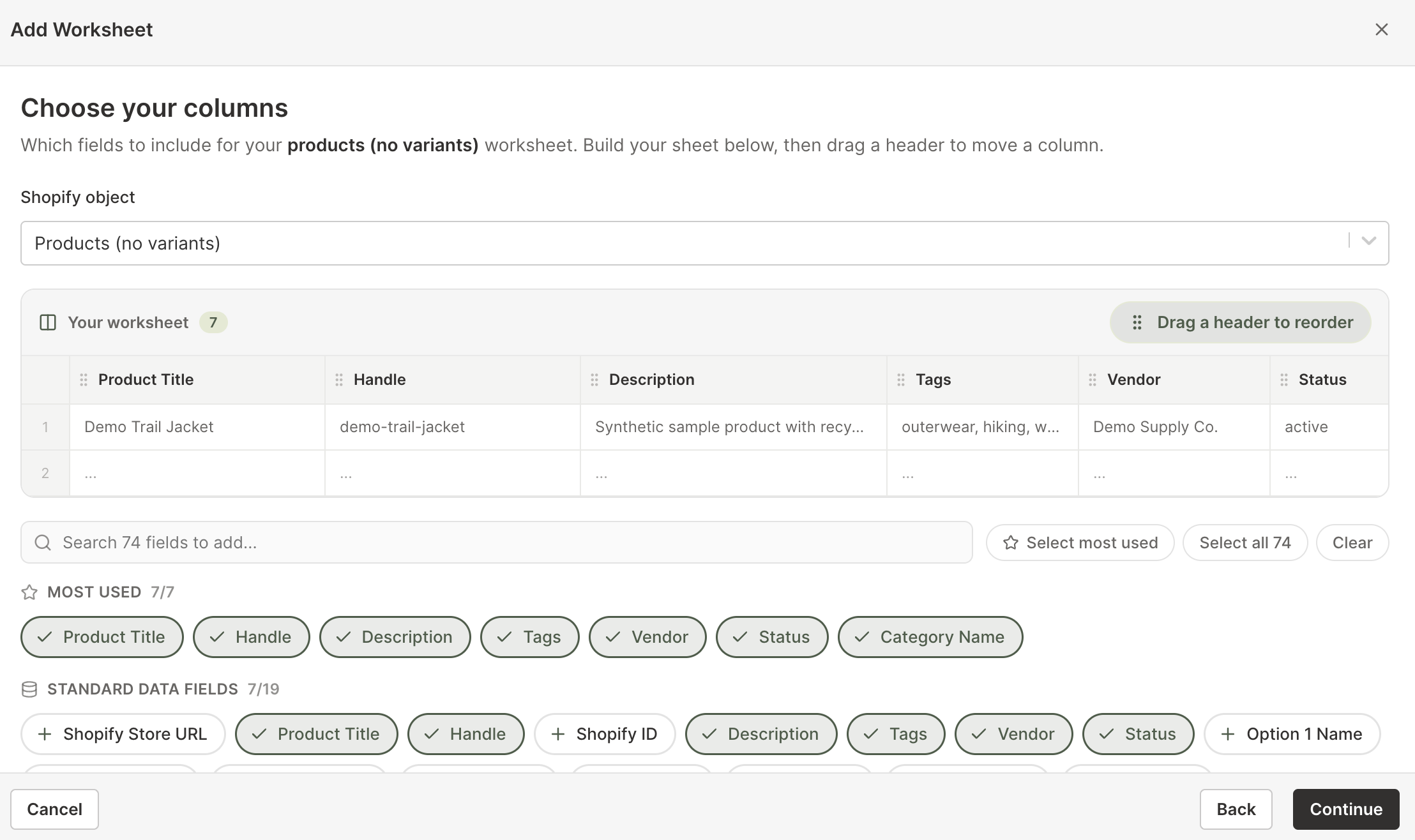
Adding a worksheet is now a guided, step-by-step flow. Worksheet choices are clearer, with a description and preview for each type, and the steps walk you through picking your data, columns, and rows in order. The column selection step has also been rebuilt, so choosing exactly which Shopify fields to include is faster and more focused.
Redesigned spreadsheet search
Spreadsheet search (Ctrl+F or Cmd+F) has been redesigned from the ground up to make finding matching cells more reliable and easier to navigate. Jump between matches with next and previous controls and see how many cells match as you type.
Read more: Find Shopify information in your spreadsheet
Easier cleanup of empty worksheet rows
Empty rows can appear in a worksheet over time, for example when objects are deleted in Shopify and the changes sync to Mixtable. Mixtable now detects them when you open a worksheet and shows a notification with a one-click Clear Empty Rows action, so keeping worksheets clean and fast no longer requires digging through menus.
Read more: Find and remove empty rows from a worksheet
Clearer row history
Row history has a refreshed, easier-to-read interface. And when a row has not been modified yet, you now see a clear empty state instead of a blank panel, so it is obvious there is simply nothing to show.
Read more: View the history of your Shopify data changes
A refreshed interface
The dashboard, dialogs, dropdown menus, date controls, notifications, and other common interface elements have been updated with a more consistent design language. Everything should feel cleaner and more cohesive as you move around the app, from creating your first spreadsheet to syncing changes back to Shopify.
