
Adaptive Personalization in Shopify: Delivering Relevant Experiences as Customer Needs Shift
On this page
Personalizing your email campaigns and overall user experience is essential for your e-commerce success. However, personalization is heavily reliant on correct customer segmentation, and some stores encounter issues with rapid changes in user needs and characteristics.
When personalization may be tricky because of evolving user needs
Usually, based on past purchases and other characteristics, you tag customers and then include them in specific segments, e.g., Eco-Conscious Consumers, Frequent Buyers, etc. Based on these segments, you personalize your communication with them.
However, there are cases where personalization may not be effective with one-time user tagging, because user circumstances change over time. Here are some use cases:
- Diapers for babies
- Kids’ clothes
- Puppy food
- Pregnancy supplement
- Supplements for elderly parents, and more
How to handle changing user characteristics in Shopify?
There are two primary methods for capturing evolving personalization details in Shopify. In both cases, however, you need to update the information over time.
- Collect user data
- Request user-specific information during the order process.
For example, have a field asking the following question: what is the birthdate of your puppy?
Note: This data collection needs to be done in a user-centric manner, as incorrect implementation may lead to users abandoning their carts. The way to think about it is to ask yourself, “Why would the user be willing to provide this extra information?” Try to direct the data collection process in the area of sending the most concrete product to the user.
- Send post-purchase surveys. This method is safer as it does not interrupt the ordering process. Again, ensure that you provide value for the information you want to collect.
- Predict user data based on purchase history
Based on customer orders, tag them with, e.g., newborn/size 1 or the respective size. Below, we will discuss how to update those tags on a regular basis.
Update evolving customer information
Here are the steps for updating customer personalization info via the Mixtable spreadsheet platform.
- After installing the Mixtable app, create a spreadsheet using the Analytics > Sales by Customers template. The template will load customer data, including:
- Product Categories Bought by Customer
- Product Types Bought by Customer
- Segments Customer is In
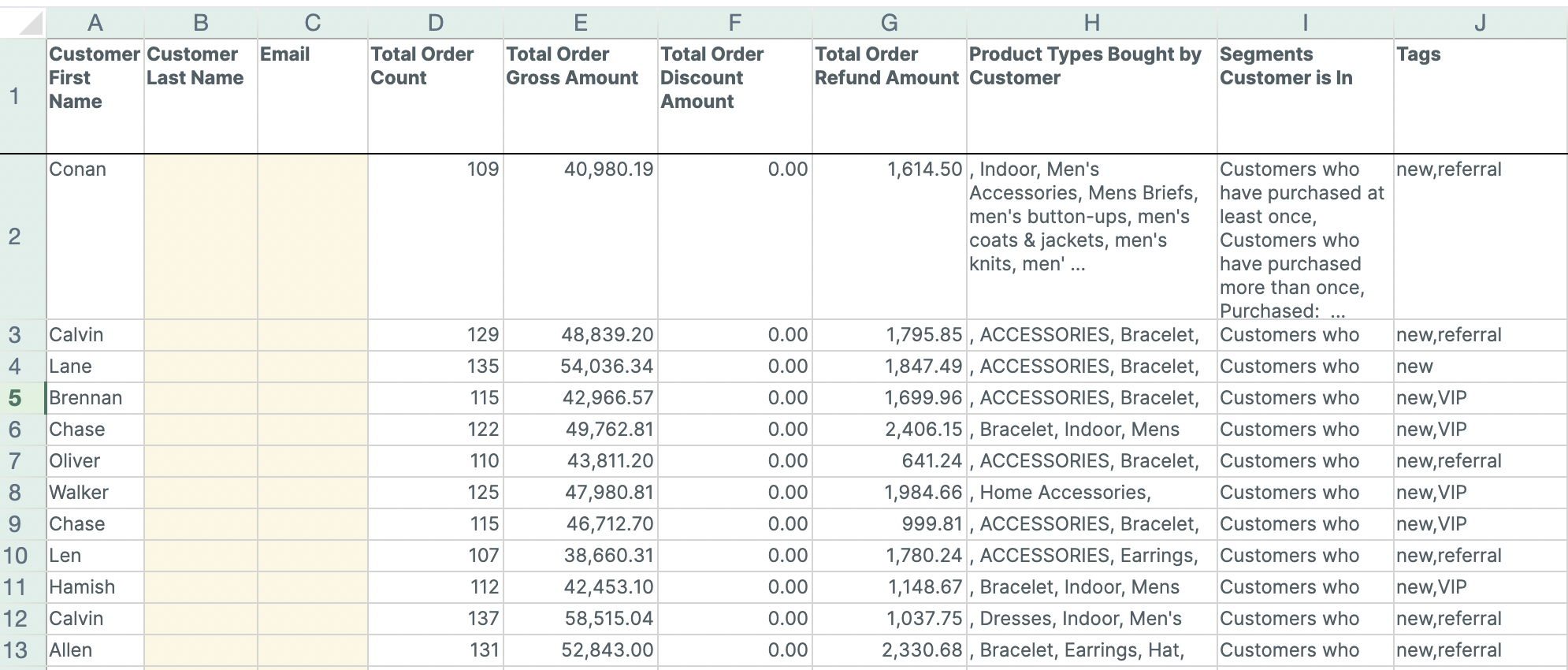
Additionally, you can populate extra Shopify data, such as tags, metafields, date of first or last order, and more.
-
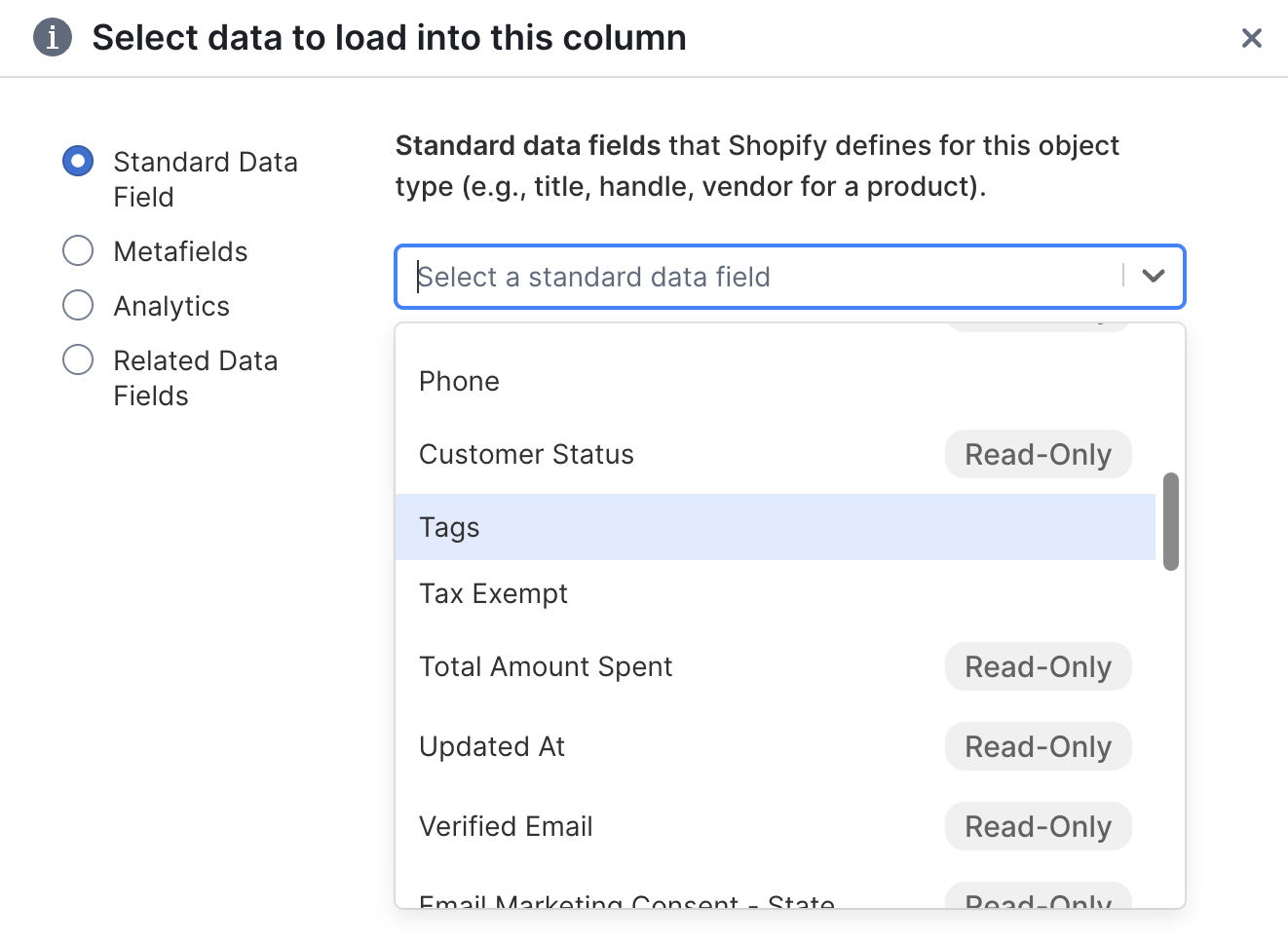
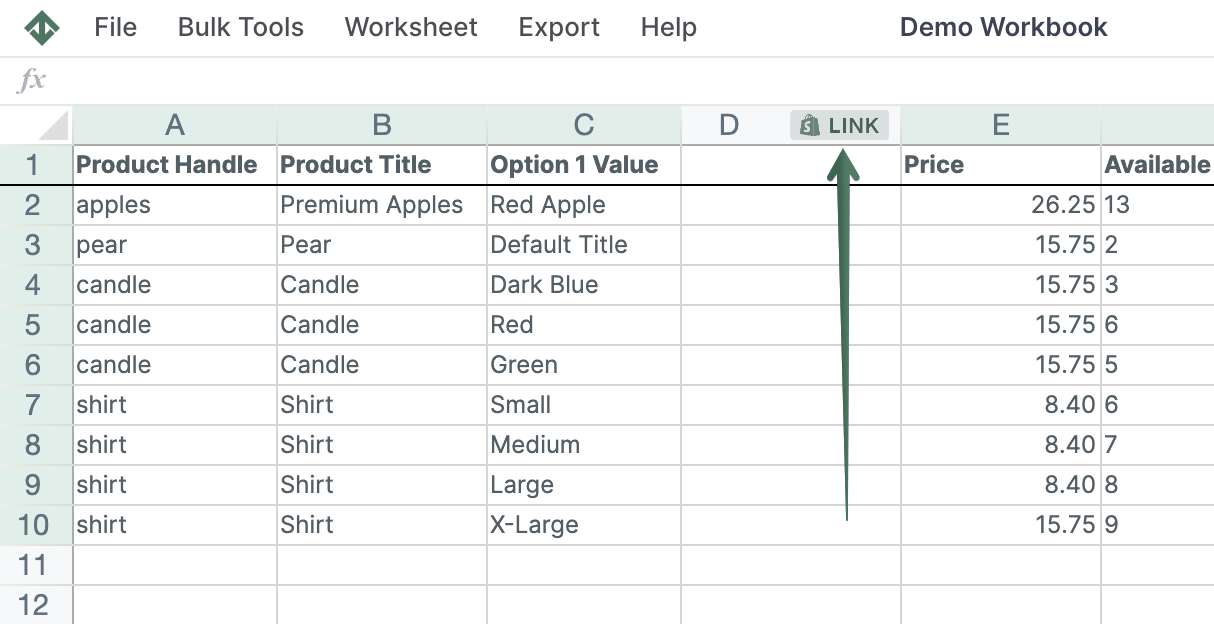
To load more Shopify data, click + Shopify data in the header row of an empty column, such as the one right after your last column. You can also choose Column > Add Shopify data… from the menu bar. The field picker opens and asks What should column E show?, with your column's letter in place of E. It lists everything the worksheet can show from Shopify, grouped into sections the way your Shopify admin groups them. Type in the search box at the top, or click a section on the left, to find the field you want.
For example, click Tags in the Customer section, a metafield in Custom data, or First order date or Last order date in Orders & spending, then click Save Column
-
Depending on where you have added the personalization information, e.g., about clothing size (tag or metafield), use the spreadsheet filter option on this column. Then, in an additional column, indicate each customer based on their current circumstances, e.g., column name: date of birth, data input: 01.05.2025.
-
Next, you can use a formula to calculate the Current Kid’s Age:
=DATEDIF('date of birth', 'today's date', "y")
- use “y” to calculate the number of years
- use “m” to calculate the number of months
- You can use this Current Kid’s Age column as a Customer metafield and base your customer segmentation and email personalization on it.
Other use cases
- Subscription for puppy food is a similar case - the dog’s age and food needs should be revised and updated over time.
- If you are selling supplements for elderly people, it is advisable to create a similar circumstance update automation. That will allow you to send personalized email campaigns that suggest new products, based on the users’ evolving needs.
