9 Product Bulk Editing Use Cases for Shopify
On this page
Bulk change products in a collection
Problem: Is there a way to move products in bulk from one collection to another? For example, if there is a “Just In” Collection, you might want to move old products to their respective collections to make room for the new releases for this month.
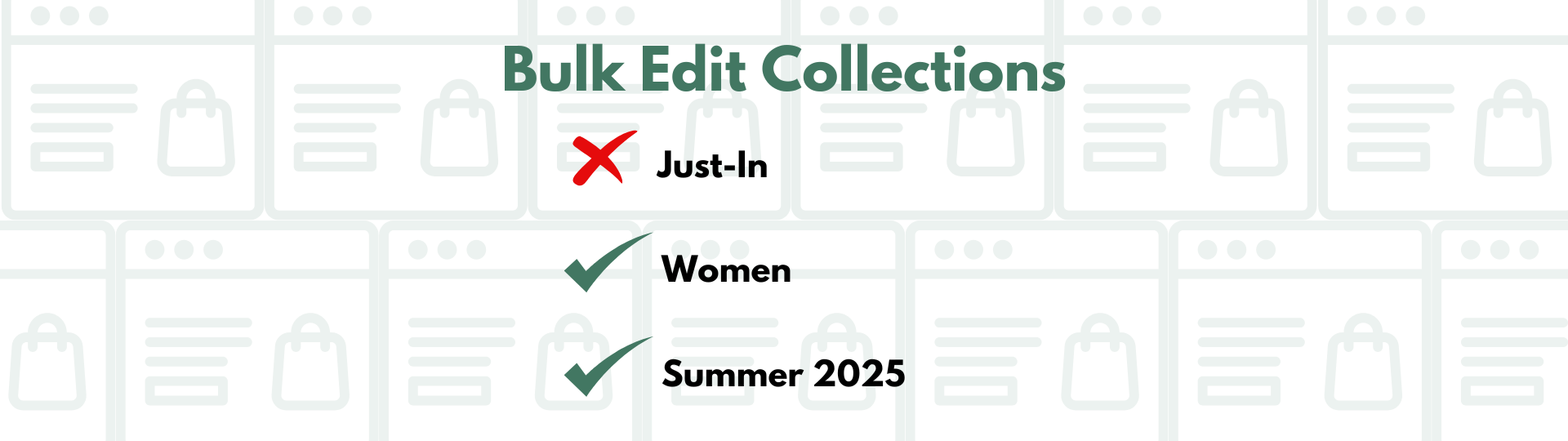
Solution: Yes, there is a way to remove products from one collection in bulk and put them in another. Here’s how to do it:
- Start by installing the Mixtable Spreadsheet Editor app
- Once you load the app, create a spreadsheet from the Basic Product Info template to get started. This will pull your Shopify store data into a spreadsheet format
- Next, click + Shopify data in the header row of an empty column. The field picker opens and asks What should column E show?, with your column’s letter in place of E. Click Collections in the Organization section, then click Save Column
- Now that you have the collections’ data in the spreadsheet, you can do the necessary edits. If you need more information, please visit the bulk edit collections tutorial
Product prices
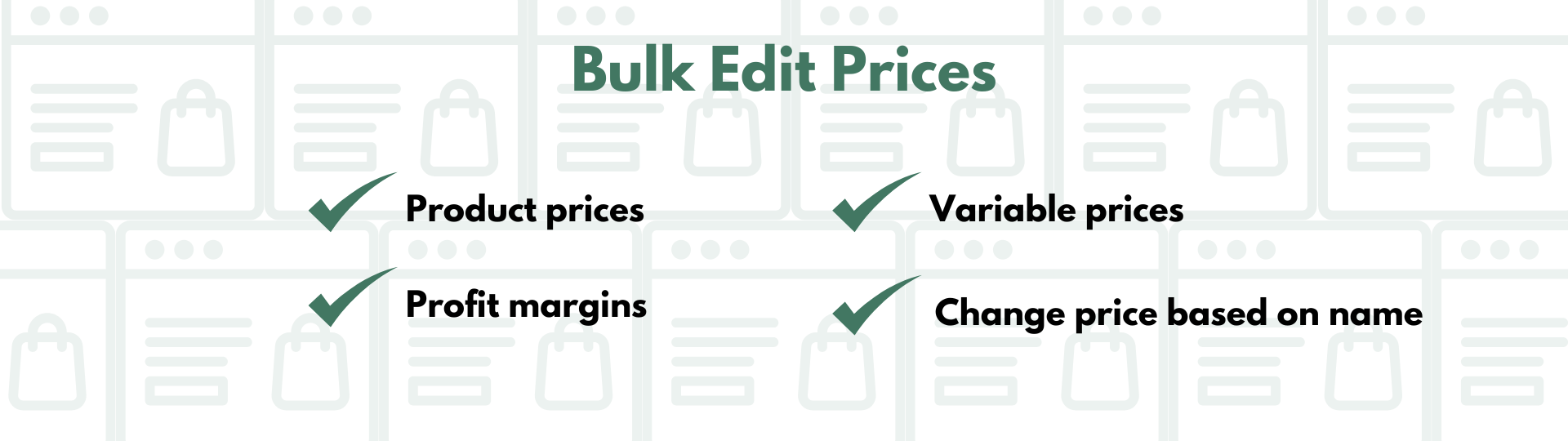
Mass-edit product prices
Problem: Is it possible to see product prices when looking at a product page or an inventory page? Is mass editing prices possible ( versus going into every single product page, one by one?
Solution: It is possible to look at products, inventory, and prices all on one screen with a spreadsheet app. Here’s how it works:
- Start by installing the Mixtable Spreadsheet Editor app
- Once you load the app, create a spreadsheet from the Inventory template to get started. This will pull your Shopify product and inventory data into a spreadsheet format
- To add prices, click + Shopify data in the header row of an empty column, click Price in the Pricing section of the field picker, and click Save Column. Here are the detailed instructions for product prices
- Now that you have all the data in one place feel free to make any necessary changes
Bulk edit profit margins
Problem: Is there a way to increase product prices in bulk when there are hundreds of different products? Can we increase the profit margin from 50% to 65% on all products simultaneously instead of doing it manually, one by one?
Solution: It is easy to edit profit margins in bulk when you operate through a spreadsheet editor. Here is how to do it:
- Start by installing the Mixtable Spreadsheet Editor app
- Once you load the app, create a spreadsheet from the Full Product Info template. This will load products, variants, prices, and other useful information from your Shopify store
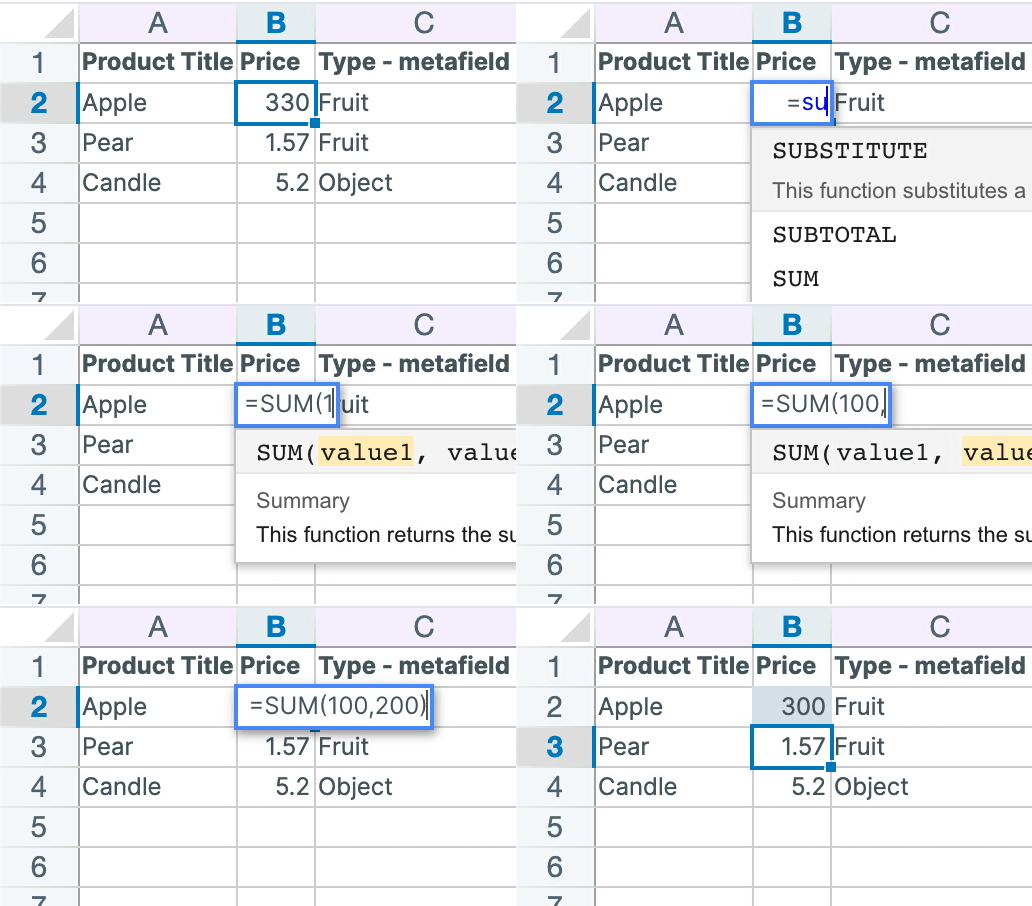
- Since you are operating from a spreadsheet, you can use a formula to recalculate your prices with a higher profit margin
Bulk edit variable prices
Problem: If you make and sell handmade silver jewelry, and the price of silver is changing daily, is there a way to adjust prices in bulk?
Solution: Yes, you can set dynamic prices with the Mixtable Spreadsheet editor app. Follow this link to learn more about dynamic prices in Shopify.
Edit the product price based on the name
Problem: In this case, product variants represent different product types and must be priced accordingly based on the product (variant) name. For example, all products that have “top” in the name are to be priced at $15, and all with “sweater” in the name variants - to $35.
Solution: This is very quick and easy to do with a spreadsheet app connected to your Shopify data. Here is how it works:
- Start by installing the Mixtable Spreadsheet Editor app
- Once you load the app, create a spreadsheet from the Full Product Info template. This will load products, variants, prices, and other useful information from your Shopify store
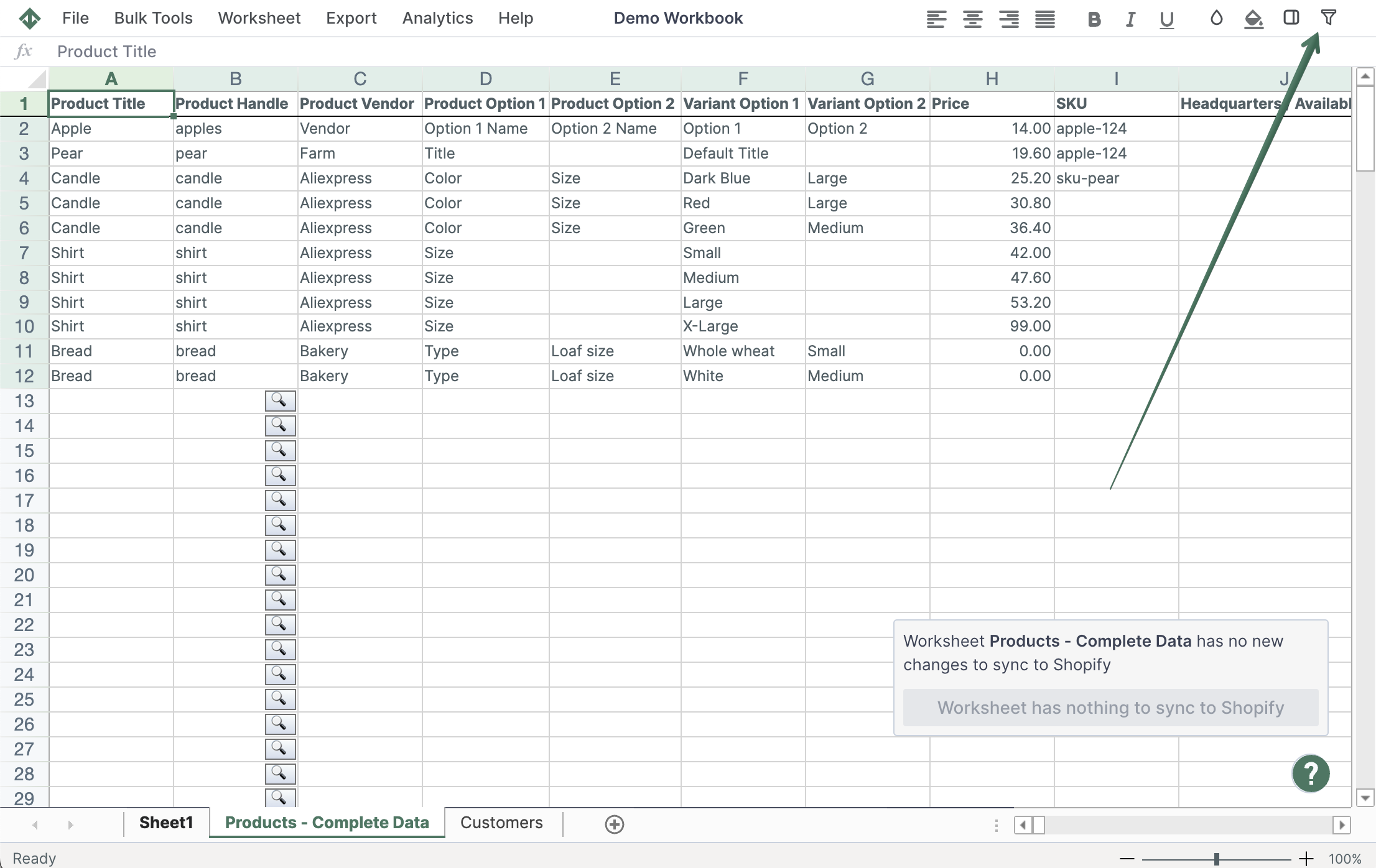
- Since you are operating from a spreadsheet, you can filter product variants containing “top” and change their price as needed. Then do the same with those containing “sweater”
Add processing time per product
Problem: When selling hand-made products, is it possible to add custom processing time (time to produce an item) for each product? For example, describe that you need 3-5 days to make a product. It would be best to have this information on the PDP and not only in the FAQ section.
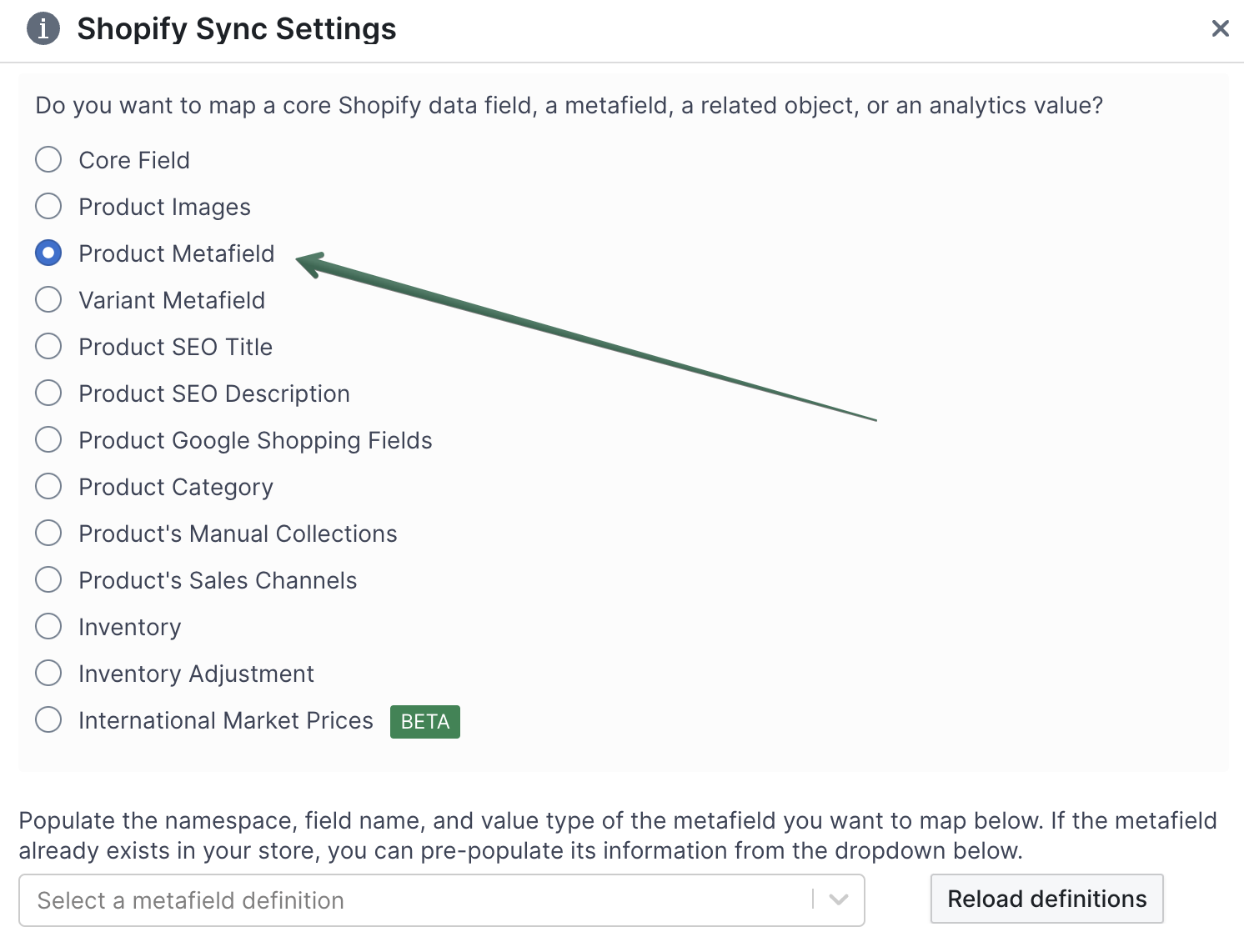
Solution: This can be done by adding metafields to your product description pages, and then you can easily edit the content of the fields from the convenience of a spreadsheet like Mixtable.
- Here, you can check how to bulk edit metafields with a spreadsheet app.
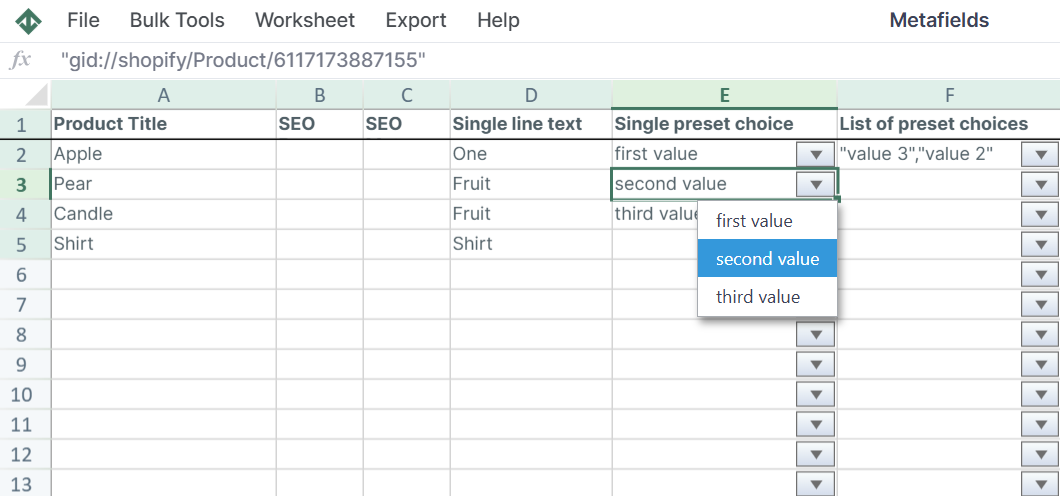
Bulk edit metafield with ‘list of values’
Problem: Is there a way to append a new value to a multi-value metafield without overwriting existing values? The native bulk editor’s current functionality replaces existing values, which is not the desired outcome.
Solution:
You can add additional value to a multi-value metafield with Mixtable spreadsheet editor. Check this tutorial for more details: Bulk edit metafields.
Make a variant unavailable across hundreds of products
Problem: There are approximately 5,000 products, each with five size variants. One variant would be temporary unavailability, which needs to be indicated without deleting the size option. This change applies to the same size variant across all products. Reversibility is required when the variant becomes available again.
Solution: There are two ways to mark a product variant unavailable with the Mixtable spreadsheet temporarily:
-
Option 1:
- Filter the product variant and change its inventory to 0. That will show the product as “unavailable”/“out of stock.”
- Then, you can change the inventory back to a certain number,
-
Option 2:
- Export the worksheet with the product variants as a backup file, with Import & Export > Export to CSV or Export to Excel
- Then, choose the variants you want to remove and delete all their occurrences
- When you are ready to bring the variants back, add them again from the backup file
Bulk edit product info for Google & YouTube Merchant Center
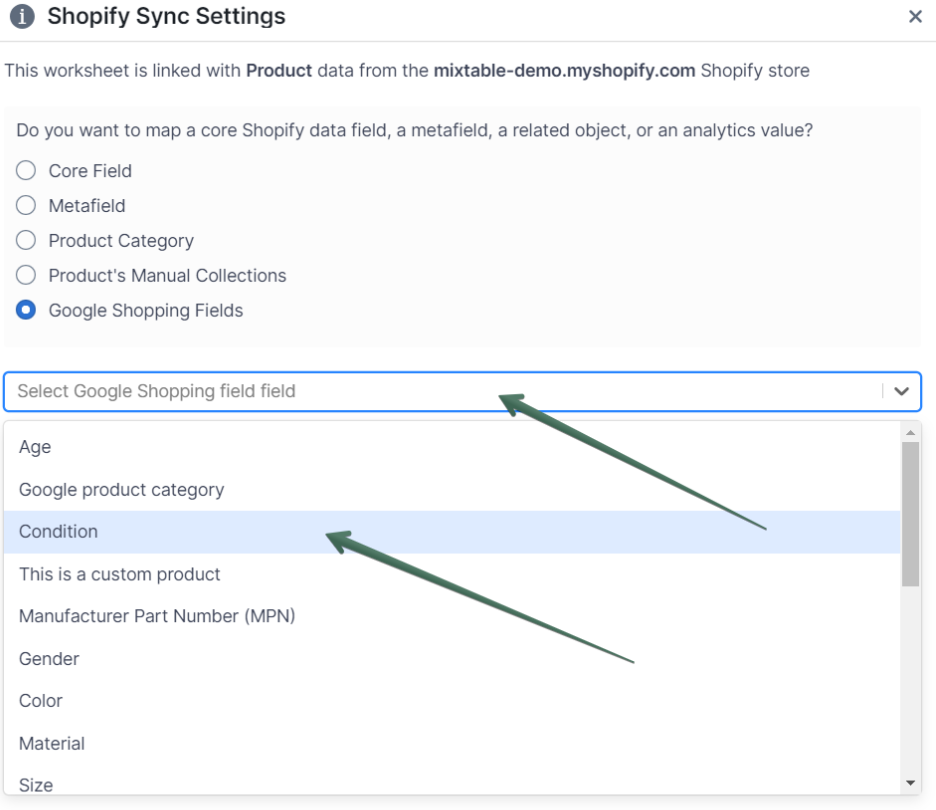
Problem: Is there a way to bulk edit or set a template for Google’s product information shared with the Google Merchant Center? A website selling apparel wants to have default or template values for product information submitted to Google’s Merchant Center. For instance, to automatically populate fields with default values, such as “Customs product: Yes,” “Condition: New,” “Gender: Female,” and “Age Group: Adult” for a woman’s t-shirt.

Solution: New products won’t come automatically with the default values, but you can easily copy-paste them within the spreadsheet editor. Here, you can find details about bulk managing Google Shopping fields with Mixtable.