Scheduled Shopify Changes, New Spreadsheet Sharing, and Revert to Shopify Value
On this page
This release lets you choose when your edits reach Shopify. Schedule a price change, a product launch, or a whole sale for a set time, and have it end on its own. You can also share a spreadsheet with your team, an agency, or a supplier by email or with a private link, undo edits before they reach your store, and write product descriptions with real formatting. Here’s everything new since our early October update.
Scheduling and syncing changes need Mixtable Spreadsheet Editor. Change all time periods is part of Mixtable Analytics Spreadsheet. Sharing, the new Create spreadsheet and Add worksheet windows, and the other improvements apply in every Mixtable app.
Schedule Shopify changes for a set time
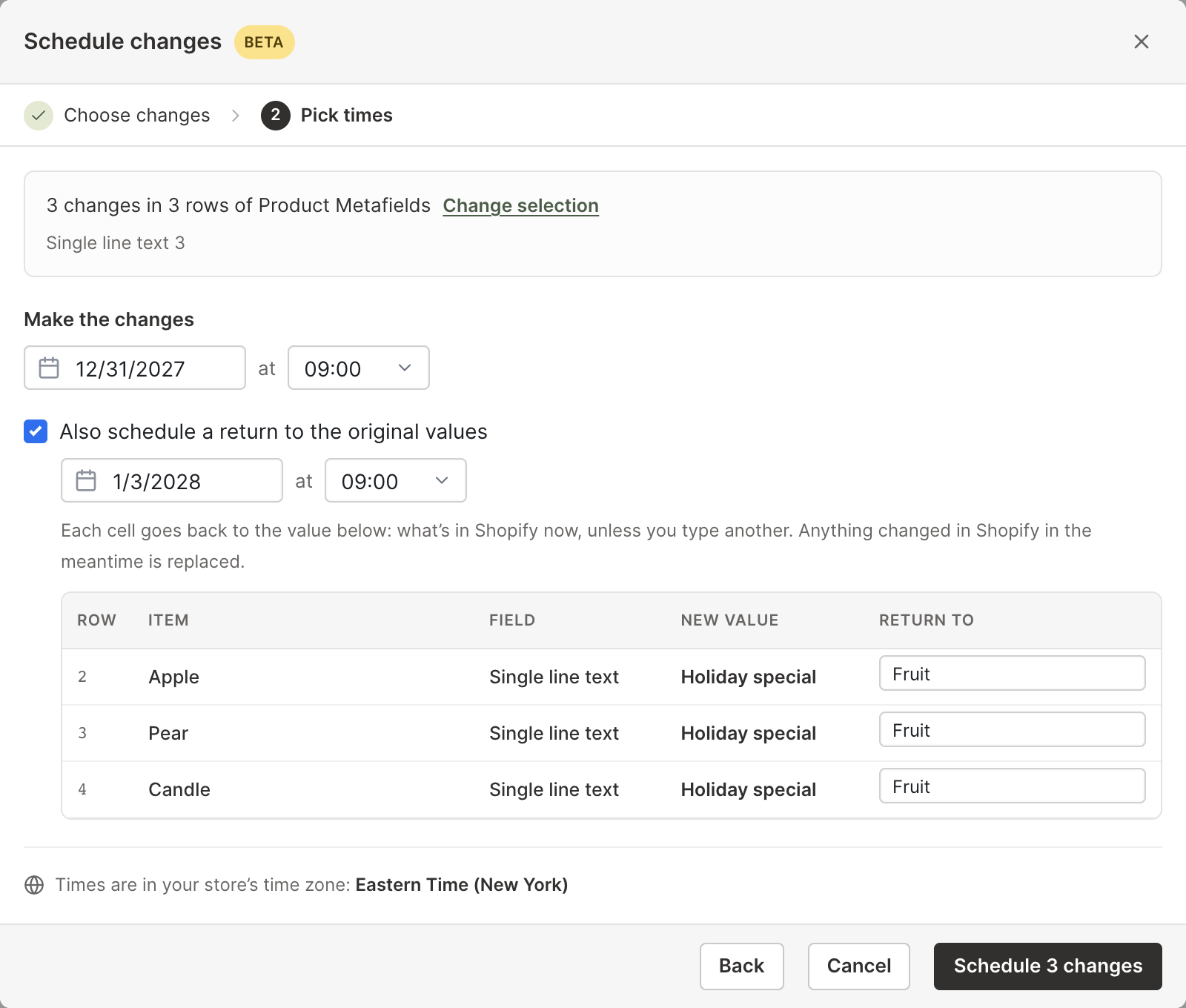
Shopify can’t change a product’s price on a future date, so a midnight sale usually means staying up to click a button. Now you can edit the cells as usual, click Schedule sync instead of Sync now, and pick when the changes go to Shopify.
- Choose which changes to schedule. The Schedule changes window lists every unsynced change in the worksheet. Untick the ones you want to keep for later, or use By field to pick every price change at once
- Pick a time in your store’s time zone. Mixtable makes the changes at that time whether or not anyone has the spreadsheet open
- End a sale on its own. Tick Also schedule a return to the original values, pick an end time, and every cell goes back to what’s in Shopify now, or to a value you type
- Schedule any field you can sync. Prices, compare-at prices, market and B2B fixed prices, stock, status, publishing, tags, collections, templates, metafields, translations, and more
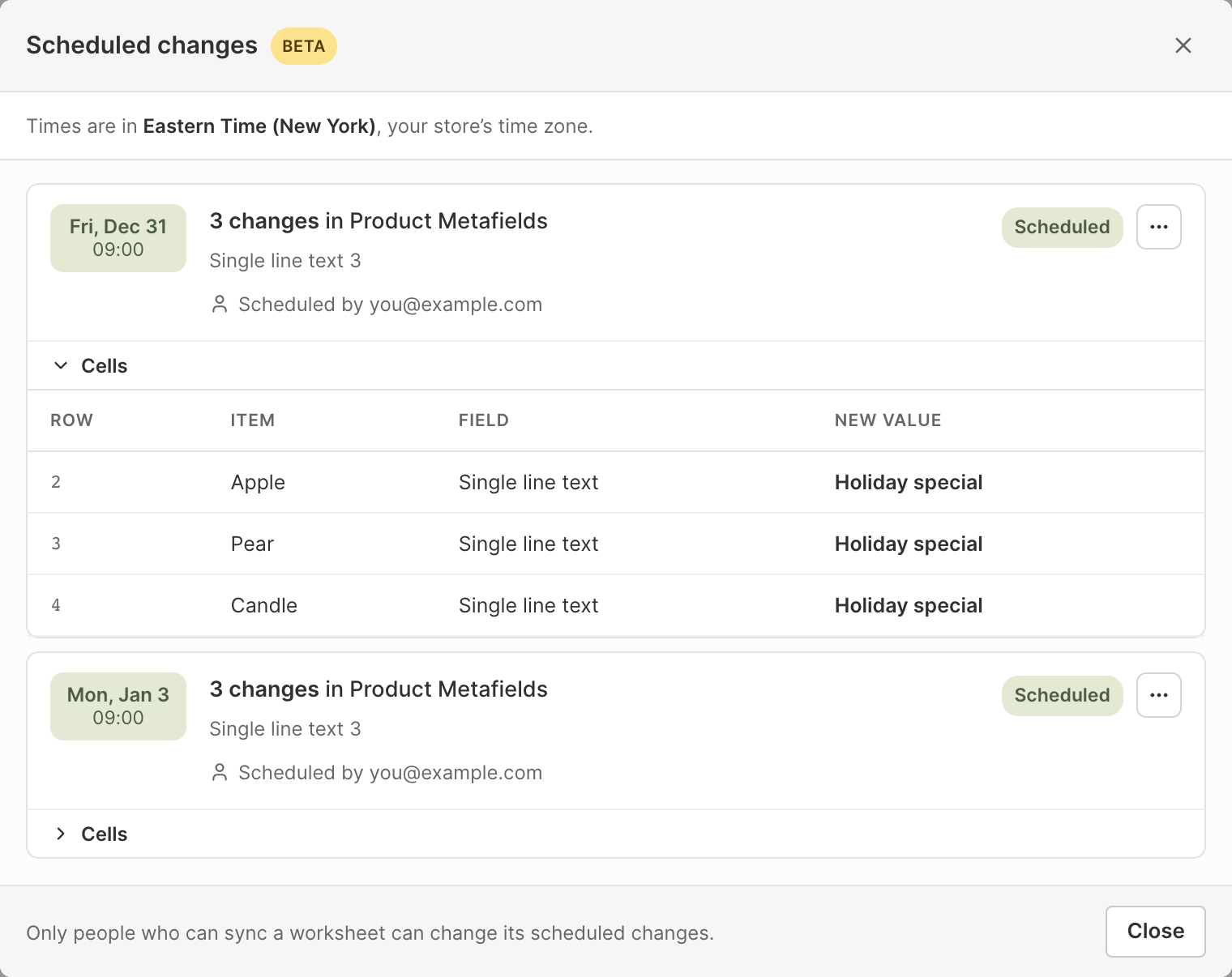
The scheduled cells show a small clock mark, and a green Scheduled changes button opens the list for the whole spreadsheet. From there you can run a change now, change its time, put its values back into the worksheet to edit them, or delete it. After a change runs, the list shows how many changes were made and any sync errors. If a change couldn’t run, for example because the store’s plan had ended, the list says why and offers Run now.
A few ways stores use it:
- Start a Black Friday sale at midnight and end it on Monday night, with every price going back on its own
- Publish a new collection’s products at the moment your launch email goes out
- Swap in holiday product descriptions or SEO titles for December, then switch them back in January
Read more: Schedule Shopify price changes, sales, and bulk edits
Share a spreadsheet with your team, agency, or suppliers
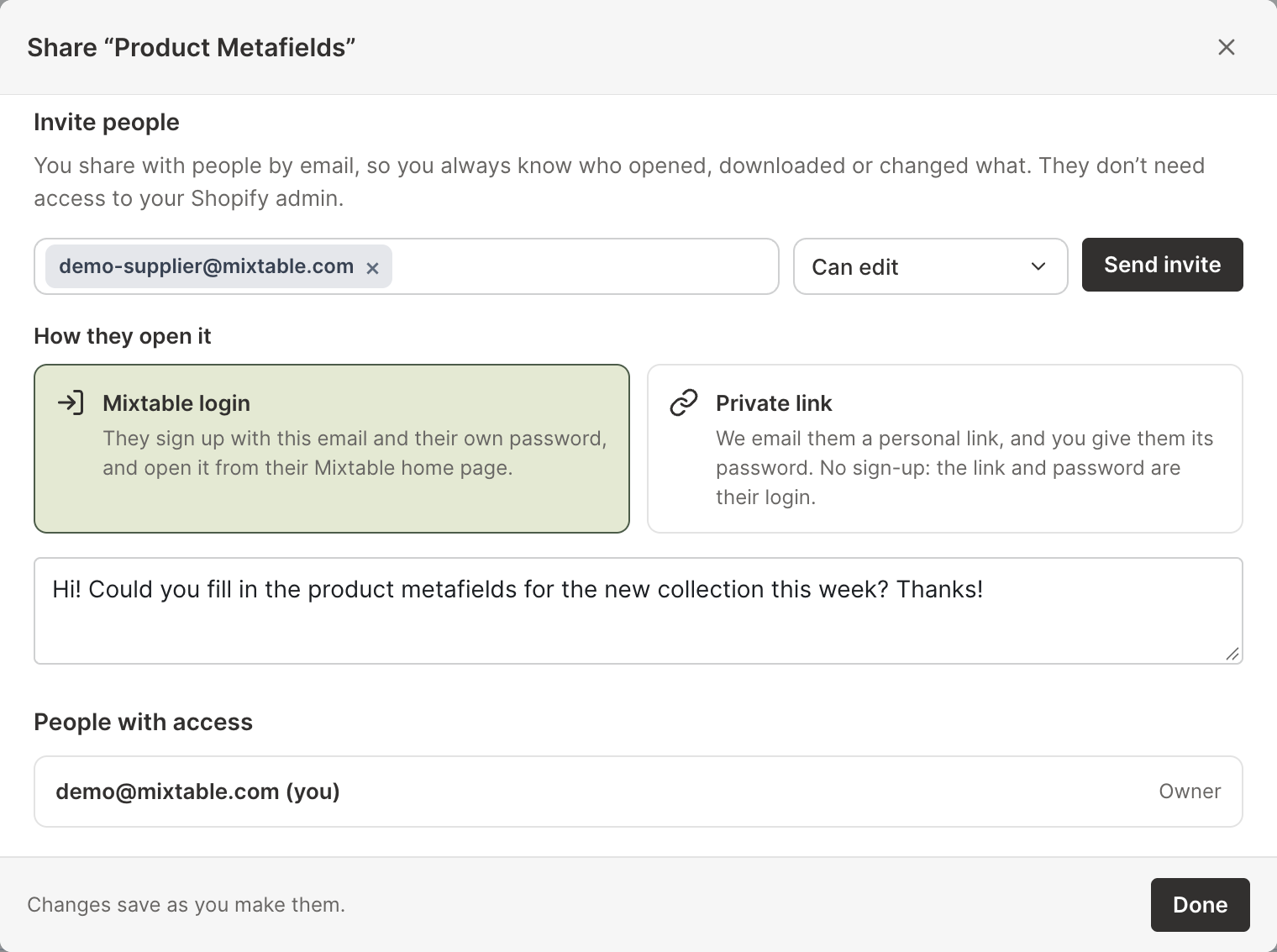
Sharing is rebuilt around the people you actually work with. Click Share at the top right of a spreadsheet, type their email address, and pick what they can do:
- Can view: they look through the data and download it, but can’t change anything
- Can edit: they change cells, and their changes wait in the spreadsheet until you review them and sync them to Shopify
- Can edit and sync: they change cells and sync their changes to Shopify without your review
Then choose how they open it. With a Mixtable login, they sign up free with the email you invited, and they don’t need a Shopify account. With a Private link, Mixtable emails them a personal link, and you give them its password another way, for example by text message. There’s no sign-up at all.
Customize lets you choose, worksheet by worksheet, what each person can see, edit, and add from your store. A supplier can check stock on a worksheet of only their products, while a freelancer writes SEO titles on another. People with access shows who you’ve invited, when they last opened the spreadsheet, and for private links, every sign-in and download.
When someone with Can edit makes changes, you see a notice the next time you open the spreadsheet, and their edits go to Shopify only when you sync them.
Read more: Give your team, agency, or vendors access to Shopify data
Undo edits before they reach Shopify
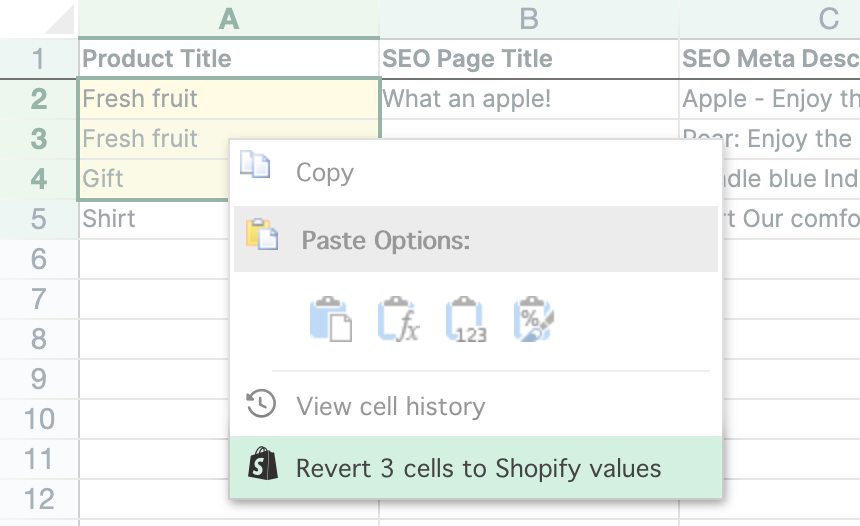
Pasted prices into the wrong column, or ran a find and replace that went too far? Select the cells, right-click, and choose Revert to Shopify value. Mixtable puts the pale yellow, unsynced cells back to their Shopify values and clears their highlight, so nothing you didn’t mean to change gets synced. It’s also in the Shopify Sync menu.
Read more: Undo unsynced edits with Revert to Shopify value
Write product descriptions with formatting
Product descriptions, collection descriptions, and page and blog post content are stored as HTML, which is hard to edit in a cell. Now these cells have an Edit button that opens a formatted text editor. Add headings, bold and italic text, bulleted and numbered lists, and links, the way you would in a document. Paste from Google Docs, Word, or a web page, and the formatting comes with it while stray fonts and colors stay behind. Prefer code? Switch to the HTML view.
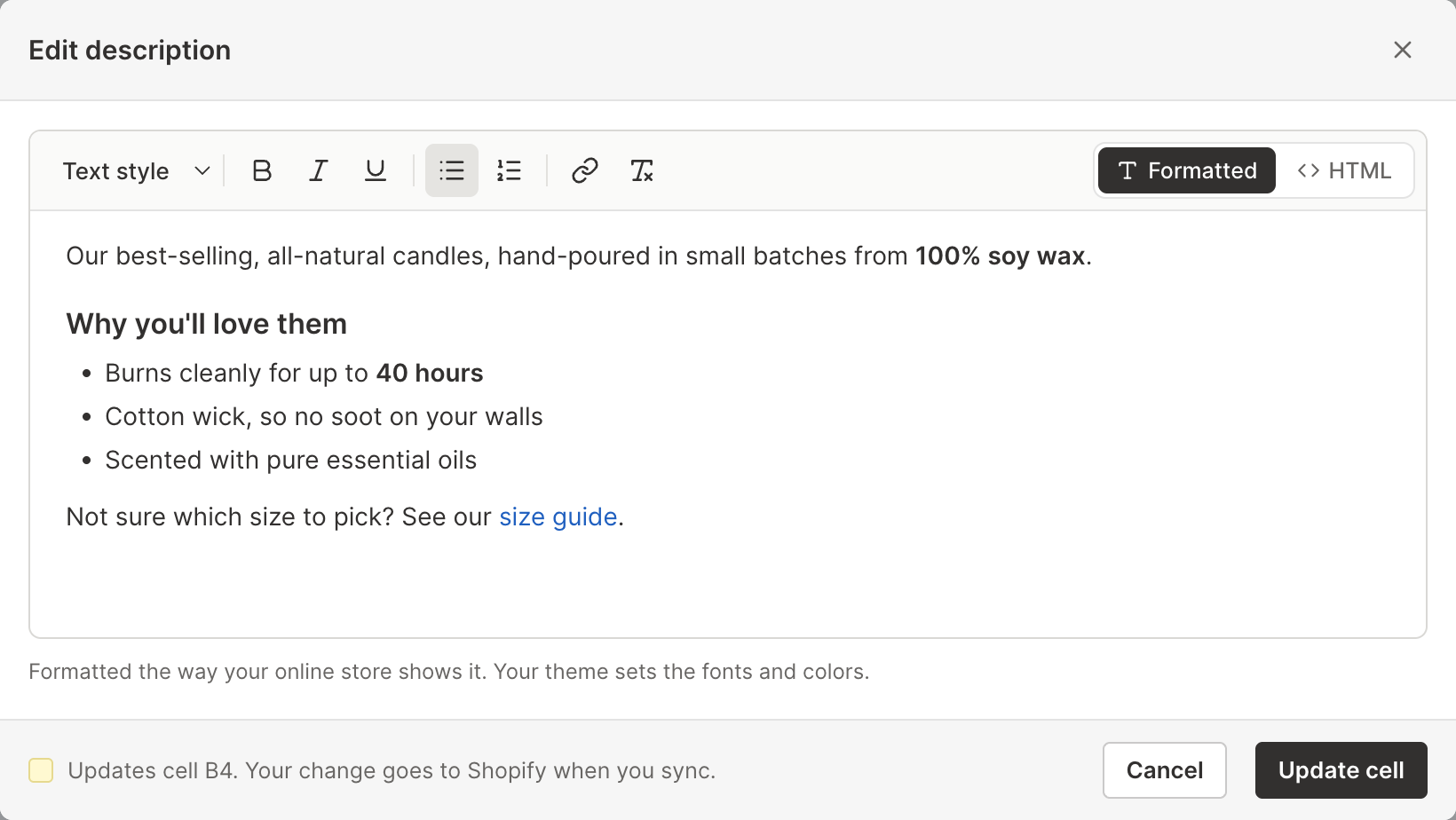
Click Update cell, and the new description waits in the cell until you sync it, like any other edit. It works on translation columns too.
Read more: Format Shopify product descriptions with a rich text editor
Find the right spreadsheet faster
The Create spreadsheet and Add worksheet windows are now lists of tasks instead of a gallery of cards. Search for what you want to do, such as “inventory” or “blog posts”, or browse the Store data, Reports, and From scratch tabs. Click a task to preview it before you create anything. Store data previews show your own store’s first rows.
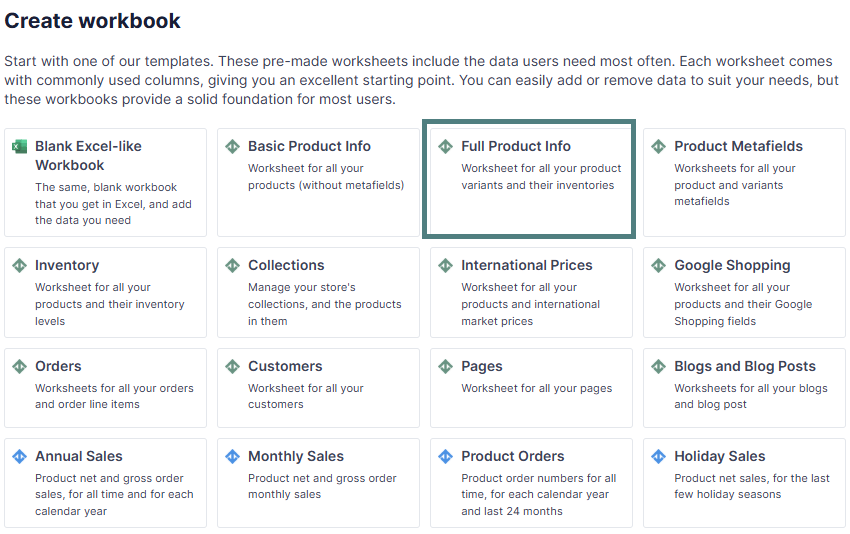
In Add worksheet, the next steps let you pick your columns in a live preview of the sheet and choose which rows to load, such as one vendor’s products or orders from a date range.
Change every report’s time period at once
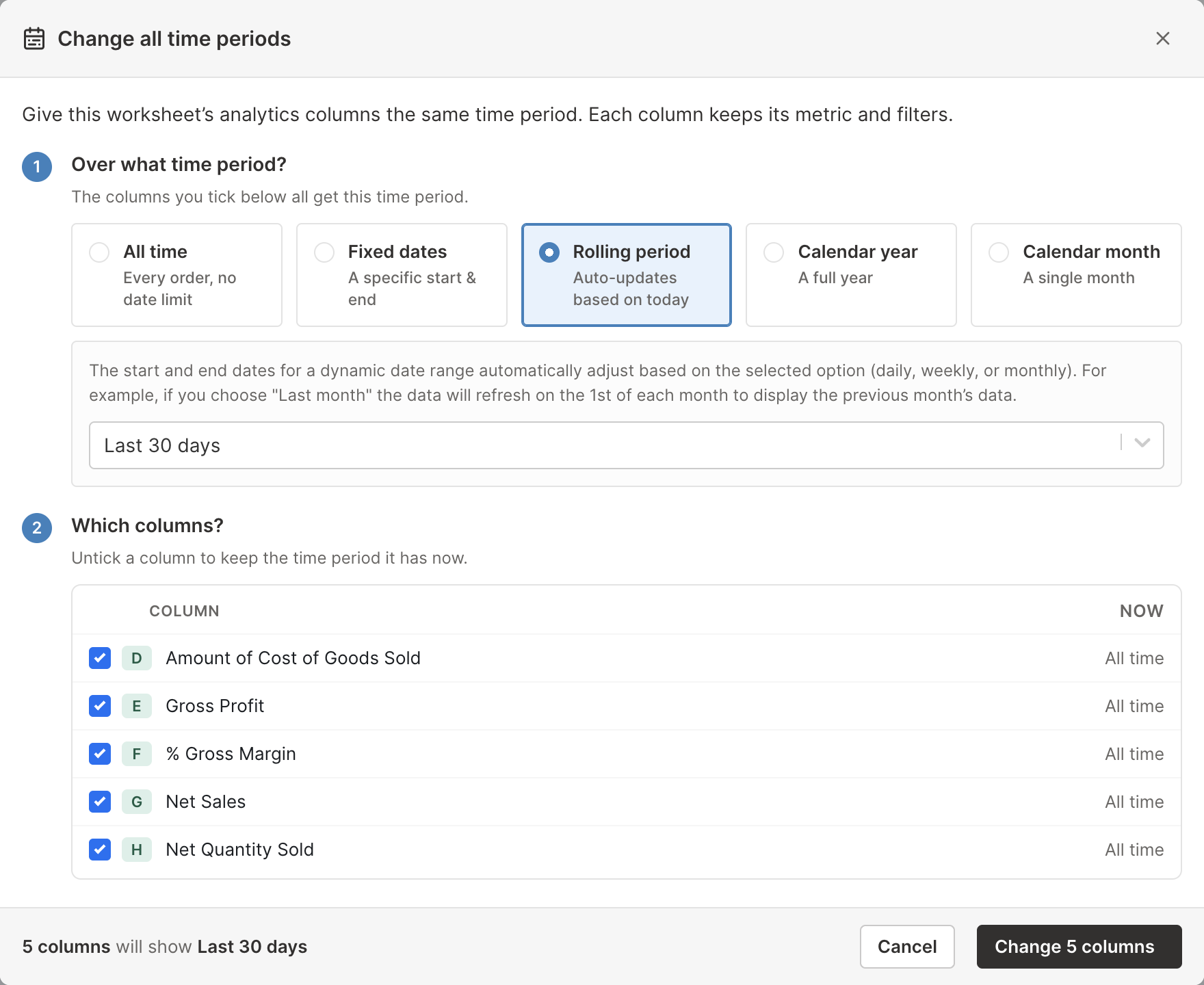
On a worksheet with analytics columns, or on a Pivot Table worksheet, the new Change all time periods button at the top right switches every column to the same time period in one step. Switch a whole report from the last 30 days to the last 90 days without opening each column. Each column keeps its metric and filters, and its header updates to match.
The Order source filter now lists your store’s own order sources, such as Amazon or eBay, so you can report on each sales channel you sell through.
Read more: Shopify analytics timeframes and date ranges
More improvements
- A simpler sync control. The top right of the spreadsheet now names your waiting edits once, for example 12 unsynced changes, then offers Sync now and Schedule sync. Other buttons appear only when needed, such as Apply 3 updates when changes from Shopify are waiting. On worksheets of data Shopify doesn’t send on its own, the download button names what it downloads, for example Download latest blog posts from Shopify
- Faster first downloads. We’ve made many optimizations so your store’s data loads into Mixtable much faster after you install
- Shorter Orders templates. The Orders and Line Items templates start with the columns most stores use, matching Shopify’s own order export. Any other field is a click away with + Shopify data
- Field history for B2B prices. Fixed B2B catalog prices now appear in a variant’s history next to its market prices
Bug fixes
- Large filtered worksheets no longer freeze after you filter a column
- Formulas now recalculate right away when cells update from Shopify, instead of after a reload
- Big new Orders worksheets stay responsive while their rows fill in
- Variant profit and margin cells show No cost or No sales instead of waiting on “Calculating…” forever
- The Print window no longer sits under the Shopify Sidekick bar
- The Google Shopping size type now offers “tall” and “big” as separate choices, which Google accepts
- Inside the Shopify admin, the dashboard no longer sometimes says it couldn’t load your spreadsheets, and cell saves no longer fail now and then with an error