Shopify Month-End Close: Reconcile Sales, Payouts and Bank Deposits
On this page
- Why sales, payouts and bank deposits don’t match
- Before you start: collect five things
- Step 1: Split the month’s sales by how customers paid
- Step 2: List the month’s payouts and see what’s in them
- Step 3: Match each payout to a bank deposit
- Step 4: Explain the gap between Shopify Payments sales and payouts
- Step 5: Close out your other payment methods
- Step 6: Give your accountant a close pack
- Do the payout side faster with a spreadsheet
- Frequently asked questions
Your Shopify sales report says October brought in $47,250.00. Your bank account received $37,029.18 from Shopify Payments. That doesn’t mean money is missing. Sales, payouts and bank deposits are three different numbers, counted at different moments, and closing the month means explaining the gap between them until nothing is left unexplained.
This guide walks through that close with the reports Shopify already gives you, then shows how to do the payout side faster with a spreadsheet. The example follows one store’s October. Its numbers are made up, but they add up from the first step to the last, so you can check your own close against them.
Why sales, payouts and bank deposits don’t match
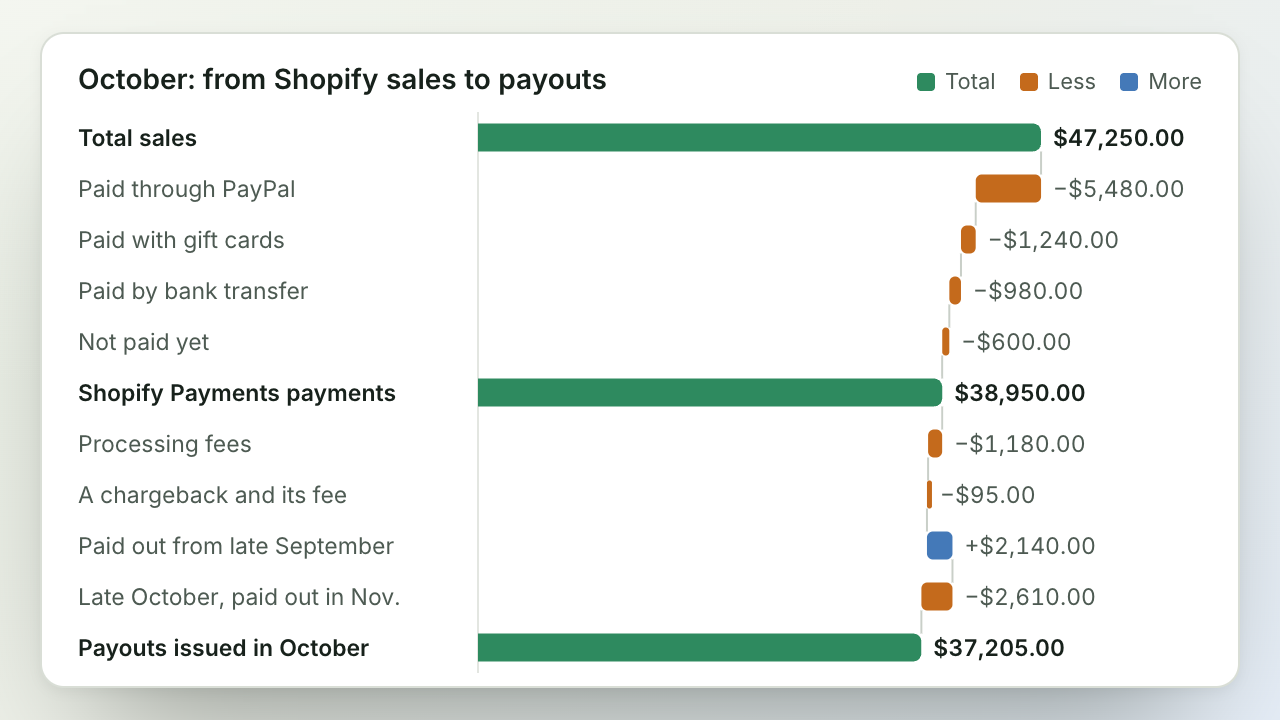
Starting from your total sales, these are the usual reasons less money reaches your bank:
- Customers paid in other ways. Payouts only include payments processed by Shopify Payments, which covers Shop Pay and Shop Pay Installments too. Orders paid with a gift card, by bank transfer or cash on delivery, or through a separate payment provider never appear in a payout. PayPal depends on how it’s set up: as PayPal Wallet inside Shopify Payments, available in the US and France, its payments are in your payouts. Connected as its own payment provider, PayPal pays you separately
- Some orders aren’t paid yet. Shopify counts an order in sales when it’s placed, including orders with a pending payment or payment terms
- Fees come out first. Shopify Payments takes its processing fee before paying you. When you refund an order, the fee on the original payment isn’t returned
- Refunds and chargebacks. A refund is taken from your next payout. When a customer’s bank opens a chargeback, the disputed amount and a chargeback fee are withdrawn from your balance, and they’re usually returned if you win
- Holds and other charges. Reserves, adjustments, currency conversion and Shopify Capital repayments can all change a payout. Depending on your account, other charges can come out of your Shopify Payments balance too, such as shipping labels you buy in Shopify
- Timing. Shopify Payments waits a few business days before it pays out a payment: 3 business days in the US, Canada, the UK and most EU countries, 2 in Australia, and longer in some other countries. Payments from Friday to Sunday are paid out together, and a payout can take another 1 to 3 days to show up in your bank. So the last few days of every month are paid out in the next month
Two more things affect the numbers without anything going wrong:
- Gift card sales aren’t sales. Shopify treats a gift card you sell as a liability, because you still owe the customer the goods. The money for it reaches your payout, but it counts as a sale only later, when someone spends the gift card
- Taxes and shipping are in the cash. Customers paid them, so they’re in your payouts. That’s why you start from Total sales, not Net sales, when you match sales to money received
The rest of this guide turns that list into a close you can repeat every month: split sales by how customers paid, check each payout, match payouts to the bank, and explain the timing.
Before you start: collect five things
Close a month after the first few business days of the next one, so the month’s last payments have been paid out and have reached your bank.
- Finance summary for the month. In Shopify admin, go to Analytics > Reports, filter by the Finances category, and open Finance summary. It shows your sales, payments, gift cards and tips. The same category has Payments by gateway, which you’ll need in step 1
- Your payouts. Go to Finance in Shopify admin and open your payouts. Each payout shows what it’s made of, and you can export the transactions behind one payout, or every transaction in a date range, to a CSV file that Shopify emails to you
- Shopify Payments activity report. It’s under Finance > Documents. This PDF summarizes everything that moved through your Shopify Payments balance in a period, and it’s a good record to keep with each month’s close
- Statements from your other payment providers, such as PayPal
- Your bank statement for the month, plus the first week of the next month
One thing about dates: Shopify records Shopify Payments payments in UTC, and its finance reports and payout exports can use different date ranges or time zones. An order placed late on the evening of the 31st can land in October in one report and November in another. A few small differences right at the boundary are normal, so write them down instead of chasing them.
This guide also assumes Shopify pays you in one currency, the same one your store’s reports use. If you get payouts in more than one currency, close each currency on its own. In the spreadsheet below, that means adding the Net currency code column to both worksheets and the currency as one more condition in each formula.
Step 1: Split the month’s sales by how customers paid
Open the Finance summary for the month and write down how Shopify got to Total sales:
| October | Amount |
|---|---|
| Gross sales | $46,180.00 |
| Discounts | −$3,240.00 |
| Returns | −$1,620.00 |
| Net sales | $41,320.00 |
| Shipping charges | $2,410.00 |
| Taxes | $3,520.00 |
| Total sales | $47,250.00 |
Shopify works it out as gross sales, minus discounts and returns, plus taxes, duties, shipping and fees. This store doesn’t collect duties or extra fees, so those lines are left out.
Then open Payments by gateway for the same month. It lists the money customers paid during the month by where it went. Use the net payments, after refunds. Each line has its own place to check it:
| How customers paid in October | Amount | Check it against |
|---|---|---|
| Shopify Payments | $38,950.00 | Your Shopify payouts (steps 2 to 4) |
| PayPal | $5,480.00 | Your PayPal statement |
| Gift cards | $1,240.00 | Nothing: no new money came in |
| Bank transfer | $980.00 | Your bank statement |
| Total payments | $46,650.00 |
This store connects PayPal as its own payment provider, so PayPal pays it separately. If your PayPal payments go through Shopify Payments as PayPal Wallet, they’re part of your Shopify Payments line and your payouts, so check them in steps 2 to 4 instead.
Payments and sales don’t cover the same orders, so explain the difference between them:
| October | Amount |
|---|---|
| Total sales | $47,250.00 |
| − October orders still unpaid on October 31 | −$600.00 |
| + Payments in October for orders from earlier months | $0.00 |
| + Gift cards sold in October | $0.00 |
| + Tips | $0.00 |
| = Total payments | $46,650.00 |
This store started October with no unpaid orders and sold no gift cards and took no tips during the month, so its unpaid orders are the whole difference. In most stores, the other lines aren’t zero:
- Unpaid orders, at both ends of the month. Orders that weren’t paid by the end of the month are in sales but not payments. Orders from earlier months that customers paid this month are in payments but not this month’s sales. Filter your orders by payment status in Shopify to list what’s still owed, and keep each month’s list so next month you can see which of them were paid
- Gift cards you sold. Customers paid for them, but they count as sales only when they’re spent
- Tips. Customers paid them, but they aren’t part of total sales
Step 2: List the month’s payouts and see what’s in them
Open your payouts in Shopify admin and look at the ones dated in the month. Each payout has a status: Scheduled while it’s on its way, Deposited once Shopify has sent it to your bank, and Failed if the bank rejected it.
Open a payout to see what it’s made of: charges, refunds, adjustments, fees, reserves, and any retried payouts. For each payout, write down:
- The payout date and its net amount, which is what Shopify sent to your bank
- The fees. Fees are an expense in your books, so your accountant needs the month’s total. Agree with them whether a month’s fees are the fees on that month’s payments or on that month’s payouts, because the last few days’ fees come out of the next month’s payouts
- Anything unusual, such as a chargeback, a reserve, or an adjustment you don’t recognize
In the example, Shopify issued $37,205.00 of payouts in October.
Step 3: Match each payout to a bank deposit
Every payout should appear in your bank account as a single deposit for exactly its net amount, usually 1 to 3 days after the payout date. If your payouts go to a Shopify Balance account instead of a bank, they usually arrive within 1 business day.
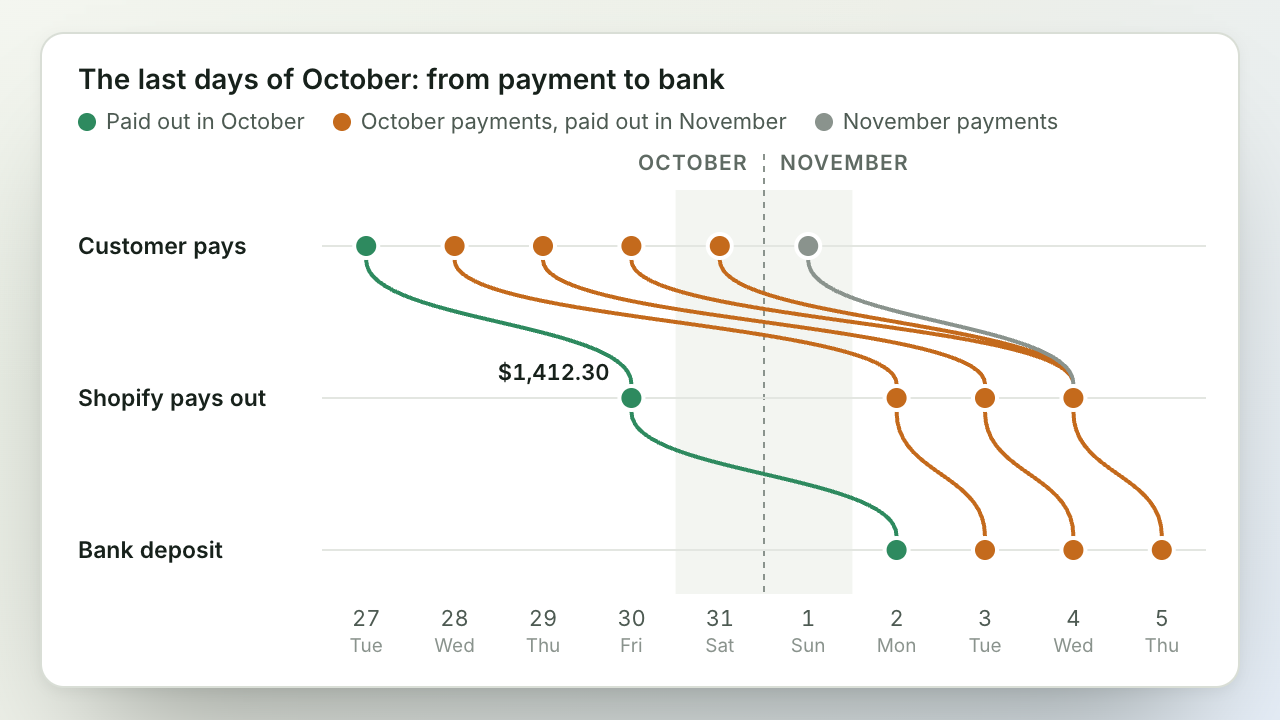
The timeline assumes daily payouts and a 3-business-day wait before a payment is paid out, with each payout reaching the bank on the next business day.
Go through your bank statement and tick off each payout. Whatever is left over usually has one of these explanations:
- A payout at the end of the month that reached the bank in the next month. In the example, Shopify issued a $1,412.30 payout on Friday, October 30, and it showed up in the bank on Monday, November 2. That’s normal: list it as a payout in transit
- A failed payout. If the bank rejected it, Shopify retries it and adds the amount to a later payout. Check your bank details in Shopify
- A deposit with no matching payout. It probably came from another provider, such as a PayPal transfer to your bank, so check it in step 5
Then work out what Shopify should have deposited during the month, and compare it with the Shopify Payments deposits on your bank statement:
| October | Amount |
|---|---|
| Payouts issued in October | $37,205.00 |
| − Issued October 30, deposited November 2 | −$1,412.30 |
| + Issued September 30, deposited October 1 | +$1,236.48 |
| = Shopify Payments deposits on the October bank statement | $37,029.18 |
A payout like the $1,412.30 one has already left Shopify and is only waiting for your bank. That’s different from payments Shopify hasn’t paid out yet, which are still in your Shopify Payments balance. Those are the timing lines in step 4.
Step 4: Explain the gap between Shopify Payments sales and payouts
Now explain why $38,950.00 of Shopify Payments payments became $37,205.00 of payouts. Every difference falls into one of two groups: money Shopify took out, and timing.
| October | Amount |
|---|---|
| Shopify Payments payments | $38,950.00 |
| − Processing fees | −$1,180.00 |
| − A chargeback and its fee | −$95.00 |
| = October activity after fees | $37,675.00 |
| + Earlier payments, paid out in October | +$2,140.00 |
| − Late October payments, not paid out until November | −$2,610.00 |
| = Payouts issued in October | $37,205.00 |
To find the two timing lines, export every Shopify Payments transaction from the last week of the previous month to the first week of the next one. If Shopify held some of your money in a reserve, start the export further back, from before the hold. Each row in Shopify’s export has a Transaction Date and a Payout Date:
- Late October payments, not paid out until November: rows with a transaction date in October and a payout date after October, or no payout yet. Add up their Net amounts
- Earlier payments, paid out in October: rows with a transaction date before October and a payout date in October. Usually they’re from the last days of the previous month, as in the example, but money released from a reserve can be older
The late October amount isn’t missing money. It’s what your accountant may call the balance of a Shopify clearing account: money customers paid in October that Shopify is about to pay you. It arrives in the first payouts of the next month, so next month it’s part of the “earlier payments” line.
If your table doesn’t come out even, look for a transaction type you haven’t accounted for yet, such as an adjustment, a reserve, a Shopify Capital repayment or a shipping label, or for a payout that failed.
Step 5: Close out your other payment methods
The other lines from step 1 never pass through Shopify Payments, so each one is checked against its own source:
- PayPal and other providers. Compare the provider’s statement with the orders it processed. Its fees are on its own statement, and its transfers to your bank are separate deposits. Shopify may also charge its own third-party transaction fee on these payments (PayPal payments are exempt when Shopify Payments is your main provider). That fee appears on your Shopify bill rather than coming out of a payout
- Bank transfers and cash on delivery. Check that every order marked as paid matches a deposit or the cash you collected. Orders that aren’t marked as paid stay on your unpaid list
- Gift cards. Payments with a gift card bring in no new money. They reduce what you owe on gift cards you sold earlier. The Outstanding gift card balance report, in the Finances category, gives the amount you still owe at the end of the month
Step 6: Give your accountant a close pack
Put these in one folder, or one spreadsheet, for each month:
- The Finance summary for the month
- The taxes you collected: the Taxes report, or United States sales tax or Canada sales tax if you use Shopify Tax
- Payments by gateway, with your unpaid orders
- The list of payouts, each with its bank date, and the month’s fee total
- The tables from steps 3 and 4, with the payouts and the payments still in transit at the end of the month
- Open items: chargebacks, reserves, failed payouts
- The Outstanding gift card balance at the end of the month
- Your Shopify bill for the month, which has your plan, apps, and any third-party transaction fees
- The Shopify Payments activity report for the month
Do the payout side faster with a spreadsheet
Shopify gives you the payout pieces as separate files: an emailed CSV of transactions, a PDF activity report, and payout pages to open one at a time. Every month you copy them into a spreadsheet and rebuild the same formulas.
Mixtable loads your Shopify Payments payouts and balance transactions straight from your store into worksheets in one spreadsheet, where ordinary spreadsheet formulas work across them. Set up the formulas below once. Next month you download the latest payouts and balance transactions, copy the formulas into the new rows, and change the month. Payouts and balance transactions are read-only, so Mixtable doesn’t change anything in Shopify. Both worksheets are available in Mixtable Export: Excel & CSV and in Mixtable Spreadsheet Editor.
1. Add a Payouts worksheet
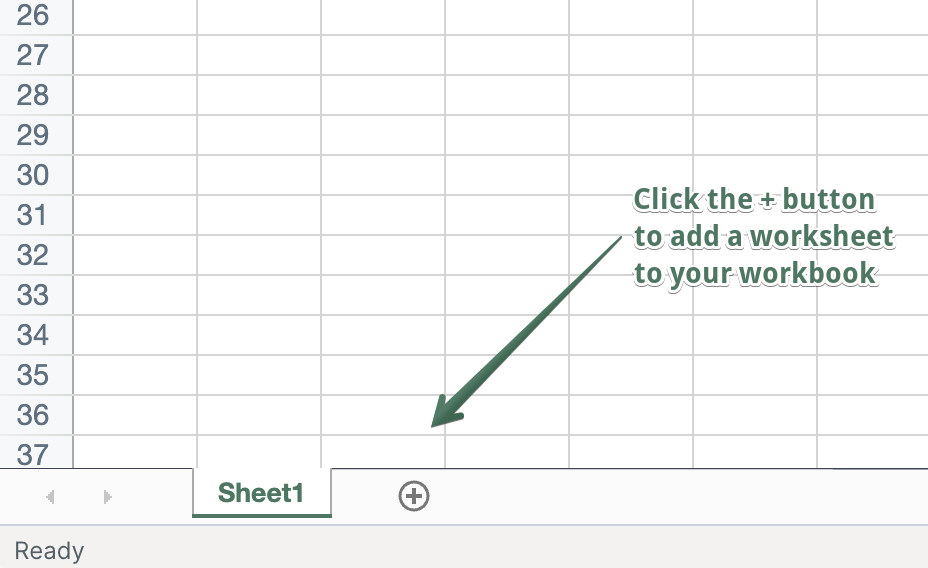
In an existing Mixtable spreadsheet, click the + button at the end of the worksheet tabs, at the bottom of the screen, to add a new worksheet.
In the Add Worksheet window:
- On the Store data tab, under Payments, click Payouts, then click Next: Columns
- Keep Payout ID as the first column, and add Issued, Payout status, Net amount and Charges fee amount, in that order, so they fill columns A to E
- Click Next: Rows, choose Load everything, and click Add worksheet
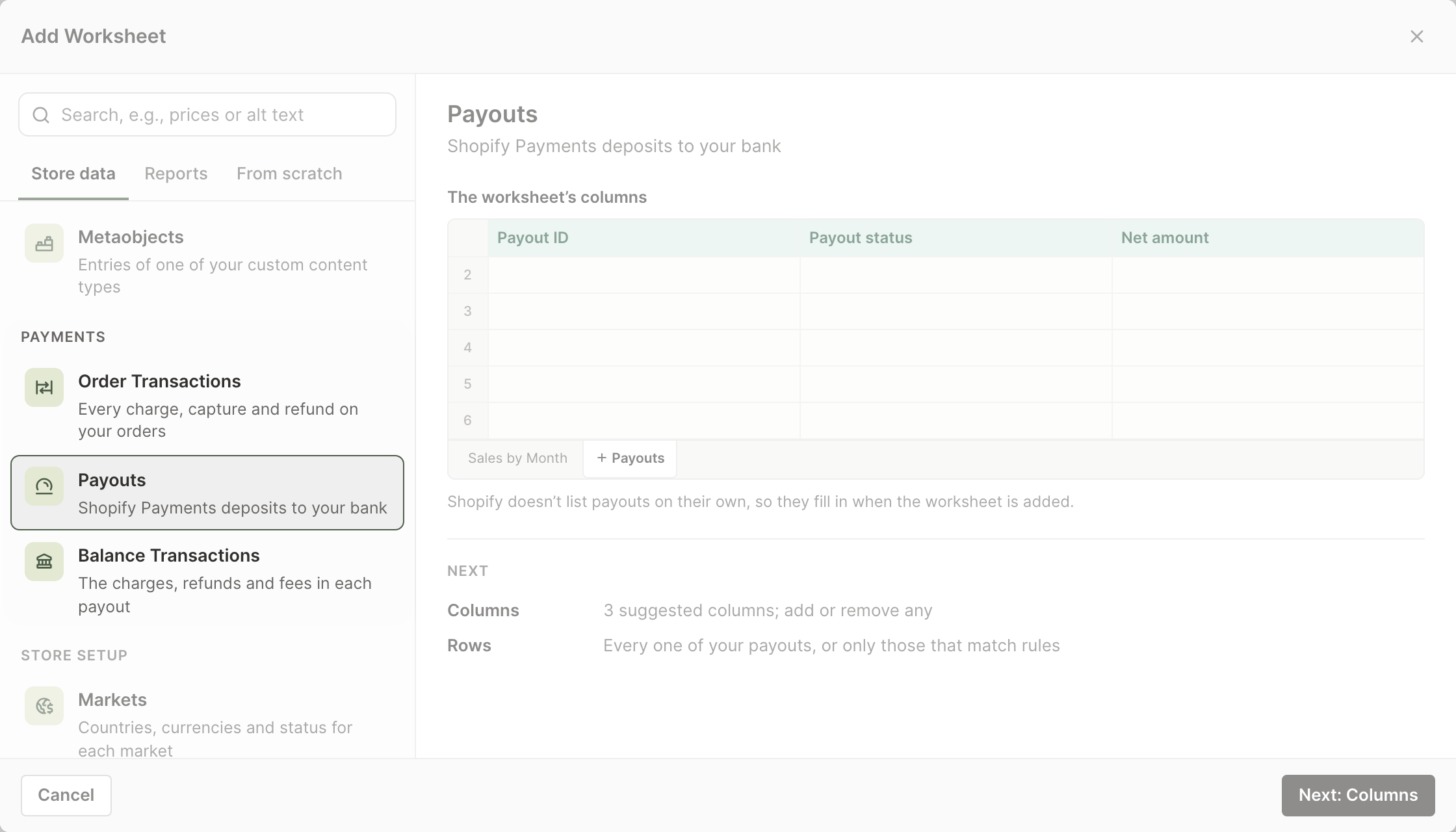
Mixtable adds one row for each payout.
Shopify doesn't send changes to payouts on its own, so download them when you need the latest. Click Download latest payouts from Shopify in the sync control at the top right of the spreadsheet, and the download starts. If the worksheet has more than one kind of data that Shopify doesn't send on its own, the button reads Download latest instead and opens the sync card. Under Download latest from Shopify, click Download next to Payouts. You can also open the sync card with Shopify Sync > Sync with Shopify….
To see one payout’s breakdown without adding more columns, select a cell in its row and click Details at the right end of the toolbar. The Details panel lists its charges, refunds, adjustments and fees.
2. Give each payout a month
Shopify sends dates as text, such as 2026-10-30T00:00:00.000Z, and the first seven characters are the year and month. Click cell F2, type this formula, and copy it down to every payout. Then press the up arrow to move to F1 and type Month as the column’s name:
=LEFT(B2,7)
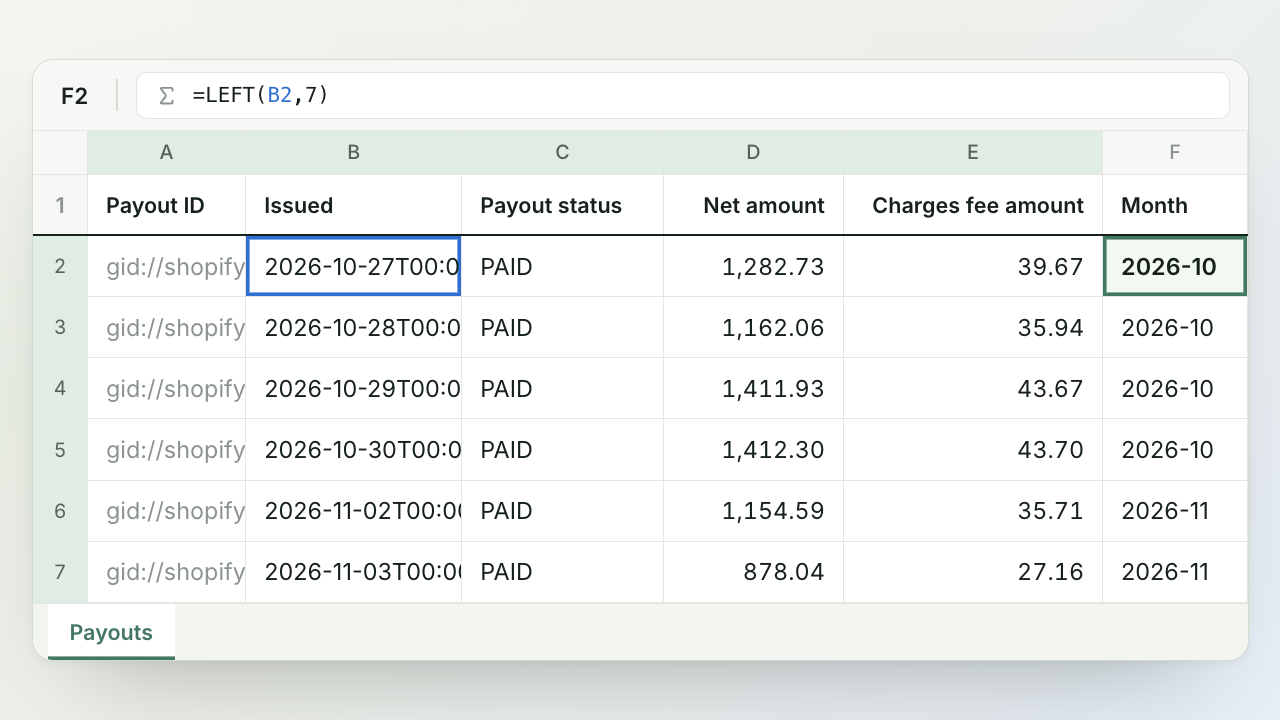
If your columns ended up in a different order, use the letter of your Issued column instead of B, and change the column letters in the formulas below the same way. If your payouts include refunds, adjustments or reserves, you can add those amounts later, in the columns after Month.
3. Add a Balance Transactions worksheet
Balance transactions are the charges, refunds, fees, chargebacks and adjustments that make up your payouts, one row each. Add a second worksheet the same way, but click Balance Transactions under Payments, and use these columns in this order, so they fill columns A to E: Transaction ID, Date, Transaction type, Net amount and Payout ID.
Balance transactions download separately from payouts, so click Download latest balance transactions from Shopify in the sync control to bring in recent ones. Then add two columns:
- In F1, type
Month, and in F2 type=LEFT(B2,7) - In G1, type
Payout month, and in G2 type the formula below. It finds the transaction’s payout on the Payouts worksheet and returns that payout’s month, or “not paid out” if the payout isn’t in your list yet
=IFERROR(VLOOKUP(E2,Payouts!A:F,6,FALSE),"not paid out")
Copy both formulas down to every row. To see which order each transaction came from and what it cost you, you can add Order number and Fee amount in the columns after Payout month.
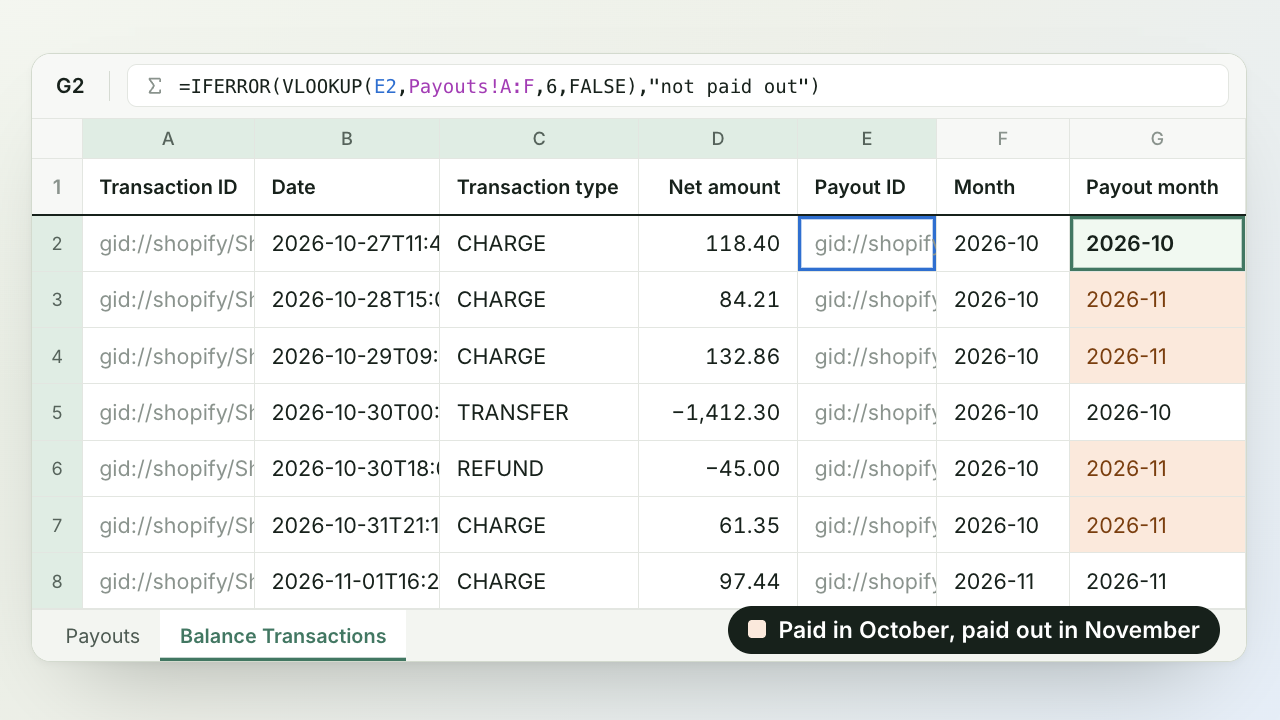
Now you can see the timing at a glance: every October row with a later payout month is money that was still in transit on October 31. One row in each payout has the type TRANSFER: it’s the payout itself leaving your balance. Other types that start with TRANSFER, such as TRANSFER_FAILURE, return a failed or canceled payout’s money to your balance. They’re all payout movements rather than sales activity, so the formulas below leave them out.
4. Build the close
Click the + button again, open the From scratch tab, and choose Blank worksheet. Name it after the month with Worksheet > Rename worksheet…, such as “October close”. Type October close in A1 and Amount in B1. Then type each label below in column A and its formula in column B. Use your worksheets’ names in the formulas, in single quotes when the name has a space, such as 'Balance Transactions'.
Row 2, October activity after fees: every October transaction except payout movements.
=SUMIFS('Balance Transactions'!D:D,'Balance Transactions'!F:F,"2026-10",'Balance Transactions'!C:C,"<>TRANSFER*")
Row 3, + Paid out from earlier months: transactions from before October that went out in an October payout.
=SUMIFS('Balance Transactions'!D:D,'Balance Transactions'!G:G,"2026-10",'Balance Transactions'!F:F,"<>2026-10",'Balance Transactions'!C:C,"<>TRANSFER*")
Row 4, − In transit on October 31: October transactions paid out after October, or not paid out yet.
=SUMIFS('Balance Transactions'!D:D,'Balance Transactions'!F:F,"2026-10",'Balance Transactions'!G:G,"<>2026-10",'Balance Transactions'!C:C,"<>TRANSFER*")
Row 5, = Expected payouts:
=B2+B3-B4
Row 6, Payouts issued in October: every October payout except failed and canceled ones, whose money Shopify sends again in a later payout.
=SUMIFS(Payouts!D:D,Payouts!F:F,"2026-10",Payouts!C:C,"<>FAILED",Payouts!C:C,"<>CANCELED")
Row 7, Difference:
=ROUND(B6-B5,2)
Row 8, Missing formulas: counts the Month and Payout month cells that are still empty in rows that have an ID, on both worksheets. It should be 0.
=COUNTIFS(Payouts!A:A,"<>",Payouts!F:F,"")+COUNTIFS('Balance Transactions'!A:A,"<>",'Balance Transactions'!F:F,"")+COUNTIFS('Balance Transactions'!A:A,"<>",'Balance Transactions'!G:G,"")
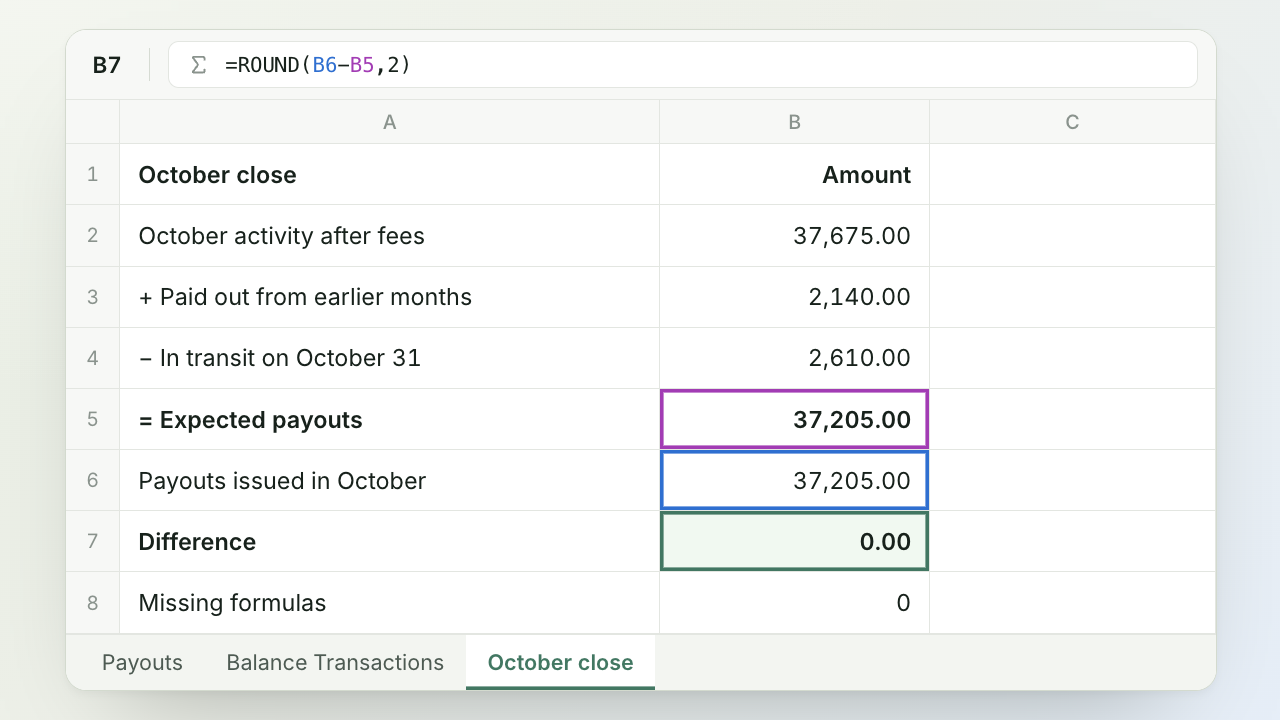
When the difference is 0.00 and no formulas are missing, your payouts agree with the transactions in them. That doesn’t prove the money reached your bank, which is what matching deposits in step 3 is for. If the difference isn’t 0.00, filter the Balance Transactions worksheet by Transaction type to find the rows you haven’t accounted for, or look for a failed payout on the Payouts worksheet. A payout that failed in October and was sent again in November leaves a difference of its amount: note it as an open item.
To get the processing fees on October’s payouts for your accountant, add this formula. It can differ slightly from the fees on October’s payments in step 4, because the last few days’ fees come out of November’s payouts:
=SUMIFS(Payouts!E:E,Payouts!F:F,"2026-10",Payouts!C:C,"<>FAILED",Payouts!C:C,"<>CANCELED")
Next month, click Download latest payouts from Shopify and Download latest balance transactions from Shopify. New rows don’t get your formulas on their own, so copy the Month formula on the Payouts worksheet, and the Month and Payout month formulas on the Balance Transactions worksheet, down to the last row. Check that Missing formulas is 0, then change the month in the formulas, such as “2026-10” to “2026-11”.
5. Export it for your accountant
Click Import & Export in the menu bar and choose Export to Excel. The Excel file includes every worksheet in the spreadsheet, so your accountant gets the payouts, the balance transactions and the close together, each on its own sheet. To send one worksheet as a CSV file instead, open it and choose Export to CSV. For more about these worksheets, see Export Shopify payouts and balance transactions.
Frequently asked questions
Why is my Shopify payout less than my sales?
Payouts include only payments through Shopify Payments, after processing fees, refunds and chargebacks, and they run a few business days behind your sales. Sales also include orders paid with gift cards, manual payment methods or a separate provider such as PayPal connected on its own, plus orders that aren’t paid yet.
How long do Shopify payouts take to reach my bank?
Shopify Payments pays out a payment after a minimum of 2 to 7 business days, depending on your country (3 in the US, Canada, the UK and most EU countries). Weekends and holidays don’t count. After the payout is sent, it can take another 1 to 3 days to show in your bank account.
Does Shopify refund processing fees when I refund an order?
No. When you refund an order paid through Shopify Payments, the refund comes out of your next payout and the fee on the original payment isn’t returned.
Where do I find a payout report in Shopify?
Your payouts are under Finance in Shopify admin, where you can export the transactions behind them. The Shopify Payments activity report, a PDF summary for any period, is under Finance > Documents. Sales and payments reports are under Analytics > Reports, in the Finances category.
Why doesn’t a payout match a deposit in my bank?
A payout should arrive as one deposit for exactly its net amount. If the amounts differ, check whether the payout failed and was added to a later one, whether your bank converted the currency, or whether the deposit came from another provider.