


Mixtable is an online spreadsheet, designed from the ground up to bulk edit and analyze Shopify data.
Got a question? We're here to help! Reach out at [email protected], and we'll get back
to you promptly.
IN THIS ARTICLE
Shopify Product Feed Issues (Google Ads & Meta) — Causes and Fixes
A product feed is the bridge between your Shopify store and advertising platforms like Google Ads and Meta. When that bridge has cracks: price mismatches, missing identifiers, or image issues, your products get disapproved and your ads stop running. If you’ve ever opened Google Merchant Center to dozens (or hundreds) of warnings, this guide walks through the most common Shopify feed issues and exactly how to fix them.
Product Feed Issues for Ad Platforms
Below we’ve listed the most common Shopify product feed issues and how to fix them.
1. Price and Availability Mismatches
This is the number one cause of “Account Warnings” in Google Merchant Center.
- The issue: Your Shopify store updates a price or runs out of stock, but the feed sent to Google or Meta hasn’t updated yet. When their bots crawl your site and see a different price than what’s in the ad, they flag it as a policy violation.
- Why is this problem an issue in Shopify? Frequent “Quick Edits” in Shopify or third-party discount apps that change prices on the fly often don’t sync to the feed in real time.
- How to fix: Enable Automatic Item Updates in Google Merchant Center (GMC) and increase your feed fetch frequency to at least once daily (or use a Content API-based app for instant syncing).
2. Missing or Invalid GTINs (Barcodes)
Google, in particular, is strict about Global Trade Item Numbers (GTINs).
- The issue: If you sell brand-name products (Nike, Sony, etc.), Google expects a 12 or 13-digit barcode. If the “Barcode” field in Shopify is empty or contains a custom “internal SKU,” the product will be disapproved.
- Why is this problem an issue in Shopify? Many merchants leave the barcode field blank or enter their own SKU.
- How to fix: If you have valid barcodes, enter them into the Barcode field in Shopify. If you manufacture your own goods (DTC), set the identifier_exists attribute to false and ensure your Brand name is consistent.
3. Image Policy Violations
Google and Meta have different but equally strict rules for “Feed Images.”
- The issue: Using images with watermarks, promotional text (e.g., “50% OFF”), or busy backgrounds.
- Why is this an issue in Shopify? Shopify allows you to use any image as your “Feature Image,” but Google Shopping requires a clean, white-background “hero” shot.
- How to fix: Use the Google & YouTube app to select specific images for your feed that differ from your store’s lifestyle images. Ensure images are at least 800 x 800 pixels.
4. Poorly Optimized Titles & Descriptions
Standard Shopify titles are often too short for ads (e.g., “The Classic Tee”).
- The issue: Ads are shown based on the keywords in your title. If your title is vague, you won’t appear in relevant searches. On the other hand, “keyword stuffing” (using too many repetitive words) can lead to rejection on the Meta Ads platform.
- How to fix: Follow a formula: Brand + Product Type + Key Attribute (Color/Size/Material).
Example: “North Face Men’s Apex Bionic Jacket - TNF Black - Large” instead of just “Apex Bionic.”
5. Variant Handling (Size/Color)
- The issue: Shopify treats a product with 5 colors as one “Product” with 5 “Variants.” If your feed isn’t configured correctly, it might only send the first variant, or worse, send them all without specifying the color—leading to “Duplicate ID” errors.
- How to fix: Ensure your feed app is configured to export all variants as unique items. Each should have its own item_group_id so the platform knows they are related.
6. Specific Issues Per Ad Platform
Google Ads Feed Issues
| Error message | Cause | How to fix |
|---|---|---|
| Mismatched value (page crawl) \\[price] | The price in your feed does not match the price displayed on your product landing page. | Enable Automatic Item Updates in Merchant Center and ensure your feed refreshes shortly after any site-wide price changes. |
| Invalid or missing identifier \\[gtin] | You are missing a Global Trade Item Number (Barcode) or the one provided doesn't meet GS1 standards. | Source the correct 12-14 digit GTIN from the manufacturer. If the product is custom/handmade, set identifier_exists to "no". |
| Image not processed \\[image link] | Google’s "Googlebot" is being blocked from crawling your image URL, or the image format is unsupported. | Check your robots.txt file to ensure Googlebot-Image isn't blocked. Ensure images are in JPEG, PNG, or WebP format. |
Meta Ads Feed Error Messages
| Error message | Cause | How to fix |
|---|---|---|
| Missing required field: \\[description] | The description column is empty for certain items or contains "all caps" text, which Meta rejects. | Ensure every item has a unique description under 5,000 characters. Use Sentence Case (not all caps) for all text. |
| Duplicate ID: \\[id] | Two or more items in your feed share the same id or retailer_id. | Assign a unique SKU or ID to every individual variant (e.g., if a shirt has 3 sizes, each size needs its own unique ID). |
| Unsupported image resolution | The product image is too small (Meta generally requires at least 500x500 pixels for catalogs). | Replace low-res images with high-quality versions. Ideally, use 1024 x 1024 pixels for the best performance. |
3rd Party Apps That Can Make Or Break Your Feed
Apps can be both the source of the problem and the solution.
1. Apps That Can Cause Issues
- Discount & Flash Sale Apps (e.g., Bold Discounts): Some apps change prices only on the “front end” (what the user sees) using JavaScript. Because the “back end” price in Shopify remains the same, the feed sends the old price, leading to a Price Mismatch error.
- Translation & Currency Apps: If an app changes the currency symbol or language without updating the feed’s metadata, Google may reject the landing page for not matching the feed’s localized settings.
- Page Builders: Some builders change the structure of “Product Schema” (the hidden code Google reads), making it impossible for bots to verify price and stock.
2. Apps That Fix Issues
- Simprosys Google Shopping Feed: Often cited as the gold standard for Shopify. It allows for robust “mapping,” where you can tell the app to use a specific Shopify Metafield as the “GTIN” or “Color.”
- DataFeedWatch: A more advanced tool for high-volume stores. It allows you to create complex “if/then” rules (e.g., “If the title contains ‘Blue’, set the color attribute to ‘Blue’”).
- FeedHub (SocialShop): Excellent for syncing the same data across multiple channels (Google, Meta, TikTok) simultaneously to ensure brand consistency.
Use A Spreadsheet Editor For Bulk Feed Fixes
When you have 500+ errors, clicking through the Shopify admin is too slow. Using Excel or a spreadsheet app like Mixtable is the most efficient way to audit and repair your feed.
How to use a spreadsheet to fix your product feed:
- Export: In Shopify, go to Products > Export and choose “All products” as a CSV.
With the free Mixtable Exporter app, you can customize your CSV file and include only the columns you need. You can also use the pre-built Google Shopping template.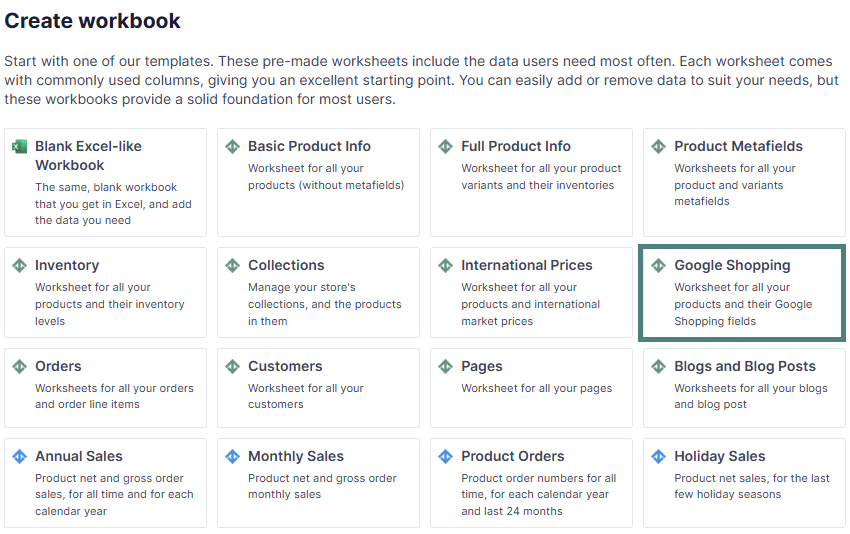
- Audit in Google Sheets: Open the CSV. Use “Conditional Formatting” to highlight any empty cells in the Barcode (GTIN) or Variant Weight columns.
- Find & Replace: If you need to clean up titles (e.g., removing “NEW!” or “SHIPS FAST” which Google hates), use
Ctrl+Hto strip these phrases across thousands of rows instantly. - Bulk Upload: Once cleaned, save the CSV and use Shopify’s Import feature. Select “Overwrite any current products that have the same handle” to push your fixes live.
With Mixtable you can use the 1-click Sync to Shopify button after making your edits: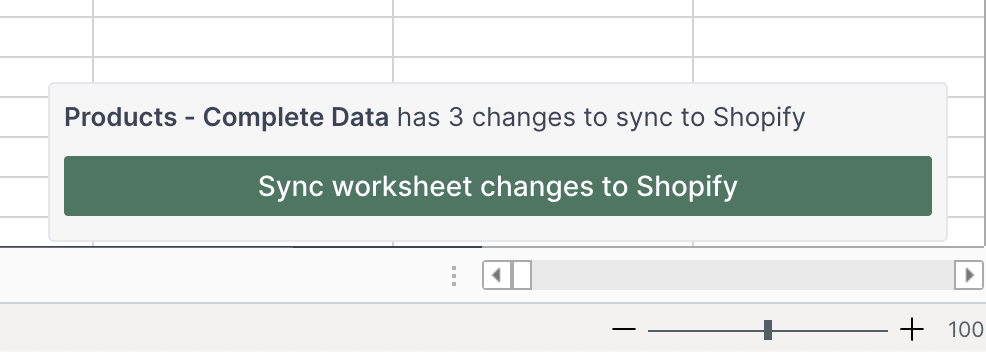
You're ready!
Mixtable is an online spreadsheet designed to sync data with Shopify. It looks, feels, and behaves like Excel (including formulas), but runs in your browser. With Mixtable you can:
- Bulk add products to collections, edit metafields, add or remove tags;
- Change product prices, including international prices, and review price history;
- Manage customers with a spreadsheet CRM for Shopify;
- Use Excel features like sort ascending or descending, find-replace, filter, and more.
Best of all, you can sync changes back to Shopify with a single click. Find out more about the Mixtable suite of products here.