


Mixtable is an online spreadsheet, designed from the ground up to bulk edit and analyze Shopify data.
Got a question? We're here to help! Reach out at [email protected], and we'll get back
to you promptly.
CSV Import, Conditional Metafield Worksheets, Sync Preview, and More
February 11, 2026
Import and update with CSV
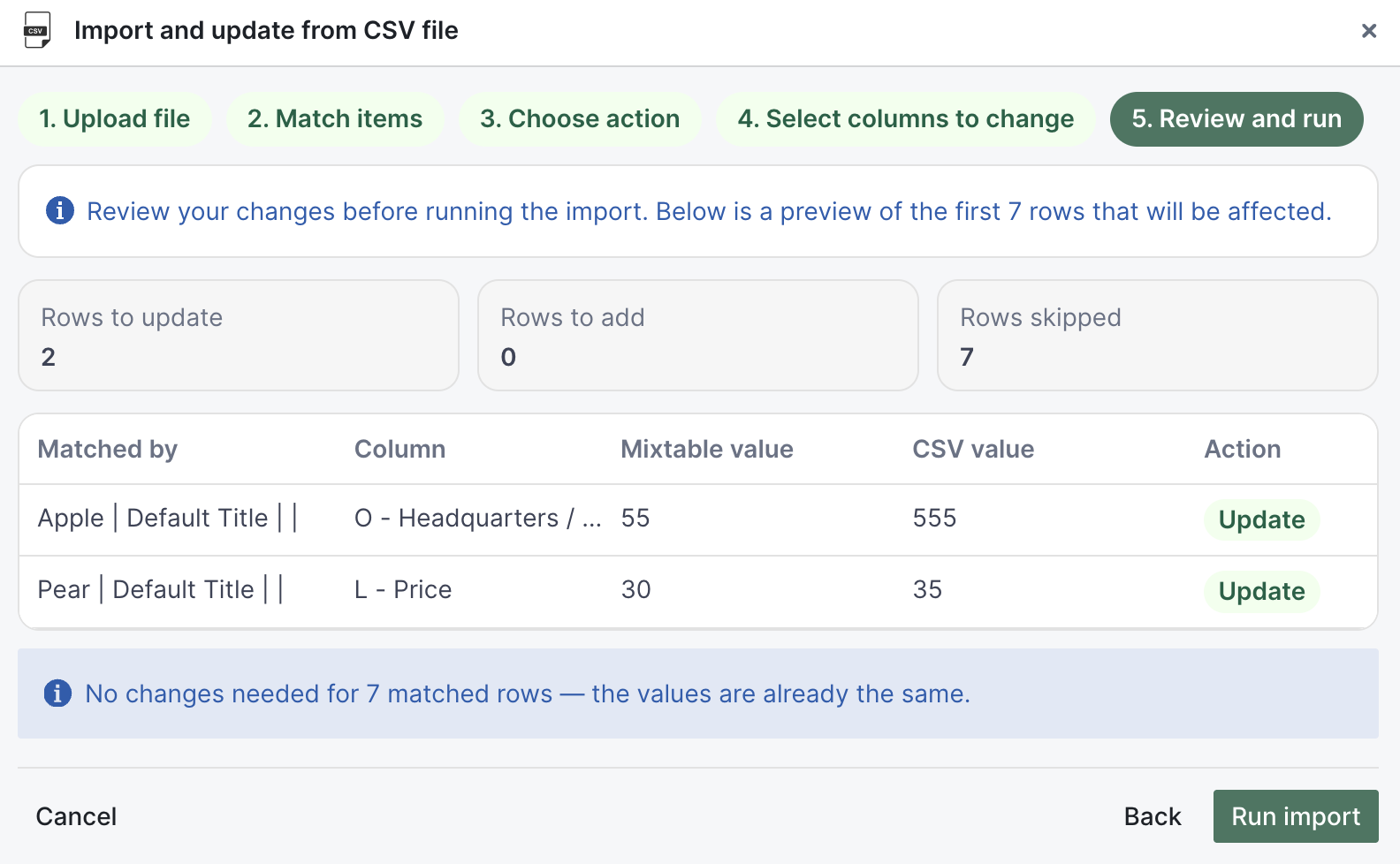
You can now use Import & Export > Import CSV file to bring CSV data into any Mixtable worksheet, match it to your existing rows, choose what to update, and sync those changes to Shopify.
This is perfect when your source data comes from CSV exports—whether from suppliers, internal reports, or other systems—and you only want to update specific fields in Shopify.
During import, you control how rows are matched, whether to update existing rows or add new ones, and exactly which columns can change. This gives you precise control over bulk updates without accidentally overwriting fields you want to keep.
Read more: Import CSV to Update or Add Shopify Data
Filter products and variants by metafields
Conditional worksheets just got more powerful. You can now create Products (no variants) and Products (with variants) worksheets that only show rows matching metafield-based conditions—including filters that use both product and variant metafield values.
This makes it easy to create focused worksheets for specific workflows, like reviewing only products with a merchandising flag set, or variants assigned to a particular warehouse, without manually filtering every time.
Read more: Filter Shopify products by metafield
Bulk edit metaobjects
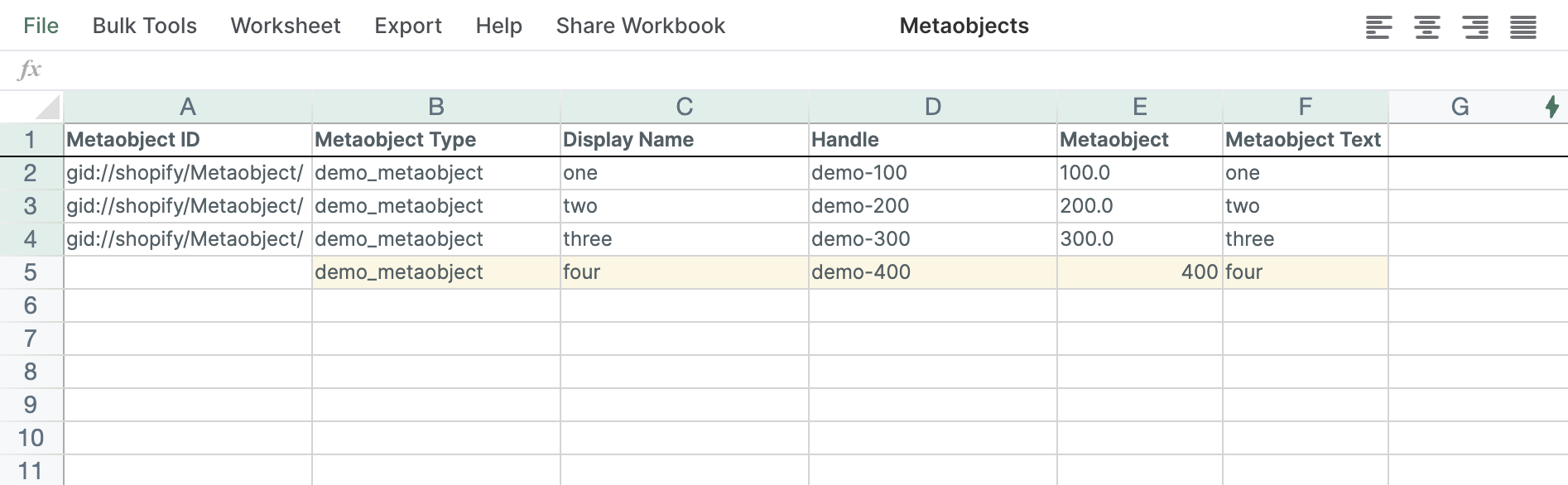
Metaobjects are now fully supported in Mixtable’s bulk-edit workflows. Load your metaobject data, update it in spreadsheet format, and sync changes back to Shopify.
This lets you work through large sets of metaobject entries much faster, apply consistent changes across rows, and keep your structured content aligned—all without repetitive one-by-one edits in Shopify admin.
Read more: Bulk edit Shopify metaobjects
New analytics template: Sales by Customer Segment
A new analytics template lets you analyze Shopify performance by customer segment right in Mixtable. Compare segment performance side-by-side to see where to adjust campaigns, offers, or retention strategies based on real segment-level data.
Read more: Sales by Customer Segments template for Shopify
More column formatting options
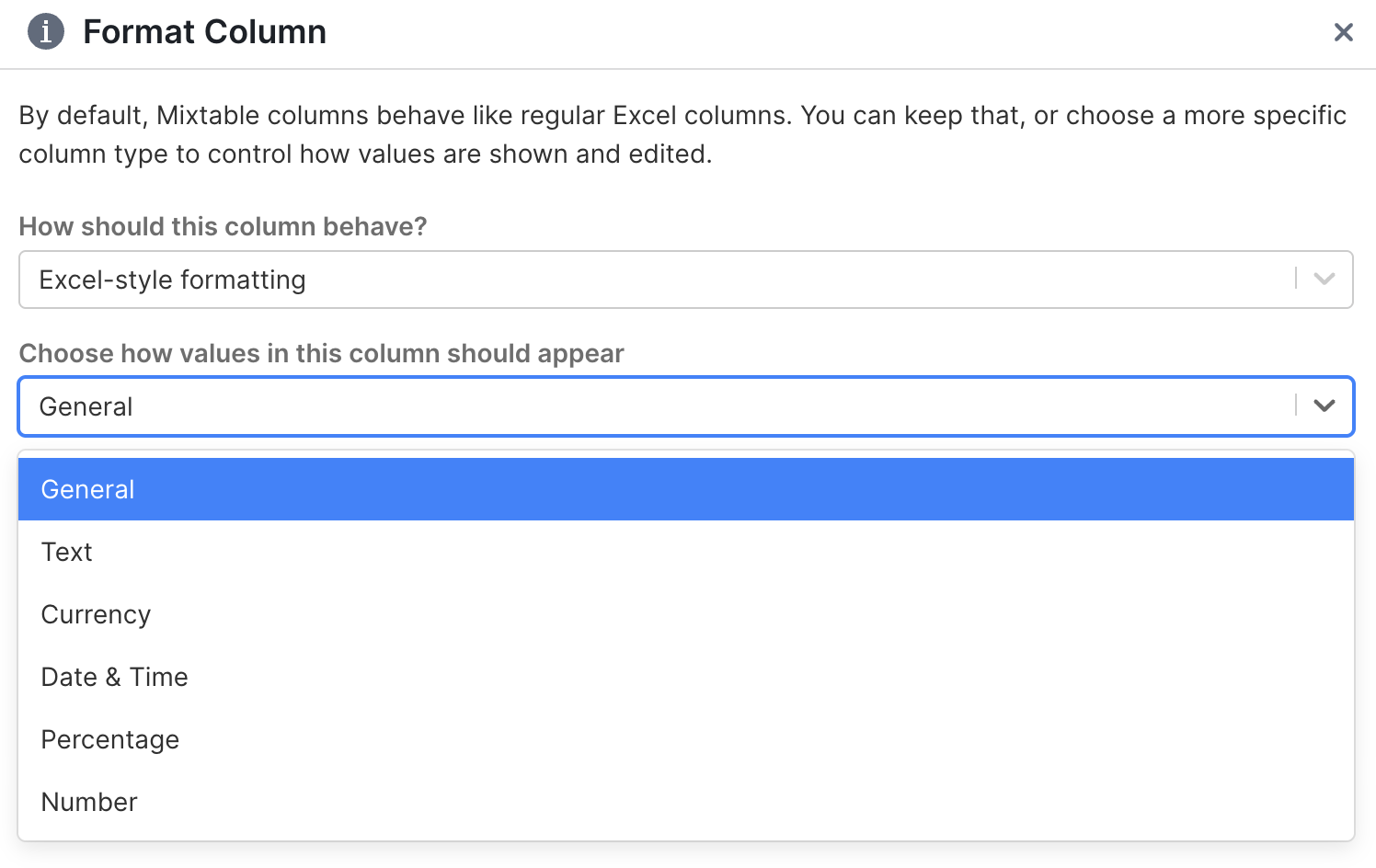
The Format Column dialog now includes more display options to help you present worksheet values clearly for reporting and daily use. Make prices, percentages, and numbers easier to scan so your team can review data faster and exports are cleaner for sharing.
Read more: Format columns in Mixtable
Preview changes before syncing to Shopify
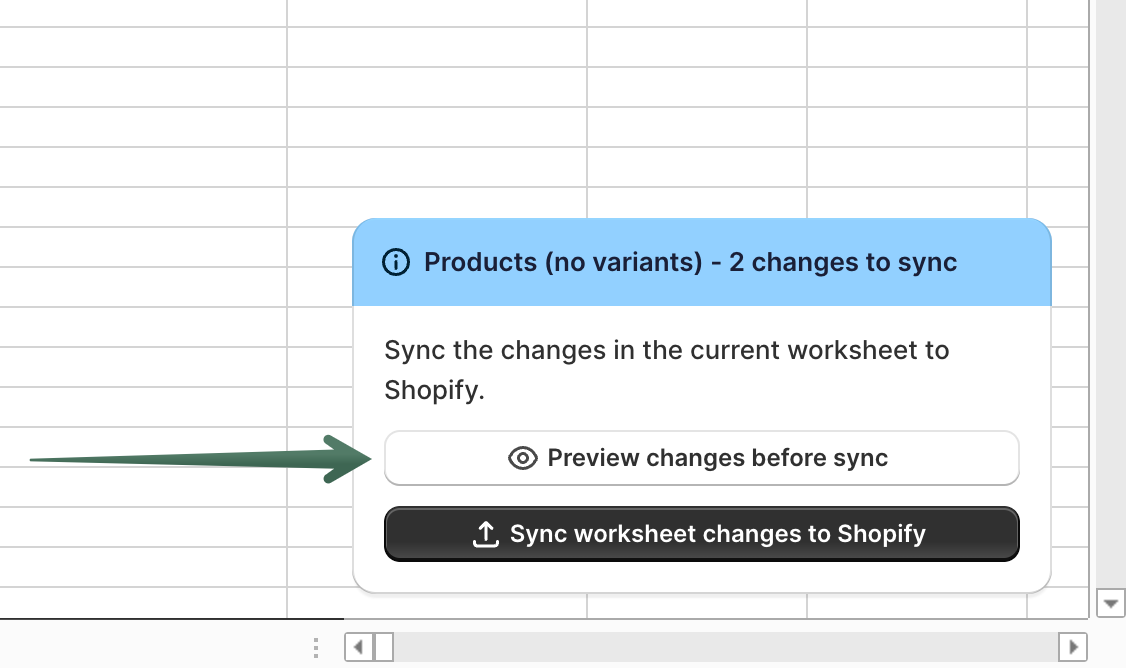
Before you sync, you can now preview exactly what will be sent to Shopify. This lets you catch mistakes before they go live—especially helpful for large bulk edits where you want to double-check your changes.
The preview shows you row-by-row what’s about to update, so you can validate everything looks right before committing.
Read more: Preview Shopify changes before syncing
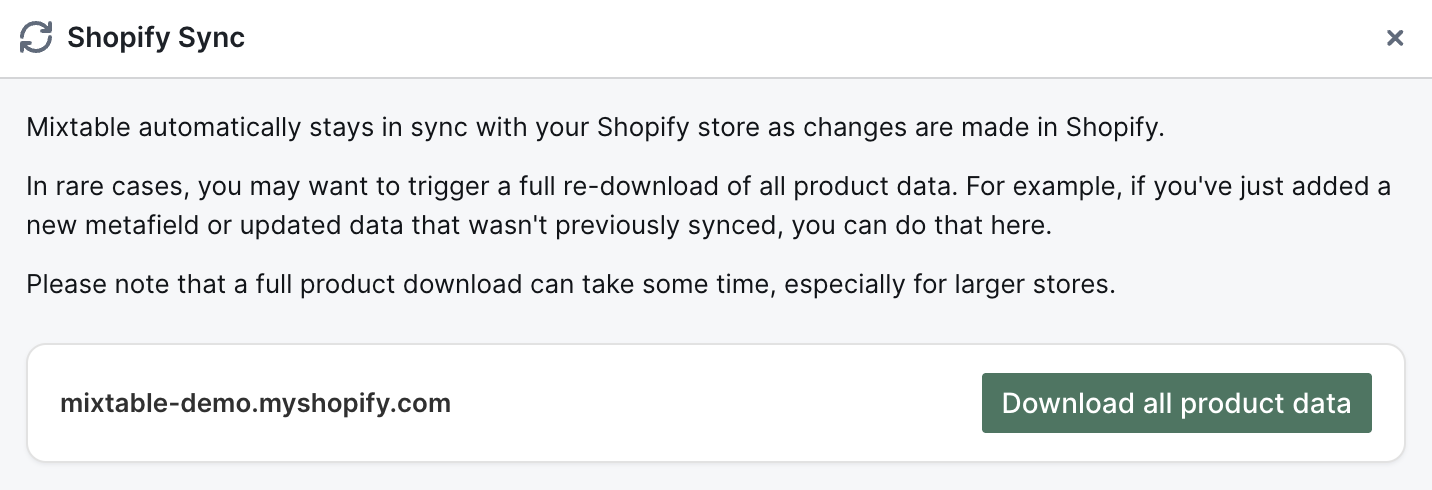
Re-download all product data from Shopify
You can now trigger a full product data re-download from Shopify into Mixtable whenever you need to refresh everything. This is useful after major store changes or when you want to confirm your worksheet reflects the latest Shopify state before making new edits.
Read more: Re-download all Shopify product data to Mixtable
Update order customers by email
You can now change an order’s customer assignment by updating the customer email field in your Orders (no line items) worksheet. This makes it easy to correct customer assignments in bulk when orders need to be linked to the right customer profile.
Read more: Set or remove the customer on Shopify orders
New Orders action: Mark orders as paid
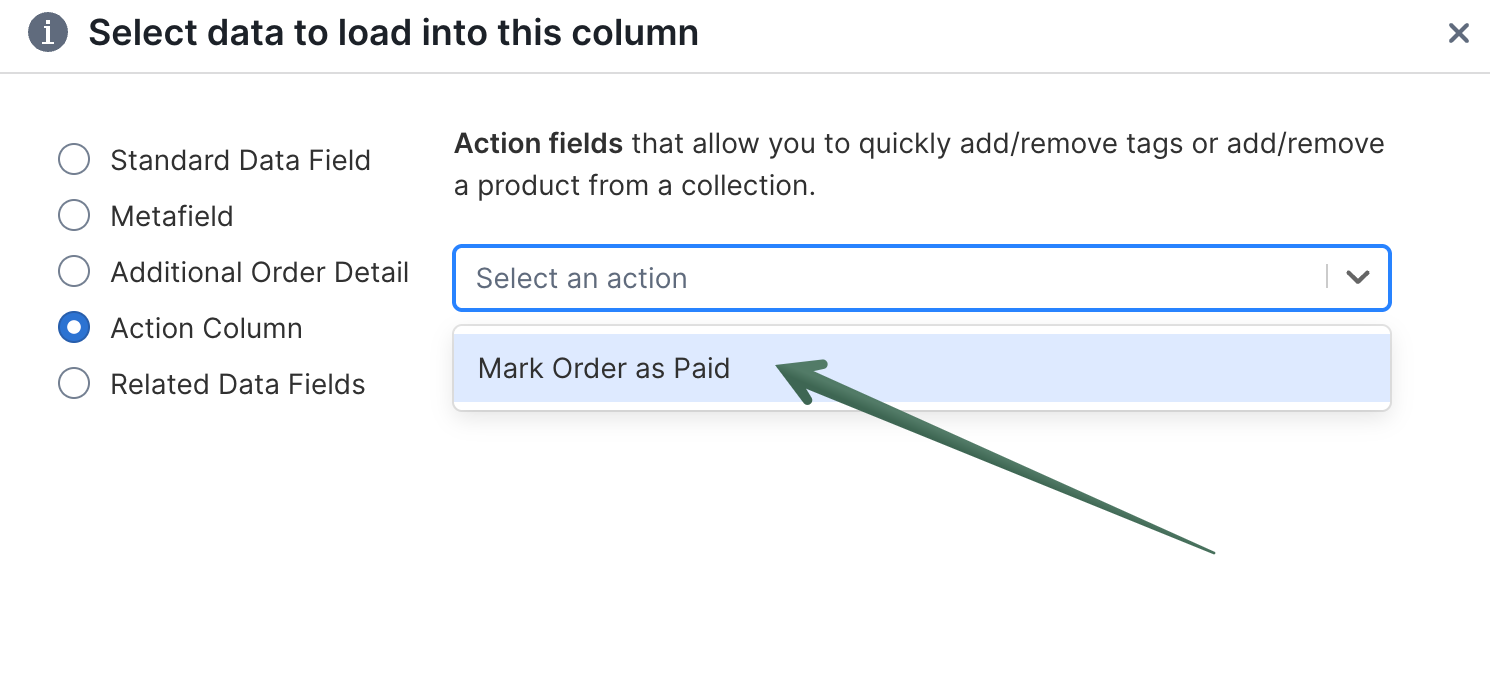
Add an Orders (no line items) action column, choose Mark Order as Paid, then sync to apply the action in Shopify. This gives finance and operations teams a faster way to process payment status updates across multiple orders right from a spreadsheet.
Read more: Mark Shopify orders as paid in bulk