


Mixtable is an online spreadsheet, designed from the ground up to bulk edit and analyze Shopify data.
Got a question? We're here to help! Reach out at [email protected], and we'll get back
to you promptly.
Product Customization in Shopify: Five Strategies for Complex Catalogs
For e-commerce stores that offer highly customizable products—such as those with multiple sizes, finishes, and add-ons—managing a large number of product variants can be a challenge.
The cleanest setups for handling endless variants typically involve simplifying the product structure rather than relying solely on third-party tools that can complicate inventory synchronization.
Here are five effective strategies employed by merchants to manage stores with multiple product variants:
1. Split products into logical families and base SKUs
Instead of forcing all configurations into a single complex “mega listing,” merchants can split the product into logical families. This approach involves breaking down highly customizable items into simpler parts:
- Establish base products: Create a main listing (a base SKU) for the dominant variation, such as Model A or a specific color. Only keep two or three core options (like size or main color/material) as true variants within that listing.
- Link add-ons separately: Treat remaining customizations or add-ons as separate products that are linked to the base SKU. While the shopping experience should still feel like one seamless flow, the back end remains clean, helping to keep inventory accurate. For example, when selling furniture, merchants hit a wall with customization and resolved it by splitting the products into base SKUs and linking add-ons separately.
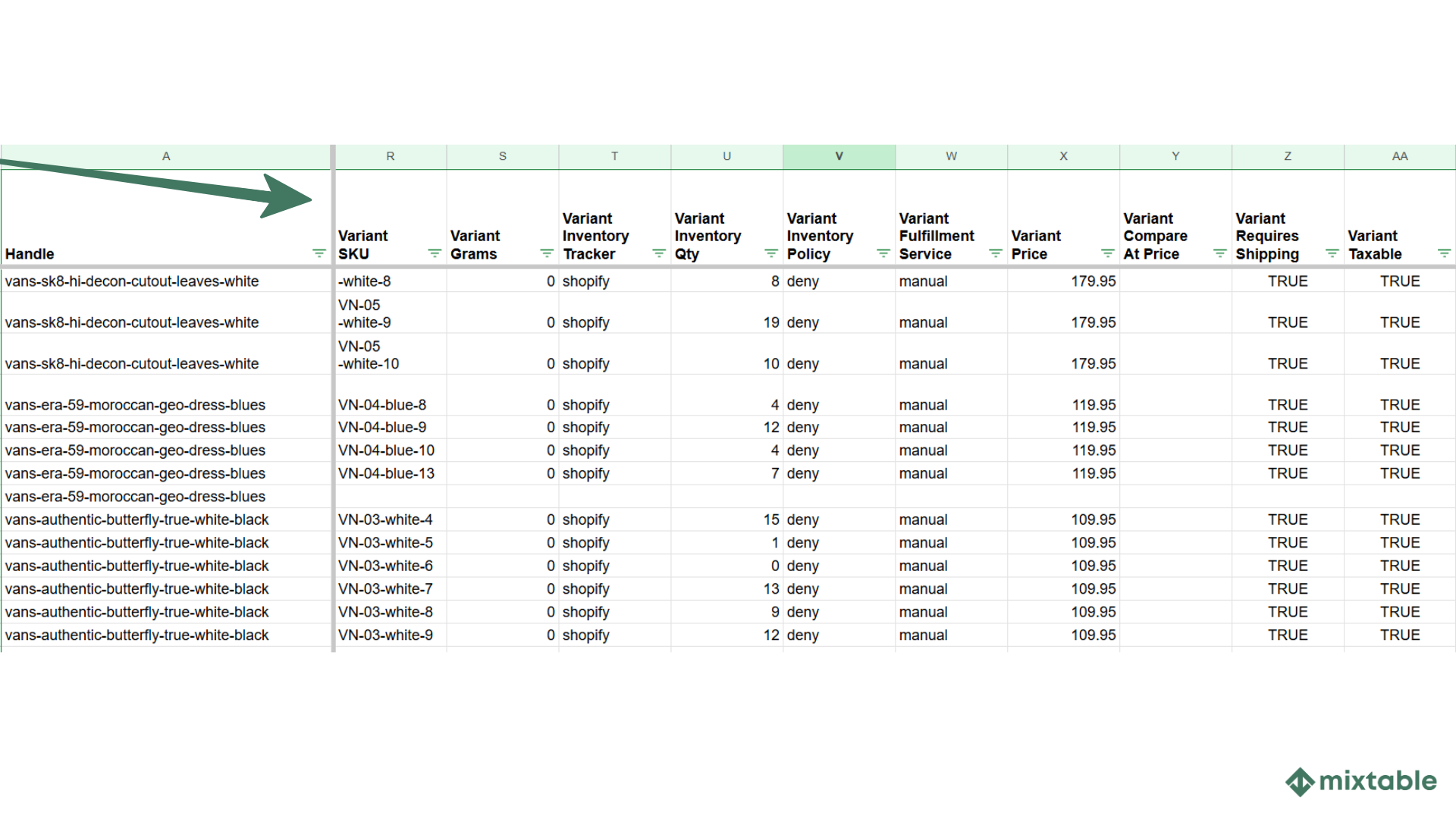
The easiest way to rearrange your product variants is with a spreadsheet app like Mixtable. After installing the app, you can use the Full product info template to load all your product variant data. Then you can find/replace, copy/paste, sort, and filter your data to achieve the organization you have in mind.
2. Differentiate between true variants and customization options
A core strategy for simplifying large catalogs is understanding which choices truly affect inventory and which are purely aesthetic or functional add-ons.
- Restrict true variants to inventory-affecting attributes: Only use the platform’s variant system for options that change the actual Stock Keeping Unit (SKU) or require inventory tracking (e.g., different sizes or materials).
- Use Line Items for secondary choices: Push options that don’t need inventory tracking—such as engraving, gift wrap, collar style, or specific finishes—into line item properties or customizers. These choices are collected during the configuration step but do not create thousands of unique variant SKUs, maintaining stable product page speed and clean stock numbers.
3. Move product configuration to a custom form or builder
For products that require extensive customer configuration, moving the selection process away from the standard product page structure can dramatically reduce performance strain.
- Off-page configuration: Some brands shift the configuration process entirely into a custom form or builder. The shopper still selects all necessary options (size, finishes, add-ons), but the complex data manipulation happens outside of the core platform’s variant structure.
- Final SKU transmission: The platform (e.g., Shopify) receives only the final SKU and any necessary custom notes, eliminating the need for large variant tables and keeping the storefront fast.
4. Utilize Option Sets mapped to existing SKUs
When using third-party applications to handle complexity, the focus should remain on maintaining inventory accuracy. One effective application technique is using option sets:
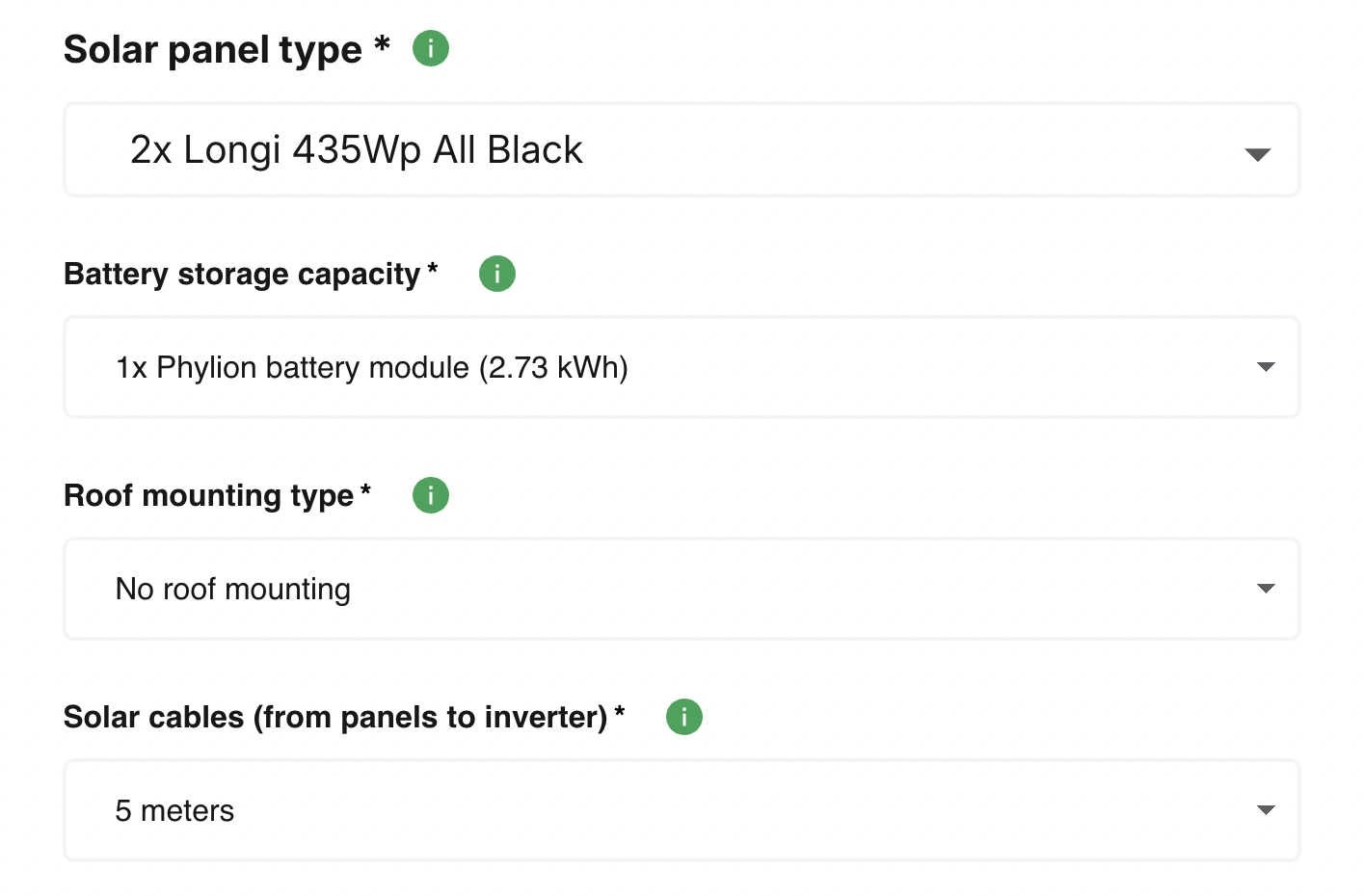
- Front-end selection layer: Use specialized apps to create option sets that collect the customer’s choices. This selection acts as a front-end layer.
- Mapping to inventory: The app then maps these collected choices directly to a real, existing SKU when the product is added to the cart. The key is to ensure that the final, correct SKU exists in the platform’s inventory system so tracking remains accurate, rather than generating excessive SKUs via variant-expansion apps.
5. Leverage variant extension applications
A direct way to overcome the limit on the number of “modifiers” (typically capped at three) is to use third-party applications designed to expand product options.
- Bypass option limits: Merchants often turn to the platform’s app store and search for solutions to manage 100-plus variants. Apps like Globo Product Options let users create multiple options for a single product page, increasing the specification choices available to customers.
- Manage technical risk: While these apps address the front-end display issue, implementing them adds layers that can result in technical debt and frequently become the weakest link in the system. The primary concern is that variant extension apps rarely sync perfectly with fulfillment, leading to inventory inaccuracies because of “too many moving parts.” Therefore, some merchants who use these apps choose not to track inventory on the highly customized items to mitigate sync issues.
Ultimately, the goal is to reduce the strain of managing an endless number of variants while keeping the user experience cohesive and inventory stable. The challenge is often addressed by simplifying the product data model so that the platform tracks only what is necessary for fulfillment and stock control.
You're ready!
Mixtable is an online spreadsheet designed to sync data with Shopify. It looks, feels, and behaves like Excel (including formulas), but runs in your browser. With Mixtable you can:
- Bulk add products to collections, edit metafields, add or remove tags;
- Change product prices, including international prices, and review price history;
- Manage customers with a spreadsheet CRM for Shopify;
- Use Excel features like sort ascending or descending, find-replace, filter, and more.
Best of all, you can sync changes back to Shopify with a single click. Find out more about the Mixtable suite of products here.