
It reads and writes
Most tools export a file and leave you to re-import it. The sheet is connected in both directions, so there is no CSV to download, fix, and upload again.
 Built for Shopify
Mixtable is an online spreadsheet that is connected to your Shopify store. Your products, orders, and customers load into the grid as ordinary rows and columns. You edit them the way you would edit anything in Excel, and nothing reaches Shopify until you review it and sync.
 Spring pricing 2 unsynced changesSchedule syncSync now
Step by step
The same three rows, shown at each stage. Watch the cells change and you have the whole product.
Install a Mixtable app from the Shopify App Store and approve the connection. That is the whole setup. There is nothing to configure and nothing to schedule.
An empty sheet, connected to your store
Pick what each row should be, such as products, orders, or customers, then pick the columns. Your records fill the grid, and the sheet keeps itself current as your store changes.
Your records, in the columns you chose
Type in a cell, write a formula, fill down a column, find and replace, or paste from Excel. Everything you change is held as a pending edit, marked in the grid.
Edited cells, still only in the sheet
See every pending change in one list before anything leaves the sheet. When it looks right, run Sync to Shopify and the updates are written to your store.
Written to Shopify, on your command
Add an analytics column and pick a metric and a timeframe. Net Sales, orders, quantity sold, refunds, and margin are calculated from your store's orders and land next to the product they belong to.
Net Sales per product, last 30 days
Download the spreadsheet as a real .xlsx file, or the worksheet you are on as a CSV. The Excel file keeps your column widths, colors, and number formats, so it opens looking the way you built it.
Downloaded as .xlsx, formatting intact
Then you leave it. The sheet stays connected, so next month you open the same one and it already has this month's numbers in it.
Why a spreadsheet
Most tools export a file and leave you to re-import it. The sheet is connected in both directions, so there is no CSV to download, fix, and upload again.
Formulas, fill down, sorting, filtering, find and replace, copy and paste, and cell formatting all behave the way they do in Excel. There is no new syntax to learn.
Edits sit in the sheet as pending changes until you sync them. Cell history and row history show what changed, when, and who changed it.
The apps
All three are the same spreadsheet. They differ in what they let you do with it, and each is billed on its own, so you only pay for what you use.

Bulk edit products, prices, inventory, metafields, customers, and more, then sync the changes to Shopify.
Net Sales, orders, average order value, and margin, calculated from your store's orders and laid out your way.
Load any Shopify data into a spreadsheet, shape it your way, then export it to Excel or CSV.
Features
Everything below works on your live Shopify data.
A spreadsheet interface that behaves just like Excel does, but everything runs in your browser.
When data changes in your store, your spreadsheet will update almost immediately. You don't need to do manual syncs.
Read the guideWhen you are ready, preview your pending changes and click Sync. Mixtable writes them to your Shopify store.
Read the guide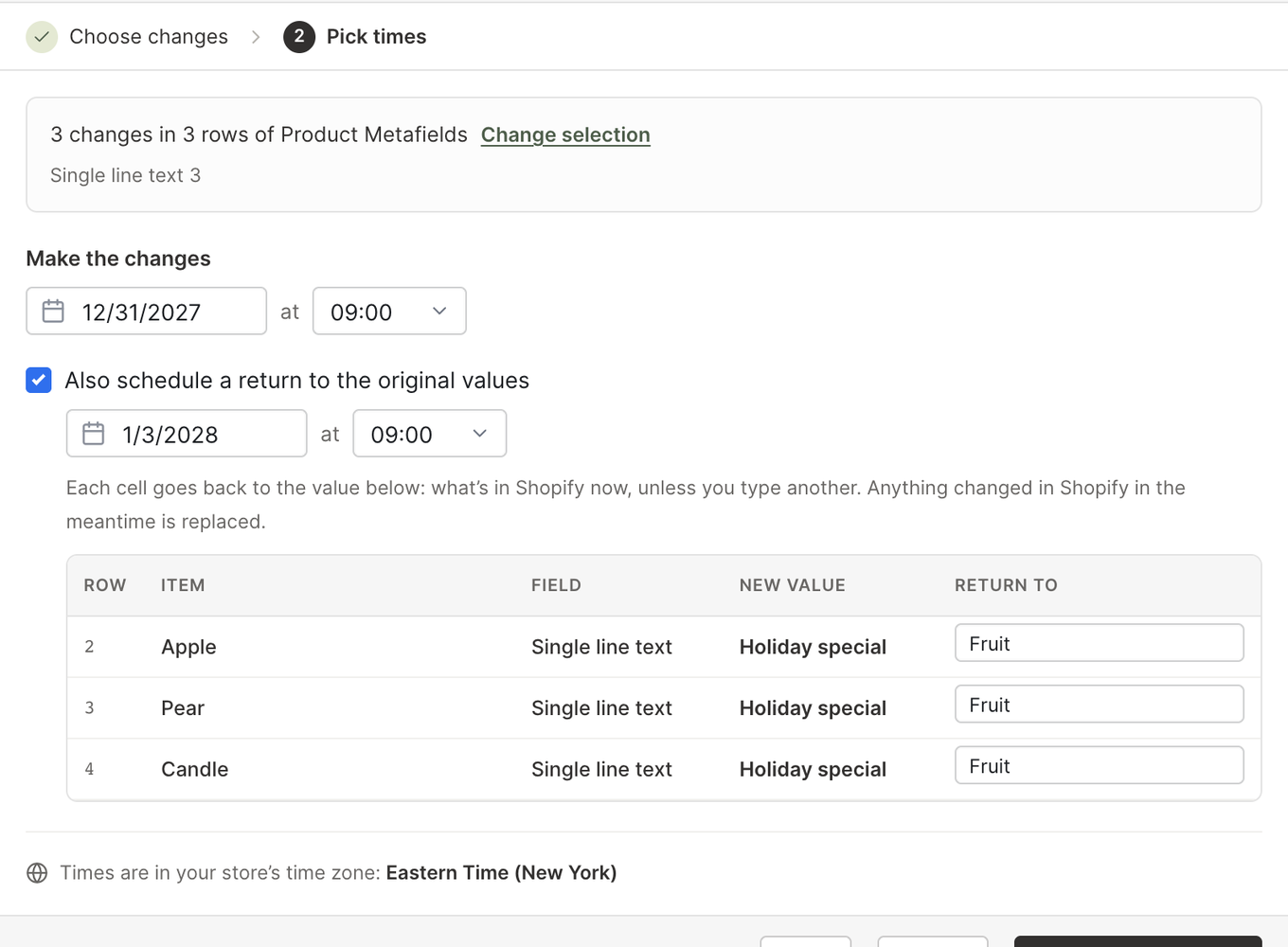
Pick a date and time for your edits to go to Shopify, and an optional time to change them back, so a sale starts and ends on its own.
Read the guide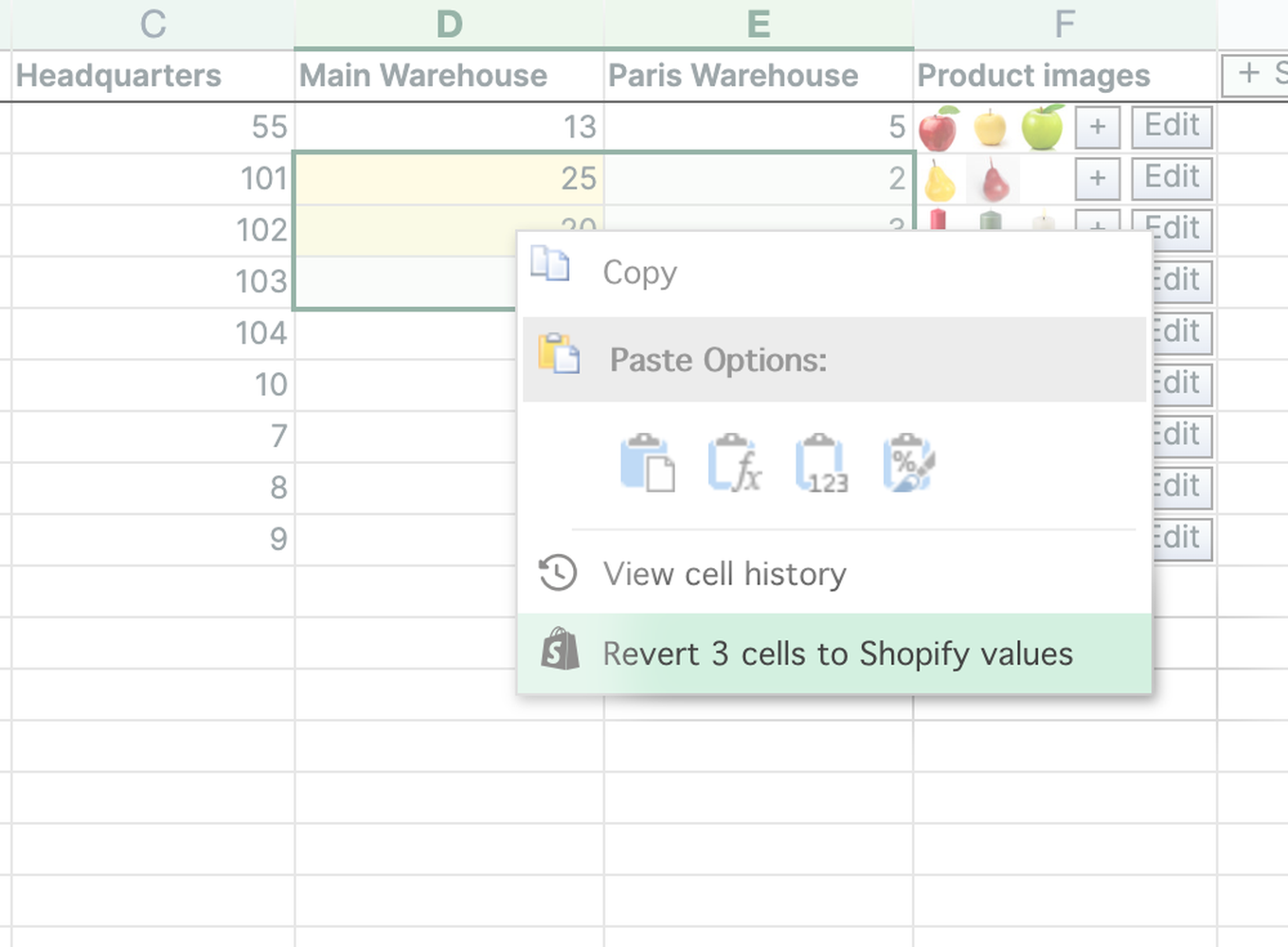
Changed your mind before syncing? Put the selected cells back the way they are in Shopify. Nothing is sent to your store.
Read the guideMixtable supports most Excel formulas. No need to learn something new.
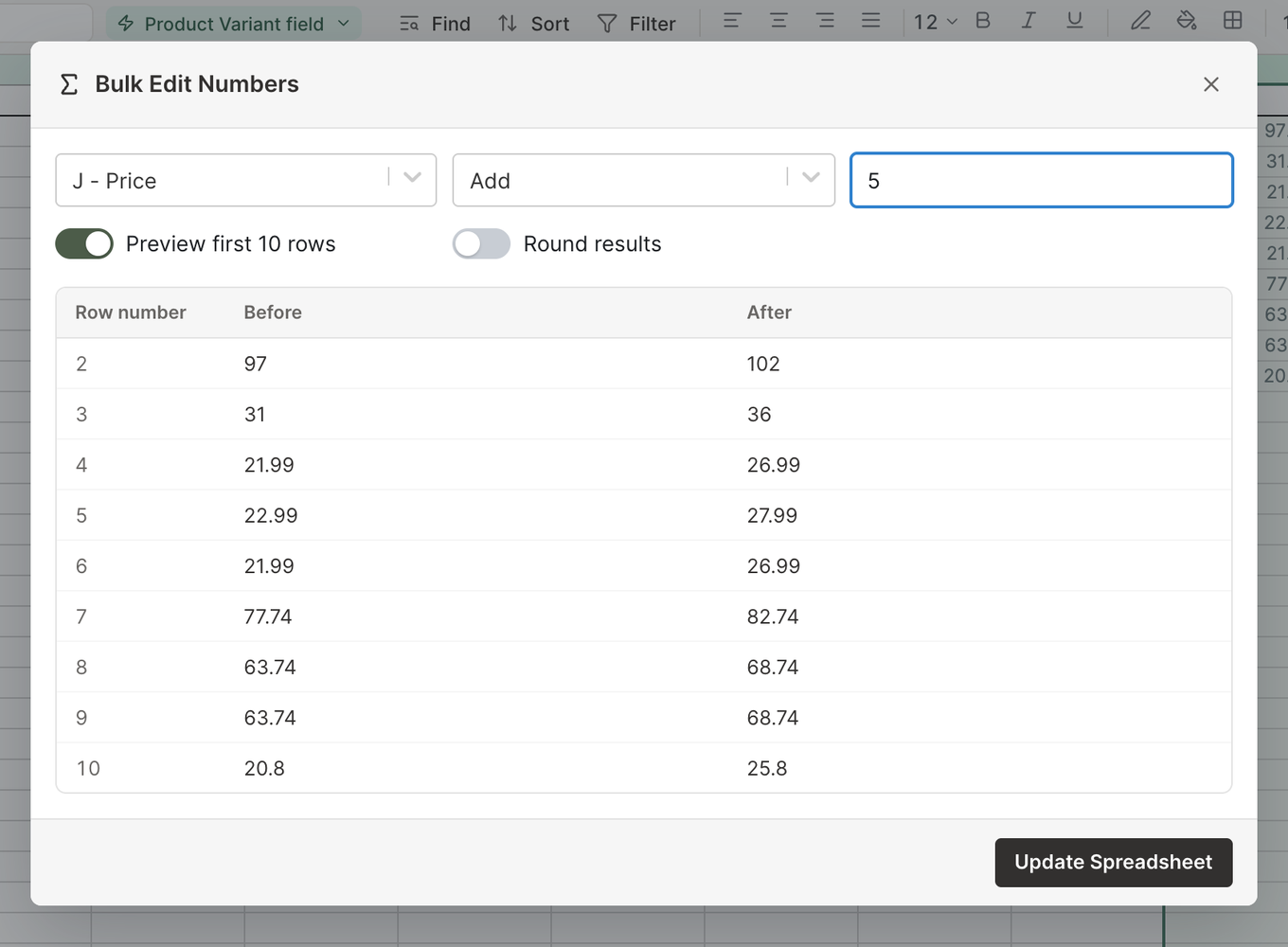
Add, subtract, multiply, or change numbers by a percentage across a whole column. Saves you from manually modifying individual cells.
Read the guide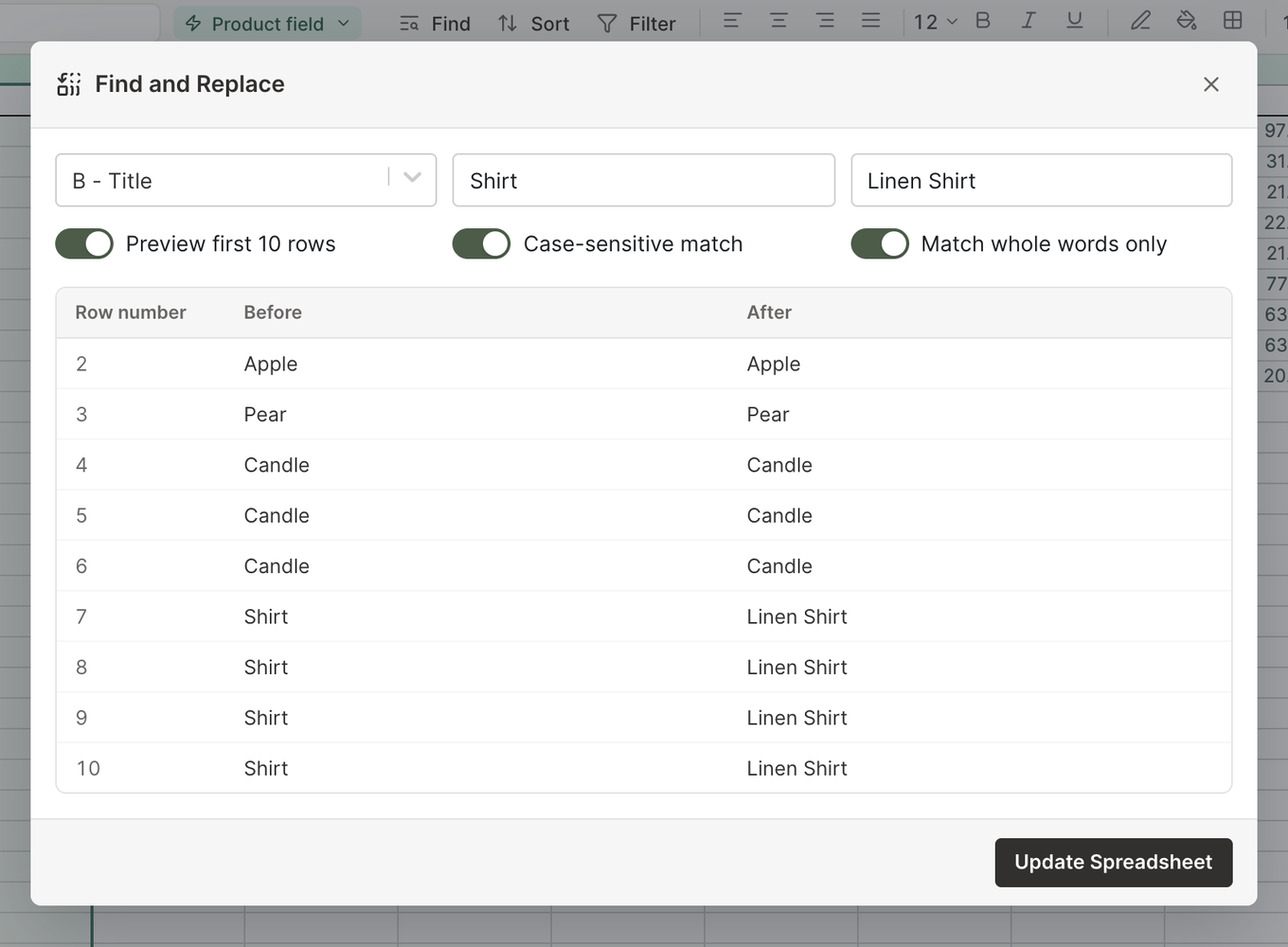
Find and replace content in cells in seconds.
Read the guide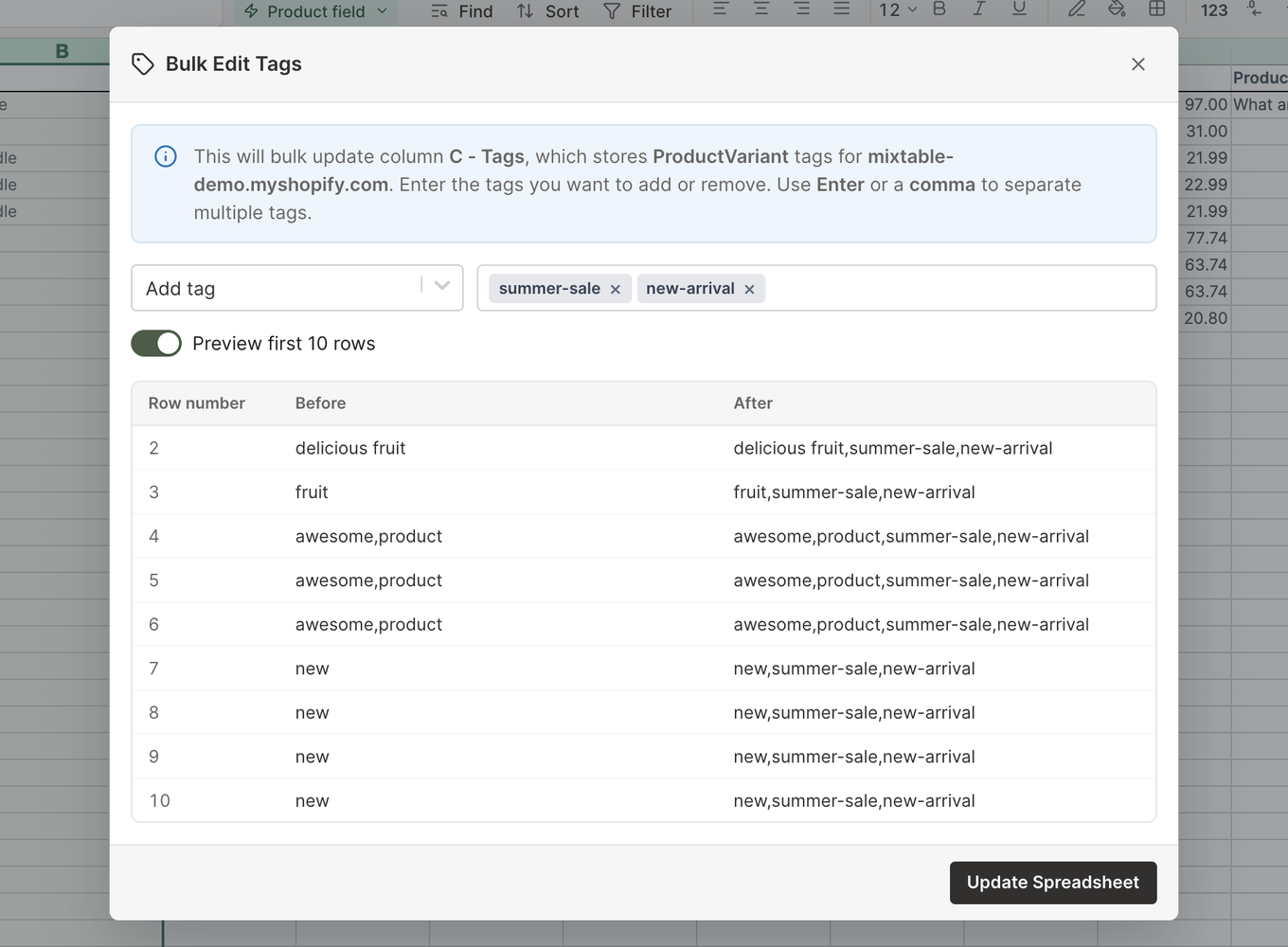
Instead of editing cells, use Add tags and Remove tags in the Bulk Edit menu to change tags on many products fast.
Read the guide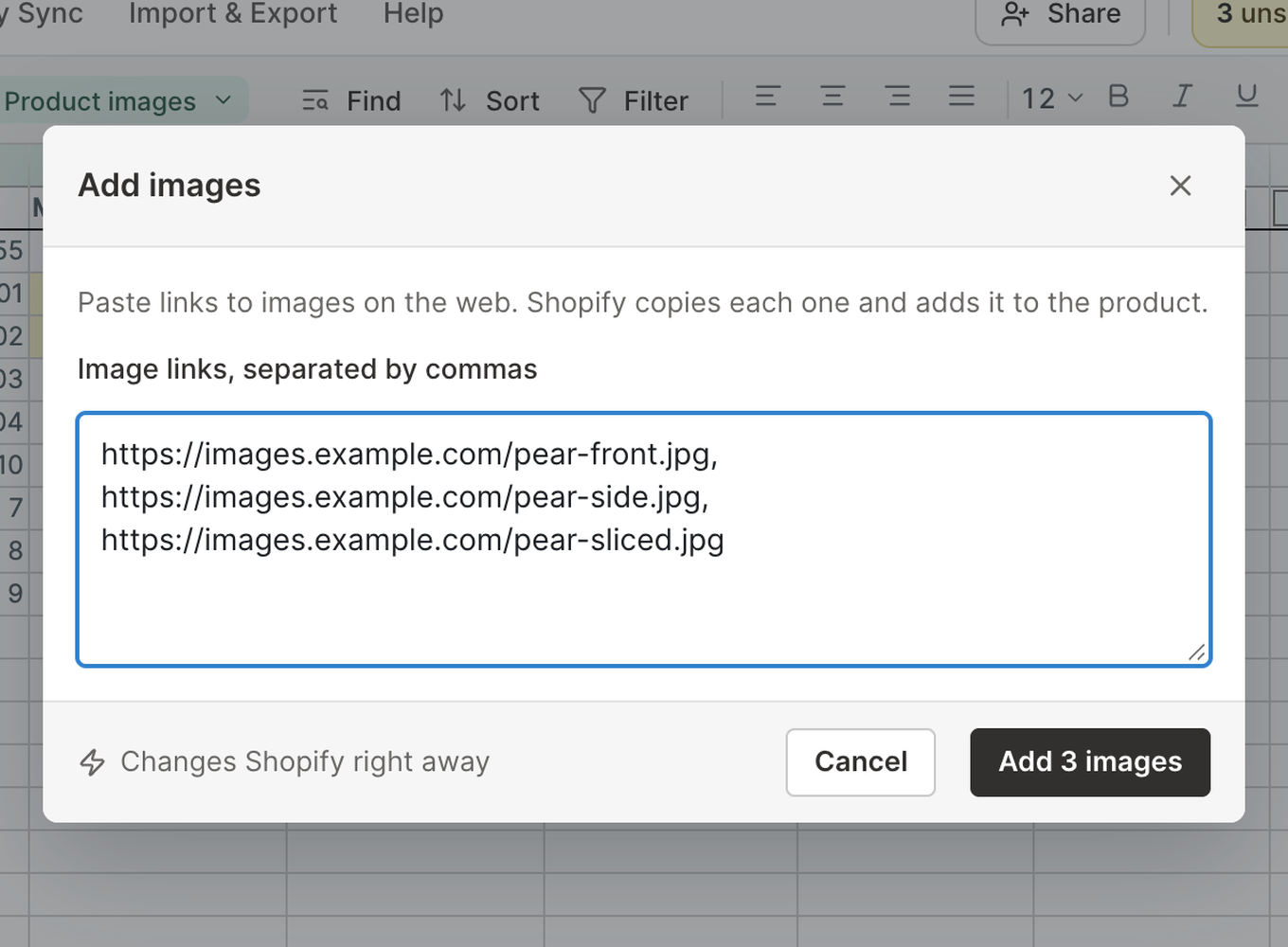
Paste links to several images at once, and Shopify adds each one to the product.
Read the guide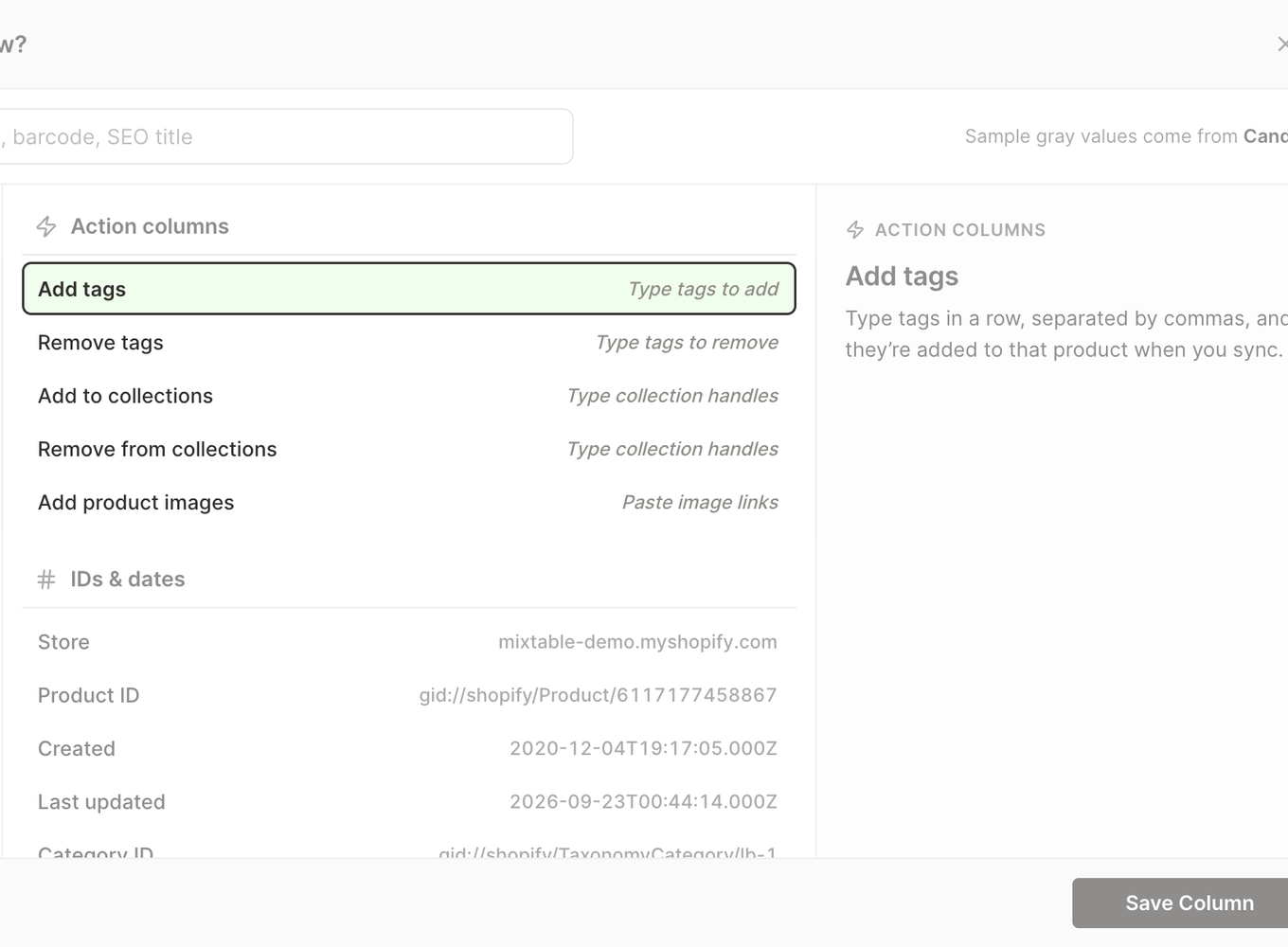
Add or remove tags, add products to or remove them from manual collections, and add images, one instruction per row, all sent in one sync.
Read the guide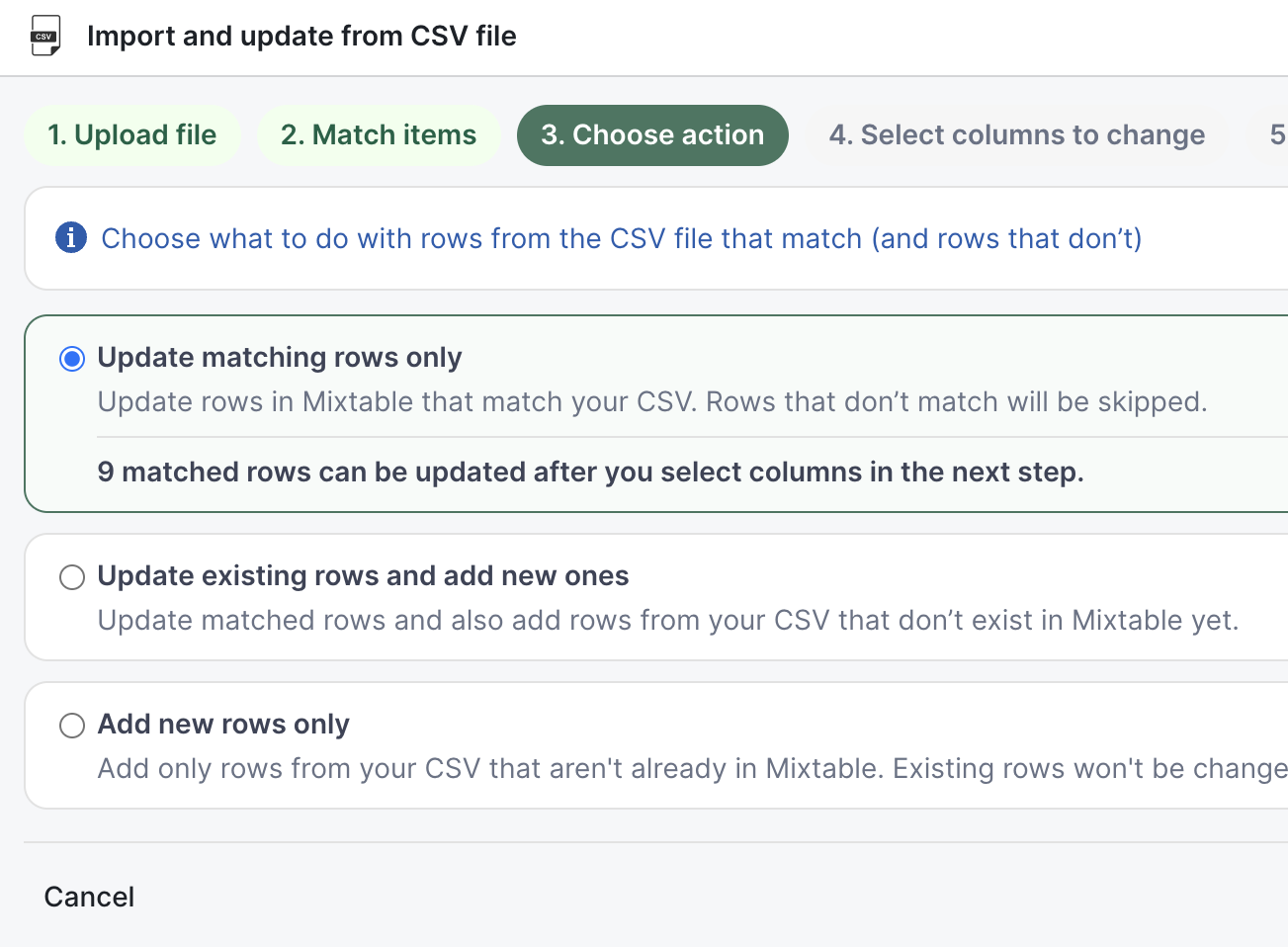
Match the rows in a supplier or stock-count CSV to your worksheet, choose the columns to update or add new rows, then review and sync.
Read the guide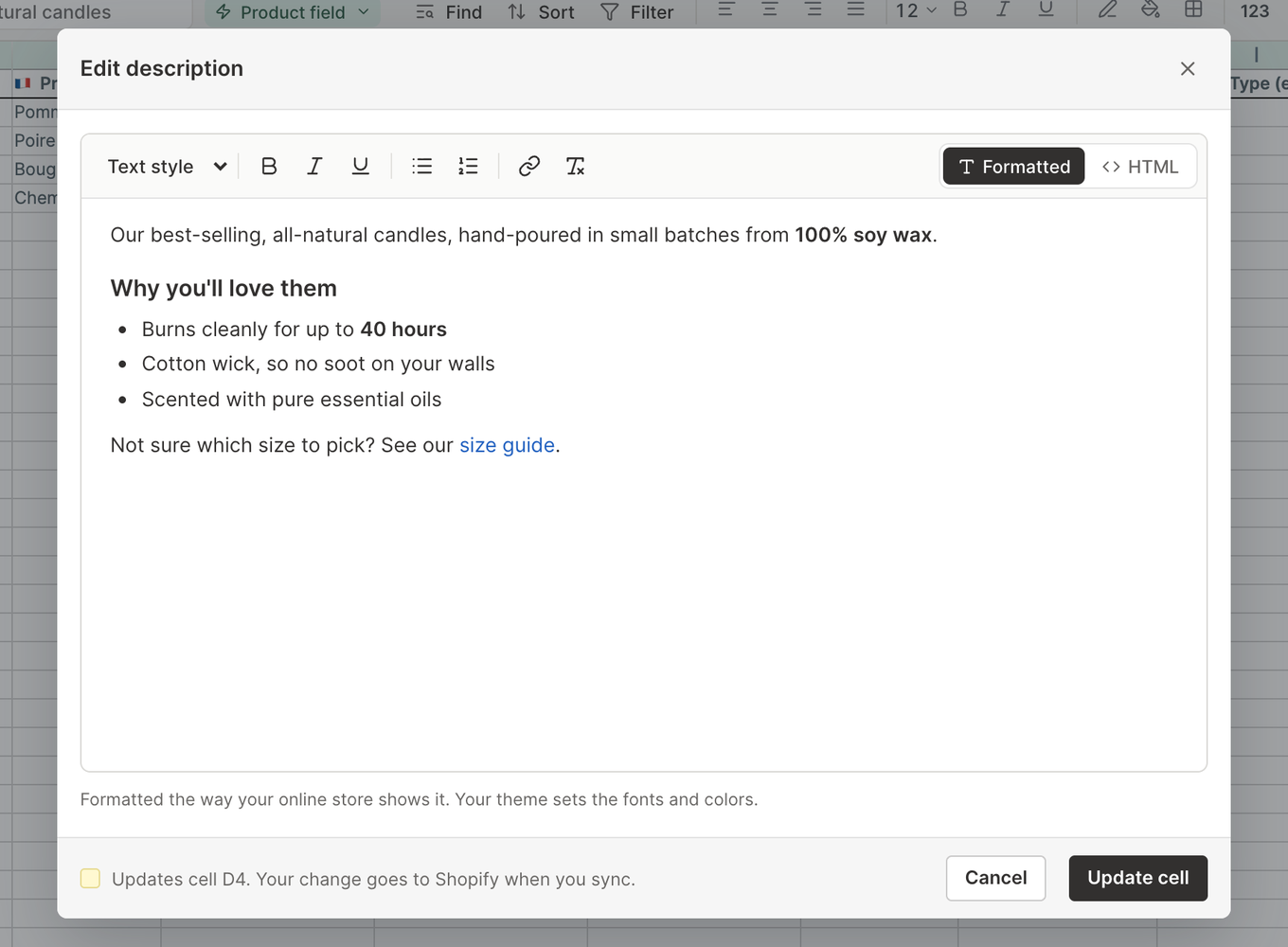
Format a product description with headings, bold text, lists, and links the way it looks in your store, without touching the HTML.
Read the guide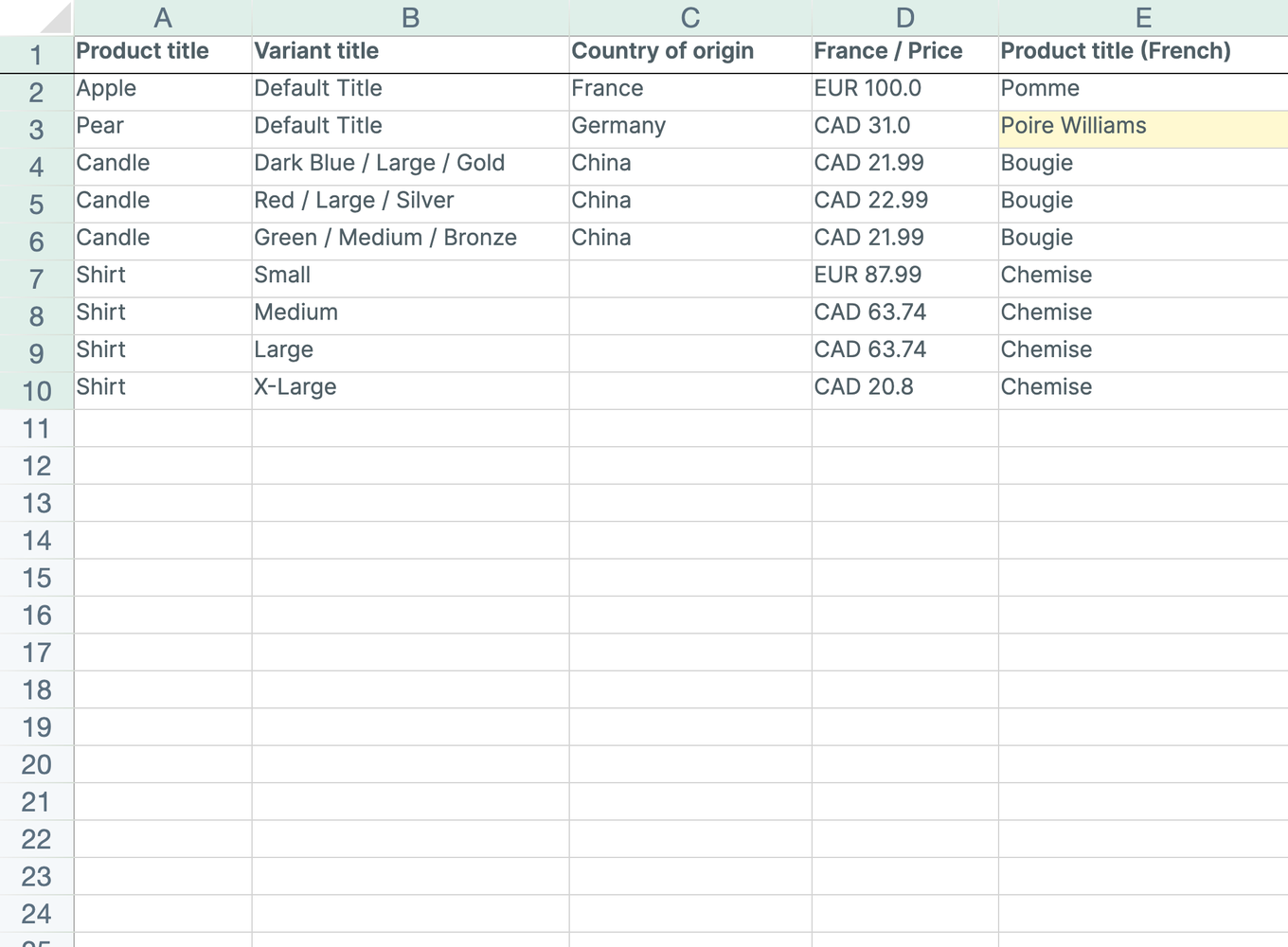
Add metafields, translated fields, and fixed prices for your international markets as columns, then edit them like any other cell.
Read the guide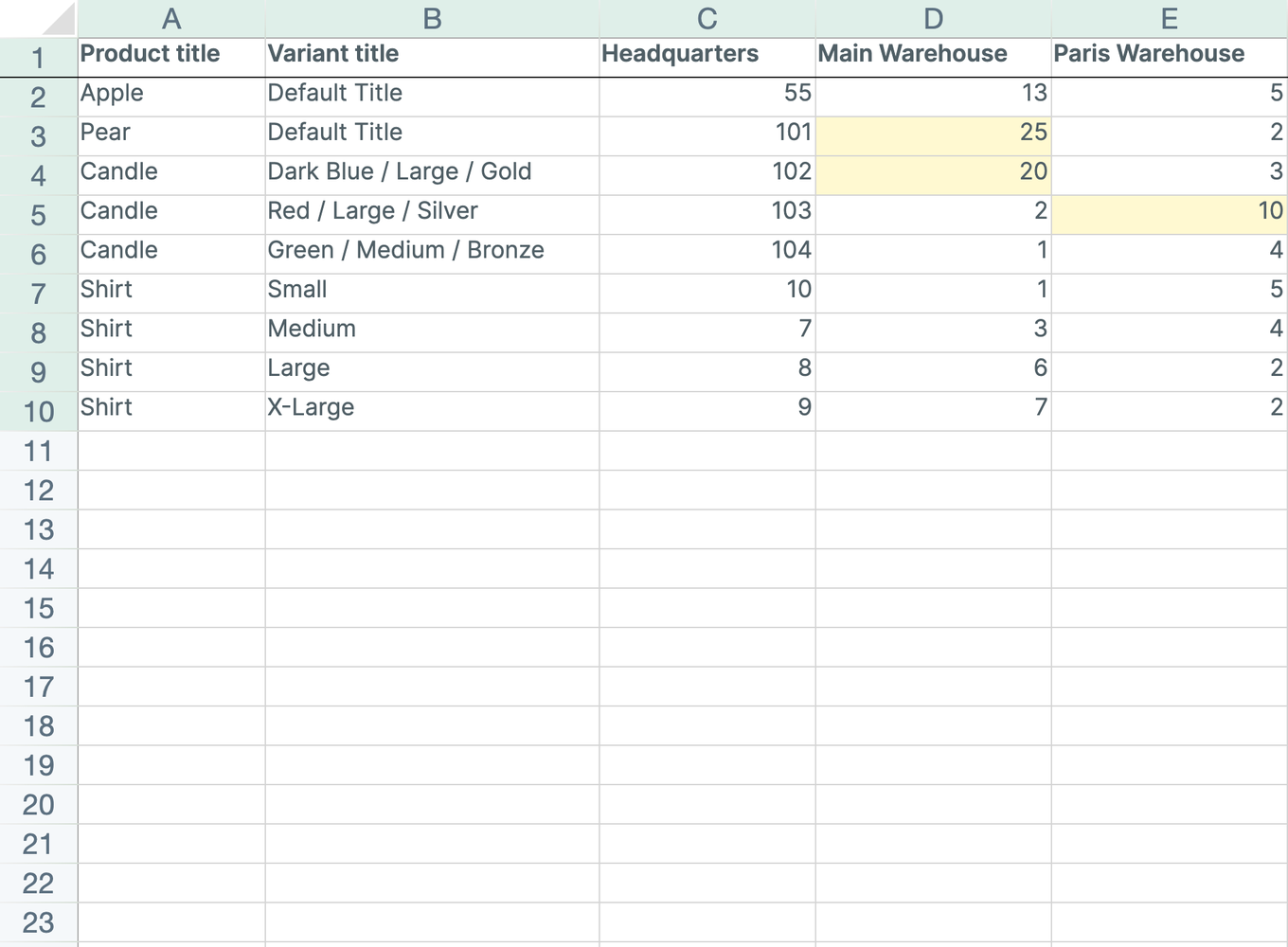
Add one column per Shopify location and update stock everywhere from one sheet by typing, pasting a stock count, or using formulas.
Read the guide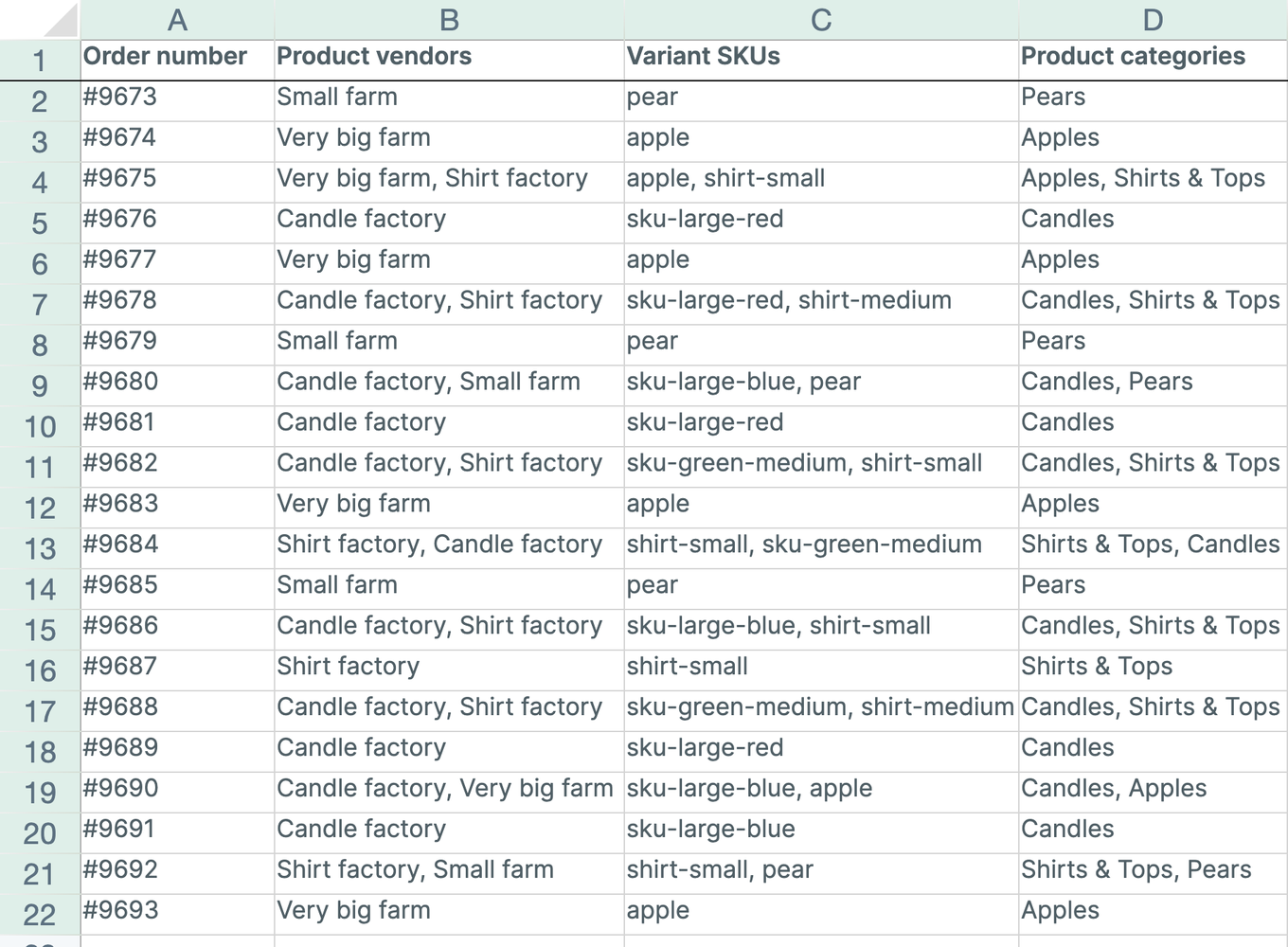
Show details from related records in the row, such as the vendors, SKUs, and product categories in each order. No VLOOKUPs.
Read the guide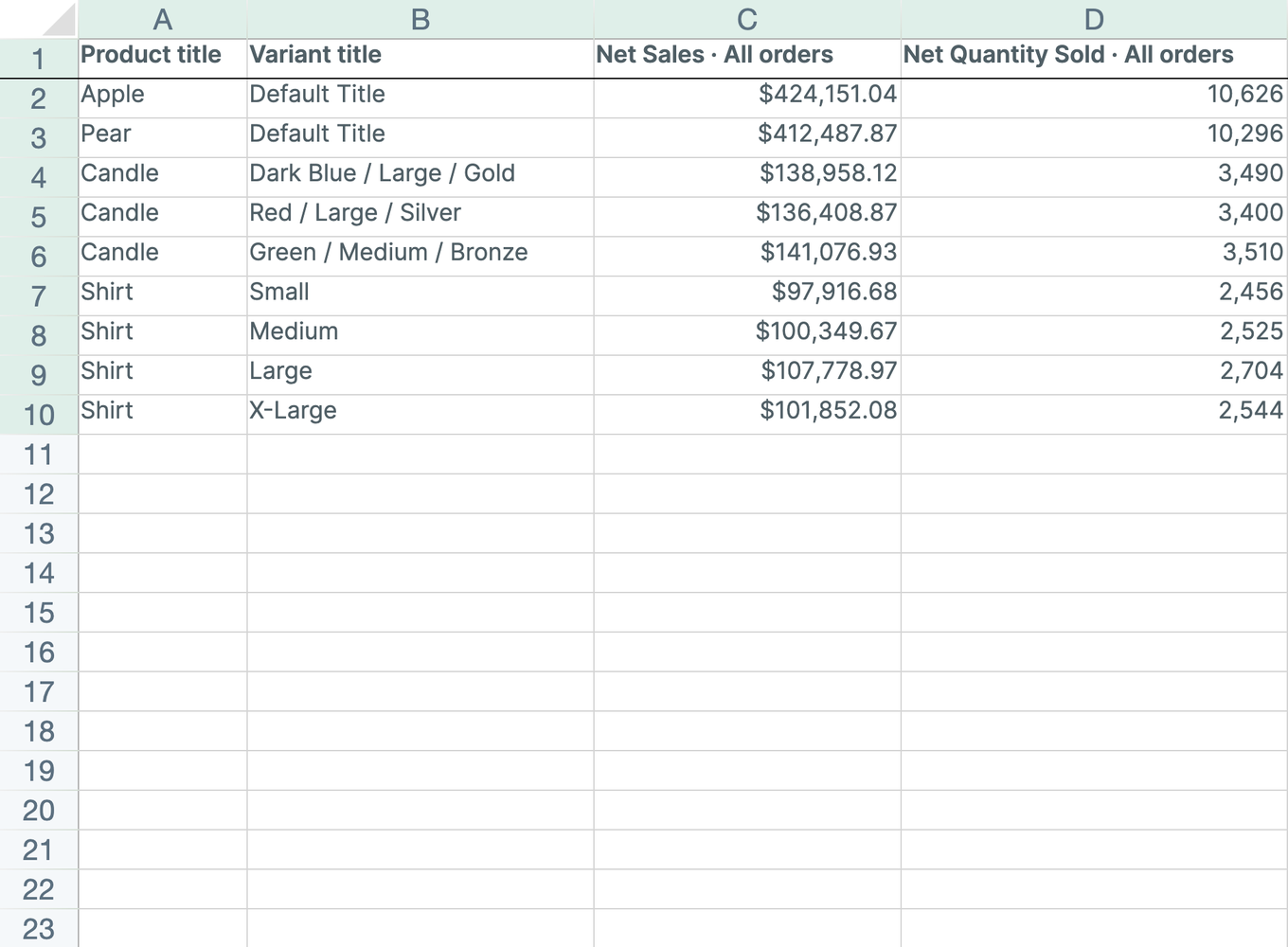
Add Net Sales, quantity sold, refunds, or margin for a timeframe you choose, calculated from your store's orders and shown next to each product or customer.
Read the guide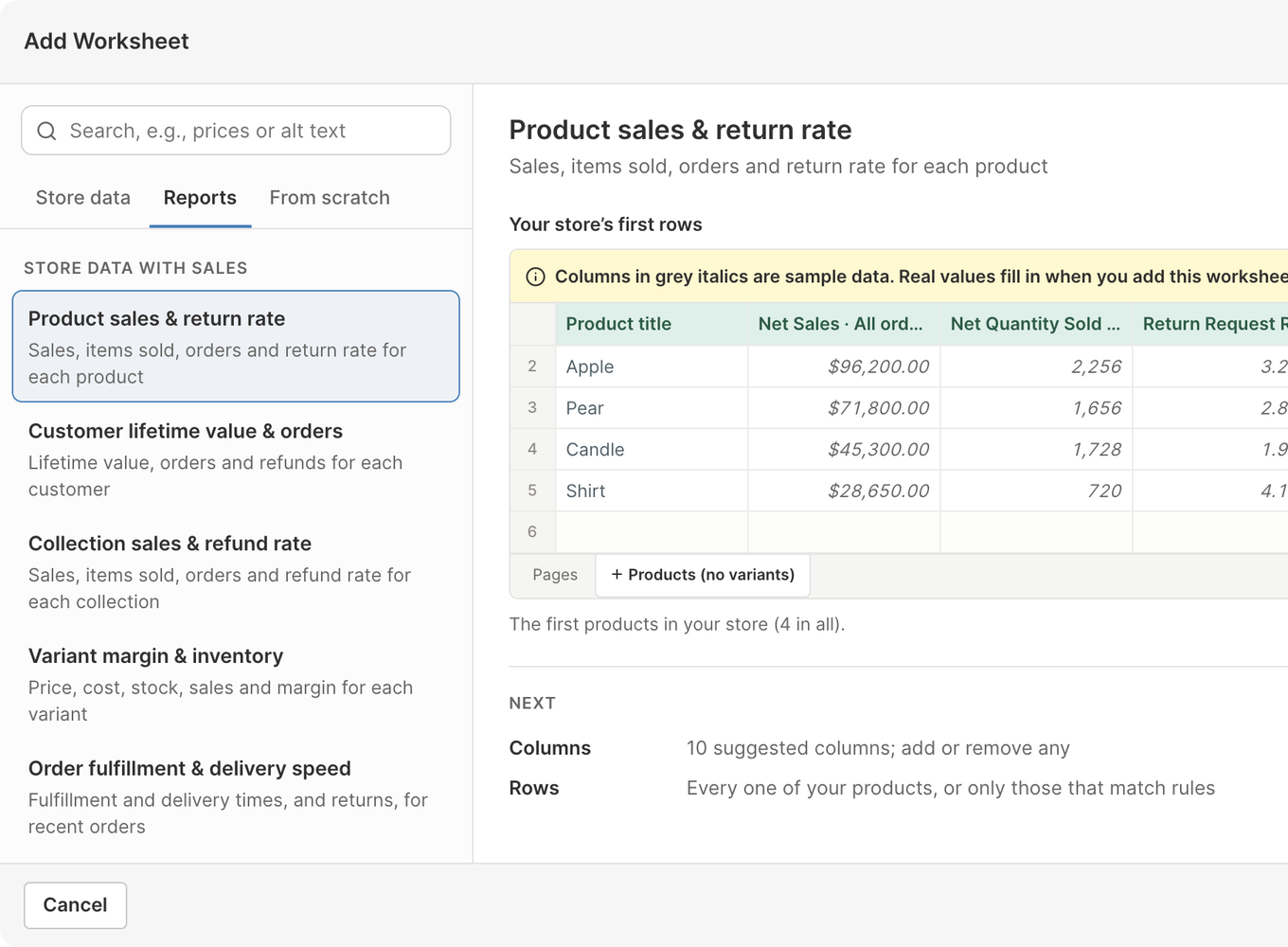
Start from a report such as sales by vendor or product sales by month, with the breakdown, metrics, and timeframe already chosen. Change any of them.
Read the guide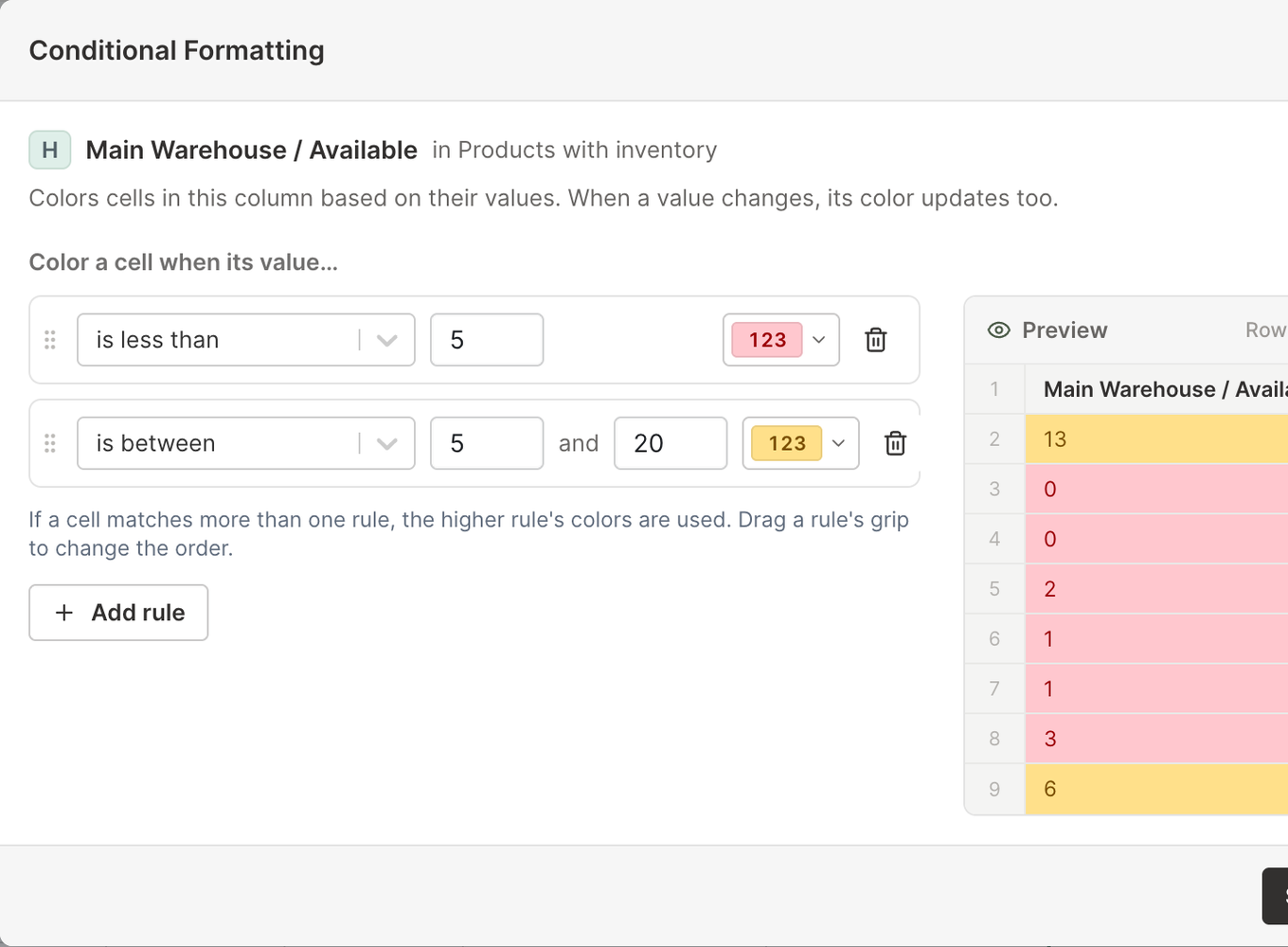
Color cells by their value, such as low stock in red, so the rows that need attention stand out. Colors update as the values change.
Read the guideSee everything Mixtable has saved for a row's Shopify record, including fields that aren't columns in your worksheet
Read the guide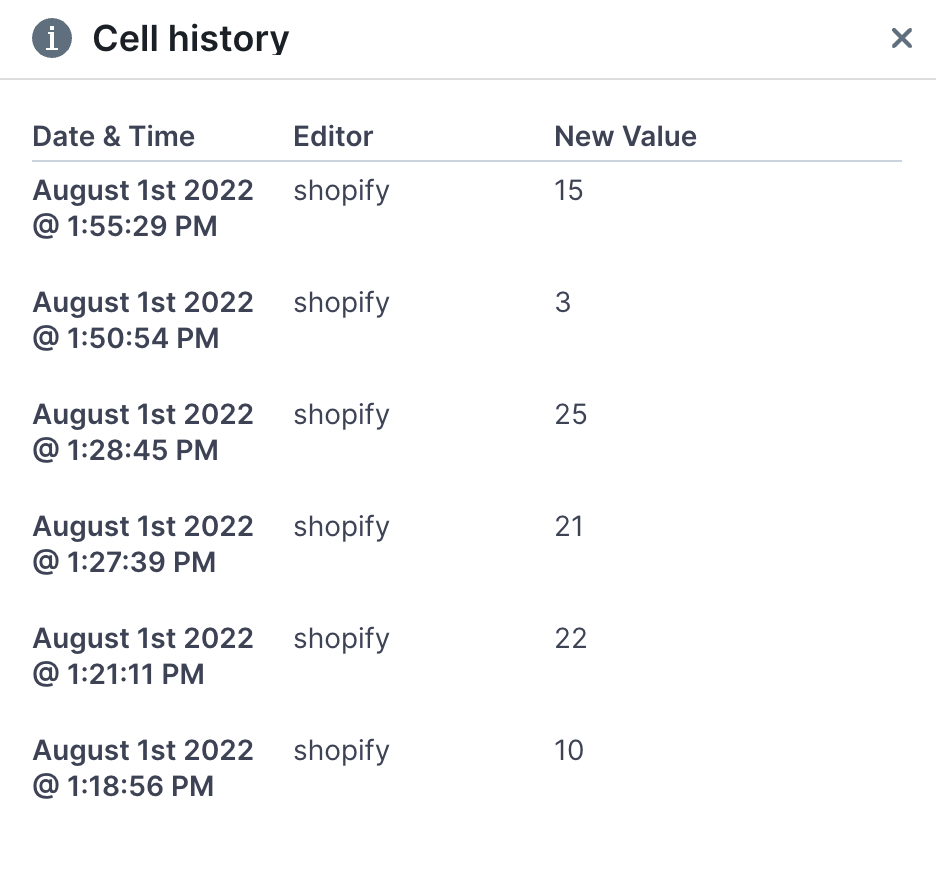
See how a cell's value has changed over time
Read the guide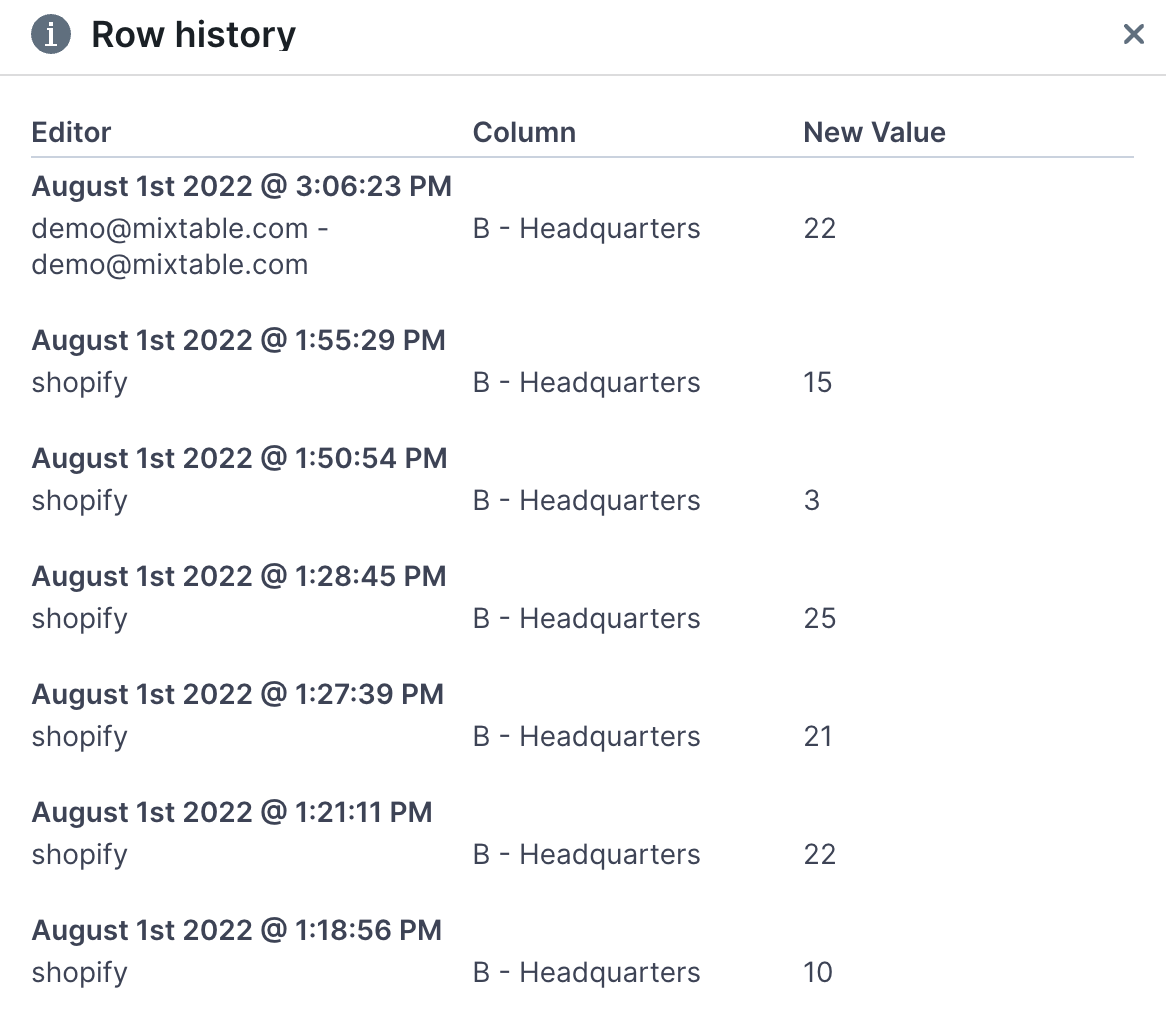
See how a row's Shopify fields have changed over time
Read the guide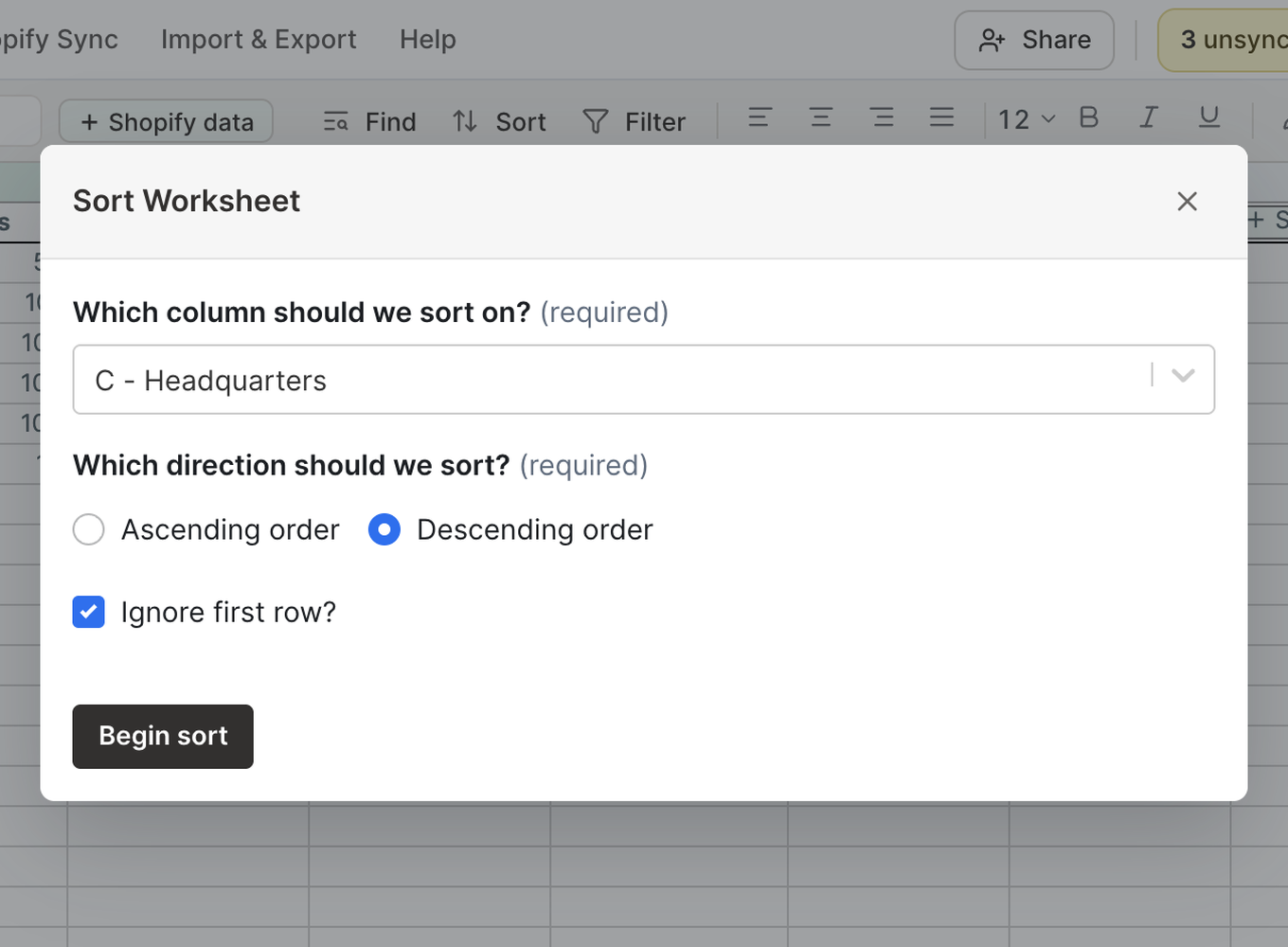
Sort your worksheet as you would in Excel
Read the guideWant to only see products by a certain vendor? Use our Excel-like row filter
Read the guideLock the top row and left-hand-most column so they stay put while you scroll
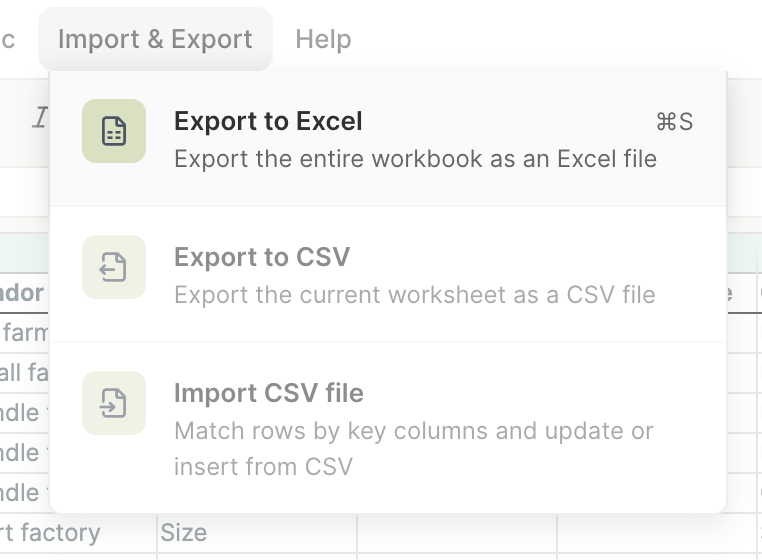
Download the whole spreadsheet as an .xlsx file that keeps your formatting, or the worksheet you are on as a CSV.
Read the guide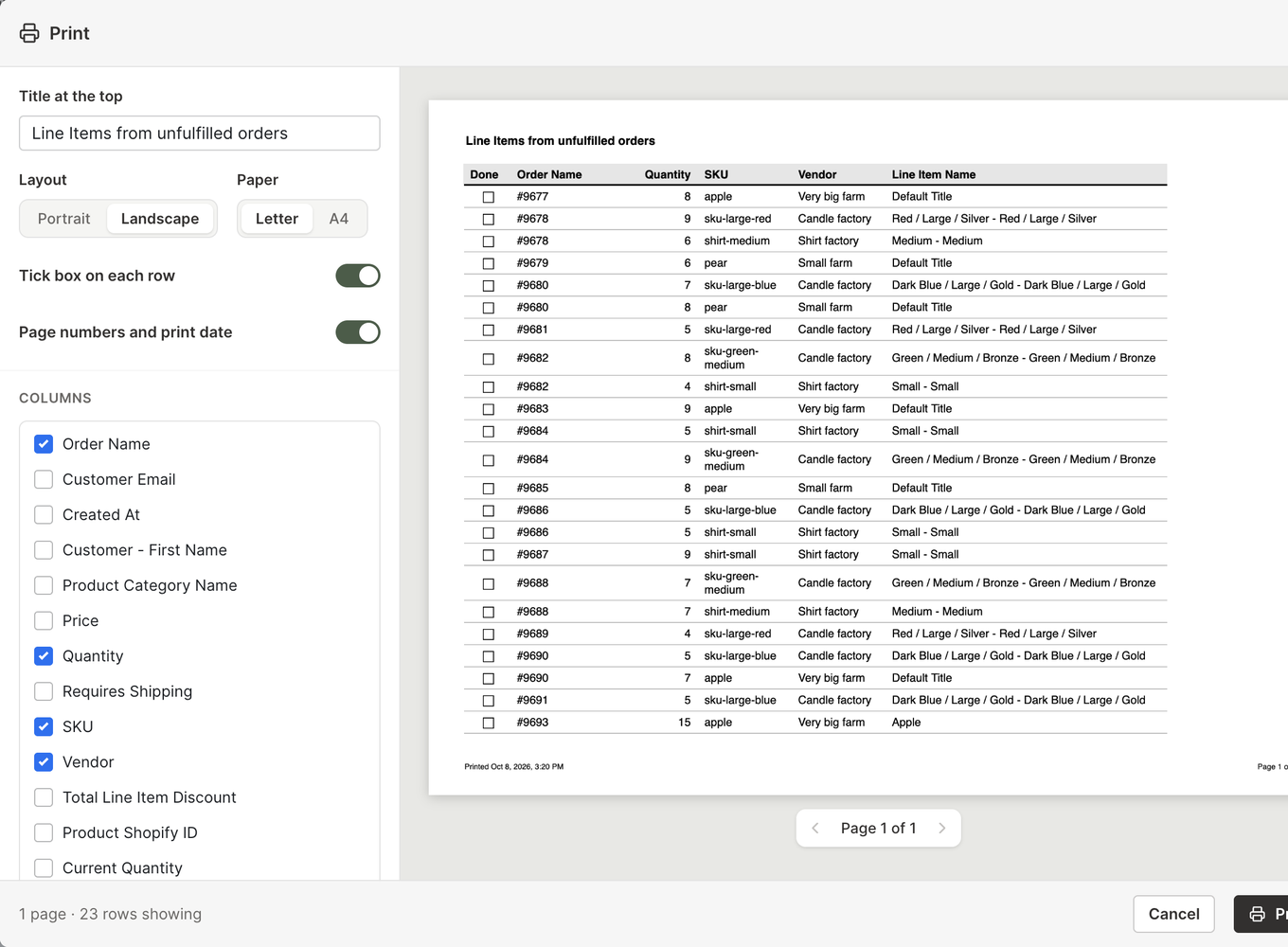
Print a pick list of unfulfilled orders, a stock-count sheet, or a report. Choose the columns and see every page before it prints.
Read the guide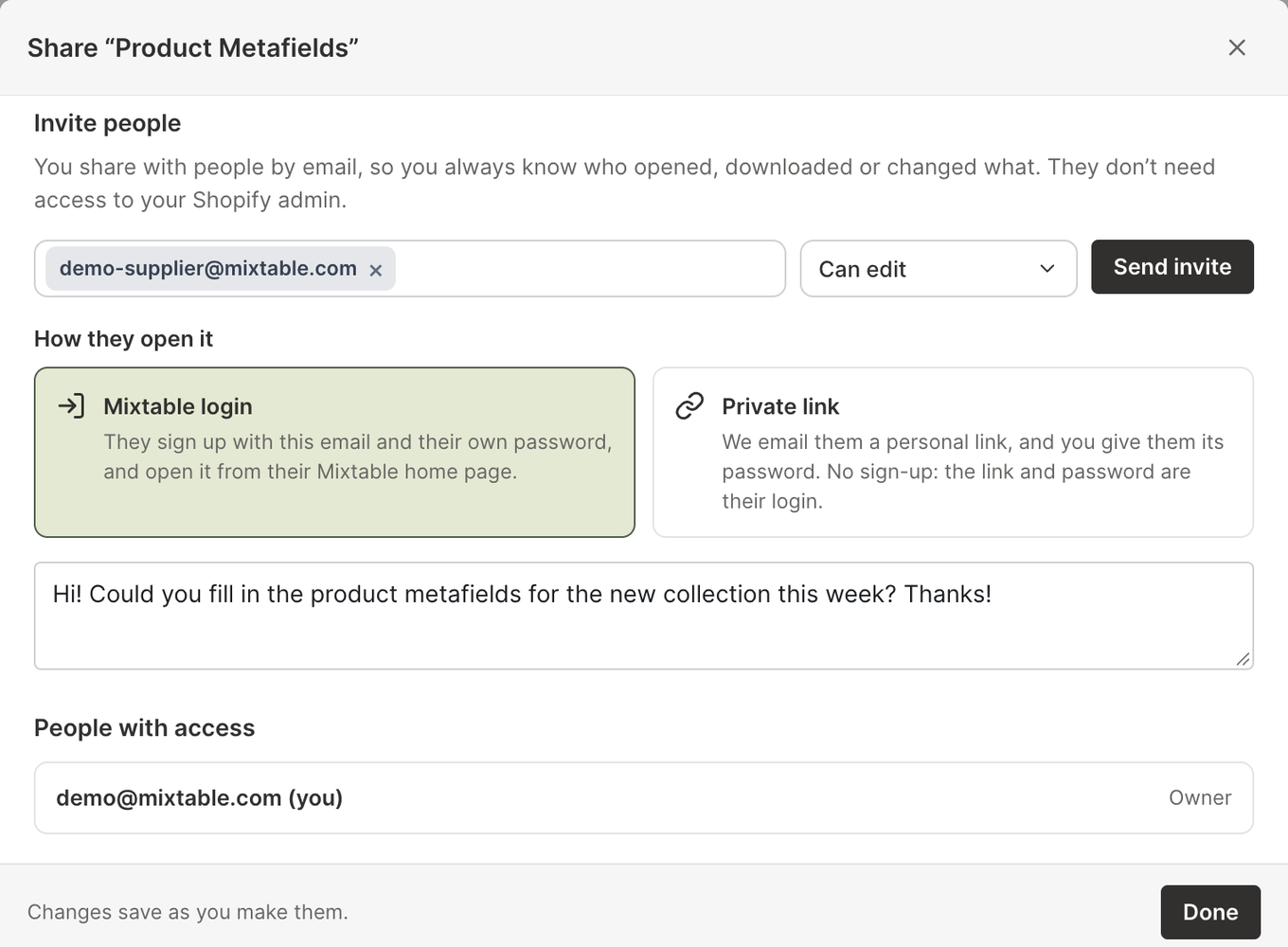
Invite teammates, agencies, or vendors by email to the worksheets they need, to view or to edit, without making them Shopify staff.
Read the guideMost merchants have their first sheet loaded within a couple of minutes of installing.